
SFTP (SSH File Transfer Protocol) is commonly used to access files stored on a remote server securely. However, working with files through an SFTP client can become inconvenient when you frequently need to open, edit, copy or manage remote files.
A more convenient approach is to mount SFTP as a local drive Windows. Once mounted, the remote SFTP location appears in File Explorer with its own drive letter, allowing you to access files almost like files stored on your computer.
You can mount SFTP as a drive using a free manual SSHFS Win route. However, if you want a simple, reliable option, you can use this professional cloud mount utility.

What Does It Mean to Mount SFTP as a Local Drive?
Mounting SFTP as a local drive means connecting a remote SFTP Server to Windows so that it appears as a normal drive in File Explorer. Instead of opening an SFTP client every time you need a file, you can access the remote location from This PC. The files remain on the remote server while Windows provides a familiar interface for browsing and managing them.
Why Mount SFTP as a Windows Drive?
Mounting SFTP as a drive in Windows can make regular file management easier.
- File Explorer Access: Access remote files through the familiar Windows Explorer interface.
- Drive Letter: Give the SFTP location a drive letter or other name and access it like other connected drives.
- No Repeated Downloads: Open or manage remote files without manually downloading them through an SFTP client every time.
- Simpler File Management: Edit, save, copy and organize files using standard Windows operations.
Remote Storage Access: Keep files on the SFTP server while accessing them from Windows.
What You Need Before Mounting SFTP?
Before starting, collect the following SFTP connection details:
- SFTP server hostname or IP address
- Username
- Password or SSH private key
- Port number
- WinFsp installed
- SSHFS-Win installed
- A Windows computer with permission to install the required software
Make sure the SFTP account has the necessary permissions to read, write, upload and delete files if you need those operations.
How to Map SFTP as a Drive On Windows Manually?
You can mount SFTP as a local drive using free, open-source tools such as WinFsp and SSHFS-Win.
- Download and install WinFsp.
- Install SSHFS-Win on top of it.
- Open File Explorer, right-click on This PC and choose Map network drive.
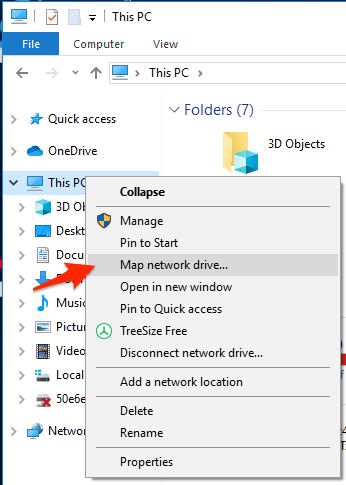
- Choose your drive letter and enter the path in this format:
\\sshfs\username@server-address - Enter your SFTP username and password when prompted and finish the process.
Now your SFTP server appears on File Explorer as a mapped drive.
How to Mount SFTP as Local Drive Windows Professionally?
While the manual method is free but it comes with issues like complex technical setup, slow browsing speeds and the need for frequent manual reconnections. To avoid all these drawbacks, you can use Prapl Cloud Mount Manager. It eliminates the need for command lines or manual path entry. Just enter the login details of your SFTP server, the tool will display it in File Explorer as a drive. Once mounted, remote files appear just like local files. You can open, edit and save them easily.
Steps to Mount SFTP as a Windows Drive
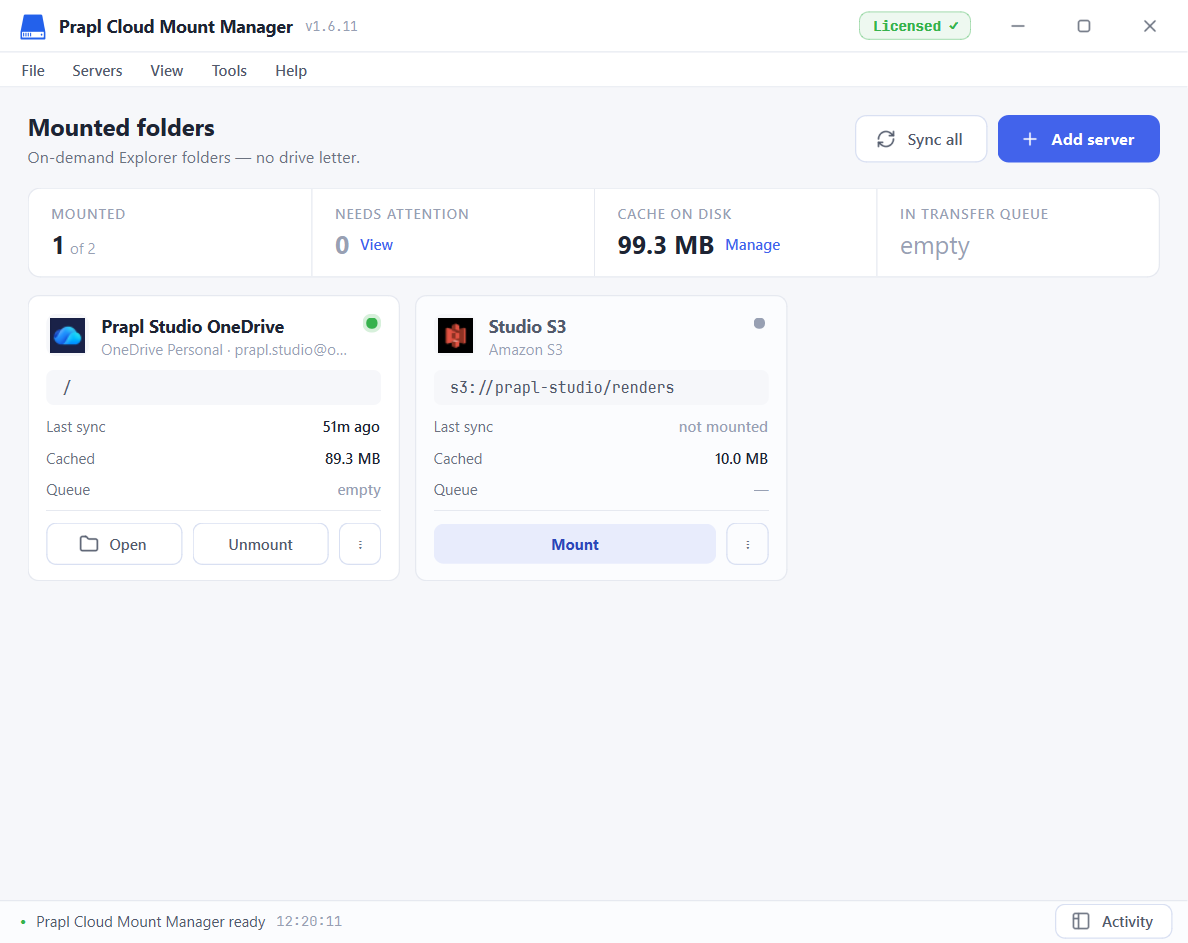
1. Run the tool on your Windows PC and click on Add Server.
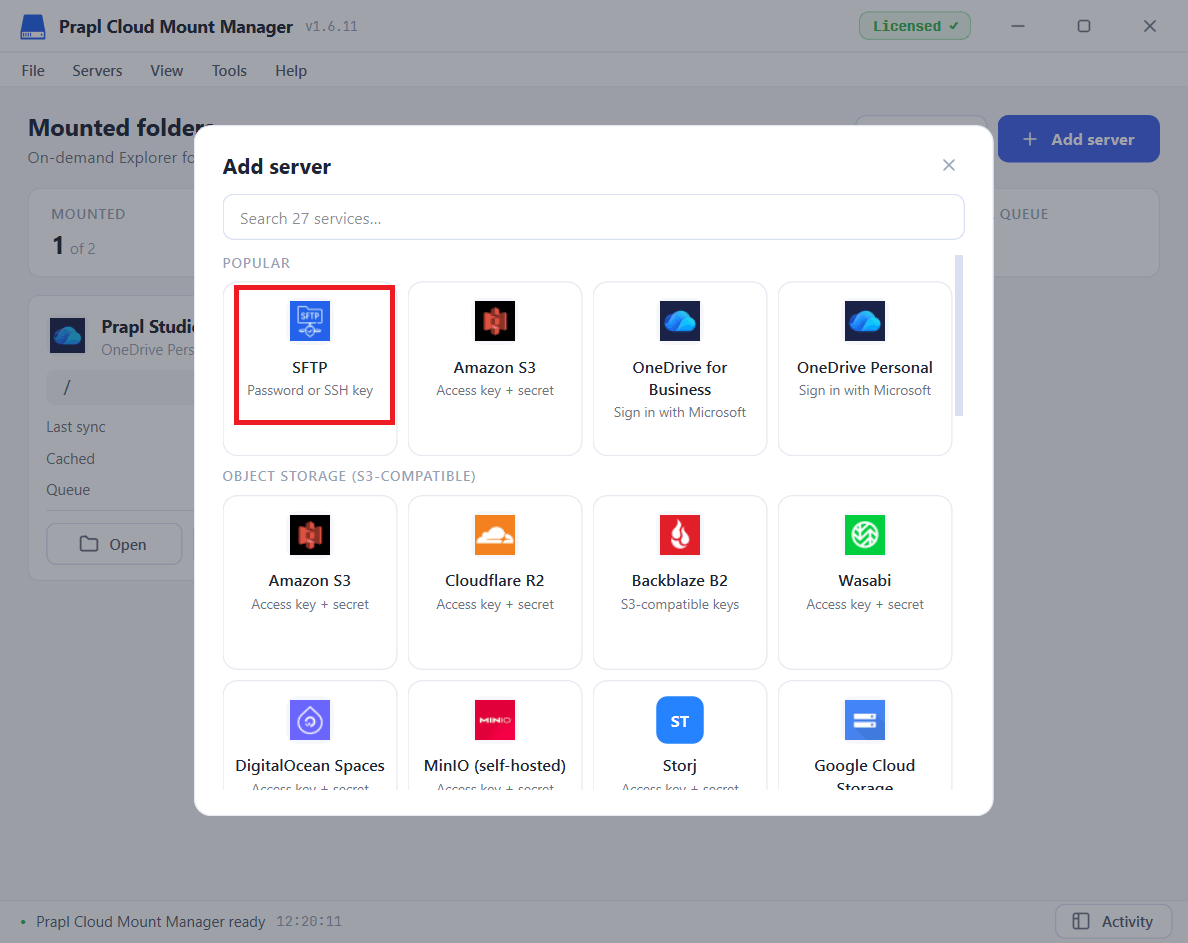
2. Choose the SFTP server.
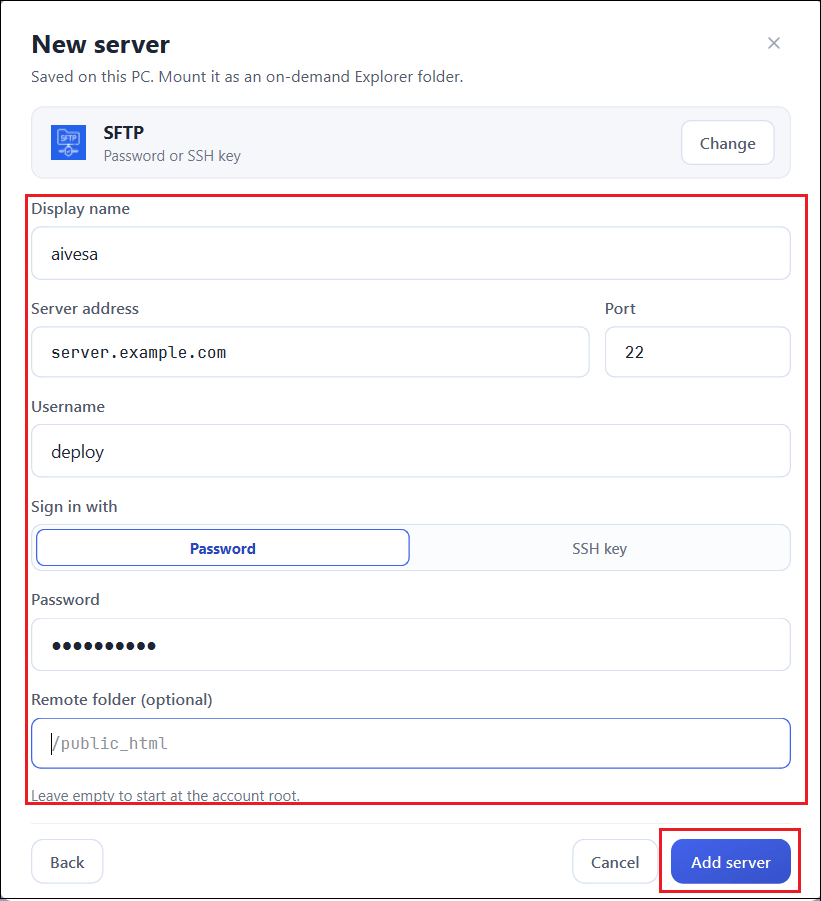
3. Enter the login details and click Add Server.
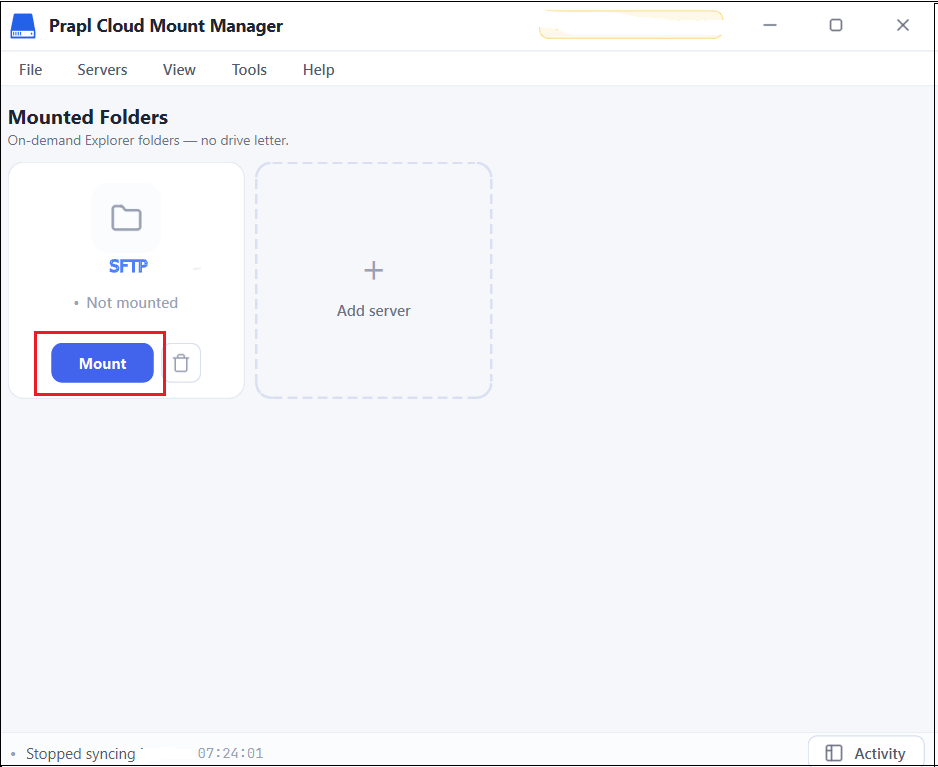
4. Once your server is added, click Mount. The server is then made available as a folder in Windows File Explorer.
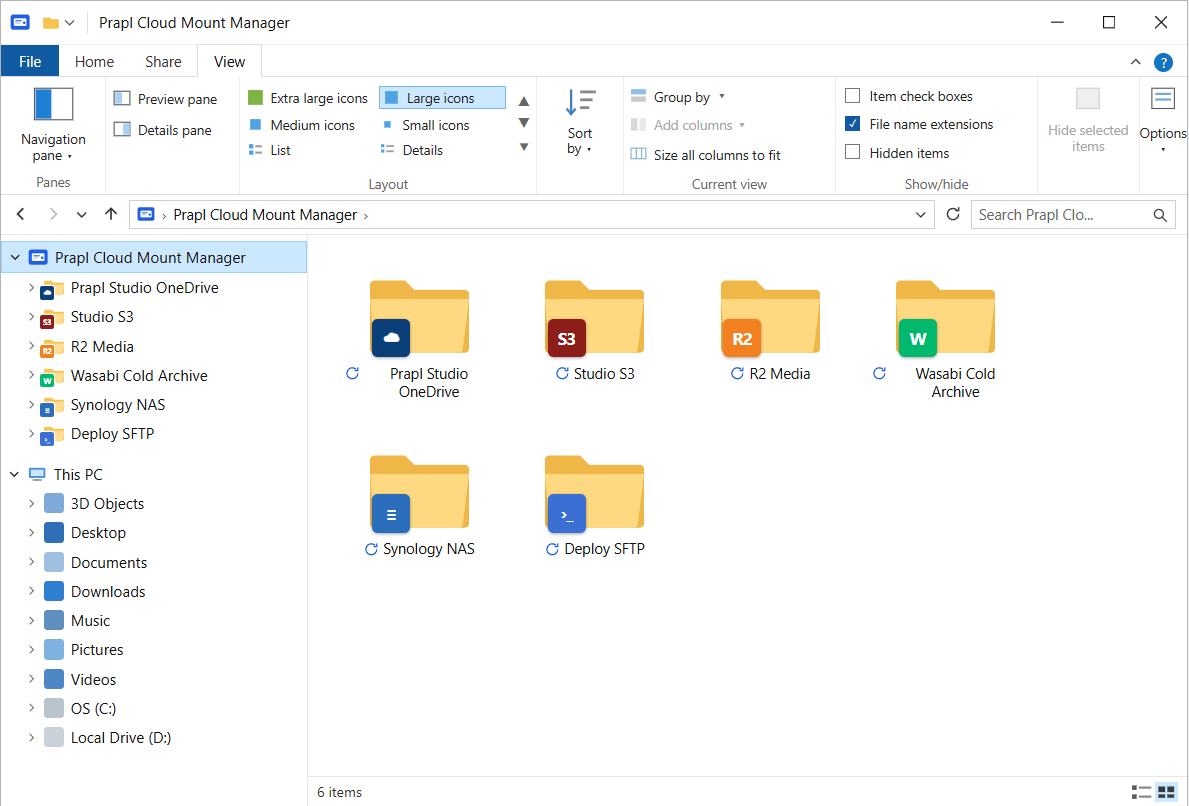
5. Open the mounted SFTP server from File Explorer and browse its folders. Edit files in any app and save. Changes will automatically save to the server.
Concluding Words
Mapping SFTP as a Windows drive is not complicated. In this post, we have explained two best ways to mount SFTP as a local drive Windows. If you are comfortable with technical setup and want a free solution, the manual SSHFS-Win route works. However, if you want something reliable, secure and simple, especially if you have multiple servers or cloud accounts to map then choosing the professional solution is the best option.
Frequently Asked Questions
Q1. Does Windows support SFTP natively?
Ans. No. Windows File Explorer has no native SFTP support. You need to use a third-party tool to map an SFTP server as a drive.
Q2. What port does SFTP use?
Ans. SFTP typically runs over port 22, the same port as SSH. Some servers use a custom port, so check with your host if 22 does not connect.
Q3. Can I mount more than one SFTP servers as a local drive?
Ans. Yes. The cloud mount manager can map multiple servers and cloud accounts simultaneously and manage them all from File Explorer.