Prapl Cloud Mount Manager

Mount cloud storage as a local folder on your PC with Prapl Cloud Mount Manager. Connect NAS, OneDrive, AWS S3, FTP, SFTP or other storage services and browse, move, copy, and edit files directly from File Explorer. There is no need to download files beforehand. They are accessed only when you open them. When you save changes to a file, it is automatically updated on the server.

Compatible With · Windows 10 & 11
15-Days free trial No credit card One-time cost, from $49
On-demand — 0 MB used until you open Saves upload back automatically cloud mount software
Supported services

Storages & Servers You Can Mount

Web servers, hosting panels, object storage and cloud drives — all in one app, all as folders on your PC.

SFTPSFTP (SSH)VPS & dedicated servers
FTP and FTPSFTP & FTPSany web host
Amazon S3Amazon S3object storage
Cloudflare R2Cloudflare R2S3-compatible
WasabiWasabiS3-compatible
Backblaze B2Backblaze B2S3-compatible
DigitalOcean SpacesDO SpacesS3-compatible
MinIOMinIOself-hosted S3
Google Cloud StorageGoogle Cloudstorage (HMAC)
Azure Blob StorageAzure Blobcontainers
OneDriveOneDrive+ SharePoint
NAS and network drivesNAS boxesSFTP · FTP · WebDAV
cPanel hostingcPanel hostsvia SFTP / FTP
Plesk hostingPlesk hostsvia SFTP / FTP
Also works with:
WebDAVNextcloudownCloudStorjany S3-compatible store

More providers are coming soon — tell us what you need next.

Up and running in a minute

How to Mount Cloud Storage as a local drive in PC

The working process is very simple. Add your server or cloud storage and mount server to local storage in PC, so you can work with remote files directly from File Explorer on your own computer.

1

Launch the Tool and Select Your Server

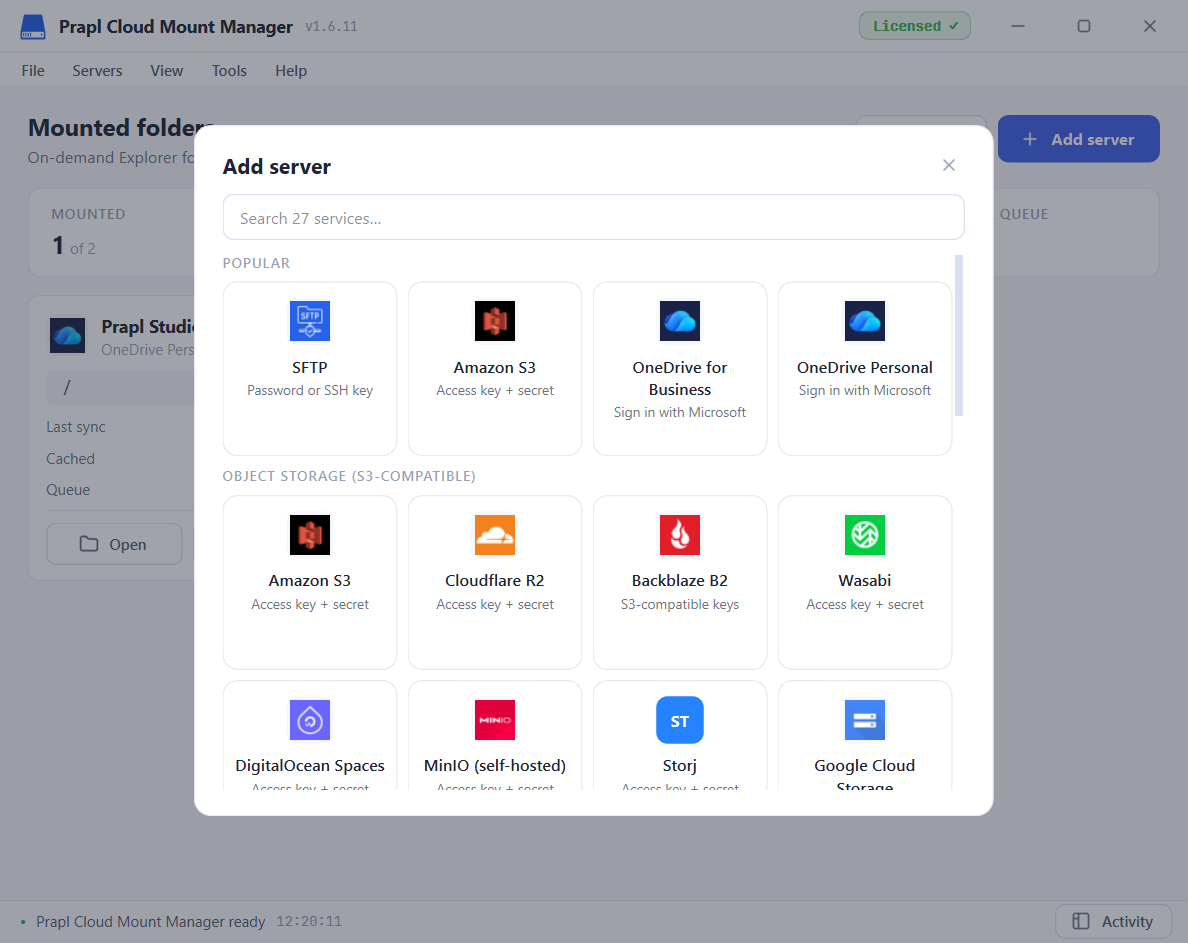
Run the Prapl Cloud Mount Manager on your Windows PC and click Add server. Choose the server or cloud storage you want to connect to.

2

Add Your Server or Cloud Storage

Enter your server login details, cloud access keys or sign in to OneDrive. Save them once, and the software will remember them for future connections. You do not need to enter the same details again.

3

Mount the Server or Cloud Storage

Once your server is added, click Mount. The server is then made available as a folder in Windows File Explorer.

4

Open the Folder and Manage Files

Open the mounted server from File Explorer and browse its folders. Edit files in any app and save. Changes will automatically save to the server.

mount cloud storage as a local storage

Add your server — name it, pick the protocol, enter the login you already use.

Why Prapl Cloud Mounter

Cloud Mount Manager Key Features

Stop downloading files just to edit them and uploading them again. This Mount Cloud software lets you use server as a local drive on your Windows PC. Edit server files locally and when you save them, they simply sync to your server directly. This is the real magic of this cloud mounter. So working with server files feels like working with files on your own computer.

Mount as a folder

Turn Remote Storage into a Real Folder

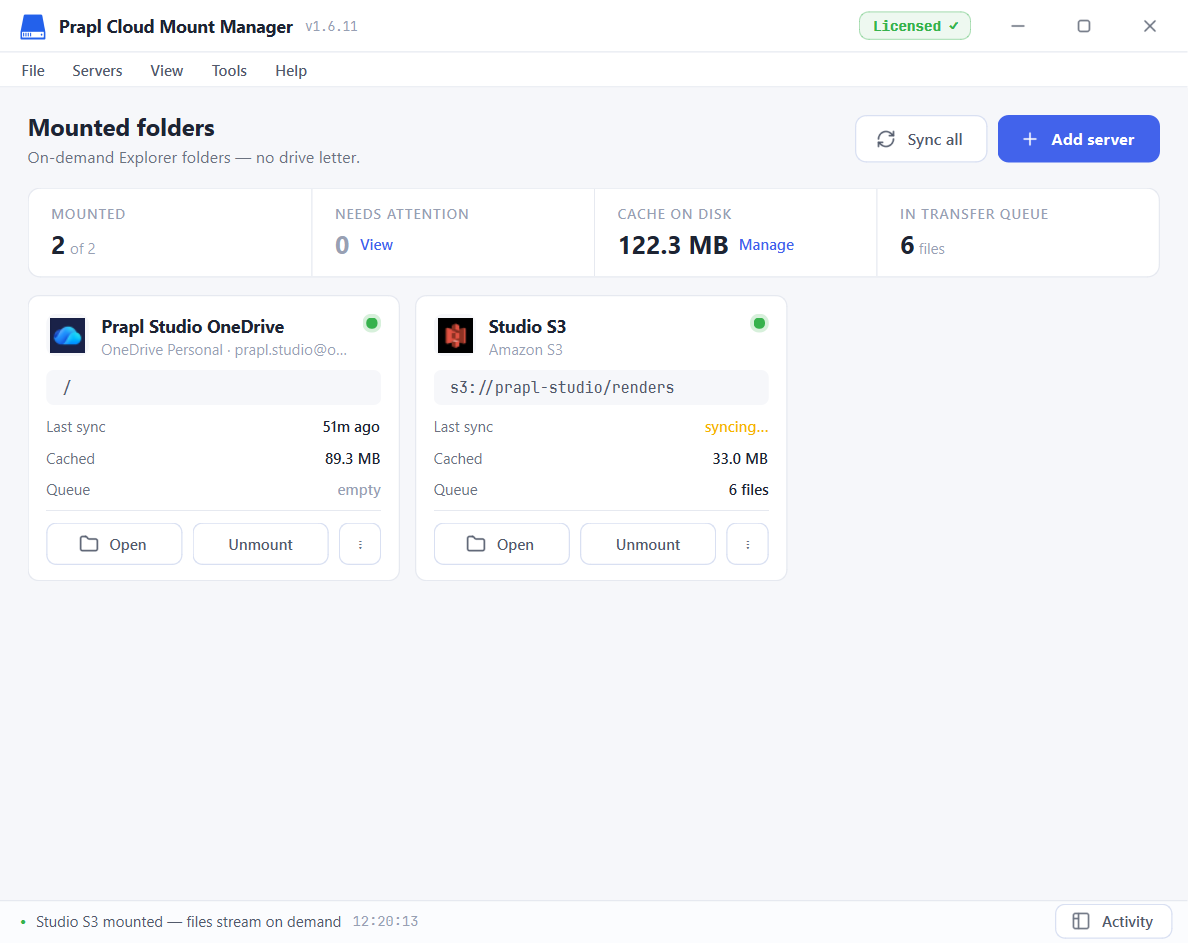
Click Mount and your remote storage becomes available as a regular folder in File Explorer. Your files appear right away without taking up local space. When you mount server storage to local storage on your PC, you can open, edit, and save files using any app on your PC just like you would with a local folder.

  • Open Files When Needed: Files download only when you access them, so even large storage can be browsed without downloading everything.
  • Save Changes Directly: Edit a file in your code editor, Notepad++, or another application and save it normally. The updated file is sent back to the server.
  • Clear Local Copies Easily: When you no longer need a downloaded file, turn it back into an online placeholder to free up disk space.
cloud mounter software
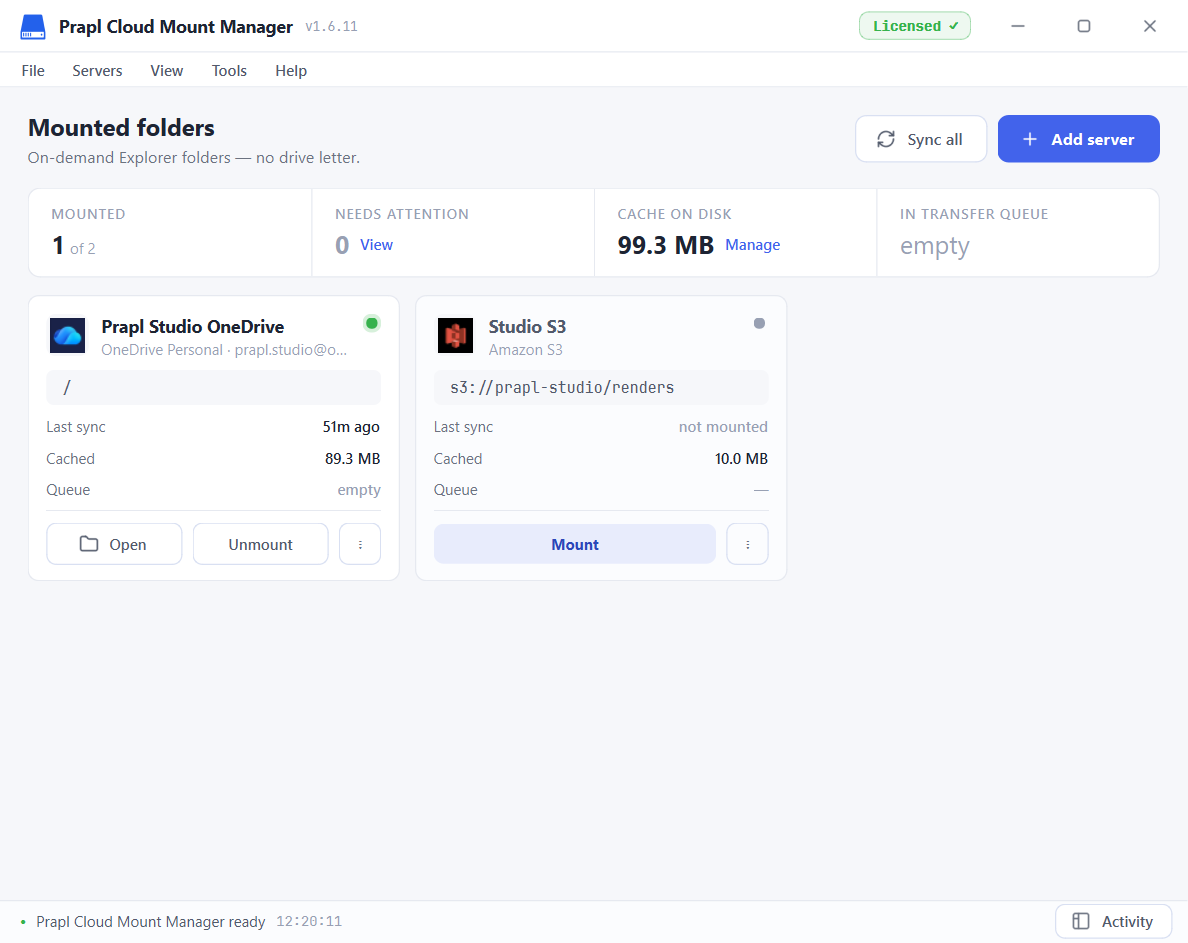
The Mounted Folders screen — one card per server, click to open its folder.
All your servers, one app

Manage Server and Cloud Storage from One App

The Cloud Mounter allows you to add all your servers in one place. Keep your cloud drives, NAS, hosting accounts, and storage buckets together in one organized list and mount a cloud server whenever required.

  • Add Once, Access Anytime: Enter your server details once and reuse the saved connection whenever you need it.
  • Simple File Browse: View your local files and remote storage side by side, with an easy-to-follow transfer queue.
  • Reliable File Transfers: Move individual files or complete folders at once, with automatic retry and resume when a connection is interrupted.
cloud mount software
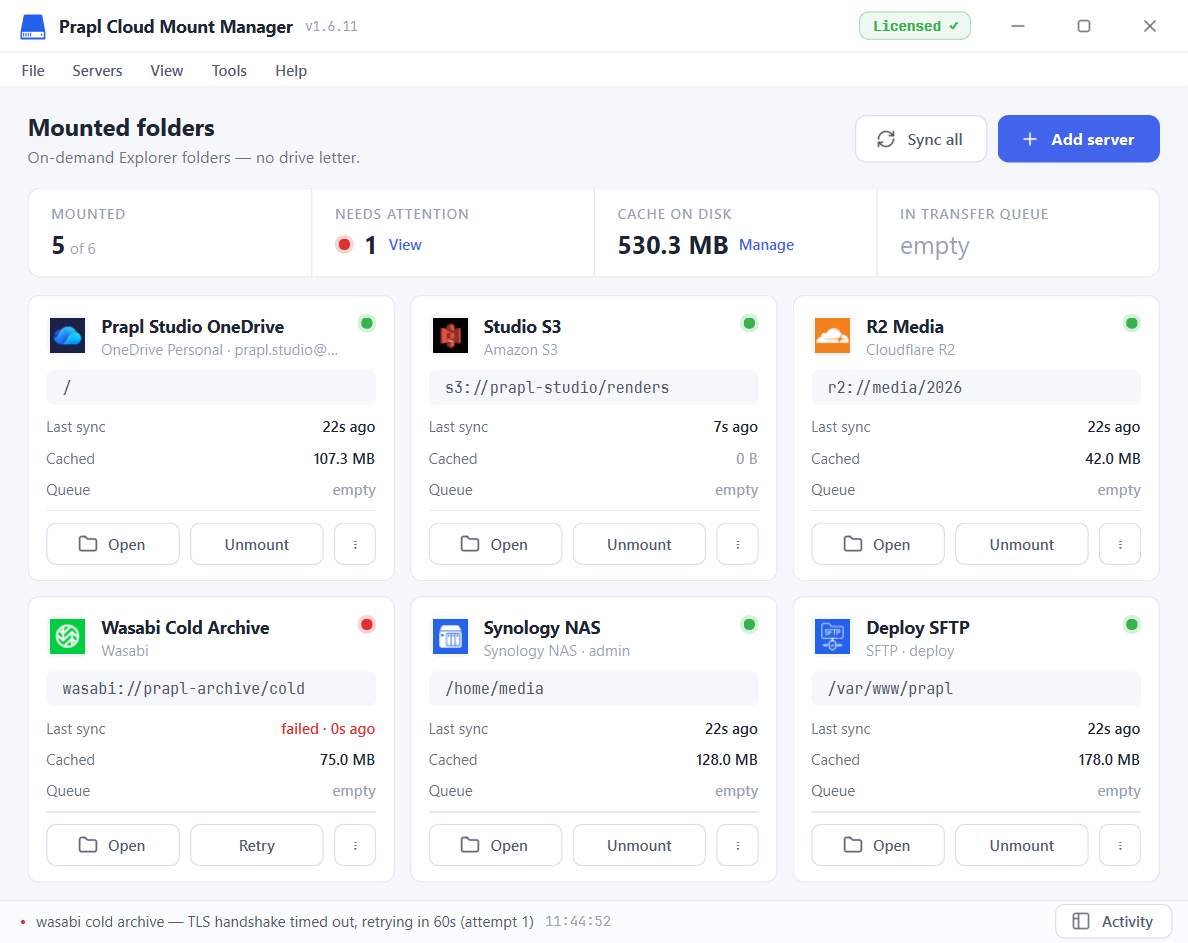
The Site Manager — every server, its status, one click to mount.
Everything included

Additional Features of Cloud Mount Software

Cloud Mount Manager makes remote server files easier to access, manage, and transfer from your Windows PC. Connect your servers once and use them without the usual download and upload routine.

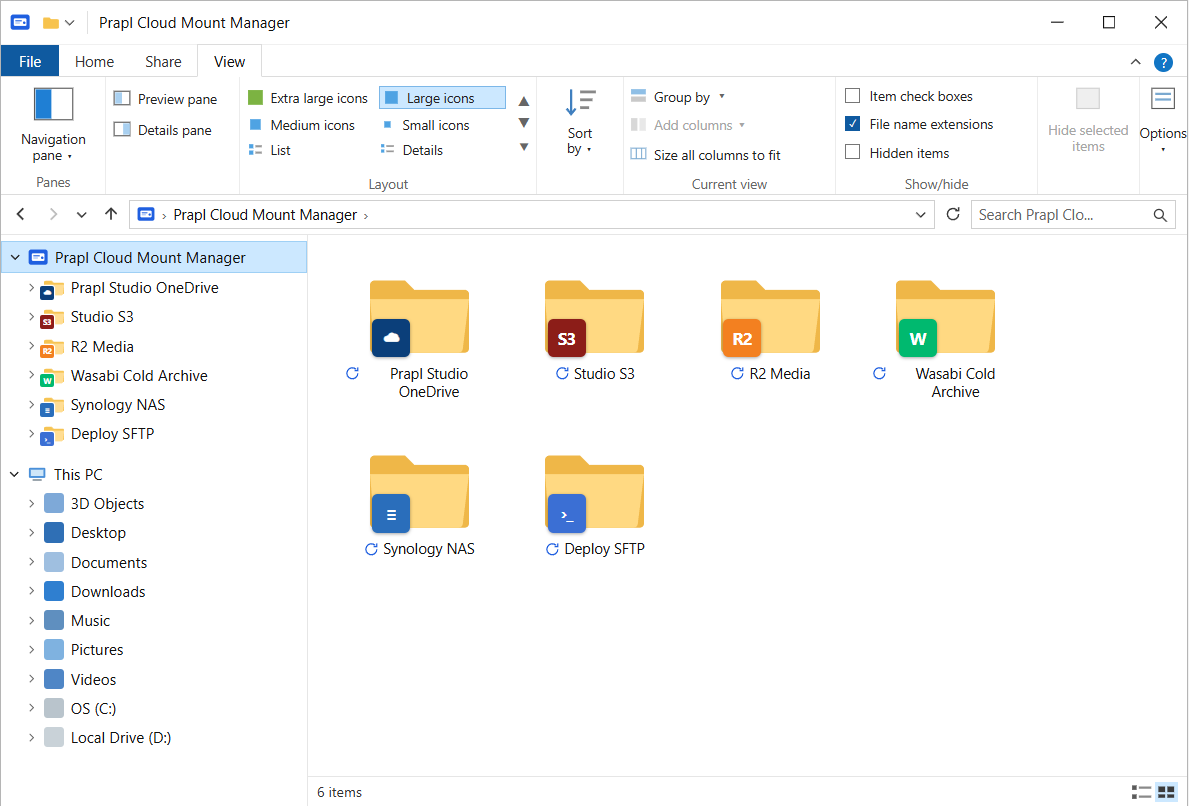
Mount server or cloud in Windows like a folder in Explorer

Every mounted server lives in your user profile, with placeholder files that show the whole server instantly and Explorer's own Status column telling you what's cloud-only and what's on disk.

C:\Users\you\Prapl Cloud Mount Manager\Client web server
Client web serverSFTP · Mounted ✓ · on-demand syncing in background

Streams on demand

You do not need to download an entire folder before working with it. Cloud Mounter fetches files as you access them, which makes it easy to browse and work with large remote folders without keeping a complete local copy.

Saves go straight back

Edit a remote file and save it normally. Mount cloud server handles sending the updated file back to the server. So you do not have to manually save a copy, open any client and upload it again

Smart Caching

Frequently accessed files and folders can be cached locally for faster access. This makes repeated browsing and opening of files smoother while the mount count server keeps remote folder information up to date.

Site Manager

Site Manager lets you manage all your servers and cloud storage from one place. You can quickly search for any account and connect, mount or browse it with a single click. This makes it easier to access and manage remote files without repeatedly entering connection details.

Transfer Queue

Move files and complete folders while keeping track of what's happening. See individual file progress and use options such as retry, resume, and overwrite when managing larger transfers.

Two pane file browser

Work with your PC on one side and the remote server on the other. Browse both locations together, move files between them with drag and drop and keep an eye on transfers from the same window.

Encrypted Connections

Your data and login details are kept secure while you use the app. Connections are protected with SSH and TLS encryption while your login credentials are stored securely in Windows' own vault. Your credentials are never stored on our server.

Simplest User Interface

Again, you don't need any technical assistance for operating this program. This cloud mounter software is very handy and easy to use.

Activity Log

See what mount cloud software is doing as you work. The activity log records mounts, transfers, and deployments with timestamps, while transfer activity can show the current speed for each operation.

Starts with Windows

The software starts with Windows and runs quietly in the system tray. After every reboot, it automatically reconnects your mounted servers and cloud folders. So, they are ready to use without setting them up again. No administrator rights are required.

Loved by people who live on servers

What Users Say About Prapl Cloud Mount Manager

See what developers, designers, and site owners think about working with mounted servers.

★★★★★

"Before, I could mount cloud storage to local folder; working on client websites meant downloading files, making changes, and uploading them again. Now I mount the server as a drive and work directly from File Explorer. It has removed several unnecessary steps from my daily workflow and makes website updates much easier. "

MP
Reyna Smenta
Web Developer
★★★★★

"I keep around 2 TB of photos on my NAS and working with such a large archive used to take up a lot of space on my PC. Now I can browse the NAS like a regular folder and open only the photos I need. It keeps my local storage free while making the entire archive easy to access."

JO
James Okafor
Creative Studio Owner
★★★★★

"We manage websites for multiple clients, so keeping track of different server connections used to be a hassle. This utility gives us one place to save and manage those servers. Now the team can quickly find the right server, mount it, and start working without setting up the connection again."

SL
Andreas Hoffmann
IT Consultant
★★★★★

"We regularly publish the same website files across several regional servers. We had to repeat the same upload for every server, but now the multi-deploy options of this utility lets us send the folder to multiple destinations together. It saves a lot of repetitive work and gives us a clear view of each deployment."

RB
Sofia
Marketing Operation Head
★★★★★

"The biggest benefit for our team is how much easier file transfers have become. We can see our local files and server files together, move complete folders and track the transfer from one window. This cloud mounter saves us from repeatedly switching between folders and separate file management tools."

AH
James Cherts
System Administrator
★★★★★

"Managing client websites became much easier once I could mount server to local storage in PC. I mount the hosting server, open the website folder directly, and edit files. Small fixes that used to involve downloading and uploading files can now be done in a few clicks. "

PN
Rochel Boateng
Website Manager
Common Questions and answers

FAQs

What does it mean to mount cloud storage as a local drive?

Mounting a server as a drive means making your remote server appear in Windows File Explorer like a standard storage drive. You can then browse folders, open files, edit them, and save changes just as you would with files stored on your PC.

Which servers does this mount cloud software support?

It supports a wide range of servers and cloud storage services, including SFTP, FTP/FTPS, Amazon S3, Cloudflare R2, Wasabi, Backblaze B2, DigitalOcean Spaces, MinIO, Google Cloud Storage, Azure Blob Storage, OneDrive, NAS and many more.

Does it need drivers or admin rights?

No. The software works without installing additional drivers or requiring administrator rights. You can mount cloud storage as a local drive and access it directly from File Explorer using your regular Windows account.

Do I need to download files before editing them?

No. Once you mount server storage as local folder in PC, you can open files in compatible applications to edit. When you save the changes, it will be automatically saved back to the server

Can I use this Cloud Mounter as a FTP Client?

Yes, you can use this software as a FTP Client also.

Can I manage multiple servers with Cloud Mount Manager?

Yes. You can save multiple server connections in one place, which makes it easier to connect to and mount cloud server storage for different clients, hosting, or VPS servers.

Can I transfer files from one server to another?

Yes, the software also acts like a FTP to FTP File Transfer. That means you can transfer or copy files from one server to another directly.

Where are my server login credentials stored?

Saved server credentials are stored locally on your own computer rather than on the software server.

What happens when I save changes to a remote file?

Prapl Cloud Mounter sends the updated file back to the server. It allows you to edit remote files without manually downloading and uploading them each time.

Buy with Confidence

Clear Pricing, No Hidden Fees

Try the Full Product Free for 15-Days

Use all features for 15-days at no cost and without entering a card. Connect your server, mount it, and see how it works before making a purchase.

Pay Once, 14-Day Guarantee

Get the software for 29$ one time with no monthly fees or automatic renewal. If it does not meet your needs, contact us within 14 days to request a full refund.

24/7 Support

The software is developed and supported by Hyperledger IT. Our engineering team is available 24/7*365 to help you with questions or issues before and after your purchase.

Download Cloud Mount Manager & Try for Free

Mount cloud storage as local folder and access your files directly from your PC. Browse, open, edit, save, and manage files without downloading them. Start your 15-day free trial. No credit is required to use it.

Back to all products