What is FTP to FTP File Transfer?
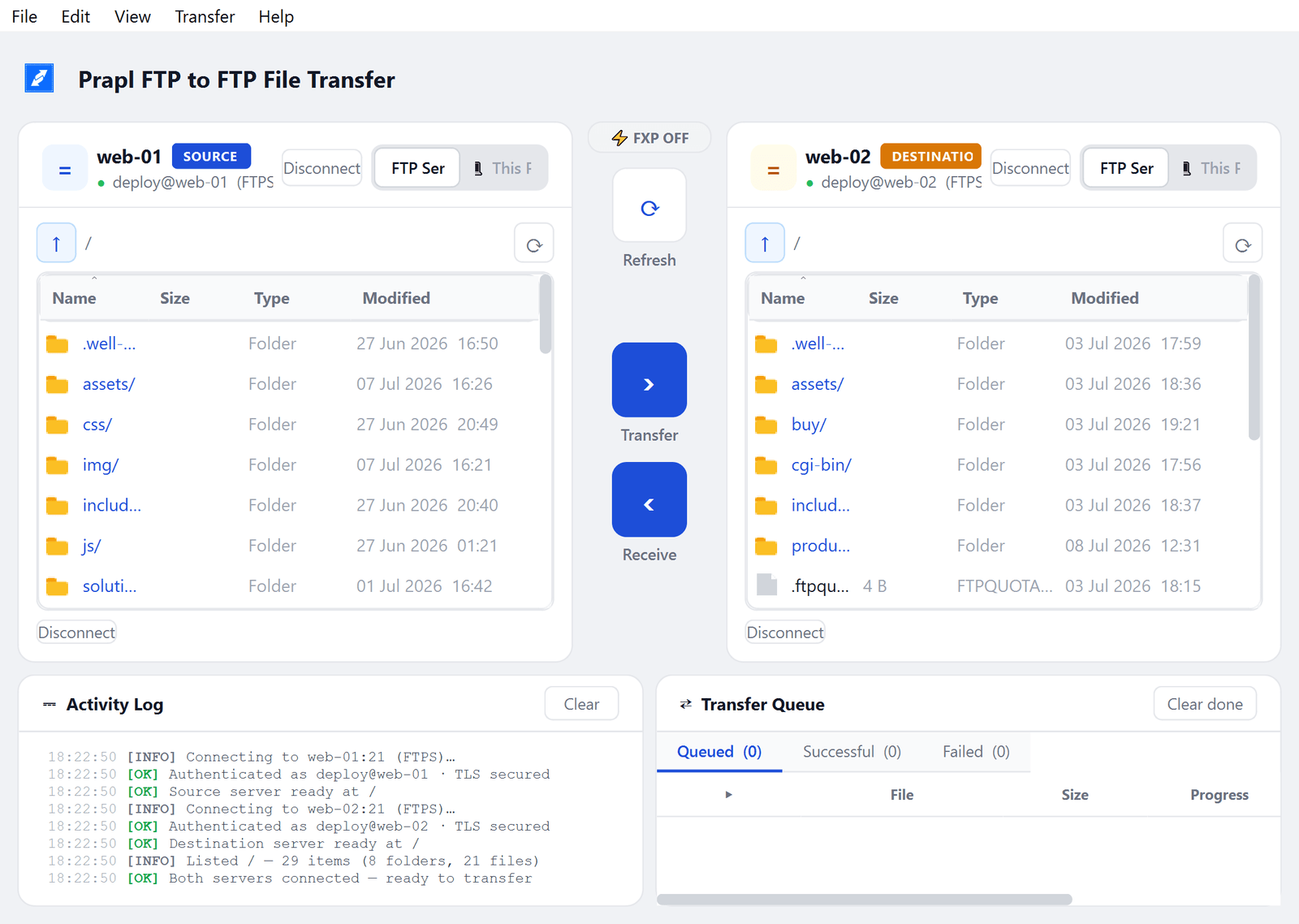
Prapl FTP to FTP File Transfer is a Windows app that moves files from one server to another directly. The usual way — download everything from server A, then upload it all to server B — doubles the work and ties up your PC and your internet connection for the whole ride. This app connects both servers at the same time, side by side, and sends the files across in one step.
The window is built around one idea: a Source server on the left, a Destination server on the right, and a Transfer button between them. Either side can also be a folder on your own PC, so the same window covers server → server, PC → server and server → PC.
- Two servers, one screen. Browse both file trees at once, select what you want, and move it with a click or a drag.
- Direct when possible. For FTP-to-FTP transfers, the optional FXP mode sends data straight between the servers — your PC only gives the orders.
- Built to finish the job. Interrupted transfers resume where they stopped, failures retry automatically, and every file is size-checked after it lands.
What can you connect?
Each side of the window connects independently, and each side speaks three protocols — mix them however you like (SFTP on the left, FTPS on the right is fine):
| Protocol | What it covers | What you enter |
|---|---|---|
| FTPS (TLS) — the default | Encrypted FTP — the modern standard on most web hosts | Host, port 21, username + password |
| FTP | Plain FTP for older servers and devices | Host, port 21, username + password |
| SFTP (SSH) | VPS and dedicated servers, NAS boxes — anything with SSH | Host, port 22, username + password |
And either pane can switch to This PC instead — your local drives and folders — so the same two-pane window also handles ordinary uploads and downloads.
Installing the app
Installation is deliberately boring:
- Download the installer from the FTP to FTP File Transfer product page.
- Double-click it and approve the prompt — it installs into Program Files, so Windows asks once. That's the whole installation.
The first time you open the app, you're on a 24-hour free trial: the full product, every feature, no credit card. If you decide it's not for you, nothing is charged — we never had your card to begin with.
| Requirement | What you need |
|---|---|
| Operating system | Windows 10 or Windows 11, 64-bit |
| Storage | Around 150 MB of free disk space |
| Memory | No special requirement — runs comfortably on any PC that runs Windows 10 |
| Install rights | Windows asks for administrator approval once, during install |
| Internet | Needed to reach your servers and to check your trial or license at launch — once licensed, the app also works through short offline stretches |
To uninstall: open Windows Settings → Apps → Installed apps, find Prapl FTP to FTP File Transfer and choose Uninstall. The uninstaller asks whether to also delete your saved connection profiles — choose No to keep them, and a future reinstall picks up right where you left off.
A quick tour of the window
Everything lives in one window:
- Two server panes — Source server on the left, Destination server on the right. Each has its own connection form, file list, breadcrumb path bar, and toolbar (hidden files, new folder, refresh). The ☁ Server / 💻 This PC switch at the top of each pane flips it between a remote server and your own drives.
- The centre column — the ⚡ FXP toggle, a Refresh button for both panels, and the two big arrows: Transfer (left → right) and Receive (right → left).
- Activity Log — a timestamped, colour-coded record of everything the app does: connections, transfers, warnings, errors.
- Transfer Queue — three tabs: Active (what's moving now, with per-file progress and speed), Done and Failed. Right-click any row for retry, copy and export options.

While a transfer runs you'll also see progress on the app's taskbar button and tray icon, and a Windows notification tells you when the batch finishes — so you can leave it working in the background.
Connecting your two servers
Each pane connects the same way:
Fill in the source server
On the left pane enter the Host, pick the Protocol (FTPS, FTP or SFTP — the port fills in for you), and type the Username and Password. Under Advanced settings you can pick the transfer mode (Auto tries passive first, then active) and a starting folder. Click Connect.

Fill in the destination server
Do the same on the right pane. The two sides are completely independent — different hosts, different protocols, no problem.
Or skip the typing
Click Save Profile after a successful connection and the details are remembered. Next time, pick the profile from the Saved Connection dropdown and everything autofills. Passwords are encrypted with Windows' own user-level encryption and stay on your PC.
Transferring files
With both sides connected, moving files is a three-second job:
- Select files or folders in either pane — Ctrl and Shift work like in Explorer, and folders move with everything inside them.
- Click Transfer (source → destination) or Receive (destination → source) — or simply drag the selection across to the other pane, or press F6.
- Watch the queue. The Active tab shows each file's progress and speed; finished files move to Done, problems to Failed.
A few behaviours worth knowing:
- Several files move at once. By default the app transfers up to 4 files in parallel over extra connections (Settings lets you set 1–8). If a server refuses extra connections, it quietly falls back to one at a time.
- Start more while it's busy. Select something else and hit Transfer again — the new batch queues up and starts automatically when the current one finishes.
- Stop anytime with Transfer → Stop All Transfers (Ctrl+.). Cancelled files land in the Failed tab so nothing is lost track of.
- Retry from the queue. Right-click rows in Failed for Retry selected / Retry all failed, or in Done for Re-transfer selected. You can also export either list as CSV or TXT for records.

Direct server-to-server (FXP)
Normally a server-to-server transfer streams through your PC: the app downloads from the source and uploads to the destination at the same time, without ever storing the file — your disk stays out of it, but your internet connection carries the data.
FXP removes your PC from the path entirely. When both panes are plain FTP servers and the ⚡ FXP toggle is ON, the app tells the two servers to talk to each other and the data flows directly between them — at the speed of their connection, not yours. A 10 GB move between two datacenter servers doesn't touch your home bandwidth.
- Turn it on by clicking the ⚡ FXP OFF button in the centre column; the choice is remembered.
- It falls back safely. If either server refuses FXP, the app logs it and automatically routes that transfer through your PC instead — the transfer still completes.
- FXP needs plain FTP on both sides. It isn't possible over FTPS or SFTP — encrypted transfers always route through your PC.
Resume, retries & overwrite rules
Big transfers fail for boring reasons — a Wi-Fi blip, a server timeout, a full disk. The app is built so those are hiccups, not disasters:
- Resume, not restart. If a partial file is found at the destination, the transfer continues from where it stopped instead of starting over (for FTP-to-PC and PC-to-FTP transfers).
- Automatic retries. A failed file is retried 3 times with growing delays (both numbers adjustable in Settings), and at the end of the batch every still-failed file gets one more pass.
- Size verification. After every transfer the destination file's size is checked against the source — a mismatch is treated as a failure and retried, never silently accepted.
- Timestamps preserved. Files keep their original modified date at the destination whenever the server allows it.
- Nothing vanishes. If the app closes mid-transfer, the unfinished files appear in the Failed tab on next launch — re-run them and complete files are skipped, partial files resume.
When a file already exists at the destination, the rule you set under Transfer → File Overwrite Rules decides what happens:
| Rule | What it does |
|---|---|
| Ask each time (default) | A dialog offers Overwrite, Overwrite All, Skip or Skip All for the rest of the batch |
| Skip existing files | Skips files that already exist with the same size; a half-finished file is completed, not skipped |
| Always overwrite | Replaces without asking |
| Auto rename | Keeps both — the new file arrives as name (1).ext |
Editing files on the server
Need to fix one line in a config or tweak an HTML file? You don't have to transfer it anywhere. Double-click any file in a server pane (or press F4):
- The first time, the app asks which editor you prefer — it finds what's installed (Notepad++, VS Code, Sublime and more) and remembers your choice.
- The file downloads to a temporary folder and opens in that editor.
- Every time you hit Save, the file is uploaded back to the server automatically. The log confirms each save with a ✓.
View → Active Edits… shows every file currently being watched, with buttons to upload immediately or stop watching. If you close the app with unsaved uploads, it warns you first. You can map specific extensions to specific editors — and turn on a confirm-before-upload prompt — in Settings → File Editing.
ZIP, search & server tools
Right-click in a server pane and the everyday file-management jobs are all there: new folder, new file, rename, delete (folders recursively), plus three tools that save real time:
- 🗜 Compress to ZIP — select files or folders on the server and pack them into a ZIP archive that's created right there on the server. Ideal before downloading a whole site.
- 📂 Extract here — the reverse: right-click a
.zip,.tar.gzor similar archive on the server and unpack it in place. - 🔍 Search on server (Ctrl+F) — find files by name with wildcards (
*.log,report*) across subfolders, results streaming in live. Double-click a result to jump to its folder.
The file lists themselves behave like a proper file manager: sortable columns, a clickable path bar you can type into (Ctrl+L), per-pane back/forward history (Alt+←/→), hidden-file toggle (Ctrl+H), type-ahead jumping, and keyboard shortcuts for everything — F2 rename, F5 refresh, F6 transfer, F7 new folder, Delete.
Saved profiles & Site Manager
There are two ways to keep your servers on file:
- Save Profile (on each pane) — saves exactly what's in the form, including the protocol and transfer mode. This is the one to use for SFTP servers.
- Site Manager (File → Site Manager, Ctrl+M) — a full address book for FTP and FTPS sites: create, rename, duplicate and delete entries, add comments, then connect any entry straight to the left or right pane with Connect as Source / Connect as Destination.
Profiles live in a file on your own PC, and the passwords in it are encrypted with Windows' built-in per-user encryption — another user on the same machine, or someone who copies the file, can't read them. Nothing is stored on Prapl's servers.
Settings
Edit → Settings groups everything into five sections:
| Section | What you control | Defaults |
|---|---|---|
| Connection | Connect timeout, retry count, delay between retries | 15 s · 3 retries · 5 s |
| Transfers | Transfer type (Auto/ASCII/Binary), overwrite rule, how many files move at once, FXP support check | Auto · Ask each time · 4 files |
| Notifications | Windows notification when a batch completes | On |
| Logging | Verbose debug logging, saving the activity log to a file with size-based rotation | Off |
| File Editing | Auto-upload on save, confirm before upload, per-extension editor mappings, default editor | Auto-upload on |
One note on transfer type: ASCII mode converts line endings on transfers between a server and your PC. Server-to-server transfers are always binary — bytes arrive exactly as they left.
Troubleshooting
The connection fails
- Re-check the basics. Host, port, username, password — most failures are a typo. Copy-paste instead of retyping.
- Right protocol? If FTPS won't connect, your server may only speak plain FTP or SFTP — try the other options. SFTP uses port 22, the others 21.
- Firewall in the way? The Auto transfer mode already tries passive first and falls back to active. If a strict firewall still blocks transfers, set Advanced settings → Transfer Mode to Passive explicitly.
"Connection lost" appears on a pane
Servers drop idle connections — it's normal. The app reconnects by itself when a listing fails; if it can't, the pane greys out and one click on Connect (or on any folder) brings it back. Transfers aren't affected: they rebuild their own connections and resume.
FXP transfers route through my PC
The log tells you why: either one of the servers refused the direct connection (common on shared hosting — many providers disable FXP), or one side is FTPS/SFTP, where direct transfer isn't possible. The transfer still completes through your PC; nothing is lost but the shortcut.
A big transfer was interrupted
Just run it again. Files that made it are skipped (same size = done), partial files resume from where they stopped, and anything in the Failed tab can be retried with two clicks. If the app was closed mid-batch, the unfinished files are waiting in Failed on next launch.
I saved a file in my editor but the server still has the old version
The app must still be running — it's the bridge that watches the file and uploads it. Check View → Active Edits…: if the file is listed, Upload now forces it; if not, open it from the server pane again. Your edited copy is never lost — the log shows its temp location.
Something else?
Turn on Settings → Logging → Debug mode, reproduce the problem, and send us the activity log — it usually tells the story in one read.
Trial & license
The trial runs 24 hours with every feature and no card. A license is a one-time cost — $49 for 1 user, $199 for 5, $299 for 10 — with a 14-day money-back guarantee. Full details on the pricing page.
Your key arrives by email minutes after purchase. Click Enter Key in the app (or the key field on the license screen), paste it, and you're done — the key is remembered through reinstalls. Moving to a new PC? Manage your devices at app.prapl.com, and once activated the app also works offline for up to a week at a time.
Getting help
If this guide didn't answer your question, a real engineer will. Include which screen you're on, what you expected, and what happened instead — a screenshot of any error message, or a copy of the activity log, is perfect.