
Working with an FTP server usually means opening a separate app every time you want to grab or upload a file. It works, but it’s slow and breaks your flow. A much smoother way is to mount your FTP server directly inside File Explorer, so your remote files behave just like the ones on your PC. In this guide, we will discuss how to mount FTP server as a drive in File Explorer. You can manually map FTP server as a local drive using Windows’ built-in Add a Network Location feature. If you want a simple and quick solution, then you can use this professional utility.

What is FTP?
FTP(File Transfer Protocol) is one of the oldest and most common ways to move files between your computer and a remote server over a network. it is widely used for website management, backups and sharing large files. Plain FTP is not encrypted, so secure versions like FTPS and SFTP are often preferred for sensitive data.
What does Mapping FTP as a Drive Mean?
Mounting FTP as a local drive means connecting your remote FTP server to Windows so it shows up under This PC just like USB stick or local disk. Instead of logging into an FTP app each time, you simply open the drive in File Explorer and work with your files such as copying, editing, updating, saving, etc., directly.
Why Should You Mount FTP as a Drive in File Explorer
There are some reasons to map FTP as Windows drive:
- No separate FTP client to open every time
- Use the same File Explorer you already know
- Open, edit and save files directly as other local files
- Skip repeated manual downloads and uploads
- Manage remote and local files side by side
Can Windows Mount FTP Natively?
Partly. Windows lets you add an FTP location through File Explorer but it does not give you a real mapped drive with its own letter. Instead. it appears as a network location which is limited. No true drive integration, no offline caching and clunky editing. Windows File Explorer can connect to an FTP server by entering an address such as ftp://example.com in the address bar. You can browse and manage files through Explorer, depending on the server permissions.
What Do You Need to Start Mapping FTP as a Windows Drive?
Before you begin mapping, keep these ready:
- Your FTP server address
- Port number
- Your username and password
- A stable internet connection
How to Map FTP as a Drive in File Explorer Manually?
Windows has a built-in wizard you can use for free:
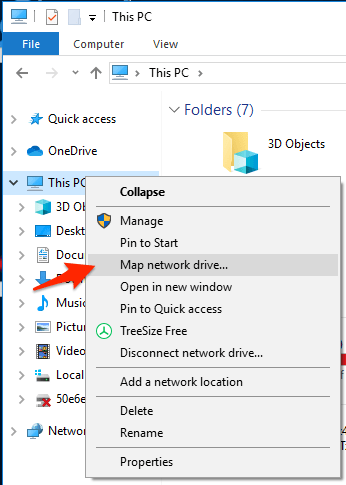
1. Open File Explorer and right-click on This PC.
2. Select Add a network location.
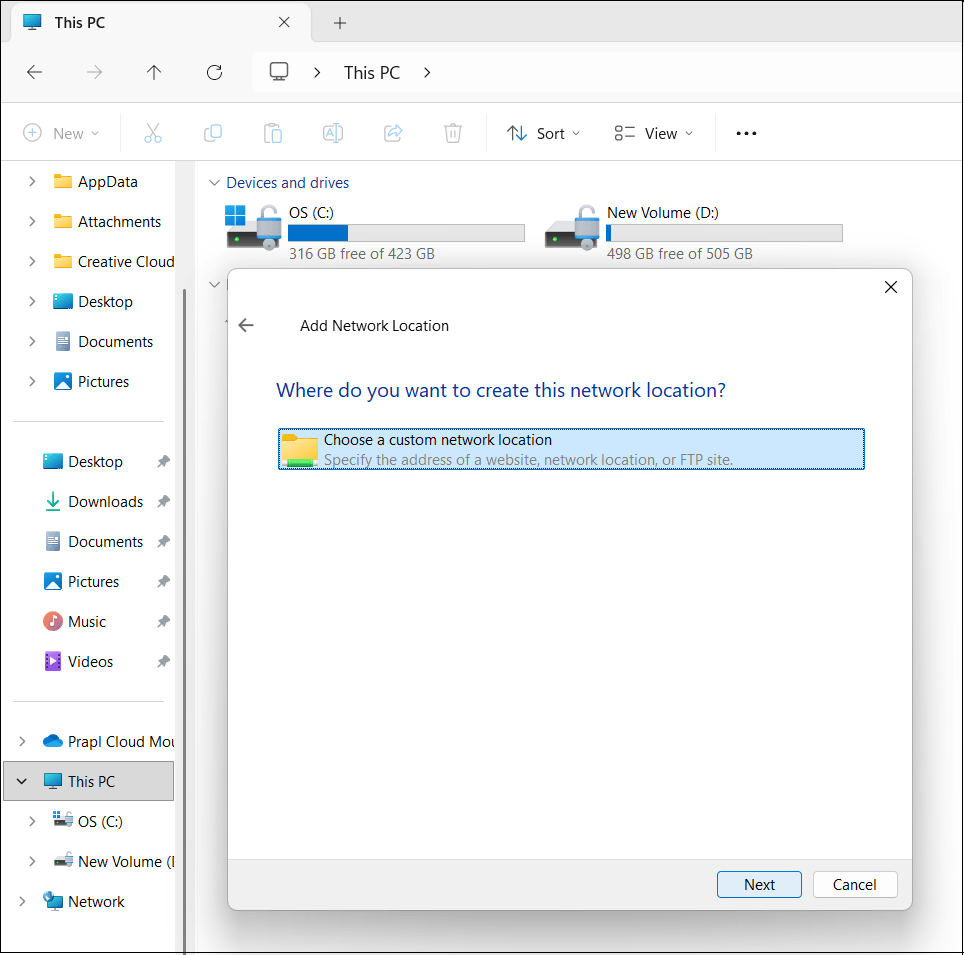
3. Choose a custom network location and click Next.
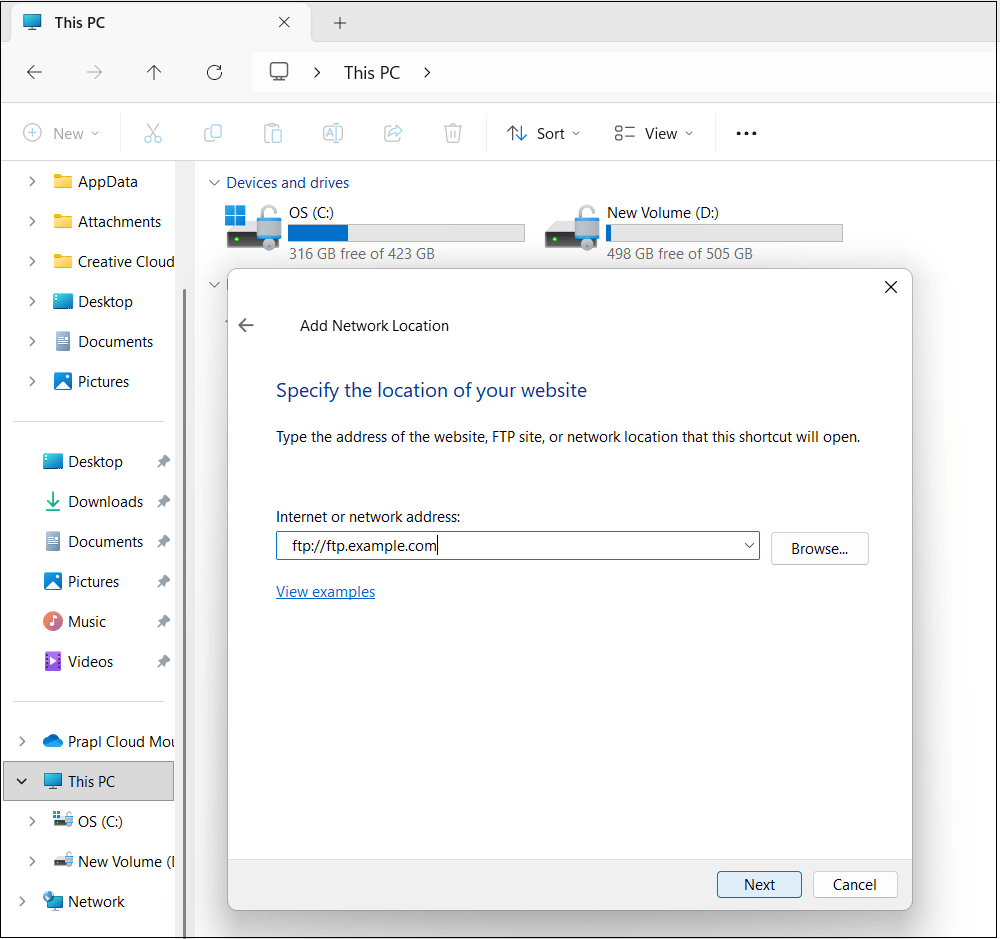
4. Enter your FTP address in this format: ftp://ftp.example.com
5. Uncheck Log on anonymously and type your username.
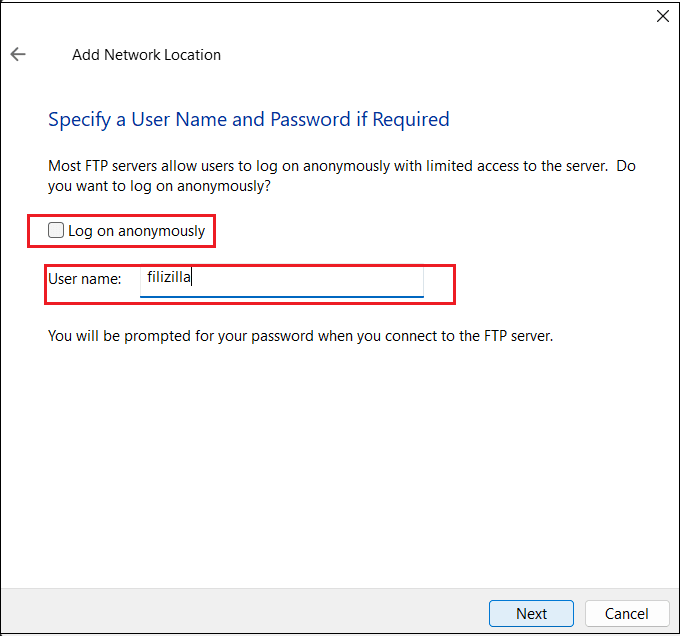
6. Enter a name and click Finish.
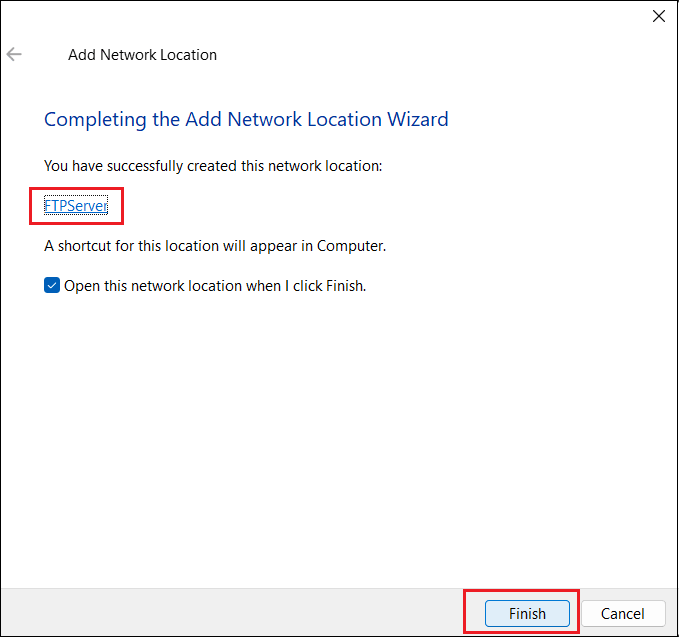
Your FTP server will now appear under This PC as a network location. You can browse it in File Explorer.
Why the Manual Solution Is Not Recommended?
The free method works but it comes with some drawbacks:
- It appears as a network location, not a true drive.
- No caching, which makes browsing large folders slow.
- Many apps can not open or save files directly from it.
- It supports only plain FTP, lacking modern encryption.
- Connections often drop and need manual reconnecting.
How to Mount FTP as a Local Drive in File Explorer Professionally?
If you want reliability and speed without the hassle then you can use Prapl Cloud Mount Manager. It maps your FTP server directly in File Explorer as a real drive. No manual path edits and no dropped connections. This helps you work faster by making remote files feel completely local. You can open, edit and save them in the app. The changes will be automatically saved to the server.
Steps to Mount FTP as a Drive on Windows
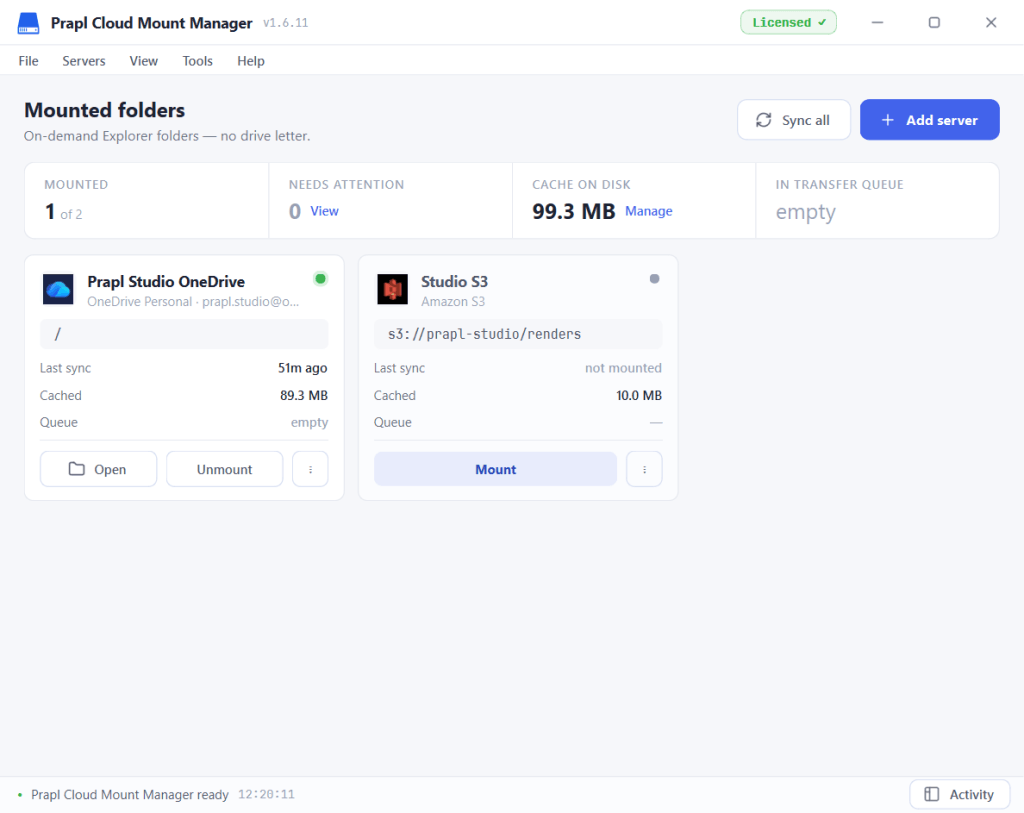
1. Run the tool on your system and click on Add Server.
2. Now, choose FTP server from the given option.
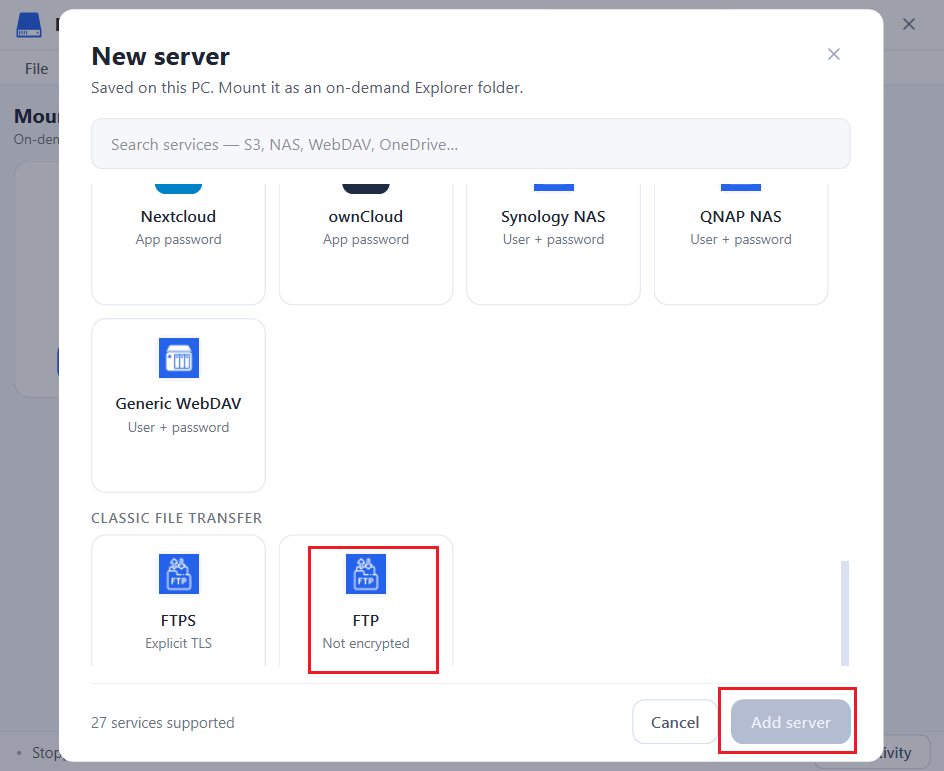
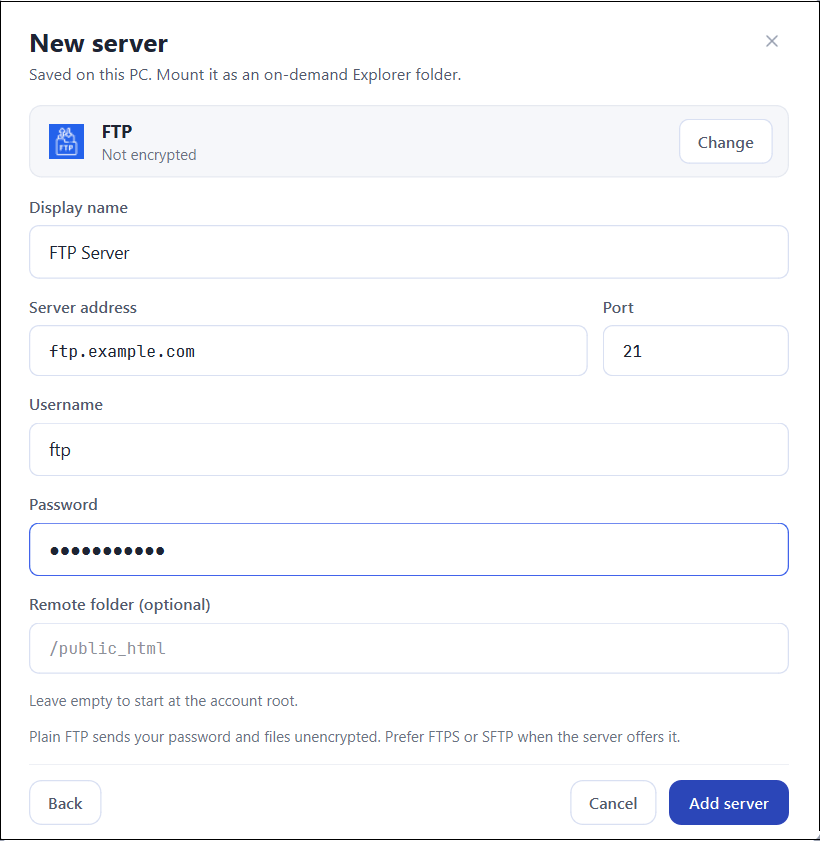
3. Enter your FTP server login details and click on Add Server.
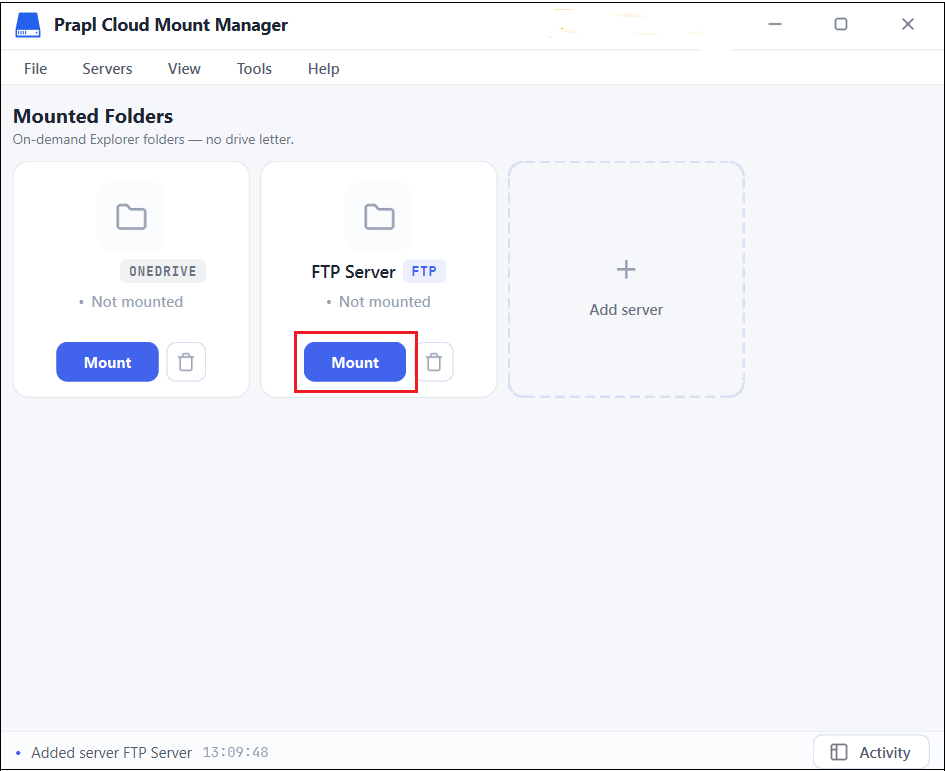
4. After adding the server, click on Mount.
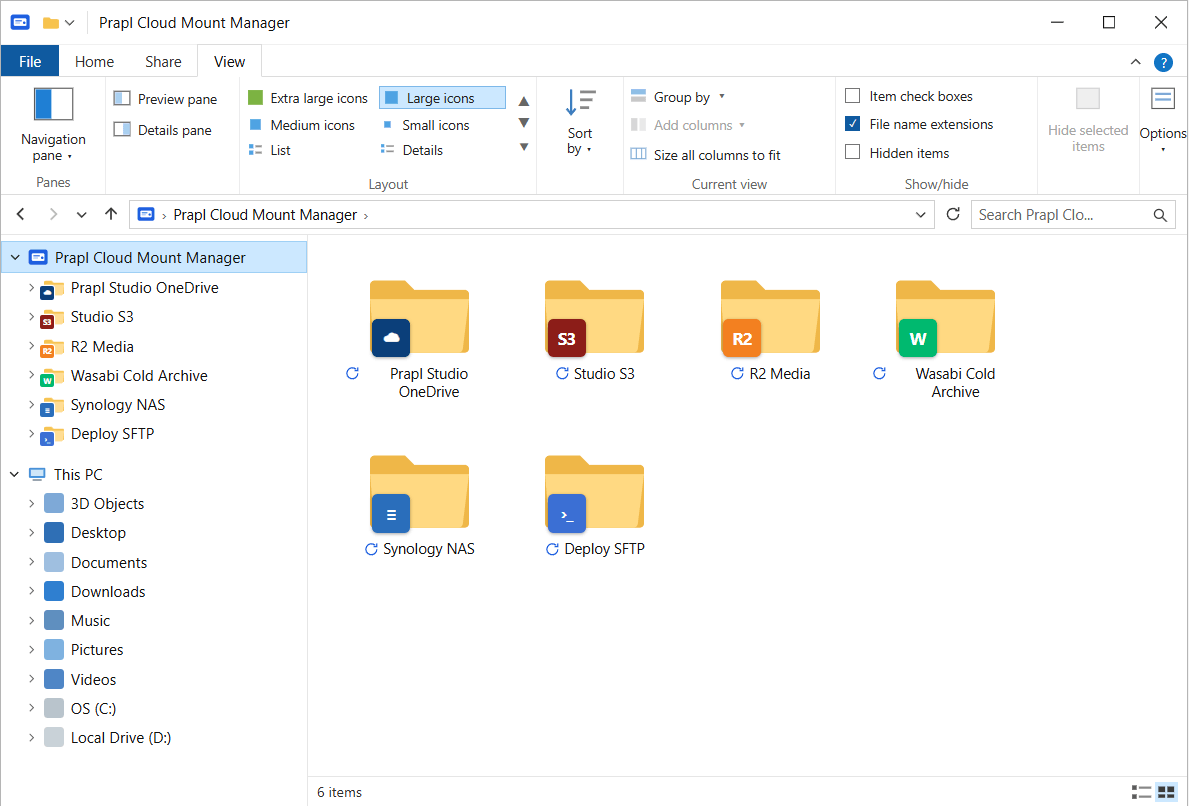
5. Now, your server will appear as a folder in File Explorer. You can open the mounted FTP server from File Explorer and browse its folders to edit them.
Conclusion
By mapping FTP as a drive, you can work with a remote file system as if it were a local disk drive, obtaining access to it as if it were already saved to your computer. In this post, we have discussed manual as well as automated solutions to mount FTP as a drive in File Explorer. The manual method is fine for occasional use, but for smooth, secure, everyday access, a dedicated cloud mount manager is the better choice. It turns an FTP workflow into a simple File Explorer experience.
FAQs
Q1. What port does FTP use?
Ans. FTP typically use port 21. Secure variants like FTPS or SFTP may use different ports.
Q2. Will my files download to my PC?
Ans. No. Files stay on the server and are accessed on demand. So you save local disk space.
Q3. Can Windows mount FTP server as a local drive?
Ans. Not as a true lettered drive. Windows can only add an FTP server as a network location through File Explorer, which is limited.
Q4. Can I access FTP files without installing an FTP client?
Ans. Yes. You can use Windows’ built-in Add a network location feature to browse FTP files directly in File Explorer. You can also use a dedicated tool to map FTP files locally in File Explorer directly.