

Organizations that rely on Microsoft SQL Server databases often contain important business information. Losing this information because of accidental deletion, database corruption, hardware failure or other unexpected issues can interrupt normal business operations. This is why maintaining regular SQL Server backups is an important part of database management and recovery planning.
Taking a backup manually may not be difficult when you have a small database or only need an occasional copy. However, SQL Server databases can grow continuously and may be updated several times throughout the day. Managing these backups manually can become repetitive and increase the possibility of missing a scheduled backup. An automated backup routine helps by creating database copies at predefined intervals such as daily, weekly or monthly without requiring you to start the backup job yourself.
An MS SQL Server backup tool makes this process easier by bringing backup scheduling and management into one place. You can schedule automated SQL Server database backups without complex scripts. It makes it easier to maintain a consistent backup routine and recover your database when needed.
Why Automate SQL Server Database Backup?
Creating SQL Server backups manually can work for occasional requirements, but it becomes difficult to maintain when databases are updated every day. Automated backups help create a regular backup routine without requiring someone to remember to start the process each time.
1. Reduce the Risk of Losing Recent Data
A backup taken once a month may not be enough for a database that changes every day. With scheduled backups, you can create copies at regular intervals and keep the recovery point closer to the point of a problem.
2. Avoid Forgetting Backups
Manual processes depend on someone remembering to run them. An automated schedule can handle recurring backup according to your selected frequency, such as daily, weekly or monthly.
3. Keep Multiple Recovery Points
Keeping several backup copies allows you to go back to an earlier version when necessary. Retention settings can help manage older copies automatically instead of requiring you to remove them manually.
4. Save Time for Database Administrators
Database administrators often have several routine tasks to manage. Automating repetitive backup work reduces the need to monitor every backup manually and gives more time for other database-related responsibilities.
5. Prepare for Unexpected Problems
Database corruption, accidental changes, hardware problems, and other unexpected incidents can happen without warning. Having a recent backup available gives you a practical recovery option when something goes wrong.
How to Backup SQL Server Database Automatically?
Prapl SQL Backup Tool is a fully desktop-based application designed to automate database backups from a Windows computer. Instead of sending your data through an online service, your data remains under your control on your system. This software is best for teams, individuals and businesses looking for an easy-to-use SQL Server backup tool that supports multiple database engines and combines scheduling, storage, retention, compression, encryption and restore management tasks in one place.
You have flexibility to take full, incremental or differential backups as per your requirements. It offers several storage locations to backup SQL Server database to local machine or cloud storage. If you need to back up one database or multiple databases at once, you can easily do it.

Steps to Use MS SQL Server Backup Tool to Automate Backups
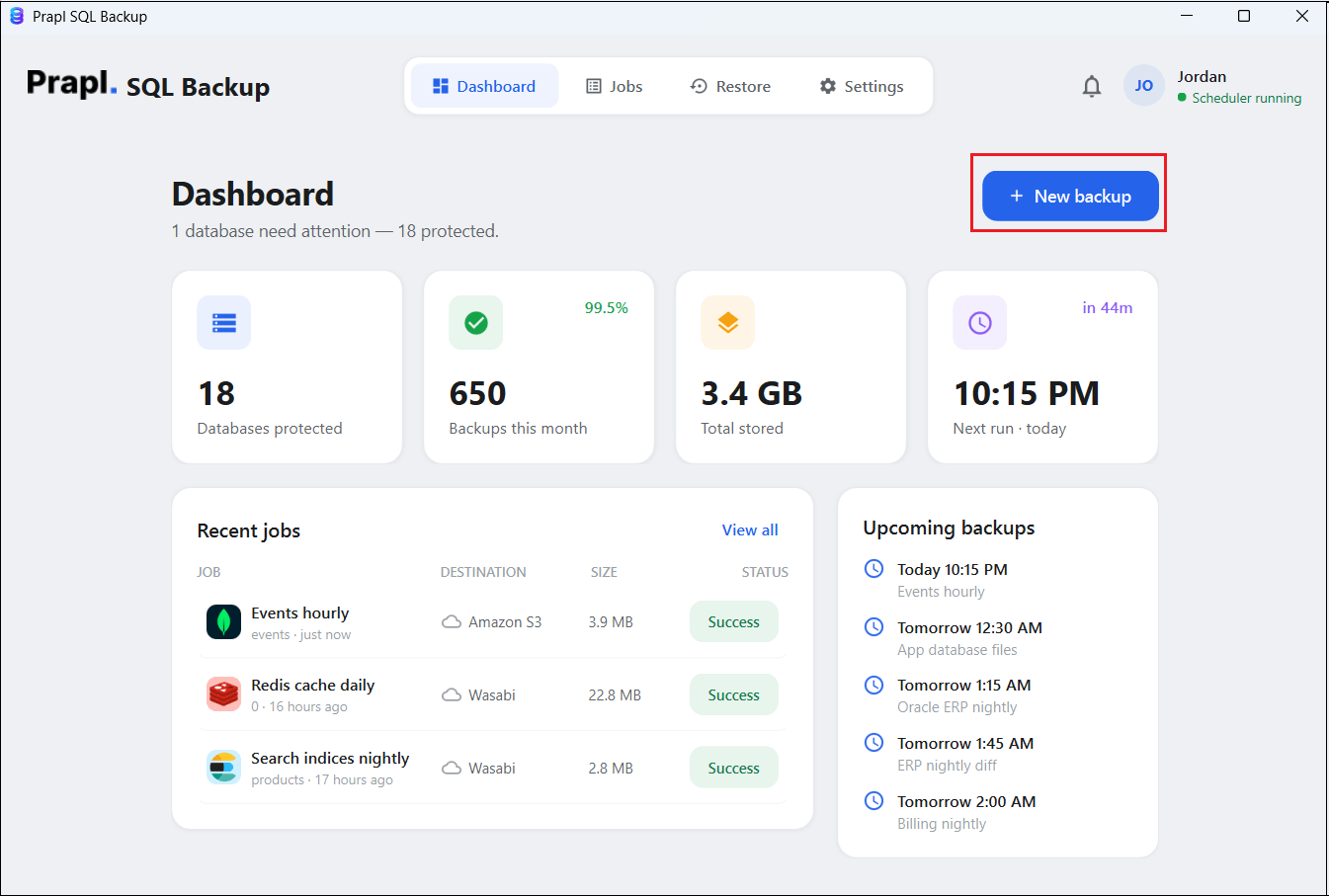
1. Run the tool on your system and click on + New Backup.
2. Choose SQL Server as a database engine.

3. Enter your MS SQL Server login details and click on Test & list databases. Choose the database that you want to back up and click Continue.

4. Select a location to save the backup file and press Continue.

5. Set backup type and schedule to run it. After that, click the Save & Run Now button to begin the process.

The software will immediately start downloading your database to your selected location.
How to Restore SQL Server Database from Backup?
Follow the below given steps to use the MS SQL Server backup and restore tool:
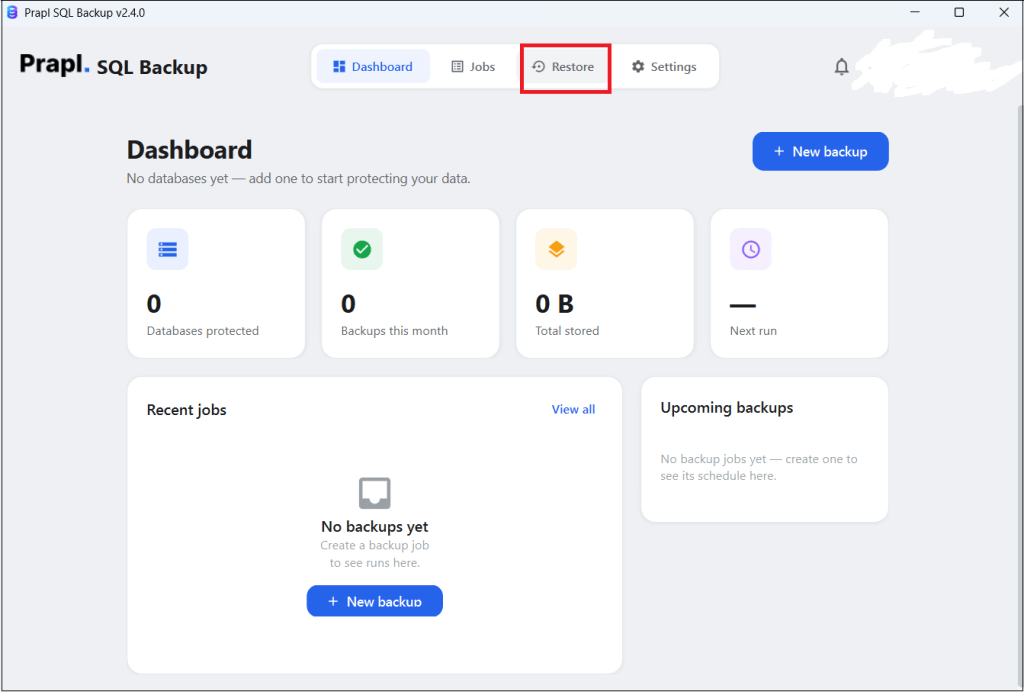
1. Launch the tool and click on Restore.
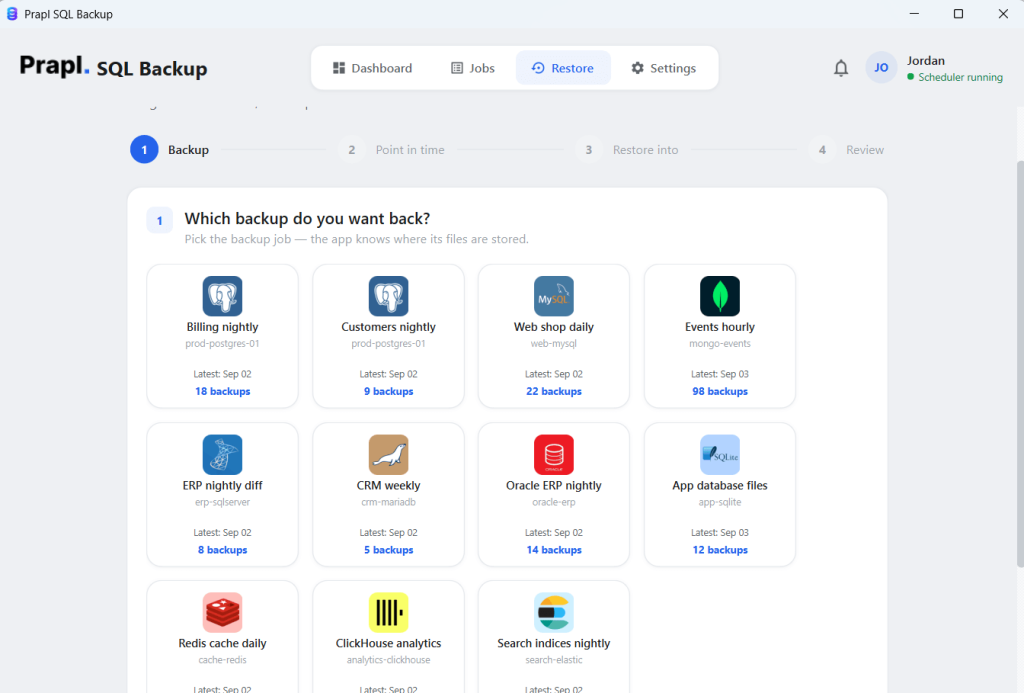
2. Select the SQL Server database backup you want to restore and click Continue.
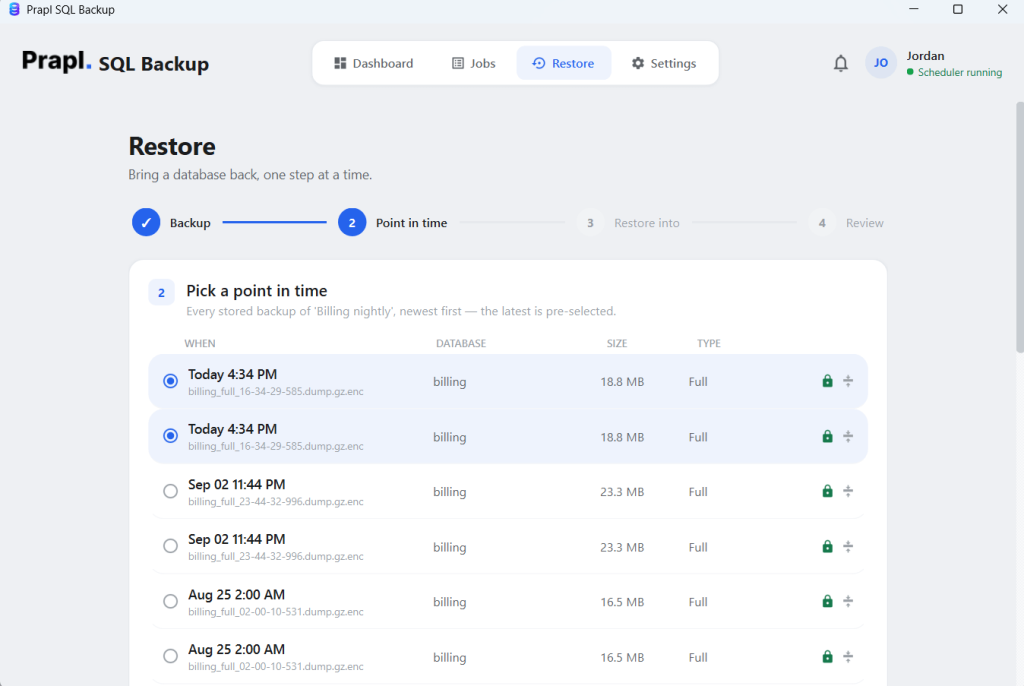
3. Choose a Point-in-Time and press Continue.
4. Select the server to restore backup and click Continue.
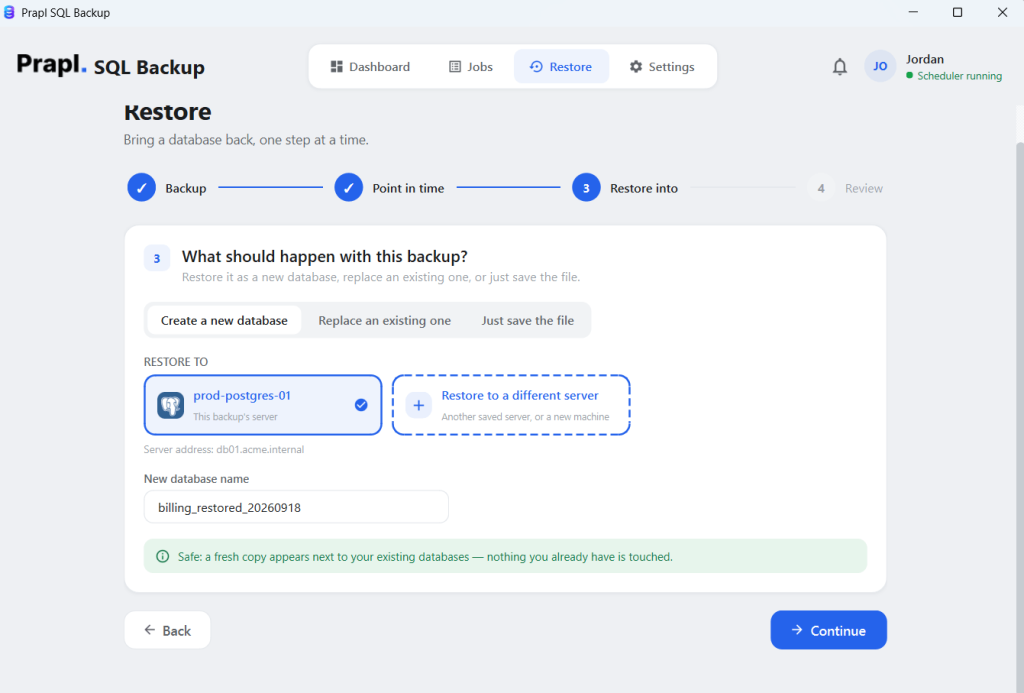
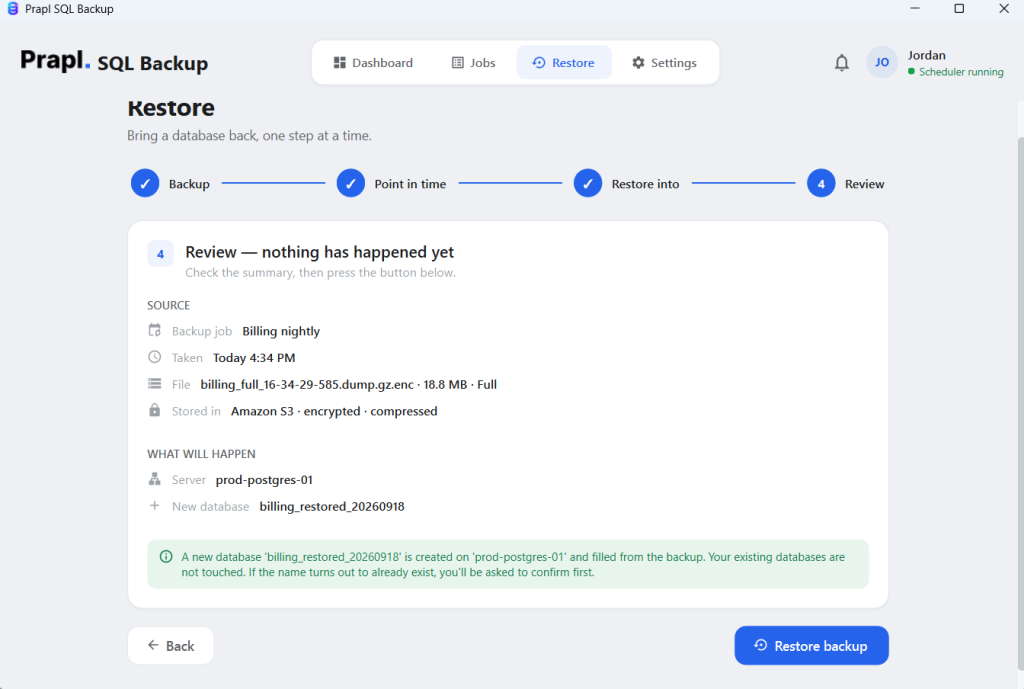
5. Review the restore settings and click the Restore button.
Key Features of Prapl MS SQL Server Backup Tool
The purpose of a backup wizard is not simply to create a copy of a database. It should make the entire backup routine easier to manage and more suitable for regular use.
- Scheduling: You do not have to remember to run every backup manually. Set a schedule such as daily, weekly, monthly or yearly based on your requirements and let the application handle recurring backup tasks.
- Multiple Backup Types: Different situations may require different backup strategies. The application supports multiple backup types like full, incremental or differential, allowing you to select an approach that fits their backup and recovery requirements.
- Support for Multiple Databases: If you manage several SQL Server databases, managing them individually can become repetitive. You can configure backups for multiple databases. Additionally, it supports multiple database engines including PostgreSQL, MySQL, MariaDB, MongoDB, Redis, Oracle, Elasticsearch, SQLite, ClickHouse and many more.
- Your Storage, Your Control: The software offers multiple destination location to save backup files. You can backup SQL Server to AWS S3, local drive, NAS, FTP, SFTP, Wasabi, OneDrive, Google Drive, MinIO, etc. This gives you control over where various database data is stored and how it is managed.
- No Database Size-Based Backup Limit: Large databases should not force you to change your backup strategy simply because of an application-imposed database-size restriction. The SQL Server backup software does not impose a database size limit for creating backup. Its capacity depends on the storage available at your selected destination.
- Compression for Smaller Backup: Database backups can become large overtime, especially when multiple copies are retained. With this utility, you can backup SQL server database with compression to reduce file size and make better use of available storage.
- Encryption for Better Data Protection: SQL Server databases may contain sensitive business information. Encrypting backup data adds another layer of protection, particularly when backup copies are stored outside the primary computer.
Comparison Table: Online Tools vs Prapl SQL Server Backup Tool
| Feature | Online SQL Server Backup Tools | Prapl SQL Server Backup Tool |
|---|---|---|
| Data Path | Data pass through provider’s servers | Data remain on your system |
| Backup Automation | Depends on the service plan | Automatically schedule |
| Backup Destination | Third-party own storage | Local + Cloud storage |
| Data Control | Data passes through the provider’s servers | Data stays on your own system and storage |
| Database Backup Limit | Depends on the selected plan | Depends on the available space in your own storage |
| Backup Monitoring | Do it yourself | Built-in option |
| Email Notifications | No | Yes |
| Deployment | Server based | Desktop based |
Final Words
Regular SQL Server database backups are an important part of protecting business data. However, manually creating backups can become difficult when databases are continuously changing and multiple databases need to be managed.
MS SQL Server backup tool can simplify this task by handling scheduled backups, different backup types, storage destinations, compression, encryption, retention and restore from one application. With the backup wizard, you can also keep greater control over where your database backups are stored.
For Windows users who want to schedule automated backups while using their own storage destinations, Prapl provides a practical way to create and manage a regular backup routine.
Frequently Asked Questions
Q1. How to schedule daily backup in SQL Server?
Ans. Yes. You can schedule daily backup if you need frequent backup copies. This is useful for databases that are updated regularly.
Q2. Is there any database size limit?
Ans. The MS SQL Server backup tool does not impose a database-size limit for creating SQL Server backups. However, the actual amount of data you can store depends on the available capacity of your selected storage destination.
Q3. Can I restore SQL Server database to a different server?
Ans. Yes. The SQL Server backup and restore tool allows you to restore the SQL Server database from backup to the same server or different environment.