
Database backups are an important part of protecting business data from accidental deletion, hardware failures, software problems or other unexpected events. Taking a backup manually can work when databases are small or changes are infrequent. But it becomes difficult to maintain when data changes every day. An automated database backup process can reduce this dependency on manual work and help maintain regular copies of important databases.
One way to schedule backup is by using a third-party database backup tool. Such software can connect to the database, create backup according to a defined schedule and save them to a selected storage location. This article explains how to automate database backup using third-party tool. Here we will provide a one-stop solution to schedule database backups. So, keep reading to know more.
Why is Automatic Database Backup Important?
Manual backups depend on someone remembering to start the backup process. If a scheduled backup is missed, there may be no recent copy available when the database needs to be restored.
Automation removes much of this dependency. A backup schedule can be configured once and then executed automatically. It also makes backup timing more consistent, which is useful for production databases and systems that operate continuously.
Automatic backups can also help with backup retention. Older backup files can be removed according to a defined retention policy, so that storage does not continue growing indefinitely.
Benefits of Using a Third-Party Database Backup Tool
A third-party tool can make recurring database backup easier to manage, particularly when more than one database or backup destination is involved.
- Schedule Backups: You can set a backup schedule such as daily, weekly, monthly, or yearly. It allows the job to run automatically at the selected time.
- Less Manual Work: There is no need to start the same backup process every day or repeatedly enter database and storage details.
- Different Storage Destination: Depending on the tool, backups can be saved to local folders, network storage or supported cloud storage.
- Retention Management: You can define how many backup copies should be retained and allow the software to manage older copies.
- Backup Monitoring: Backup history and job status make it easier to identify completed or failed operations.
- Additional Protection: Some tools also provide features such as compression, encryption, checks and verification or failure notification.
- Restore Process: Test whether the generated backup can actually be restored. A backup is useful only when the stored data can be recovered successfully.
Which are the Best Third-Party Tools to Automate Database Backups?
There are several reliable tools available to take database backups automatically. A few popular ones include:
- Prapl SQL Backup Tool: A simple software to schedule automatic database backups to local or cloud storage.
- SQL Backup and FTP Software: Focused on easy automation and sending backups to FTP or cloud.
- Acronis Cyber Protect: Emphasises security and encryption for backups.
- Redgate SQL Backup: Known for compression and transaction-log management.
- Handy Backup Software: Best utility to protect databases alongside files, folders, disk images, servers and other sources.
How to Automate Database Backup Using Third-Party Tool?
There are a lot of database backup tools that can automate the complete backup routine from database connection to backup storage. One such tool is the Prapl SQL Backup Tool, which will help you to schedule your database backup automatically. You just need to provide the database connection details and select where the backup file should be saved. After that, you can define a schedule such as daily, weekly, monthly or yearly according to how often the database needs to be backed up. Once the job is configured, the software can start the backup automatically at the selected time without requiring you to run the process manually each day.

Steps to Create Automatic Database Backup Using This Tool
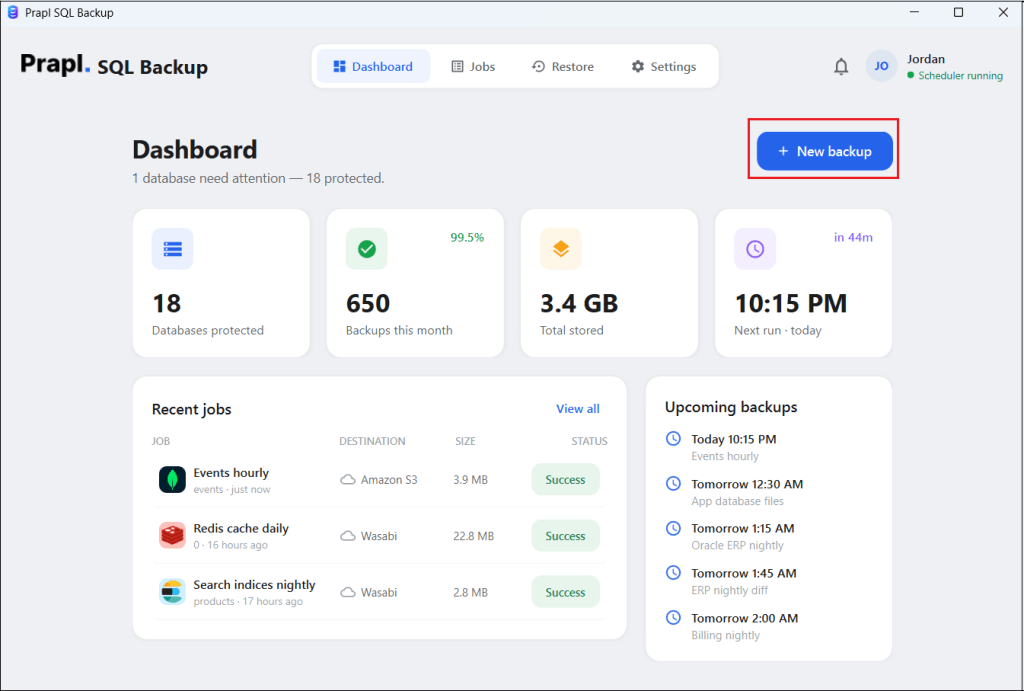
1. Run the tool on your system and click on + New Backup.
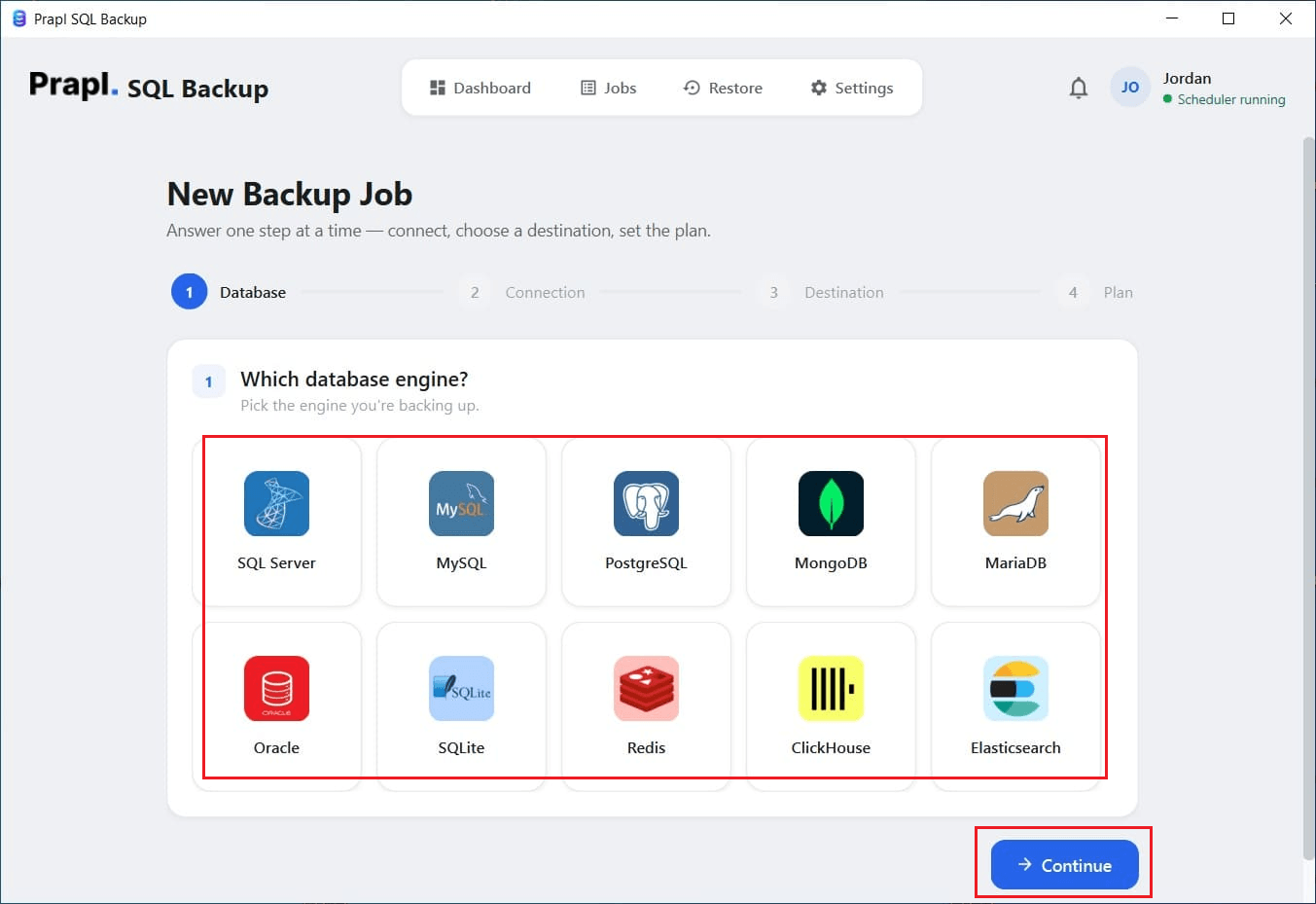
2. Choose your database type and click on Continue.
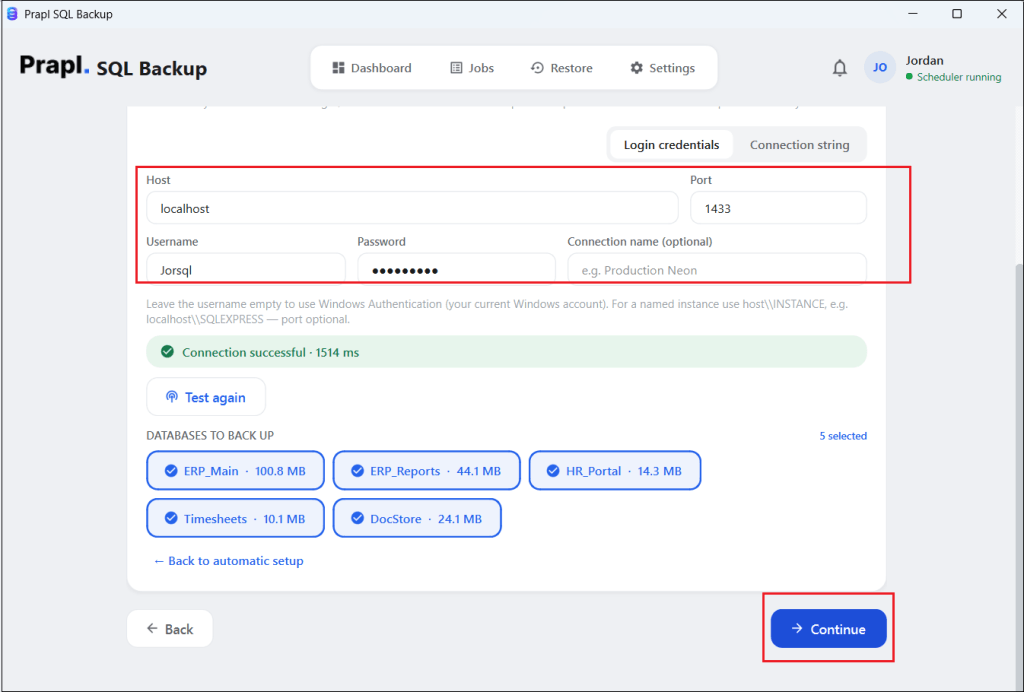
3. Enter your database login details and click on Test & List databases. After that, choose the database that you want to back up.
4. Set backup type, schedule, run time and retention policy. Then click on the Save & Run Time button to begin the process.
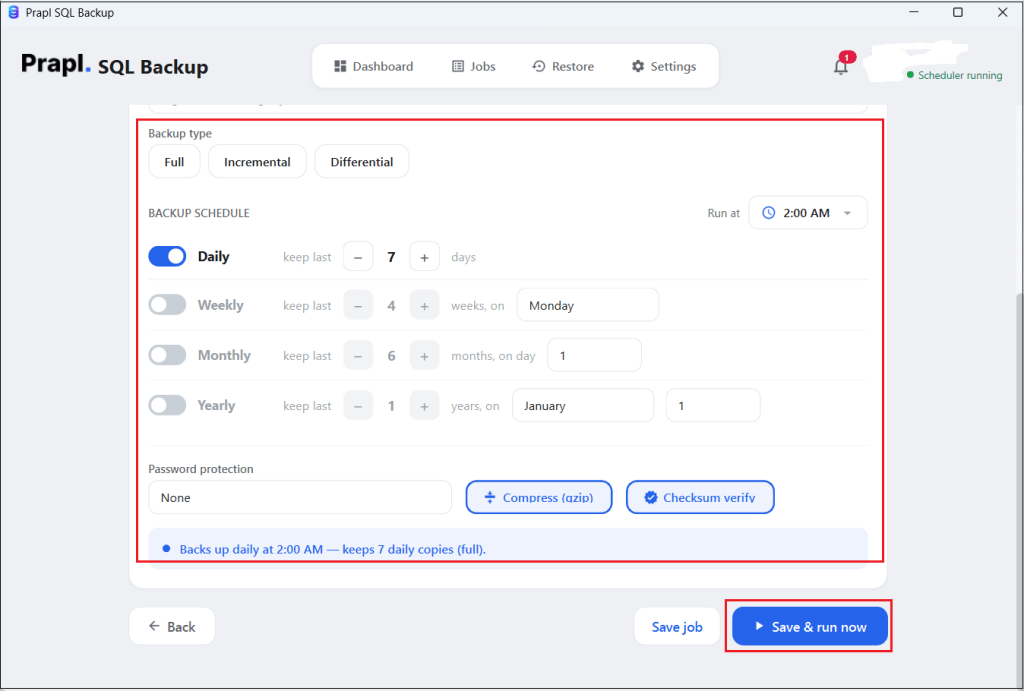
Now, the software will create your database backup automatically based on the basis of predefined schedule at the selected location.
Conclusion
Automating database backups provides a structured way to create regular copies of database data without starting every backup manually. A typical setup involves connecting to the database, selecting a storage destination, defining a schedule, configuring retention and verifying the resulting backup.
In this article, we have discussed how to automate database backup using third-party tool. The software can simplify this task by bringing database connections, scheduling, storage management and backup history into a single workflow. However, automation should always be combined with regular monitoring and restore testing. The goal is not only to create backups automatically, but also to ensure that those files remain available and usable when recovery is required.