
PostgreSQL is a popular open-source database used for storing important business data, application records, customer information and more. As databases grow, protecting this information becomes an important part of database management. A sudden system failure, accidental deletion or database issue can lead to data loss if no recent backup is available.
Taking backups manually can work for small databases but it becomes difficult when you need regular backups. A PostgreSQL backup tool helps you automate database backups and store them at your desired location. You can schedule backups, manage multiple databases and save backup copies on local or cloud storage according to your requirements.
Why is Automated PostgreSQL Database Backup?
Automating PostgreSQL database backups helps protect important data and reduces the need for manual backup tasks. Instead of creating backups every day, you can set a schedule and let the PostgreSQL backup tool handle the process automatically. It is useful for businesses and database administrators who manage multiple PostgreSQL servers and need regular backup copies.
With scheduled backups, you can backup PostgreSQL database automatically to your own local or cloud storage, maintain a regular backup routine and monitor backup status. It also helps prepare for unexpected database failures, accidental deletion or system problems.
Benefits of Automating PostgreSQL Database Backup:
- Prevent Data Loss: Regular automated backup help keep copies of your PostgreSQL data safe. If the original database is deleted or affected by a system failure. You have backup data available for recovery.
- Save Time and Reduce Manual Work: Manual backups require you to repeat the same process regularly. Automation handles scheduled backup so you do not have to create a backup manually every time.
- Keep Backups Up to Date: A PostgreSQL database can change frequently as new records are added or existing data is updated. Automated backups help maintain recent backup copies according to your selected schedule.
- Reduce the Risk of Missed Backups: Manual backup tasks can be forgotten during busy workdays. Automation helps maintain a consistent backup routine and reduces the chance of skipping scheduled backups.
How to Backup PostgreSQL Database Automatically?
Download and install Prapl SQL Backup Tool on your Windows PC to automate PostgreSQL database backup. You can set backups to run daily, weekly, monthly, or yearly, so you don’t have to start the process manually every time.
This desktop-based application offers multiple storage destinations to save database backups to your local drive, NAS and cloud storage. This gives you more control over your database backup files and allows you to maintain backups in locations that fit your storage and security requirements.
The software also maintains multiple backup copies based on your retention setting. When a PostgreSQL database needs to be recovered, this utility will help you. The stored backup can be used as the source for restoring the database. This makes the process useful not only for regular backup, but also for recovering data after accidental deletion or system database issues.
Download the free trial version of the PostgreSQL backup tool to evaluate its working procedure.

Steps to Use PostgreSQL Backup Tool
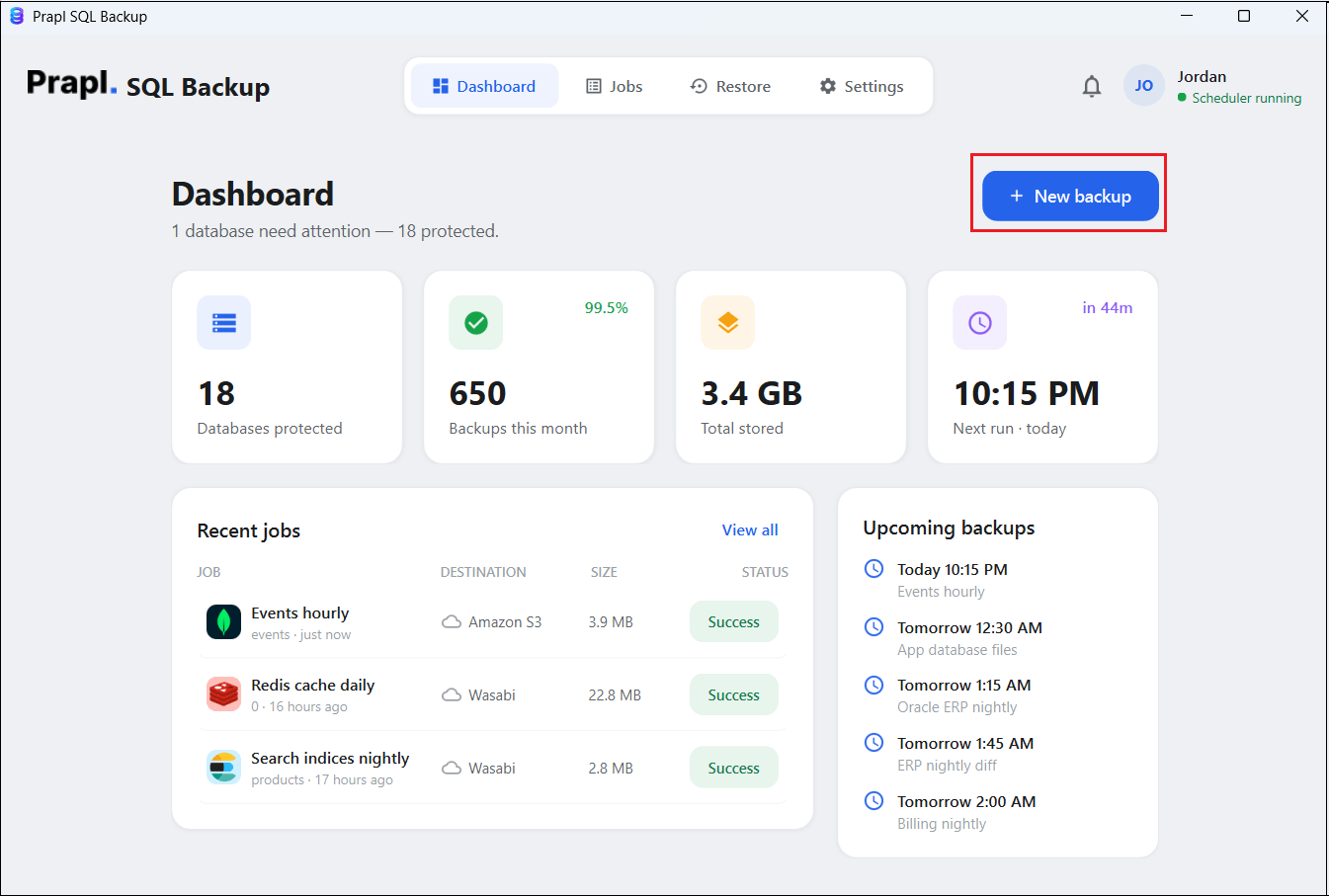
1. Run the tool and click on + New Backup.
2. Choose PostgreSQL database engine and click Continue.

3. Enter your Postgres database login credentials and click on Test & List databases.

4. Choose a location to store backup and click Continue.

5. Set backup type, schedule, retention policy and click on Save & Run Now.

The software will start creating backup of PostgreSQL database at your selected location. You will be notified by email once the process is complete.
How to Restore PostgreSQL Database from Backup?
A backup is only useful when it is restored successfully. Follow the below given steps to use this PostgreSQL backup and restore tool:
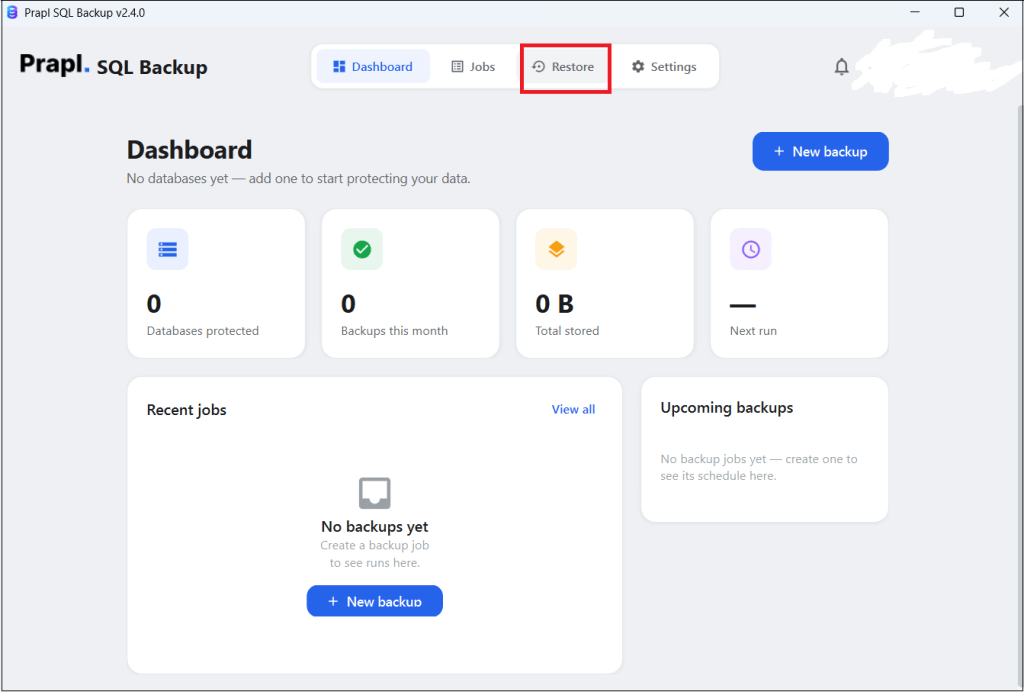
1. Run this tool on your system and click on Restore.
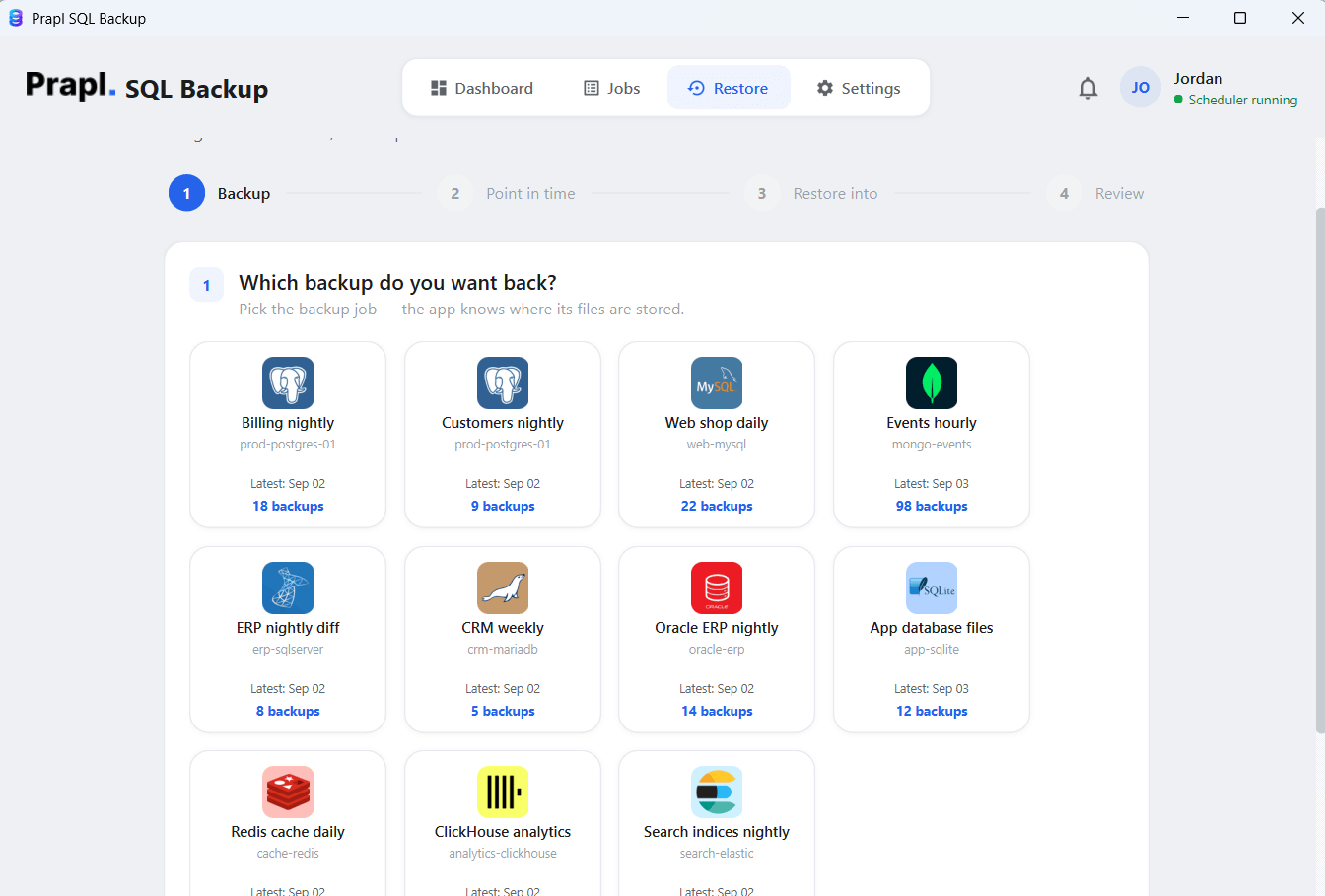
2. Choose the backup that you want to restore and press Continue.
3. Select a Point-in-Time backup and click Continue.
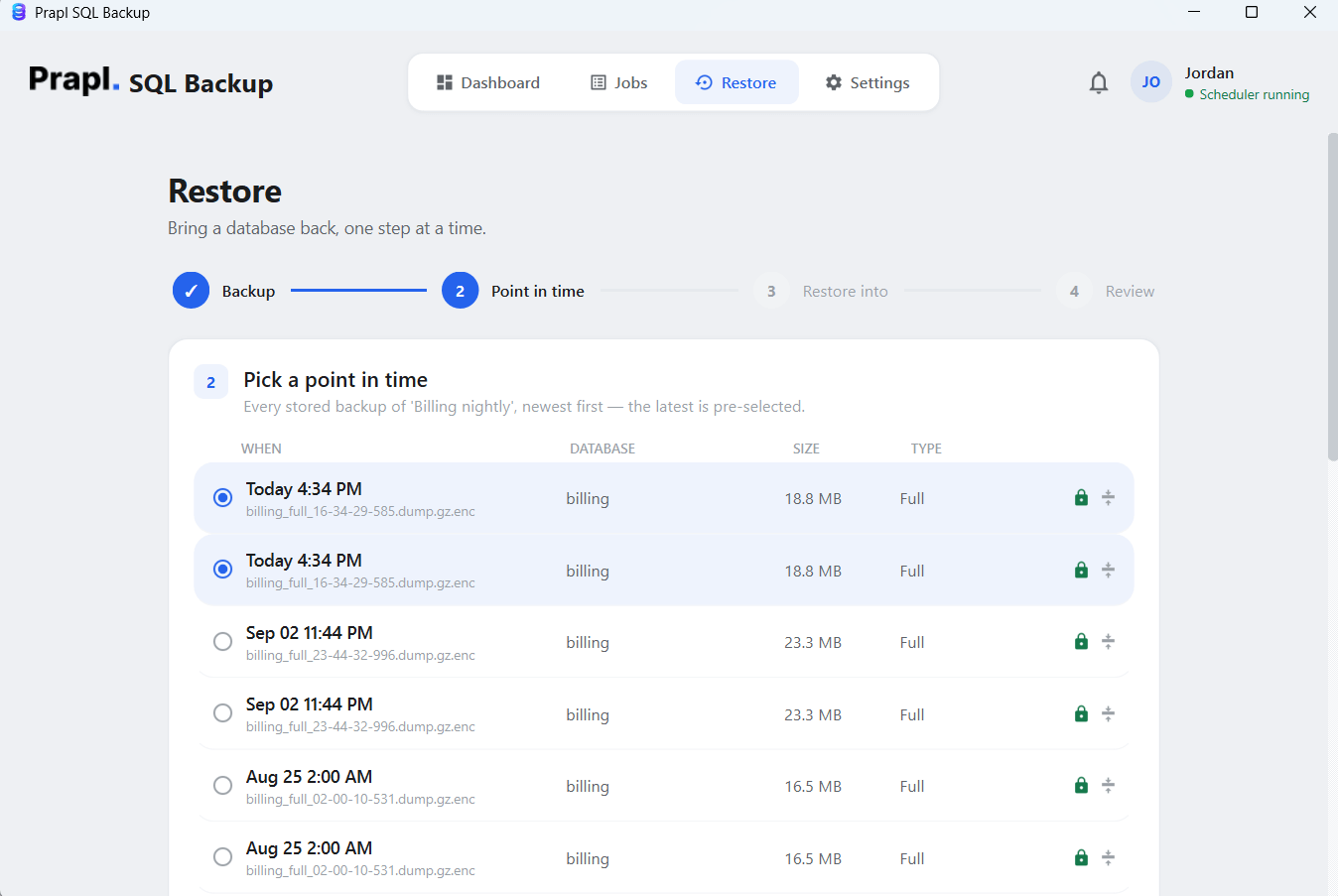
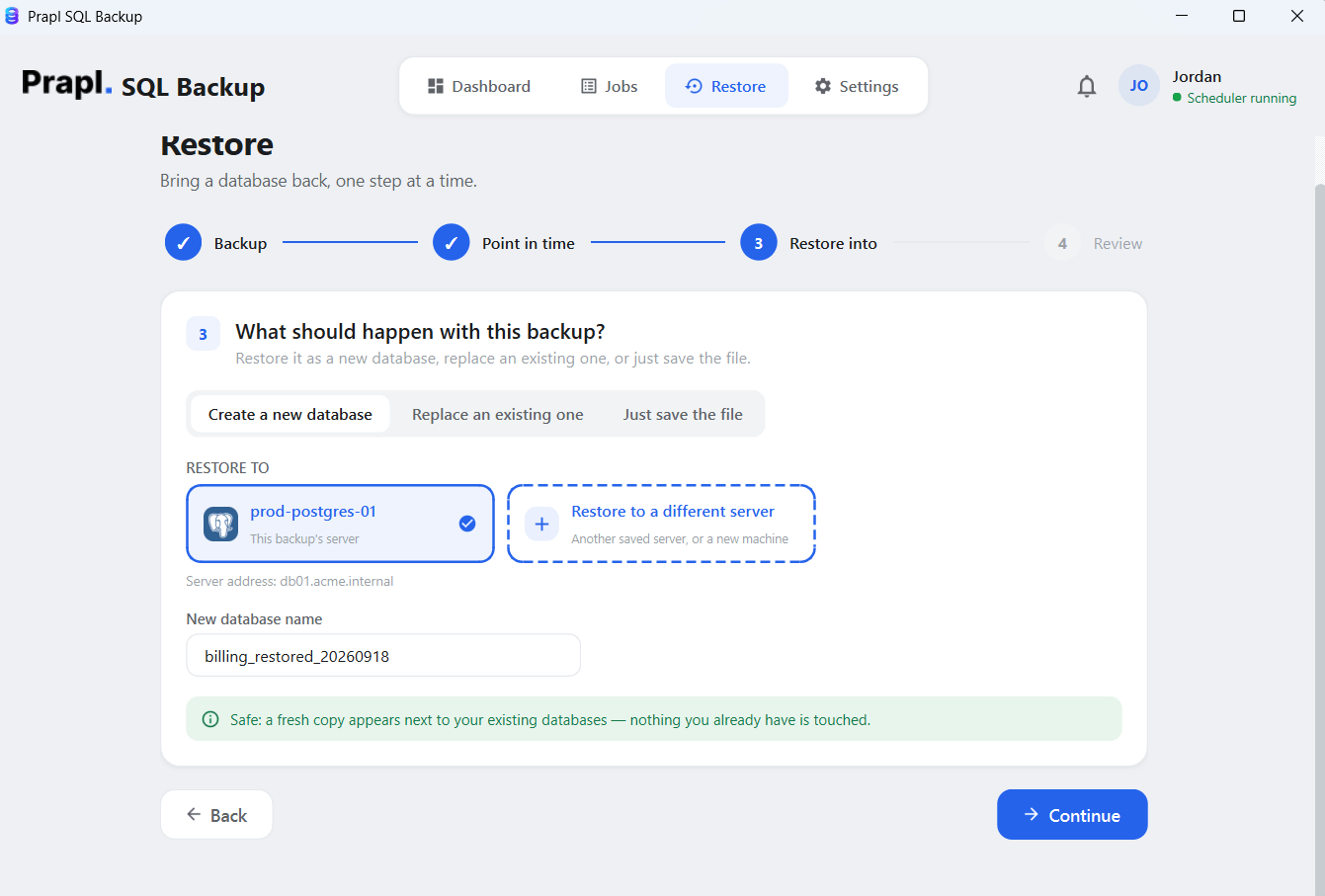
4. Choose the server where you want to restore.
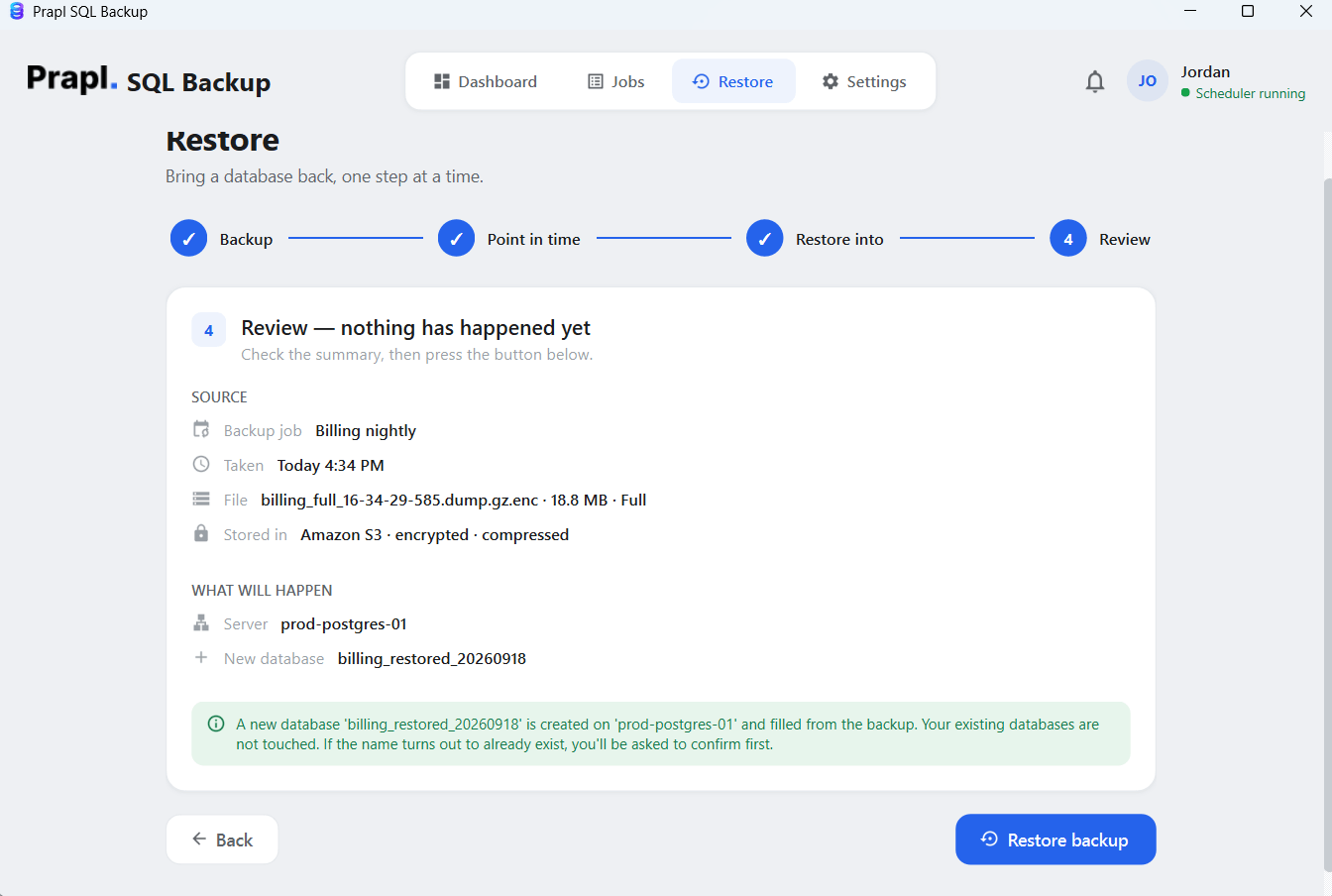
5. Check the restore settings and click on restore Backup button.
Key Features of PostgreSQL Backup Tool
- Scheduling: Once you set a backup schedule hourly, daily, weekly or monthly, the tool takes automate PostgreSQL database backup at the configured schedule.
- Apply Retention Policy: Automatically keep only the number of backups you want and delete older ones so you never run out of storage.
- Use Your Own Storage: The PostgreSQL backup tool offers several storage locations such as Local/NAS, OneDrive, Amazon S3, Wasabi, SFTP, FTP, etc. to backup PostgreSQL database to PC or cloud storage.
- Email Notifications: Get notified when a backup succeeds or fails. So you always know your data is protected without checking manually.
- Encrypt and Compress Backups: Protect your data with encryption so no one can read it if stolen, and compress it to take up less storage space.
- Multiple Backup Types: The backup type depends on the PostgreSQL version you are using. PostgreSQL 17 and later versions support incremental backups along with full backups, while users working with older versions can create full backups.
- One-Click Restore: With this PostgreSQL backup and restore tool, you can recover your data quickly without touching the command line.
- Unlimited Server and Backup Automation: You can create automated backup tasks for multiple servers and databases without limiting your backup workflow to a single server or database.
- Built for Windows: The software is designed for Windows PC. It supports all the latest and old versions of the Windows operating system, including Windows 11, 10, 8.1, etc.
- Lifetime Updates & Support: You will get software updates and support without needing to purchase a new version whenever improvements and updates are released.
Comparison Table: Online vs Offline PostgreSQL Backup Tools
| Feature | Online PostgreSQL Backup Tools | Offline PostgreSQL Backup Tools |
|---|---|---|
| Installation | Browser-based | Desktop-based |
| Automatic Scheduling | Depends on the service plan | Yes |
| Storage Destination | Third-party own storage | Local, NAS, OneDrive, Amazon S3, FTP, SFTP, Cloud, etc. |
| Data Control | Less control | Backup files under your control |
| Data Privacy | Data passes through the provider’s servers | Data stays on your own system and storage |
| Storage Limit | Depends on the selected plan | Depends on the available space in your own storage |
| Database Size Limit | Database limits depend on the service plan | No limit on the number and size of databases for backup |
| Backup Monitoring | Do it yourself | Built-in option |
| Email Notifications | No | Yes |
| Technical Skills Needed | Moderate to High | Very low |
Conclusion
Your database holds information that is often impossible to recreate. So protecting it with a proper method is not a choice, it is a necessity. In the above guide, we learned how to backup PostgreSQL database automatically.
To keep your backups secure and consistent without the daily effort, specialized Postgres backup tool is the safer choice. It schedules everything automatically and stores your data locally or in the cloud, giving you instant access whenever you need it. You can download its free trial version and take automate PostgreSQL database backup in Windows for 15 days without any cost.
Frequently Asked Questions
Ques 1. How to schedule PostgreSQL backup?
Ans. With the help of this PostgreSQL backup software, you can schedule automatic PostgreSQL database backups. You connect to your database once, select where to save it and choose how often the backup should run(hourly, daily, weekly or monthly).
Ques 2. What are the different types of backups in PostgreSQL backup tool?
Ans. The software offers different backup types depending on the database engine and version. Incremental backup is available for PostgreSQL 17 and later versions, while older versions can take full backups.
Ques 3. Is it possible to encrypt the database backup file?
Ans. Yes. The PostgreSQL backup and restore tool offers encryption to help protect backup data from unauthorized access. You can enable encryption when configuring your backup jobs and store the encrypted backup file at your preferred location.