ClickHouse is designed to handle large amounts of data for analytics and reporting. As this data keeps growing and changing, relying only on the active database can create a risk if something goes wrong. A separate backup copy provides another way to recover data if the database is accidentally changed, deleted, corrupted or becomes unavailable.
A reliable ClickHouse backup tool should do more than create a copy once. Regular backups help maintain different recovery points, while automated scheduling reduces the need to remember when the next backup should be taken. With the right backup wizard, you can create recurring backups and save them to a storage location under your control.
Why Use ClickHouse Backup Tool?
There are several reasons to use ClickHouse database backup utility. Some of them are mentioned here:
1. Protect Important Analytical Data
ClickHouse database can contain valuable data used for reports, dashboards, analytics and business operations. If this information is deleted, recovering it without a backup can be difficult.
A ClickHouse backup software creates a separate copy of the database data so that the original database is not the only place where your information exists.
2. Reduce Manual Effort
Taking ClickHouse backups manually requires you to remember when to start each backup and check whether the process was completed successfully. This can become difficult when the database is updated frequently.
A backup utility can automate this routine work through scheduled backup jobs. The application can automate database backups according to the selected schedule, reducing repetitive manual work and helping you maintain consistency.
3. Maintain Multiple Recovery Points
Keeping only the latest backup may not always be enough. For example, if unwanted changes are discovered after the latest backup was created, restoring that copy may bring back the same problem.
A backup solution can help maintain multiple backup versions. You can keep copies from different dates and use an earlier recovery point when necessary. This provides more flexibility during data recovery.
4. Recover from Accidental Data Changes
Sometimes data can be deleted or modified unintentionally during database maintenance, application updates or other operations. If there is no separate backup, recovering the original information can be difficult.
With regular ClickHouse backups, you have previous copies that can be used when data needs to be recovered.
5. Keep Backups Separate from the Original Database
Keeping a backup on the same system as the original database may not provide enough protection if that system becomes unavailable. Hardware problems, storage failures or other system-level issues can affect both the database and its backup.
A ClickHouse backup tool allows you to save copies to separate destinations. This gives you more control over where backup copies are maintained.
How to Backup ClickHouse Database Automatically?
To automate ClickHouse database backups, try the Prapl SQL backup tool on your system. It is a Windows-based desktop application that lets you connect to your ClickHouse database, select a storage location and configure the schedule.
The ClickHouse backup tool supports ClickHouse through HTTP/HTTPS connections, including ClickHouse Cloud as well as the native connection method. You can save backups to local storage, NAS, OneDrive, S3-compatible storage, OneDrive, SFTP, FTP, Wasabi, MinIO and other supported destinations.
Once the backup job is configured, it can run automatically according to the selected schedule. This helps maintain regular ClickHouse backup copies without starting the process manually each time.

How Does ClickHouse Backup Software Work?
1. Run the tool on your system. Select your ClickHouse database engine and click Continue.

2. Enter ClickHouse host, HTTP port, username and password and click Test Connection. The software will load all the databases, select a single or multiple databases for backup.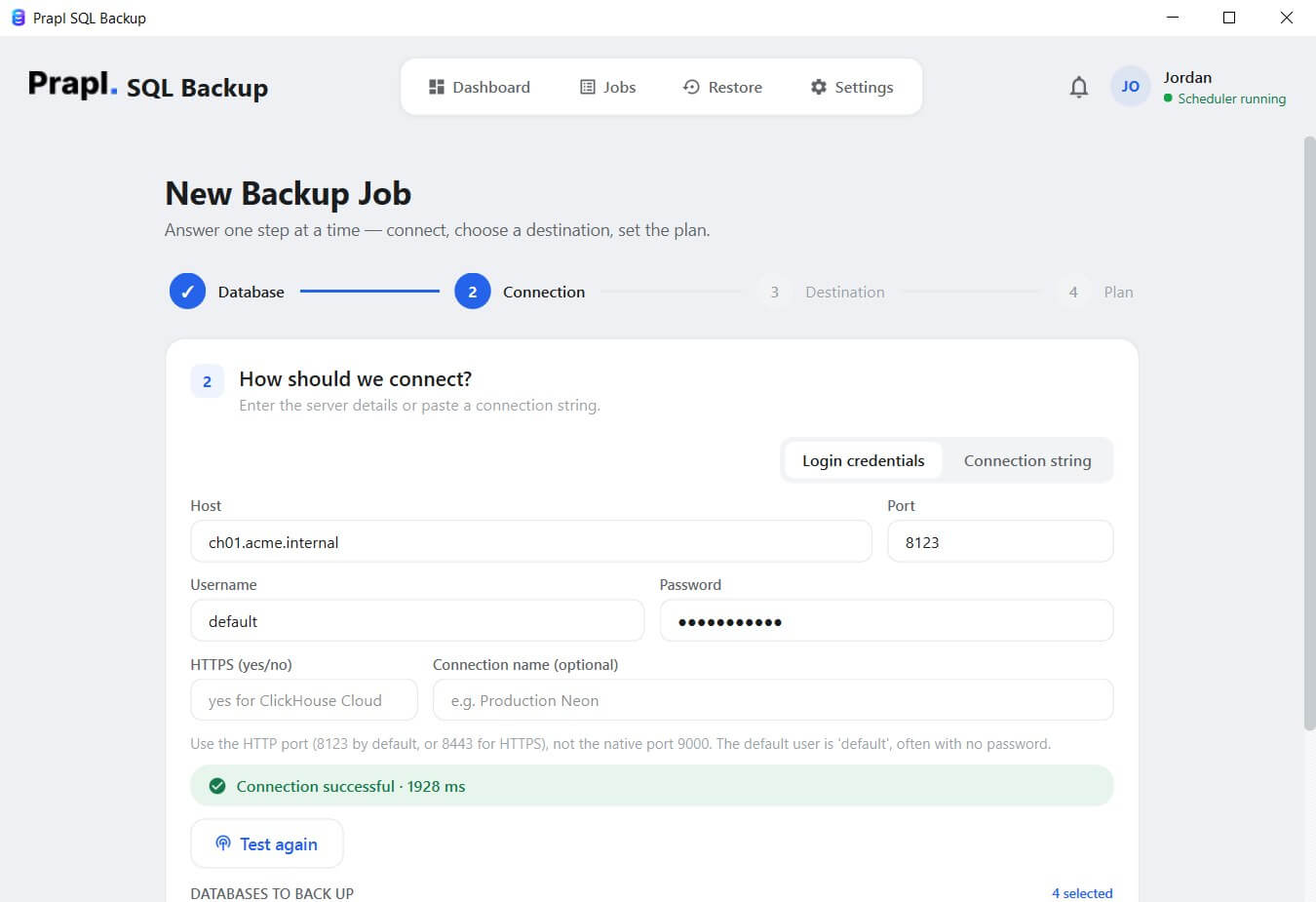
3. Select a storage destination where you want to save the backup.

4. Choose backup type, set schedule, retention policy, compression, encryption and click the Save & Run Now button.

The software runs the ClickHouse backup according to the schedule at your desired storage location.
How to Use ClickHouse Backup and Restore Software to Recover Database?
When data recovery is required, an available backup can be selected and used through the restore process. This provides a separate recovery source instead of relying only on the active ClickHouse database.
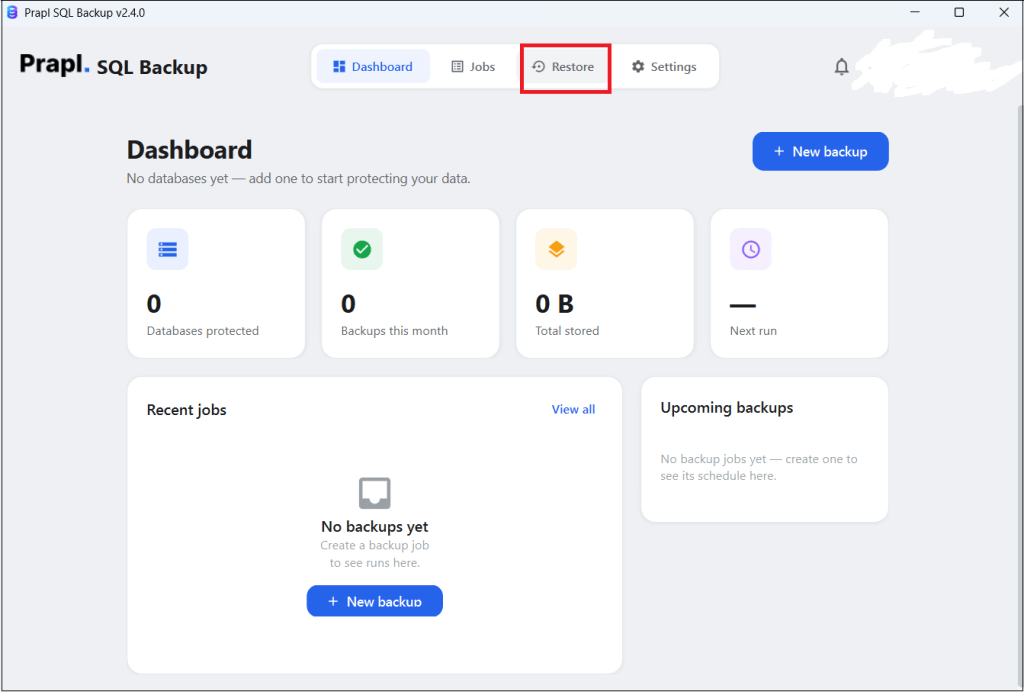
1. Launch the tool and click on Restore.
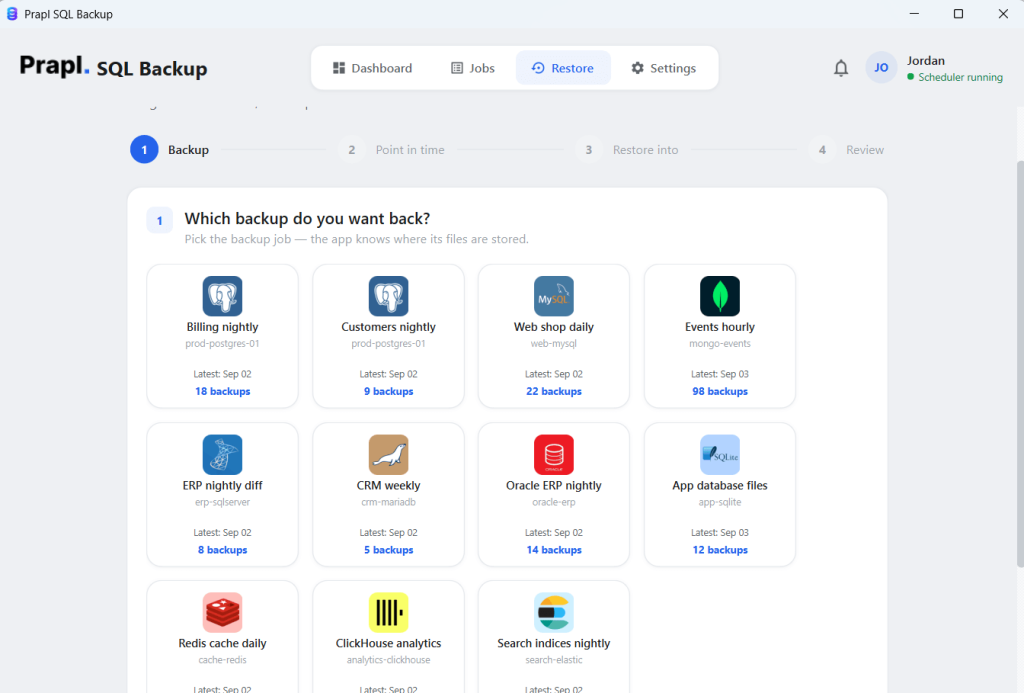
2. Select your ClickHouse backup and click Continue.
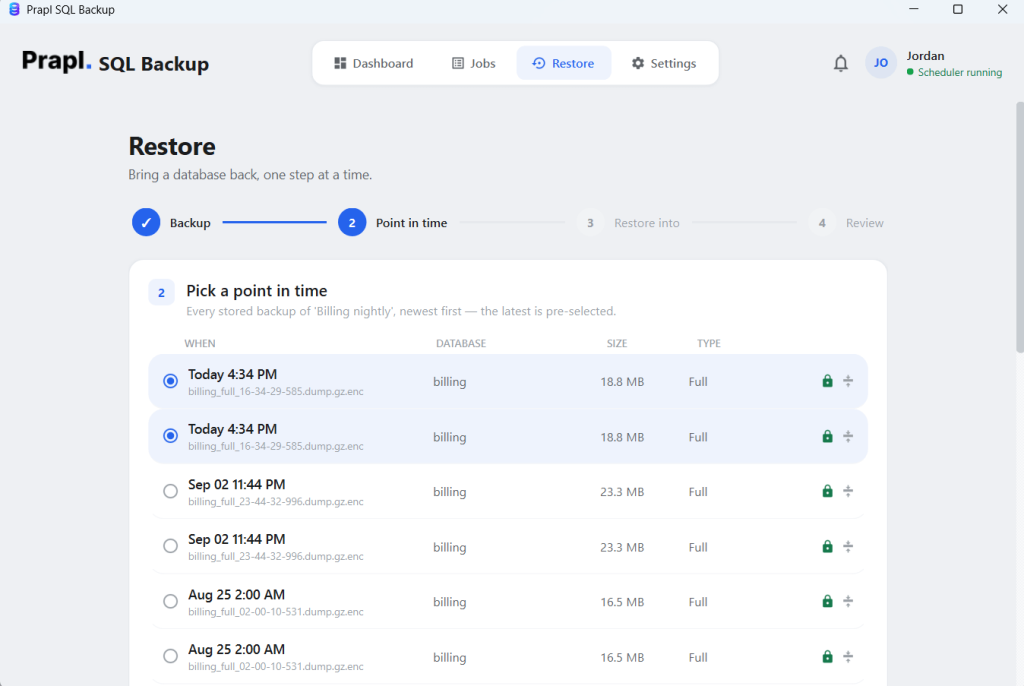
3. Pick a Point-in-Time to recover database.
4. Choose the server where you want to restore either ClickHouse or a different server.
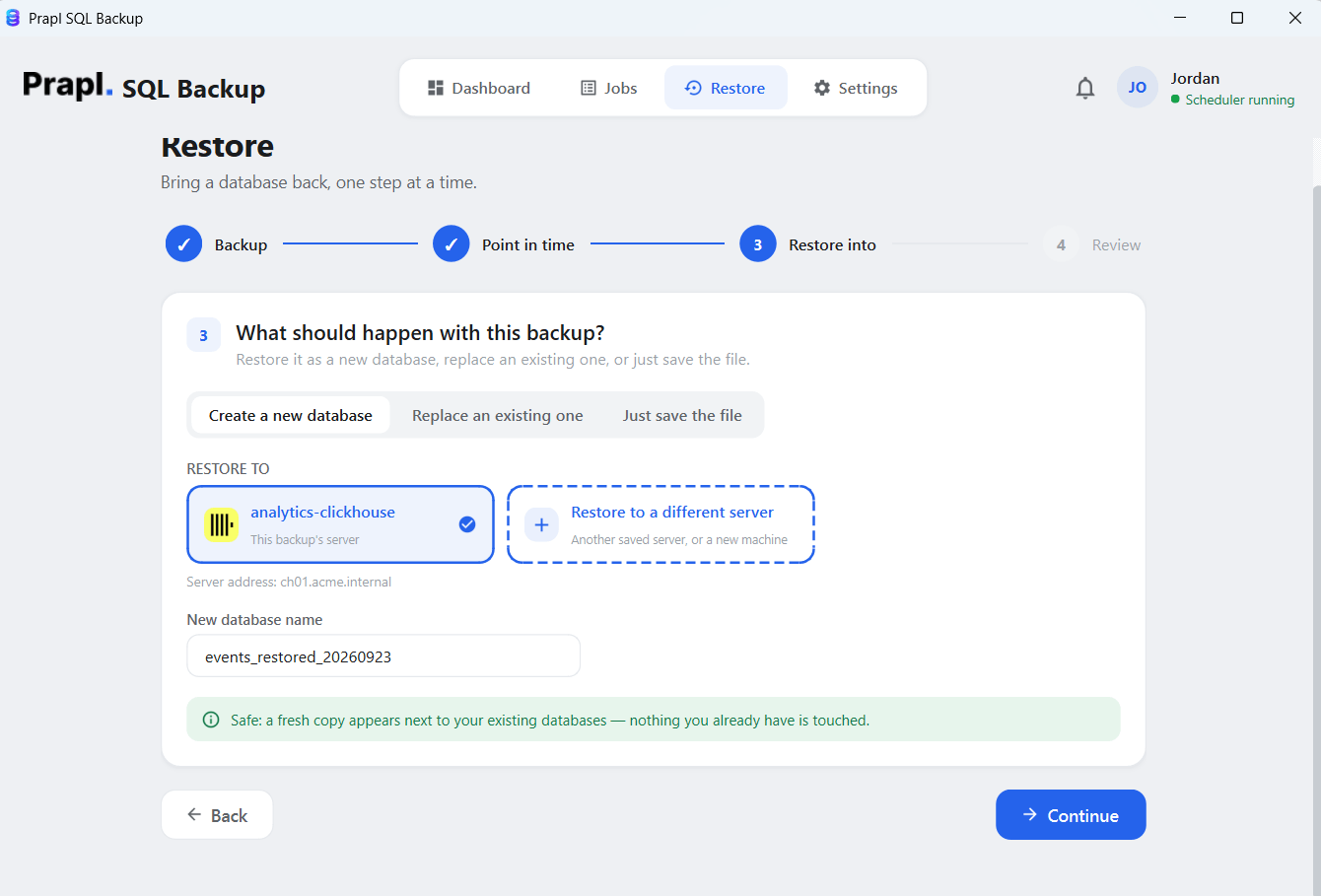
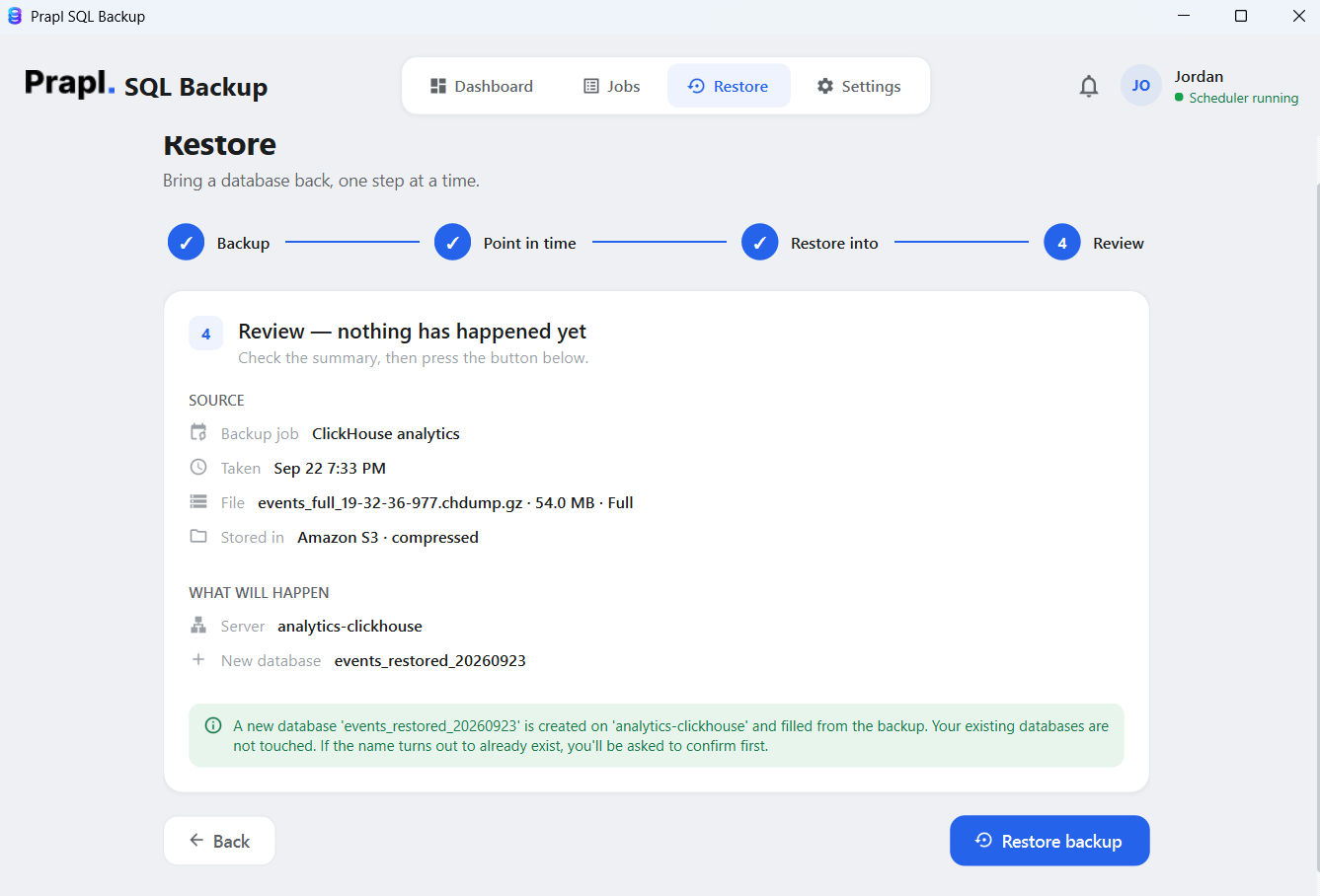
5. Review settings and click the Restore Backup button.
ClickHouse Backup Tool – Top Features
- Automated Scheduling: Schedule backup jobs daily, weekly, monthly, yearly or on a custom basis to run automatically at the required frequency. This helps maintain regular backup copies without repeated manual work.
- ClickHouse Cloud Support: The software supports ClickHouse Cloud through HTTP/HTTPS connection, allowing users to configure backups for cloud-hosted databases.
- Native ClickHouse Connection: You can also connect to ClickHouse using its native connection method for supported environments.
- Multiple Storage Destinations: Store backup copies on different destinations, including local drive, AWS-s33 compatible storage, OneDrive, Google Drive, SFTP, FTP, Wasabi, Backblaze B2, MinIO and many more.
- Multiple Database Support: Manage backups for multiple ClickHouse databases from a single application.
- Backup Retention: Set the number of backup copies you want to retain. This helps maintain older recovery points while controlling storage usage.
- Compression: Compress backup data to help reduce the amount of storage space required for backup copies.
- Encryption: Protect backup data with encryption before storing at the storage destination.
- Flexibility of Backup Type: The ClickHouse backup utility offers various backup types such as full, incremental and differential. You can take any type of backup as per your needs.
- Backup Monitoring: Keep track of confirmed backup jobs and their status from the desktop application.
- Restore Database: The ClickHouse backup and restore tool allows you to restore databases from the latest backup copy when recovery is required.
- Windows-Based Software: The tool provides a desktop-based approach to ClickHouse backup and restore on Windows, without requiring an online backup service.
Comparison Table: Online vs Offline ClickHouse Database Backup Tool
| Feature | Online Tools | Offline Tools |
|---|---|---|
| Backup Management | Managed through web platform | Managed from your desktop application |
| Data Privacy | Depends on the provider’s infrastructure and policies | You have control on your data |
| Destination Storage | Third party own storage | Local, NAS, OneDrive, S3-compatible storage, FTP/SFTP, cloud storage |
| Multiple Database Backups | Depends on the service | Yes |
| Data Processing | Pass-through server | Remains on your system |
FAQS – ClickHouse Backup and Restore Tool
Q1. Can unauthorized users open my ClickHouse backup?
Ans. No. When you choose AES-256 protection the backup is encrypted before it is stored, and it can only be opened with the encryption password. Without it the file is unreadable ciphertext on your PC, on a NAS or in a cloud bucket.
Q2. Can I do both backup and restore ClickHouse database using this utility?
Ans. Yes. The ClickHouse backup tool handles both backup and restore in one place. Create encrypted backup and restore it when you need to recover.
Q3. Can I take an incremental backup of ClickHouse database?
Ans. Yes. The software offers various backup types such as full, incremental, or differential. You can take any type of backup as per your requirement.