SQLite is a lightweight, file-based database that is widely used in desktop applications, mobile apps, embedded systems, testing environments and small-scale applications. Since the database is stored in a file, creating a basic copy may seem like an easy way to protect it. However, manually copying the SQLite database file every time changes are made can quickly become inconvenient and unreliable.
As the database continues to store new records, regular backups become important to protect the latest information from accidental deletion, file corruption, system failure or other unexpected issues. A single backup copy may not be enough if the database changes frequently, because restoring it could mean losing the data added after that backup was created.
This is where a SQLite backup tool can make the process easier. Instead of creating database copies manually, you can use an SQLite backup and restore tool to create recurring backups and store them at a location of your choice. With an automated approach, backups can continue on a defined schedule while reducing the need for constant manual intervention.
Why is Automate SQLite Database Backups Important?
A SQLite database may be small compared with many enterprise databases but the information stored inside it can still be important. If the database file is accidentally deleted, overwritten, corrupted or damaged because of a system problem, having a recent backup can make recovery much easier. The challenge is maintaining those backups regularly rather than creating them only when someone remembers to do so.
SQLite backup tool helps maintain a consistent copy of the database without making manual file copying part of the daily routine. It can be particularly useful when the database is updated frequently, or when multiple SQLite databases need to be protected.
Automated database backup is important because it can help with:
- Regular Data Protection: Create backup copies at scheduled intervals instead of relying on occasional manual copies.
- Protect Against Accidental Changes: Keep previous backup copies available if important records are deleted or modified.
- Reduced Manual Work: Once a schedule is configured, recurring backup jobs can run without requiring the database administrator to start them manually.
- Faster Recovery: A recent backup can help restore the database after corruption, file damage or system failure.
- Multiple Backup Copies: Retain older copies so you have more than one recovery point when required.
- Better Backup Consistency: Scheduled jobs make it easier to maintain a regular backup routine for frequently updated SQLite databases.
SQLite Backup Tool – One-Stop Solution
Download and install Prapl SQL Backup Tool to automate SQLite database backups. You can simply set the schedule frequency such as daily, weekly, monthly or yearly. The backup wizard will run in the background every time you turn on your system. If a backup gets missed, it will send you an alert or email and retry again. So you won’t miss any single backup.
This is a desktop-based application that lets you choose your own storage. It allows you to backup SQLite databases to a local machine, external hard drive, Amazon S3, NAS, OneDrive, FTP, SFTP, etc. With this utility, you can easily create full, incremental, differential and transaction log backups.
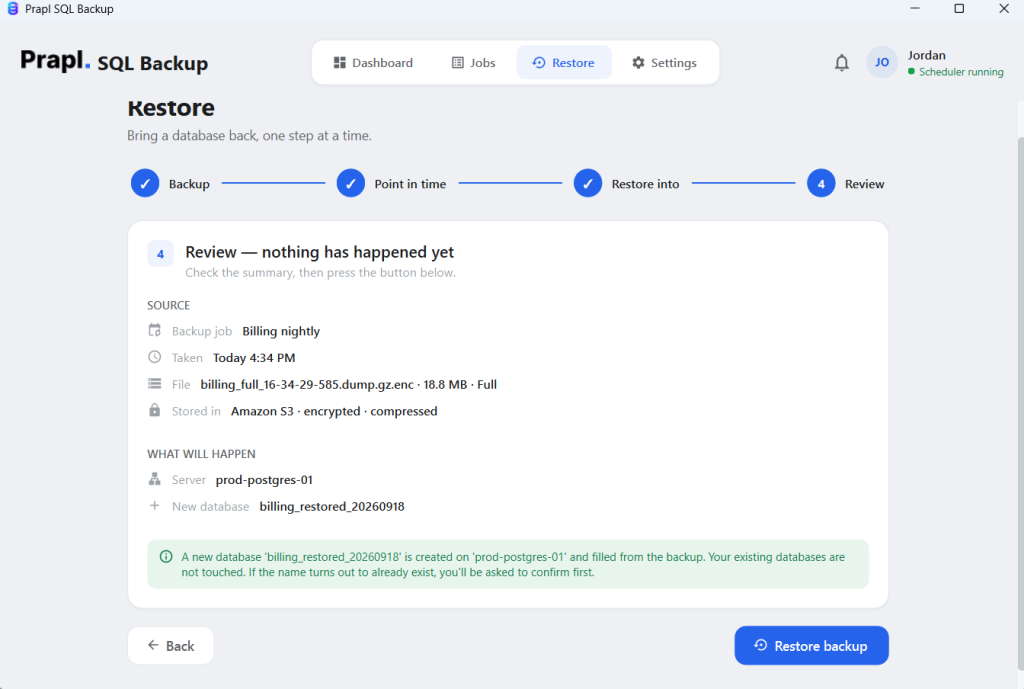
Additionally, the SQLite backup and restore tool also offers a restore procedure that can fetch the backup, decrypt and decompress it and recover the data using the built-in restore feature.
Just download this SQLite backup software for free today and try it yourself.

How to Backup SQLite Database Automatically?
1. Run the tool on your Windows PC. Select your SQLite database engine and click Continue.

2. Enter the folder path where your application stores its SQLite database or use Browse to find it. Click Test & list databases to scan the folder. Select databases you want to backup.
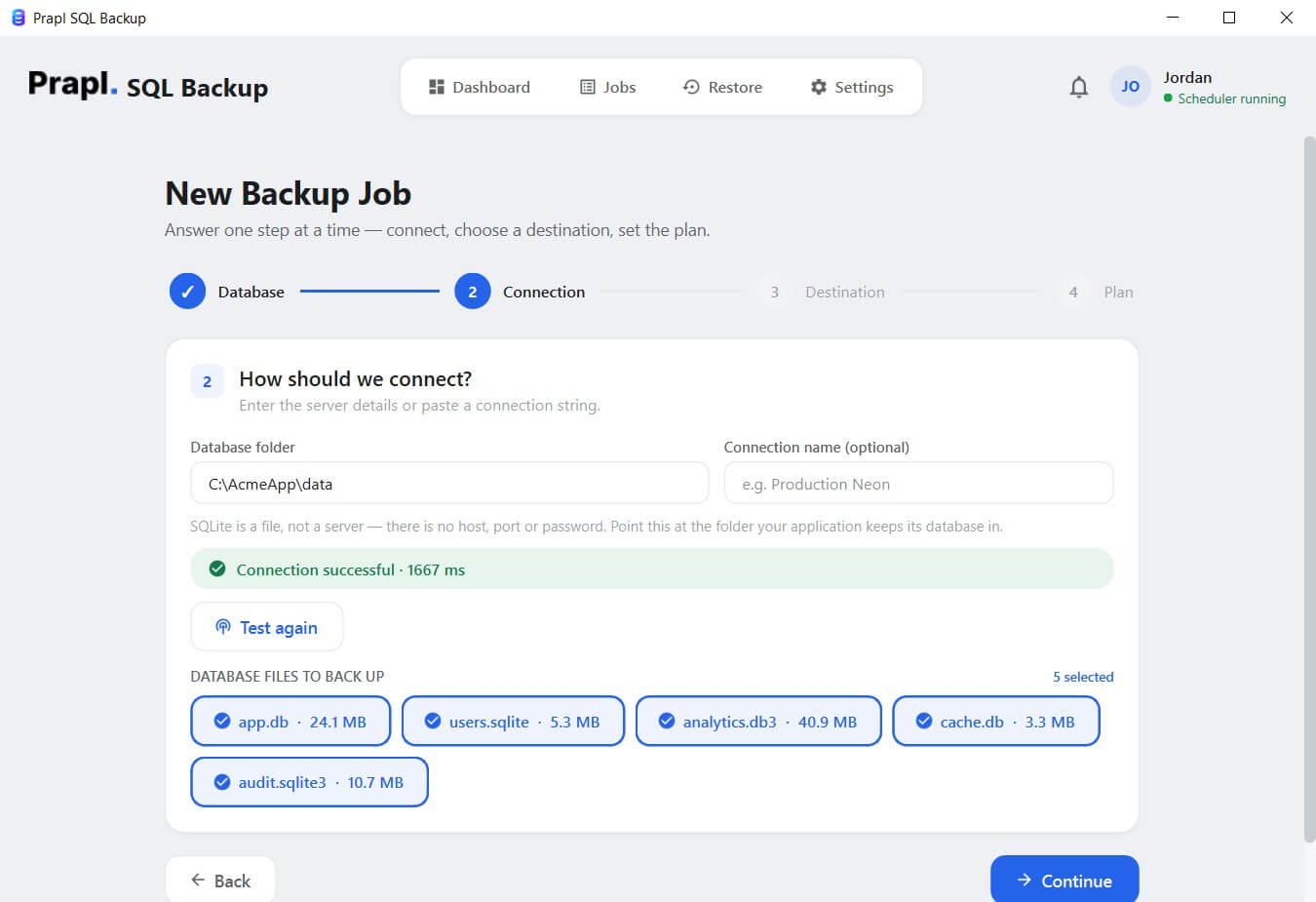
3. Choose a storage destination to save the backup.

4. Configure the schedule frequency and decide how long backup copies should be kept on hand. Finally, click the Save & Run Now button.

The software will take care of the rest. It will start taking backups automatically at your desired storage location.
How to Use SQLite Backup and Restore Tool to Recover Database?
Making backups is just one aspect of a recovery plan. SQLite backup tool not only downloads and saves database backups, but it also helps you restore them.
Follow the below given steps to restore SQLite database backup:
1. Launch the tool and click on Restore.
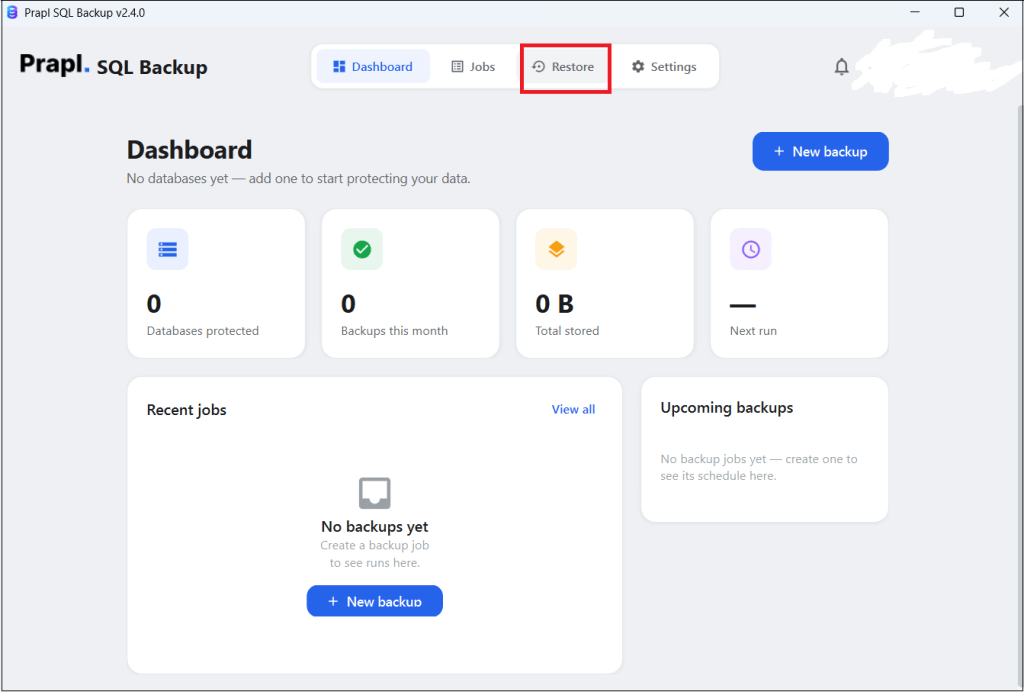
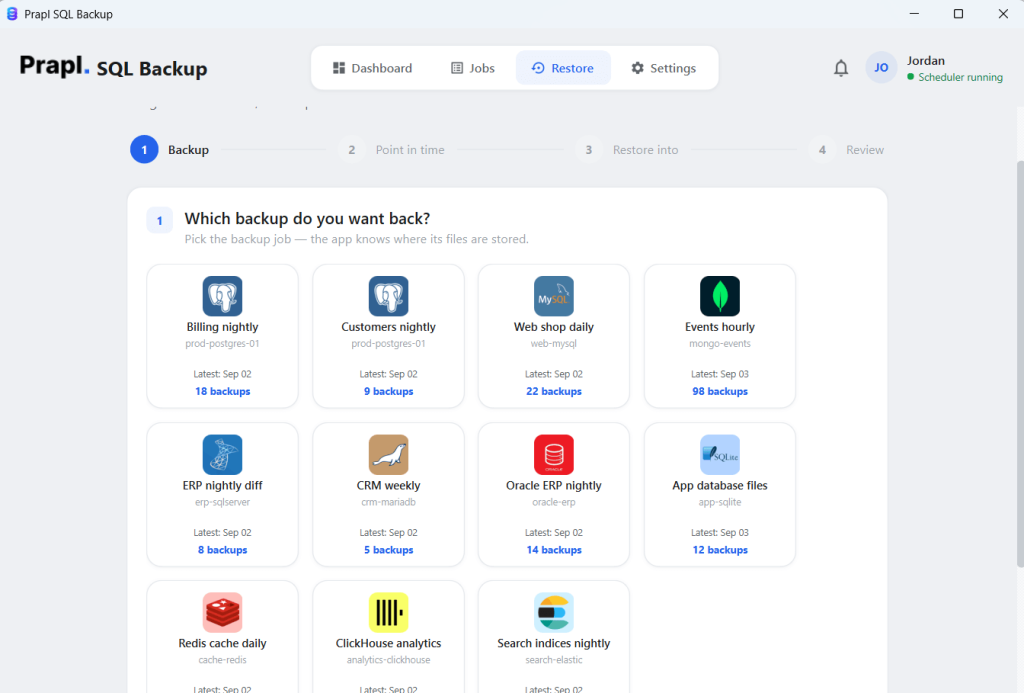
2. Select your SQLite backup and click Continue.
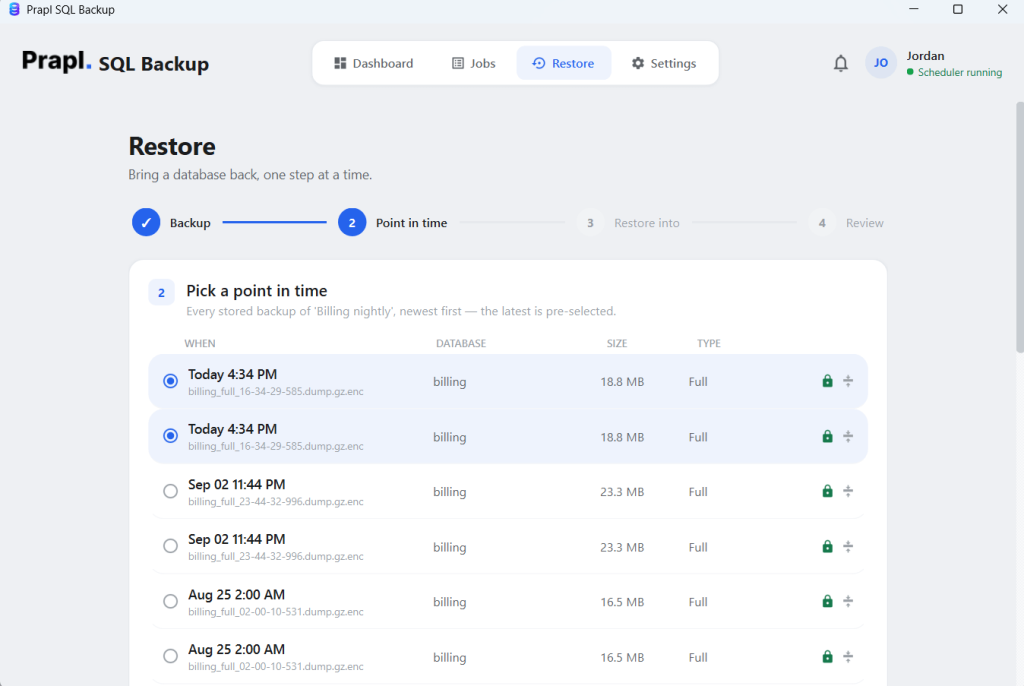
3. Pick a Point-in-Time to recover the database.
4. Choose the server where you want to restore either SQLite or a different server.
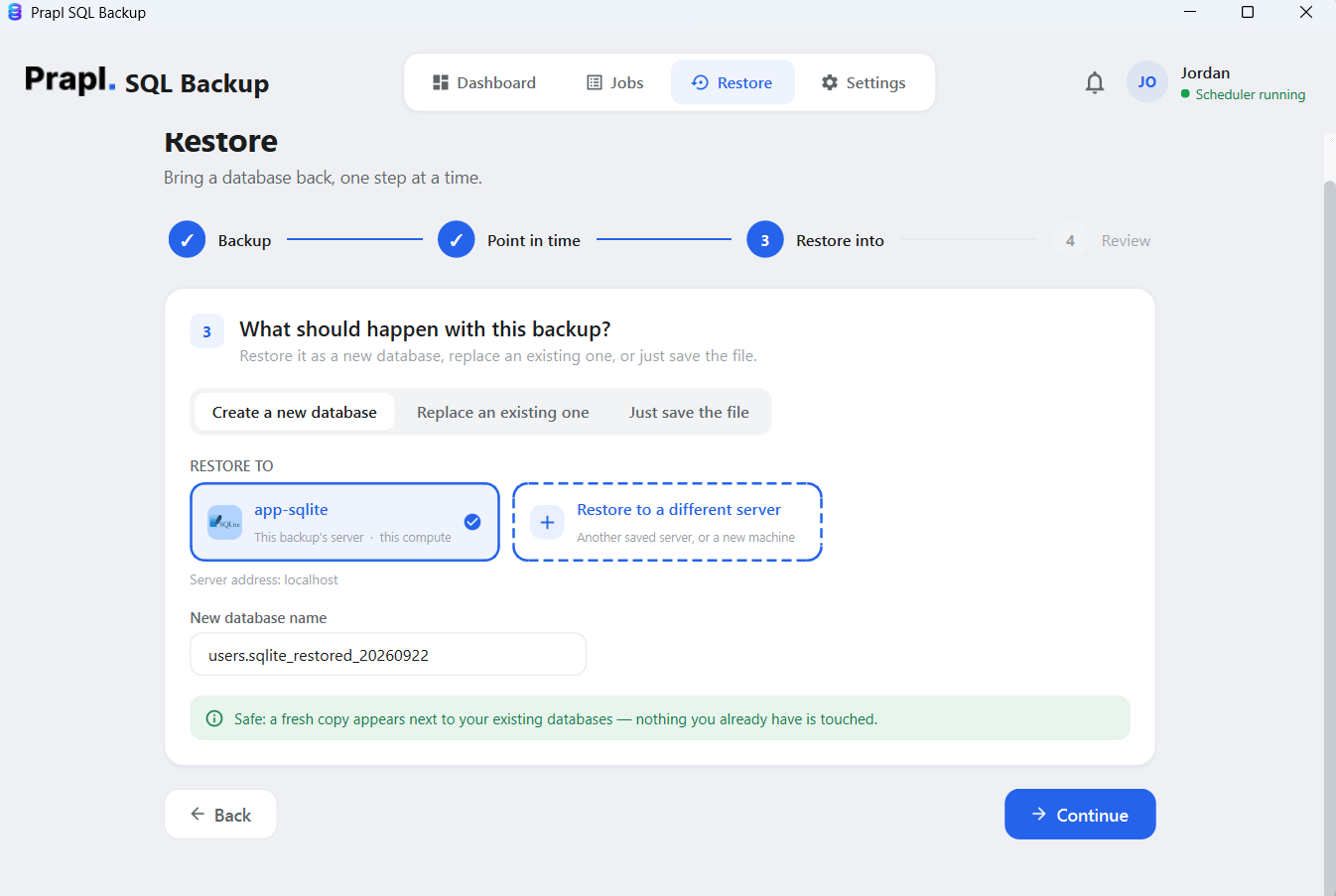
5. Review settings and click on the Restore Backup button.
SQLite Backup Software – Key Features
- Automatic Scheduling: With the help of this desktop application, you can schedule backups as per your requirements, like daily, weekly, monthly, really, instead of relying on manual uploads.
- Multiple Database Engines: It supports multiple database engine systems. So you can manage backups for different databases from one Windows application without depending on other applications.
- Unlimited Database Backup: There is no limit on backups. Schedule and automatic backup for unlimited databases at your desired storage location.
- Multiple Storage Destinations: This is an advanced Windows desktop application that supports different storage destinations. So it does not matter if you want to save the backup file locally or cloud storage. You can easily save them to local drive, Google Drive, OneDrive, NAS, Cloud Storage, Amazon S3, FTP, SFTP, etc.
- Encryption and Compression: By using this SQLite backup tool, you can protect backup data with AES-256-GCM encryption. Also, it helps you to compress backup files and save storage space.
- Restore: By using this SQLite backup and restore tool, you can keep recovery as part of the backup flow, rather than treating storage as the final step.
- Retention Management: The software helps you manage older backup files so storage doesn’t grow indefinitely. All you will have to do is set some necessary settings during backup, and it will do its work.
FAQs – SQLite Backup Tool
Q1. Is my backup data encrypted?
Ans. Yes, your backup is protected using AES-256 encryption. Users can only open the backup files with the correct decryption key.
Q2. What happens if an automated SQLite backup fails?
Ans. The backup history records completed and failed jobs, making it easy to identify unsuccessful backup attempts. You can review the backup status and take the required action to run the backup again.
Q3. Can I backup multiple SQLite databases?
Ans. Yes. The SQLite backup tool allows you to backup multiple databases at once.