

MariaDB is one of the most popular open-source relational databases in the world. Created as a community-driven fork of MySQL, it powers everything from small personal websites to large business applications and it’s trusted for being fast, stable and highly compatible with MySQL.
But even the most reliable database cannot protect you from an accidental drop, a corrupted disk, a failed update or ransomware attack. When any of these strike, the only thing standing between you and permanent data loss is a recent backup. This is exactly why automating your MariaDB backup is a habit every serious developer and admin should build.
Manually backing up MariaDB works for occasional tasks but it can become time-consuming when you mange multiple servers or databases. An automated MariaDB backup tool helps you schedule backup tasks and save copies to your preferred storage locations. Your backup files are under your own control. Instead of running backup commands every day, you can configure the process once and let the software handle scheduled automated database backups.
Before we start the process, let’s quickly look at the reasons why automate MariaDB database backup is important.
Benefits of Automating MariaDB Database Backup
You get busy, skip a day and trouble arrives on the exact day you didn’t save a copy. Automation removes those risks by running quietly in the background. Automating a MariaDB backup simply means setting up a process that creates copies of your database on a fixed schedule without you running anything by hand.
- Reduce Manual Backup Work: Manual backups require you to start the backup process whenever a new copy is needed. With automation, you can configure a schedule and let the software run the backup at the selected time.
- Avoid Missed Backups: Humans do make mistakes. So, yes, they can forget to schedule MariaDB database backups, especially when multiple databases need regular protection. Whereas automation helps to reduce this dependency.
- Protect Against Unexpected Data Loss: Database records can be lost due to accidental deletion, hardware failure, software issue or other unexpected problems. Regular backups provide copies of the database that can be used for recovery.
- Manage Multiple Servers and Databases: Businesses may use several MariaDB servers or databases for different applications. Managing each backup manually can become difficult. A desktop-based database backup application can help organize backup tasks from multiple servers and automate backups for multiple databases.
How to Automate MariaDB Database Backup to Multiple Storage Locations?
Prapl SQL Backup Software is a desktop-based database backup application for Windows. Your data, your control. The software offers full and incremental backup options. This is a desktop-based software, so your backup does not have to pass through the software provider’s server. You can keep the backup on your PC securely or direct it to any cloud destination you control.

The MariaDB backup tool supports scheduled backups that help you to backup MariaDB database automatically. So you never have to remember to run them. With this utility, you can take full, incremental, differential and transaction log backups of MariaDB.
It supports backup tasks for multiple servers and databases. You can add unlimited servers for unlimited database backups. MariaDB backup and restore tool sends email notifications about backup status. These can help you identify missed or failed backups.
Steps to Backup MariaDB Database With Prapl MariaDB Backup Tool
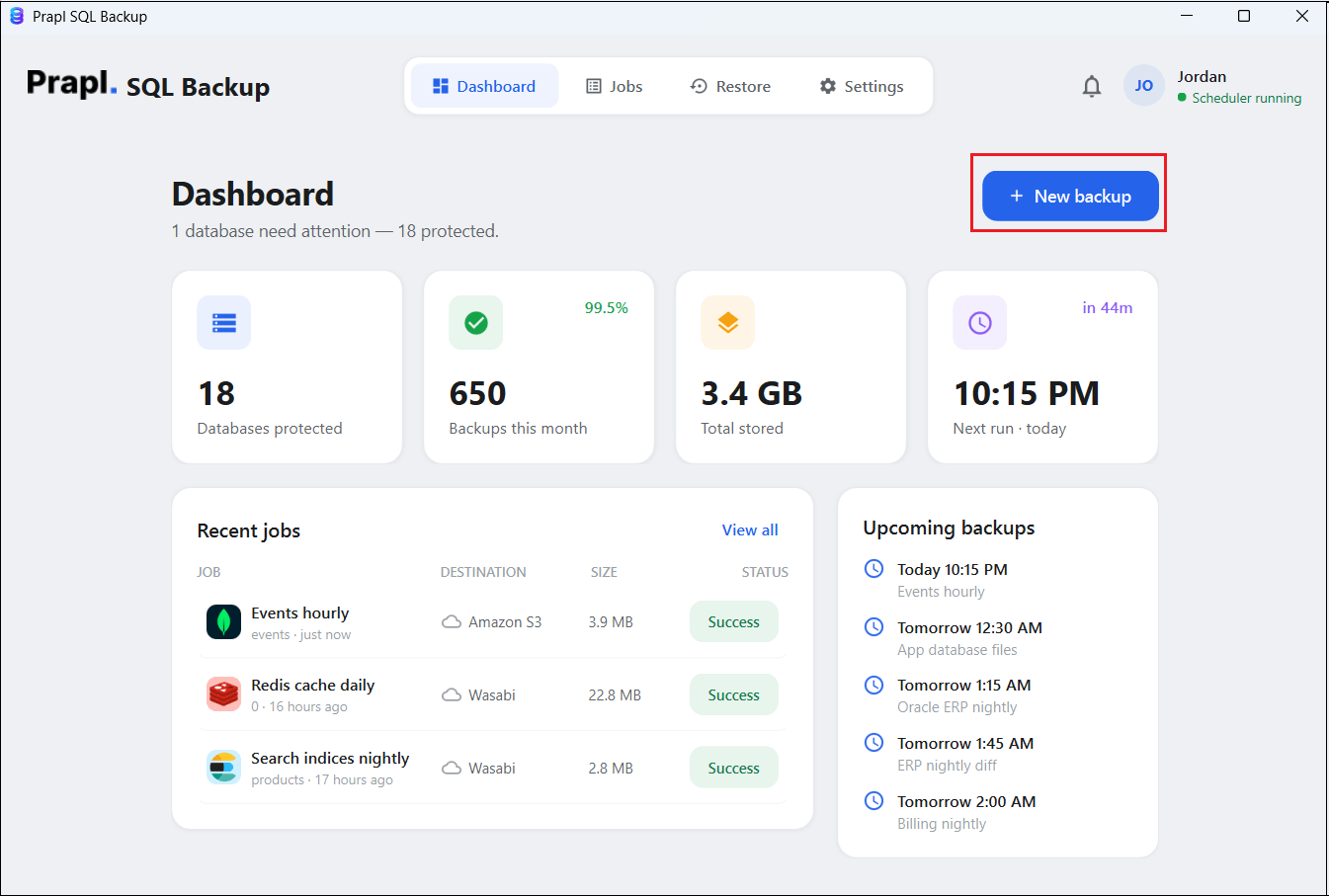
1. Launch the tool on your system and click on + New Backup.
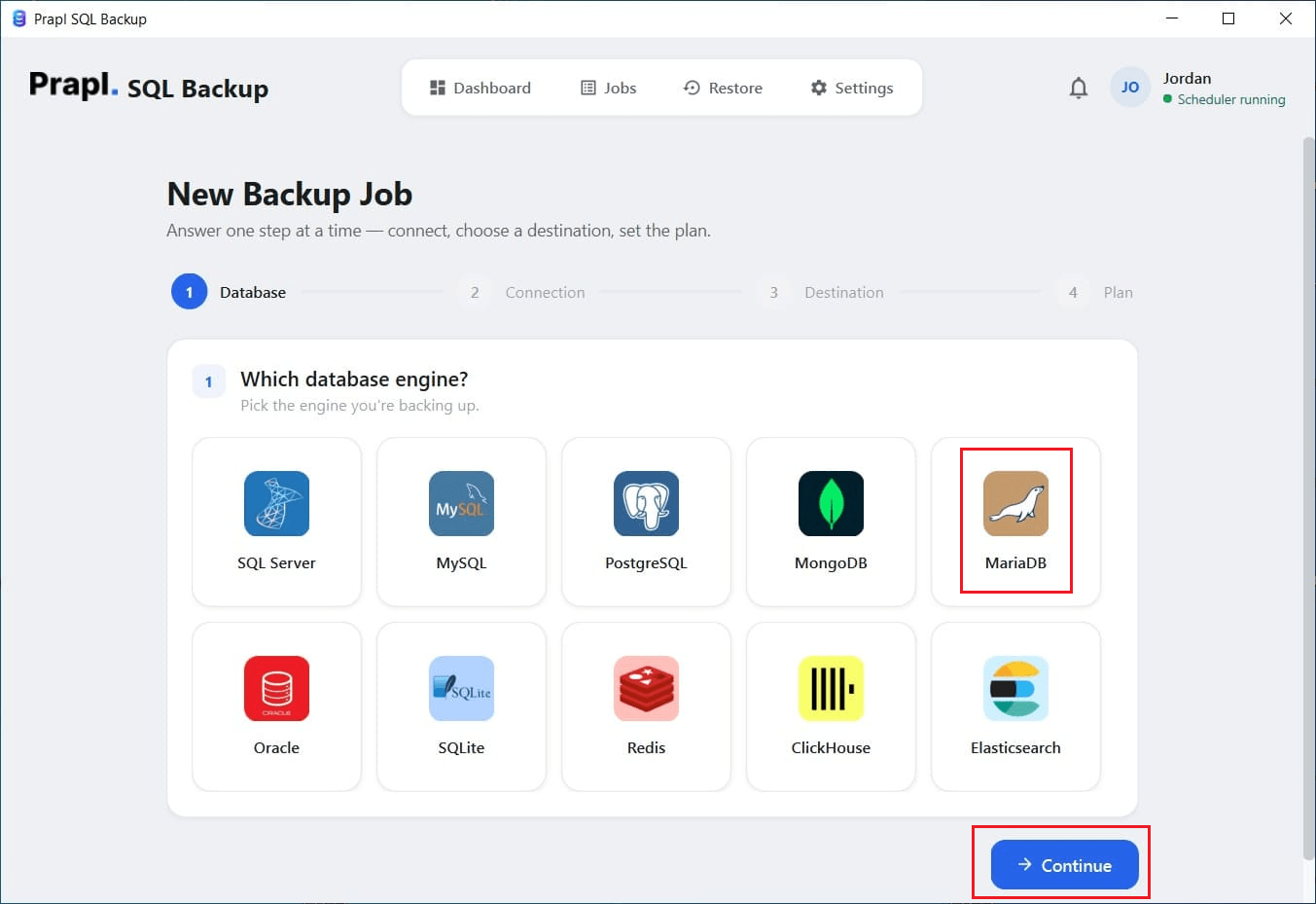
2. Choose MariaDB from the database engine and click on Continue.
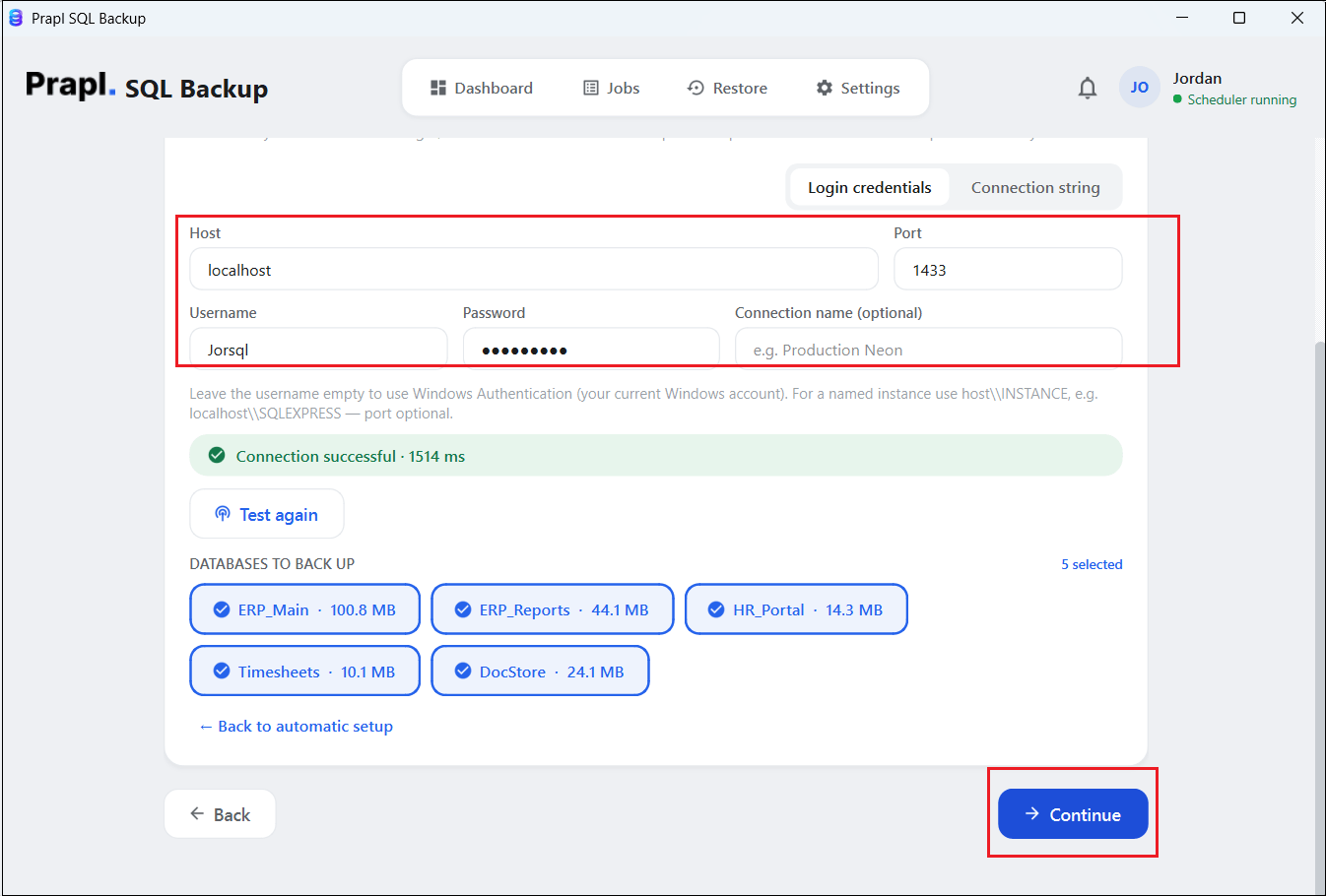
3. Enter your MariaDB database login details and click on Test & list databases. Choose the database that you want to back up and click Continue.
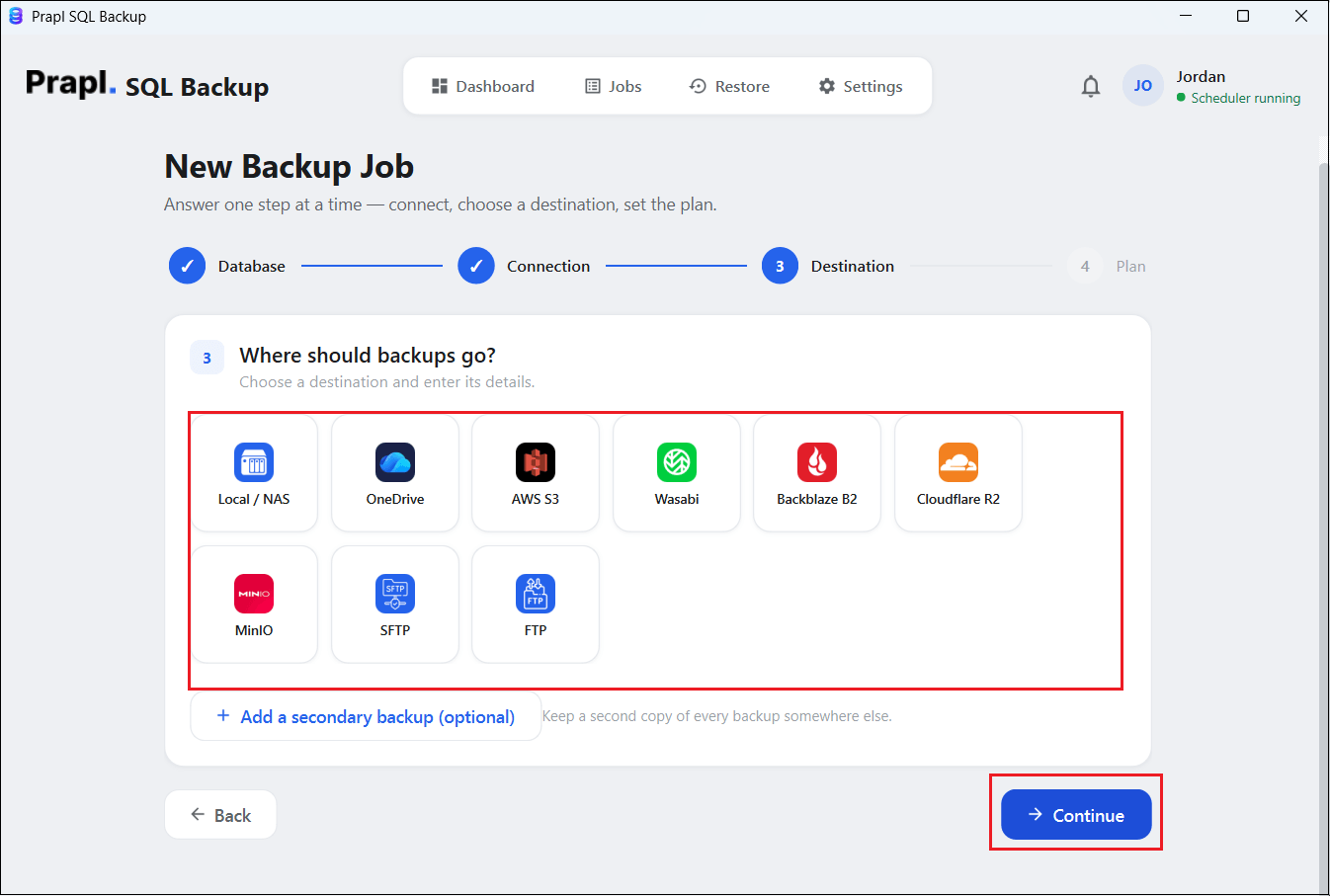
4. Now, choose the storage location to save backup files.
5. Choose backup type (Full, Incremental, or Differential), set schedule, run at, compress, checksum verify, and click on the Save & run now button.
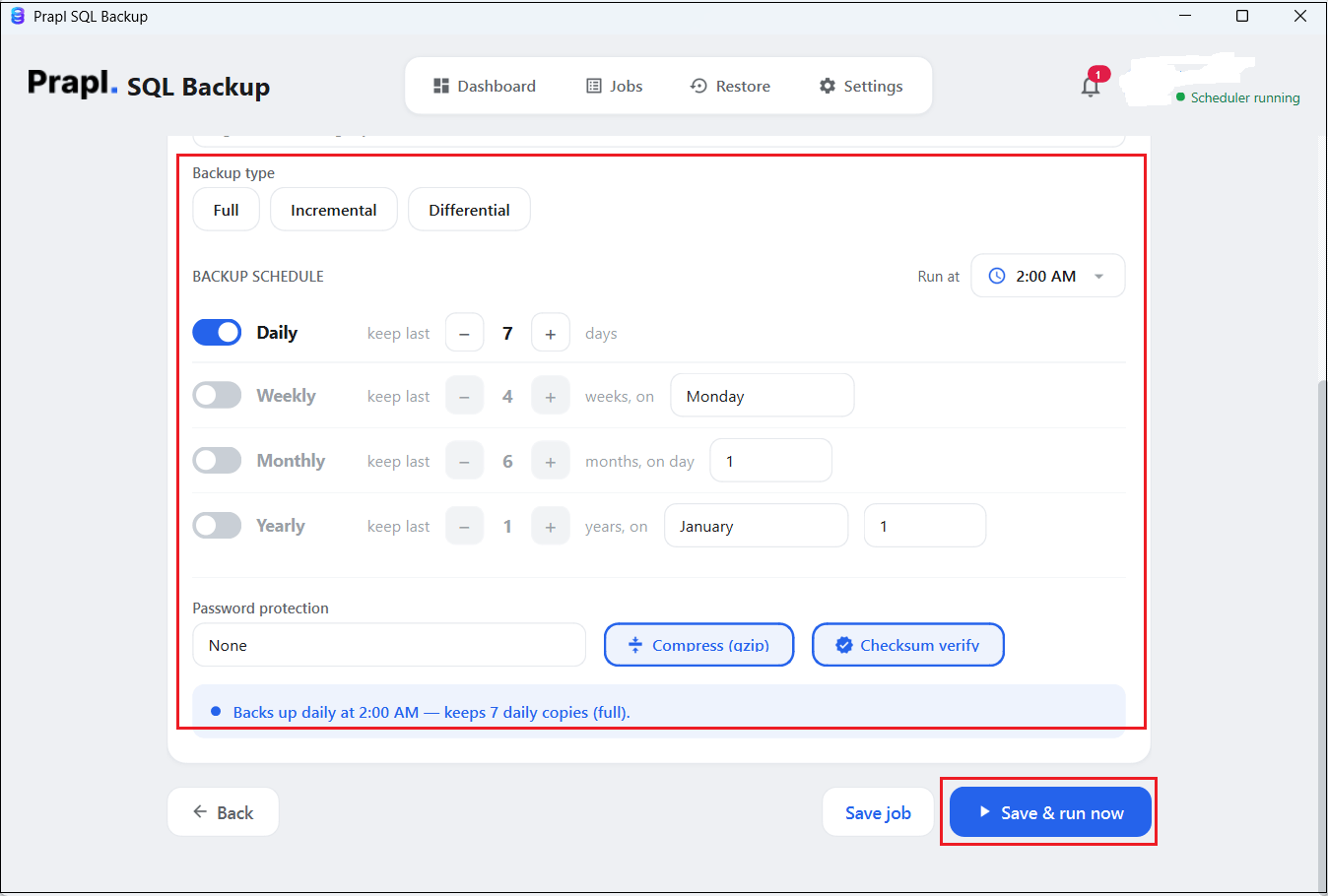
Now, the software will automatically create a backup of your MariaDB database at your selected location.
How to Restore MariaDB Database from Backup?
Follow the step-by-step guide to use this MariaDB backup and restore tool:
1. Launch the software on your Windows PC and click on Restore.
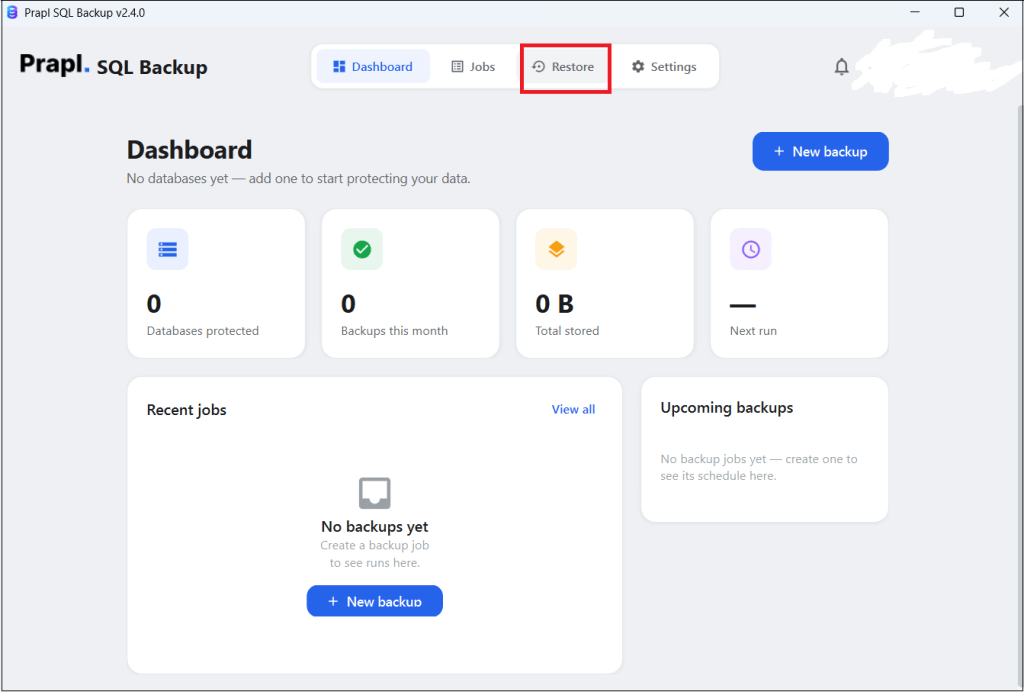
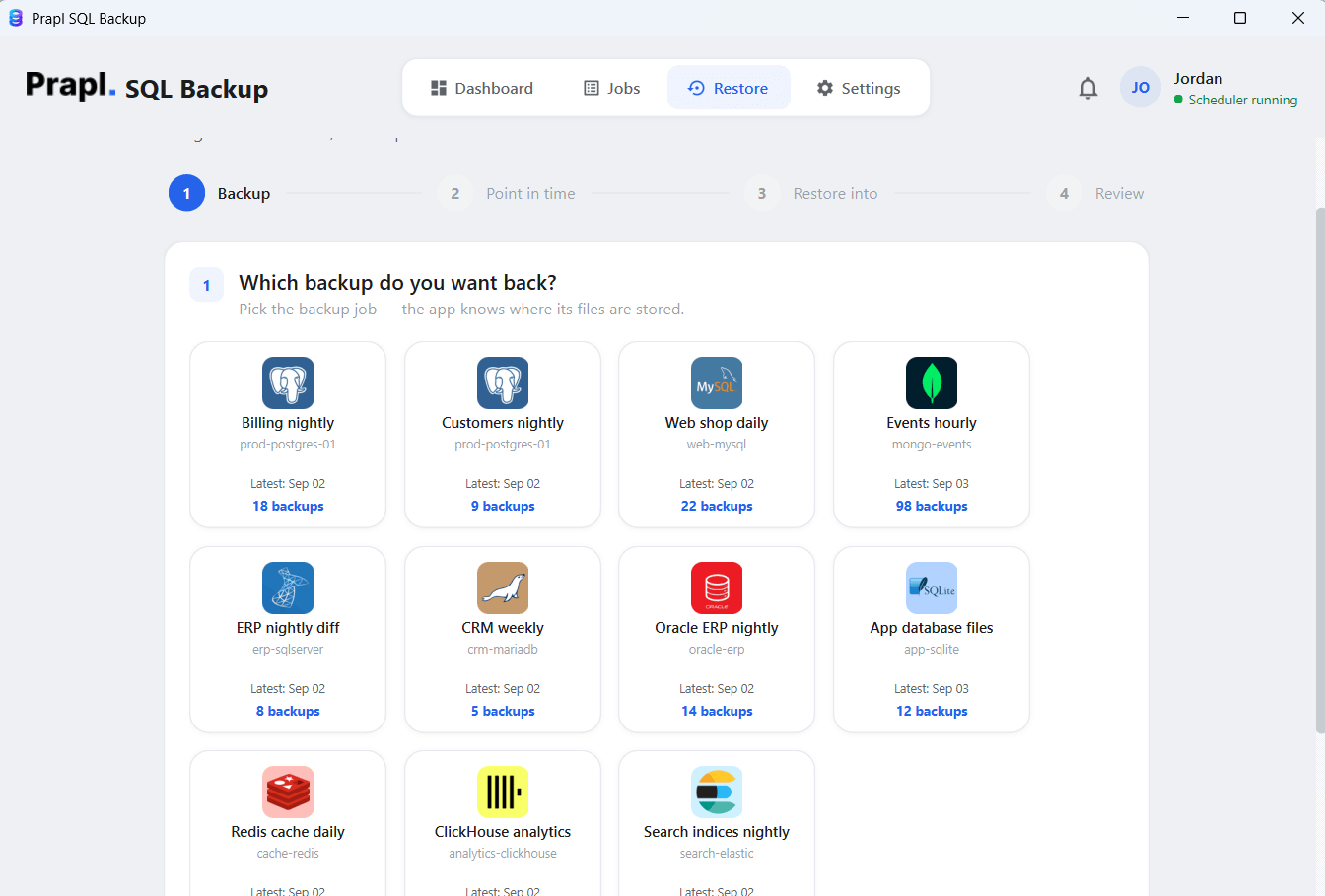
2. Select the MariaDB backup that you want to restore and press Continue.
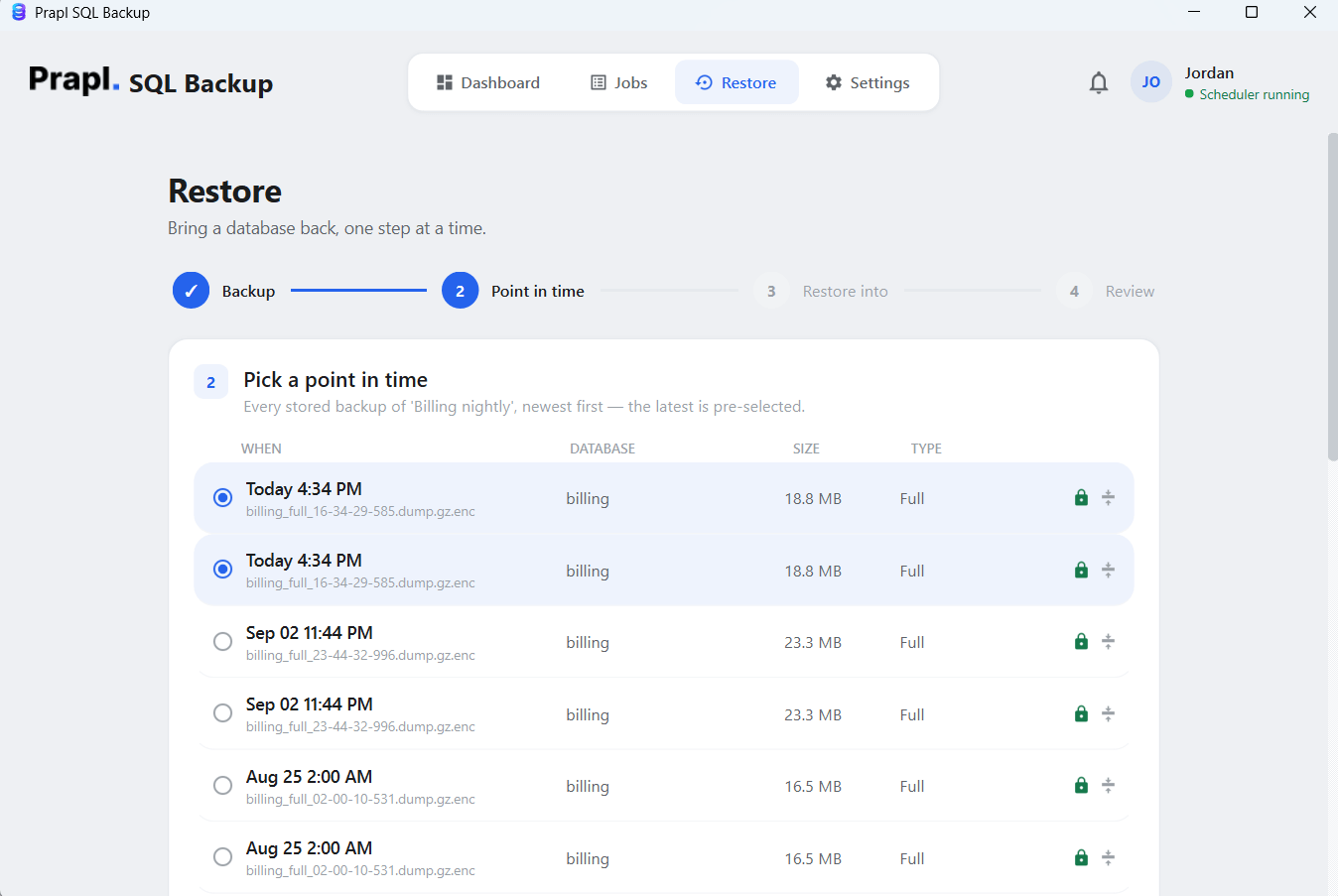
3. Choose a Point-in-Time for backup and click Continue.
4. Choose the server where you want to restore.
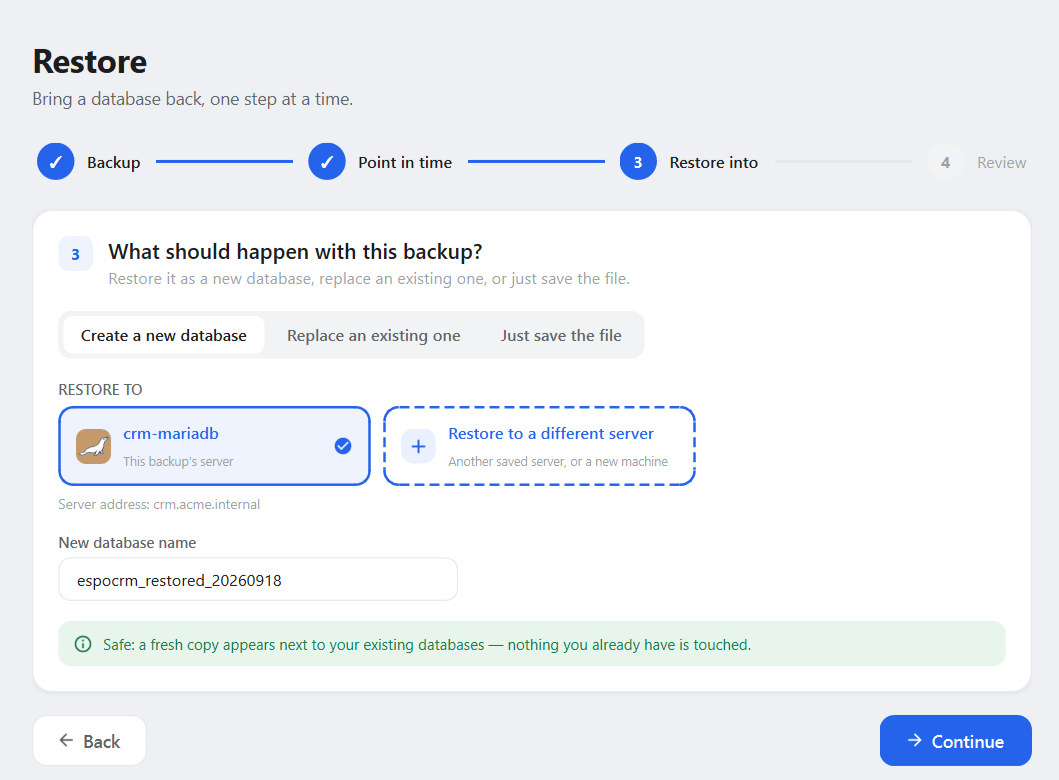
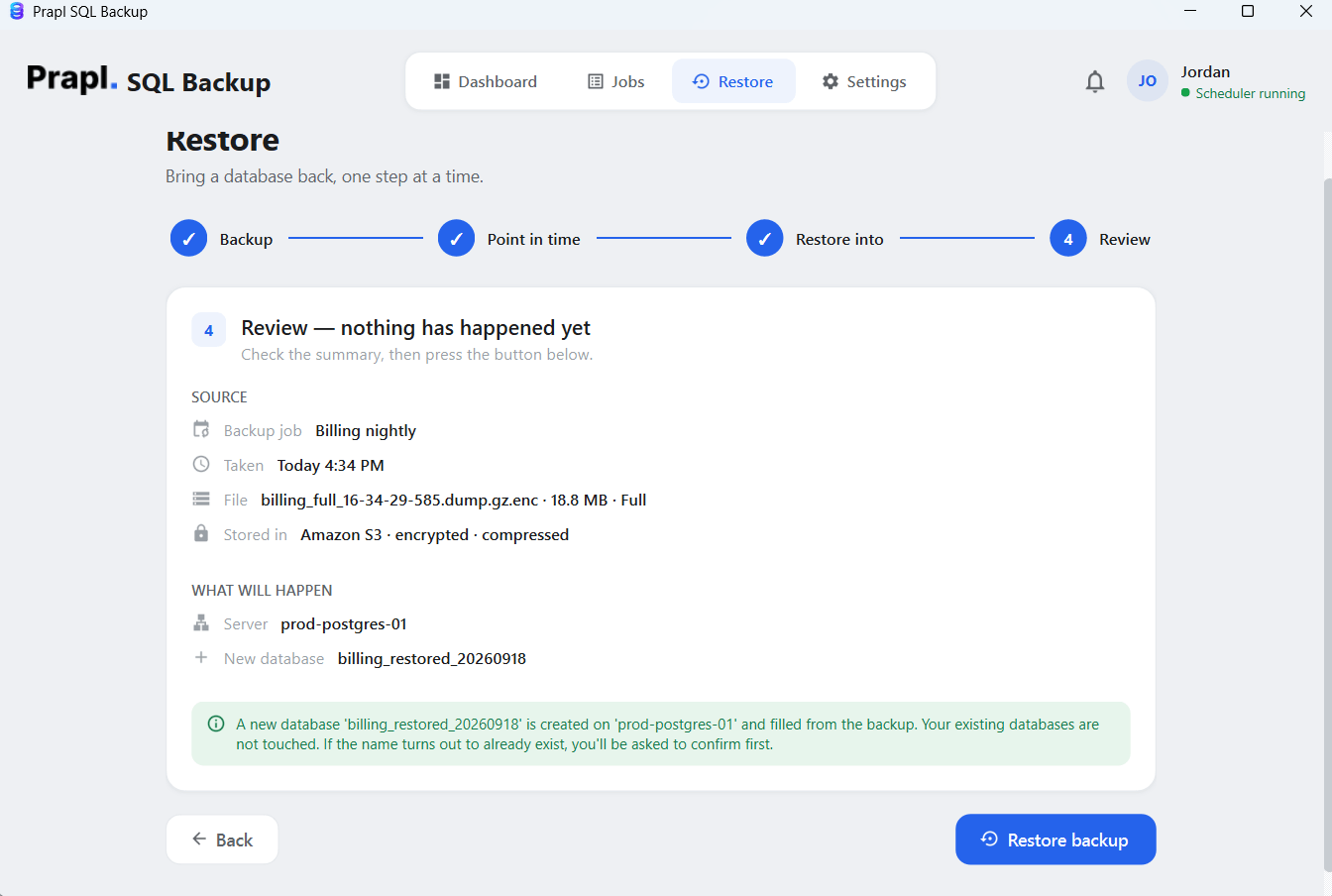
5. Check the restore settings and click on restore Backup button.
Why Choose Prapl MariaDB Backup Tool?
- Scheduled Backups: It allows you to schedule MariaDB database backups on a recurring daily, weekly, monthly or yearly basis instead of starting each backup manually.
- Complete Data Protection: It ensures your data is 100% secure. Your data is under your control, unlike other online tools that keep your database on their servers.
- Multiple Databases and Server Support: With this MariaDB backup and restore tool, it is now easy to manage backups for multiple MariaDB databases from one application. It also supports unlimited servers. There are no limitations on the size and number of databases.
- Retention management: Now, one can seamlessly define how long backup copies should be kept to help control local storage usage.
- Multiple Backup Types: The software can create full, incremental or differential backups of MariaDB databases.
- Multiple Destination Locations: Back up MariaDB databases to local drive, NAS, OneDrive, MinIO, Wasabi B2, Backblaze, or cloud storage
- AES-256-GCM Encryption: Encrypt backup files before storing them locally for an additional layer of protection.
- Compression: Additionally, this tool smoothly compresses backup files to reduce the amount of local storage you require.
- Backup History: This utility helps you to review previous backup activity and identify failed, incomplete, or completed jobs. In short, one tool that does it all.
Final Words
In this post, we have discussed how to automate MariaDB backup to multiple locations. MariaDB backup software provides a more consistent way to protect important database information. With scheduled backups, multiple storage destinations, several backup types and backup monitoring, database administrators can manage their backup tasks more efficiently. The tool can also restore MariaDB database when you need to recover it.
FAQs About MariaDB Backup and Restore Tool
Q1. Can MariaDB backups run automatically when Windows starts?
Ans. The software supports automatic startup with Windows. After configuring the backup schedule, scheduled tasks can run according to the selected timings.
Q2. What is the difference between full and incremental backups?
Ans. A full backup creates a complete backup of the selected database data. An incremental backup saves changes made since last backup. It can reduce the amount of data backed up each time.
Q3. Which type of backup does this MariaDB backup tool support?
Ans. The software supports full, incremental or differential backup types depending on the database engine and supported configuration.
Q4. How do I restore a database using this MariaDB backup and restore tool?
Ans. You can restore MariaDB database from backup by selecting an existing backup copy and choosing the required restore destination.
Q5. Can I try this backup utility before purchasing it?
Ans. Yes. The software offers a 15-day free trial version, including all features. No credit card is required to use it.