

Odoo stores Business data in a PostgreSQL database. So protecting your Odoo installation also means keeping a reliable PostgreSQL database backup. Customer records, sales orders, invoices, products, users and other important information can be lost if the server fails or the database is accidentally deleted.
There are different ways to create an Odoo backup. You can use Odoo’s built-in database manager for a quick manual backup. For businesses that need regular backups, a professional solution can be more convenient and can automate Odoo database backup. It lets you create backups on a predefined schedule instead of relying on someone to repeat the same task. This guide explains how to backup Odoo database using both manual and automated solutions.
What Should You Backup in Odoo?
An Odoo installation generally contains two important parts:
- PostgreSQL Database: Contains the main Odoo application data
- Filestore: Contains attachments, images, documents and other files uploaded to Odoo
For a complete auto backup, both the database and its associated file store should be protected. Odoo Database Manager provides an option to include the filestore when creating a backup.
How to Backup Odoo Database Manually?
The easiest manual option for a self hosted audio installation is the Odoo Database Manager. It provides an option to backup and restore Odoo database through the web interface.
Steps to Create Odoo Database Backup:
- Open your Odoo database manager in a browser: https://your-domain.com/web/database/manager
- Choose the database you want to protect and click Backup.
- Enter the Odoo master password when requested.
- Choose the backup format. Odoo creates a ZIP backup that includes the database and filestore.
- Click Backup and save the generated file to a safe location.
Limitations of Manual Method
Manual backups are useful when you need an occasional copy but they become inconvenient when backups are required every day. Someone has to remember to run the backup, store the file, store the file safely and maintain older copies. A missed backup can leave your Odoo data without a recent recovery point.
How to Schedule and Automate Odoo Database Backup?
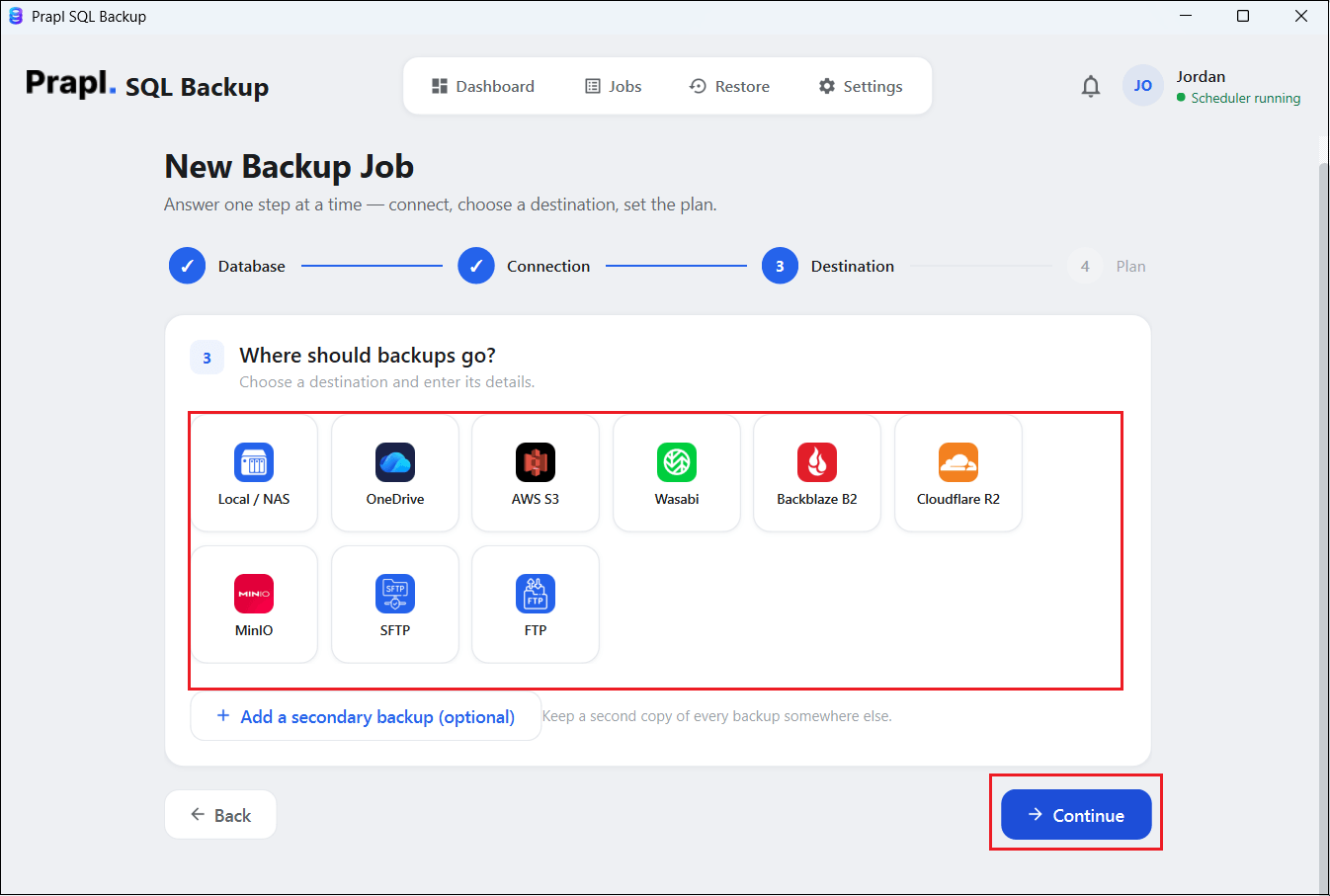
For users who need to backup Odoo database automatically, Prapl SQL Backup Tool can make the process easier. You can connect your Odoo PostgreSQL database, choose a storage location such as Local/NAS, OneDrive, Amazon S3, SFTP, FTP, etc., set a backup schedule like daily, weekly, monthly, yearly and let the software create backups automatically. This approach is useful for businesses that want an automatic Odoo database backup without running backup commands manually. With this utility, any novice user can easily create backup and restore Odoo database without any technical knowledge.

Steps to Backup Odoo Database Automatically
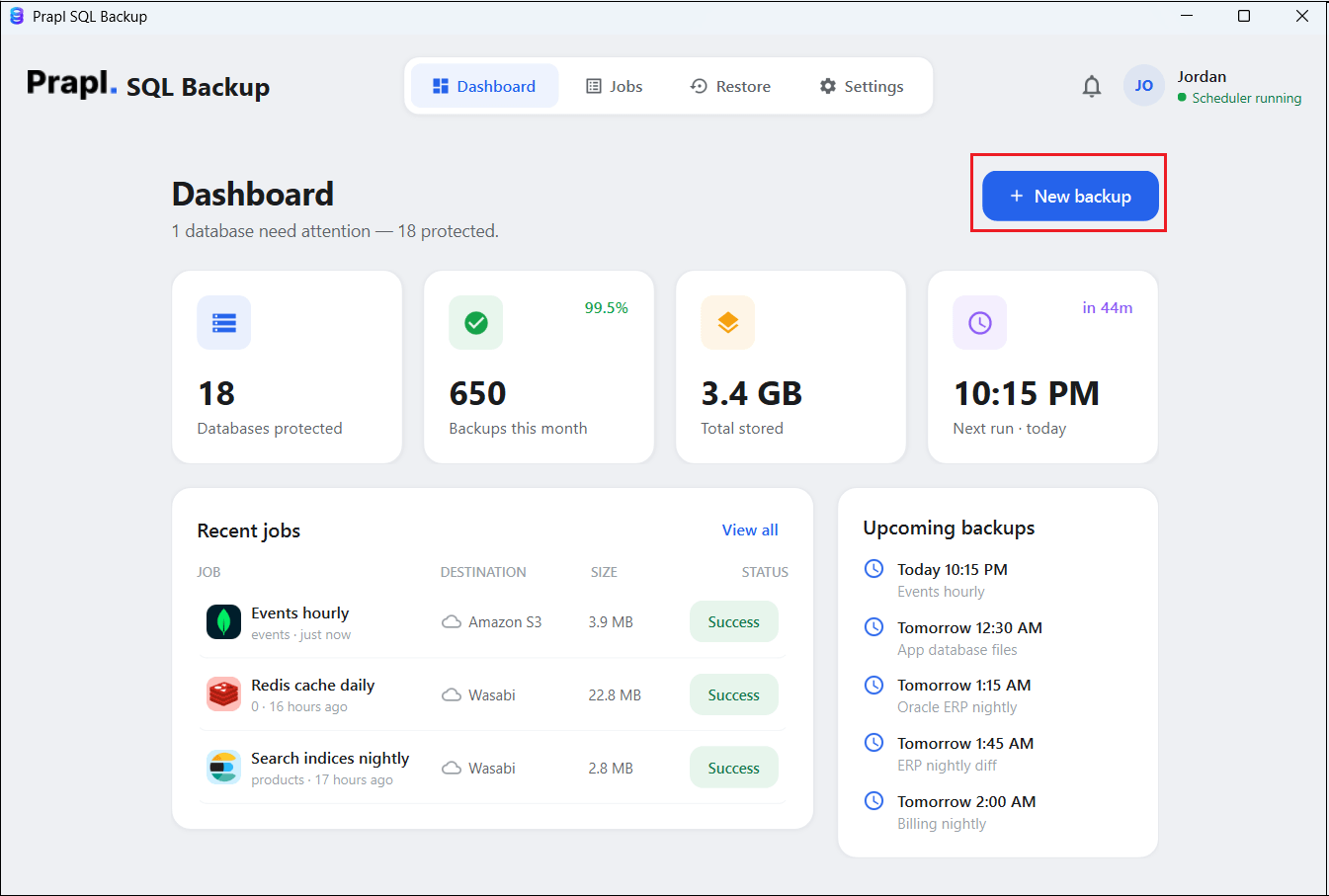
1. Run Prapl SQL Backup software on your Windows PC and click on + New Backup.
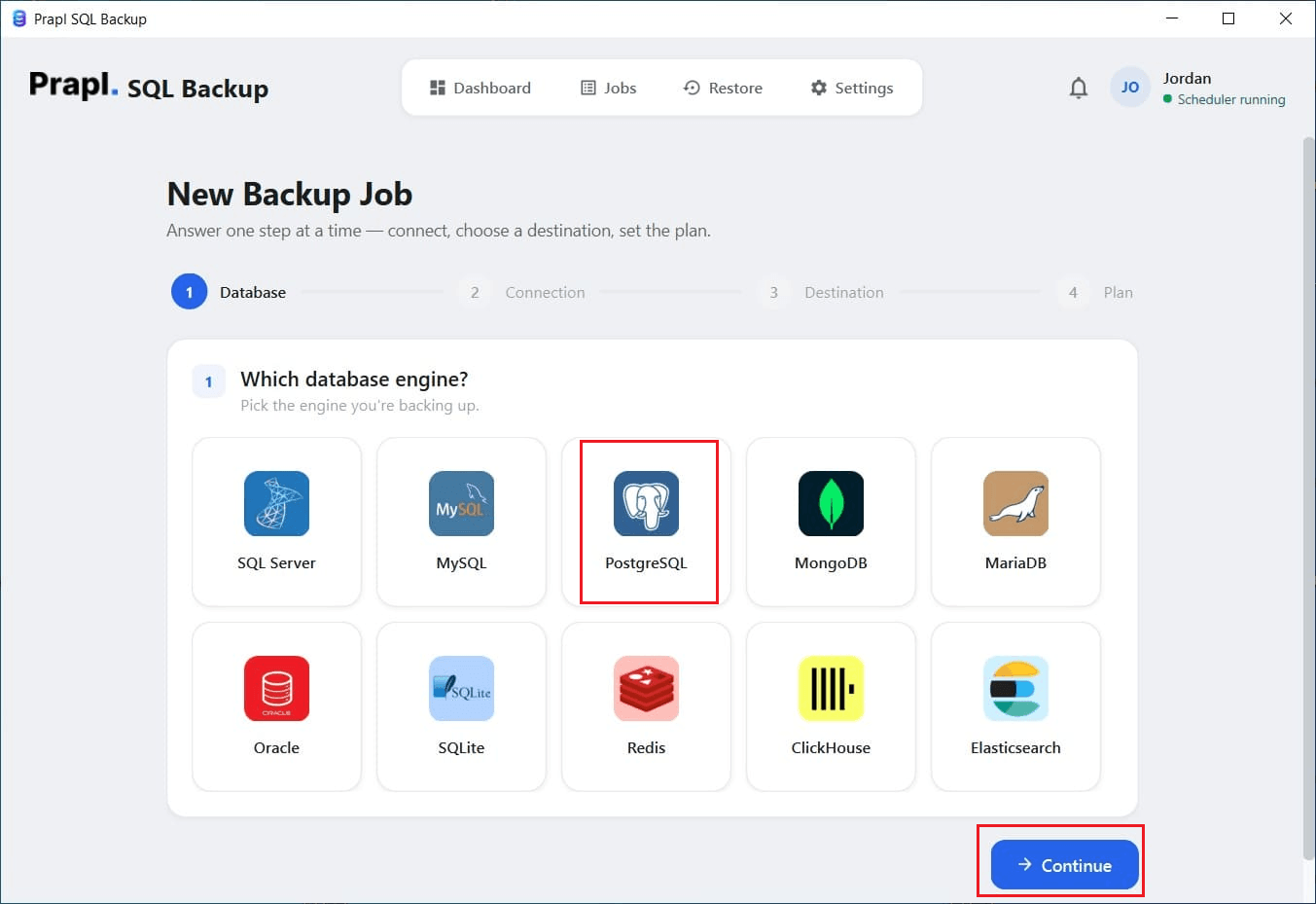
2. Select PostgreSQL as the database type and click on Continue.
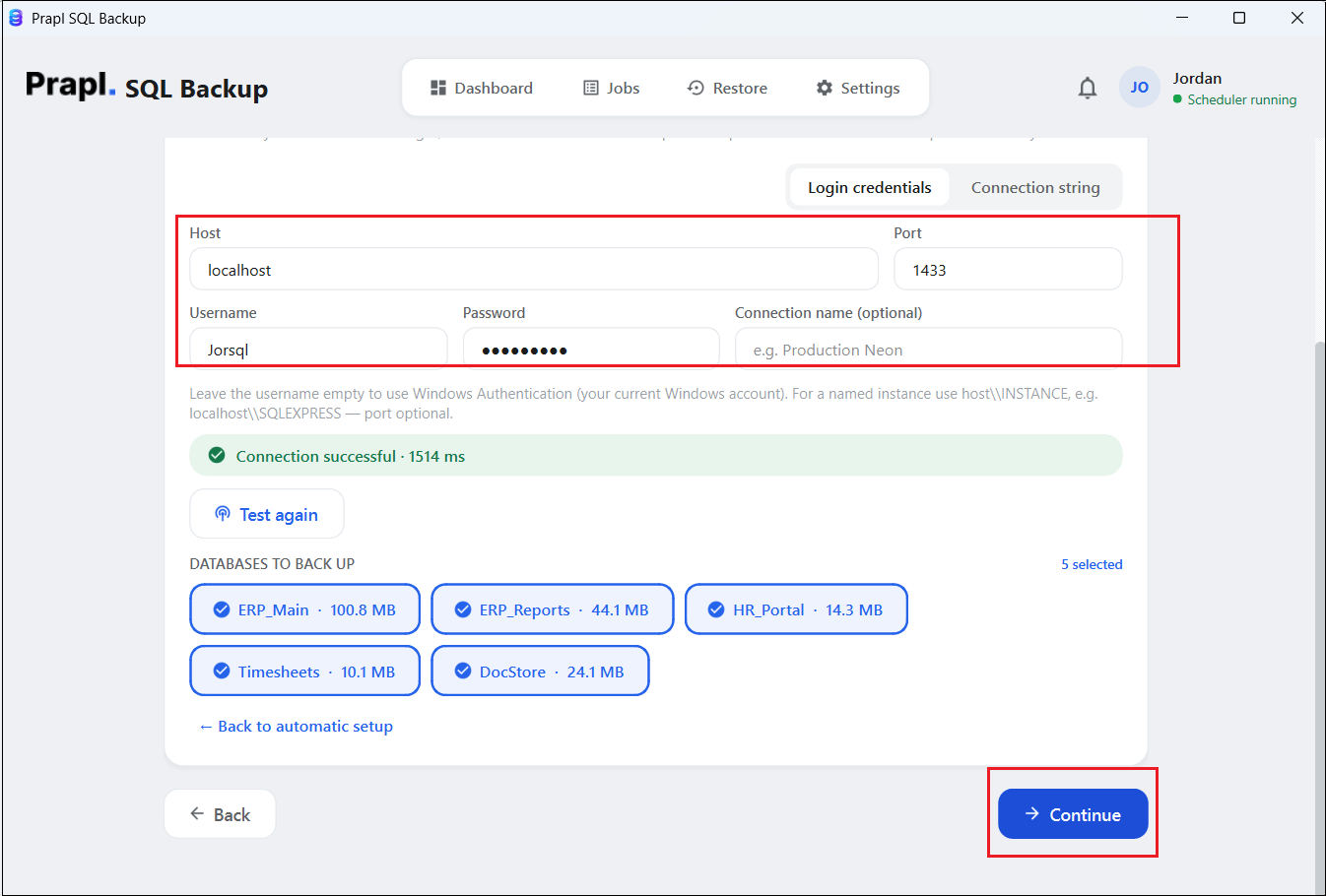
3. Enter your Odoo Server login details to connect to your database.
4. Choose a location to save backup copies and click on Continue.
5. Set a backup schedule and click on the Save & Run Now button.
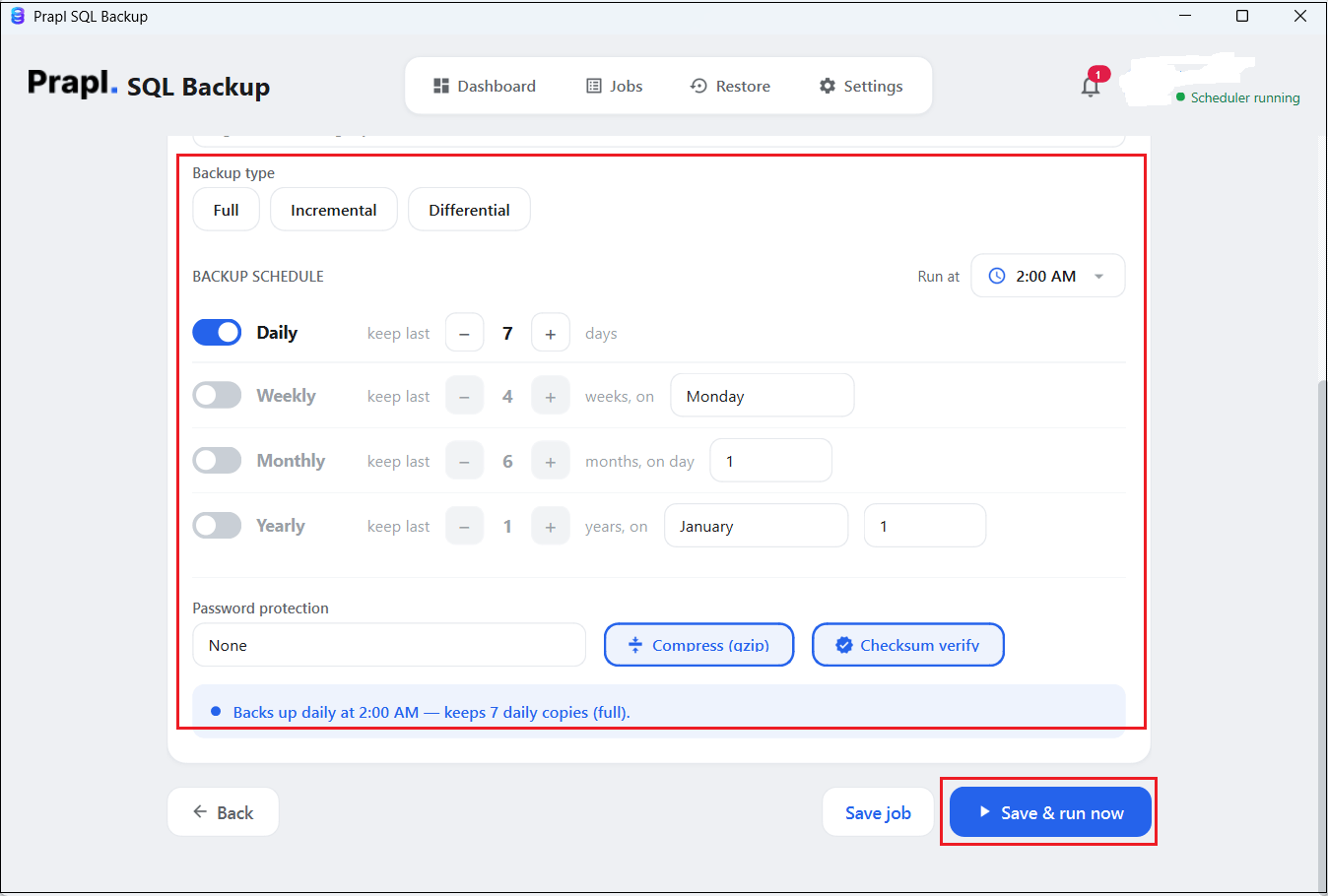
The software will start downloading your Odoo database at your selected location as per the configured schedule.
Comparison Table: Which Method Should You Choose?
A manual backup is suitable when you only need an occasional copy of your Odoo database. It does not require additional applications and can be performed directly through Odoo.
However, if your database changes every day, scheduling Odoo backups is a better option. Odoo Backup Tool can automate Odoo database backup in Windows, apply retention rules and reduce the need for repetitive manual work.
| Feature | Manual Odoo Backup | Prapl SQL Backup Tool |
|---|---|---|
| Automatic Scheduling | No | Yes |
| Backup Retention | Manual | Automatic |
| Storage Location | Limited | Multiple |
| Backup History | No | Yes |
| Best for | Occasional Backup | Regular Automated Backups |
Conclusion
Backing up Odoo is important because the database contains critical business information. In this post, we have discussed how to backup Odoo database using the two best ways. The built-in Odoo database manager is a simple option for manual backups. However, if you want to automate Odoo database backup using a professional utility is the best option.
Frequently Asked Questions
Q1. What database is used by Odoo?
Ans. Odoo uses PostgreSQL as its database system.
Q2. How to take a backup of Odoo database?
Ans. You can use the built-in Odoo database manager or the Odoo backup tool to create backup.
Q3. How can I restore Odoo database?
Ans. You can restore Odoo database backup using the Odoo Database Manager. Open the database manager, select Restore Database, upload the backup file, enter the master password and start the restore process. In case this approach does not work, then you can also do it using the above-suggested tool.
Q4. Can Odoo backups runs automatically?
Ans. Yes, with the Prapl SQL backup tool, you can schedule Odoo database backups automatically.