Amazon S3 is one of the most reliable places to store files in the cloud. But if you use it every day you already know that the logging into the AWS Console, clicking through buckets, opening folders one by one, downloading a file, editing in it and then sending it backup is painful. Do this 10 times a day, and is consume your time. This is exactly where an Amazon S3 desktop client for Windows changes everything.
What if your S3 storage could behave like a normal folder on your PC? What if you could open, edit and save files straight from Windows File Explorer, the same way you handle any local file? By using Amazon S3 desktop client on Windows, you can bring your cloud storage right onto your Windows PC and skip the endless browsing
Benefits of Having Amazon S3 Desktop Client
The Aws web console is powerful but it was built for management, not for everyday file work. Every small task turns into a series of clicks. You browse to find a file, wait for it to download make one change and repeat the whole cycle to put it back.
There is no simple just open and save. For designers, developers, content teams and anyone handling file all day this repeated browsing becomes a real headache.
If you use Amazon S3 as a desktop client on Windows, your daily routine changes for the better:
- No Repeated Browsing: Open files directly from File Explorer instead of clicking through the console.
- Edit in Place: Open a document, image or code file in any app on your PC, edit it and save. The update goes back to S3 by itself.
- Save Disk Space: Nothing sits on your local drive until you open it. So a huge bucket does not fill up your PC.
- Work in Familiar Tools: You keep using Explorer Office editors and other apps you already know.
- One Place for Storage: You can also connect other services like OneDrive, FTP and SFTP. So all your remote storage sits together.
How to Turn Amazon S3 as a Desktop Client on Windows?
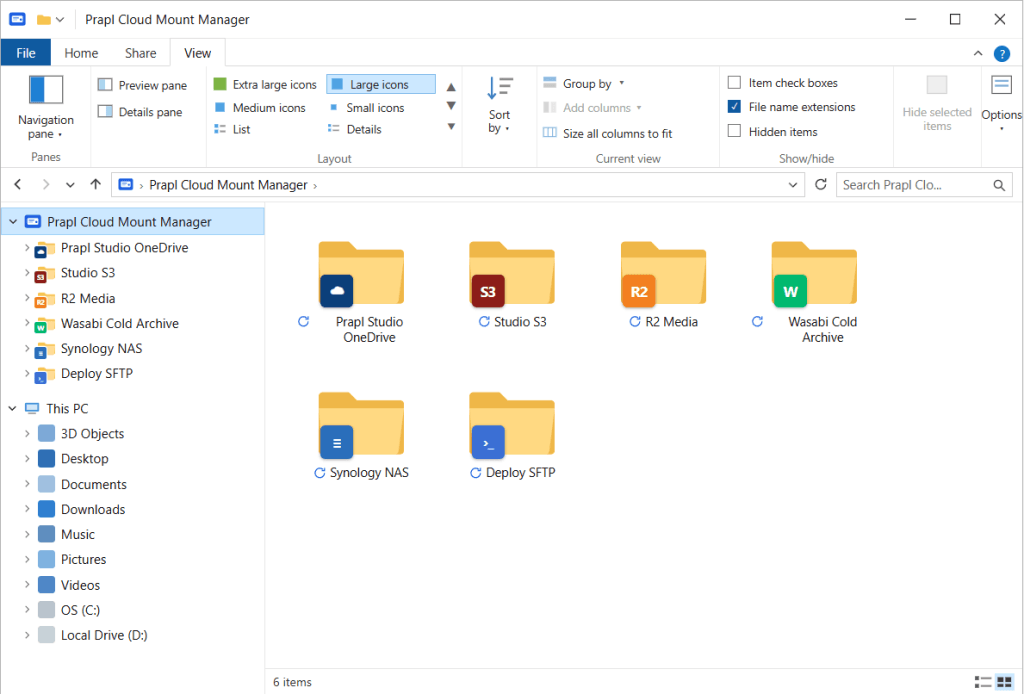
Instead of opening the browser each time, you can connect S3 to your computer with Prapl Cloud Mount Manager and use Amazon S3 desktop client for Windows. Once it is set up, your S3 bucket shows up right inside Windows File Explorer, just like a normal folder. There is no need to open browser again and again. You open the folder, work with your files and everything stays in sync with S3 automatically.

The best part is how it handles data. Files are not pulled down in advance. They stay in the cloud and load only when you actually open them. That means you use almost zero local disk space. When you save your changes, the file updates back on Amazon S3 on its own.
Steps to Set Up Amazon S3 Desktop App on Windows Using This Tool
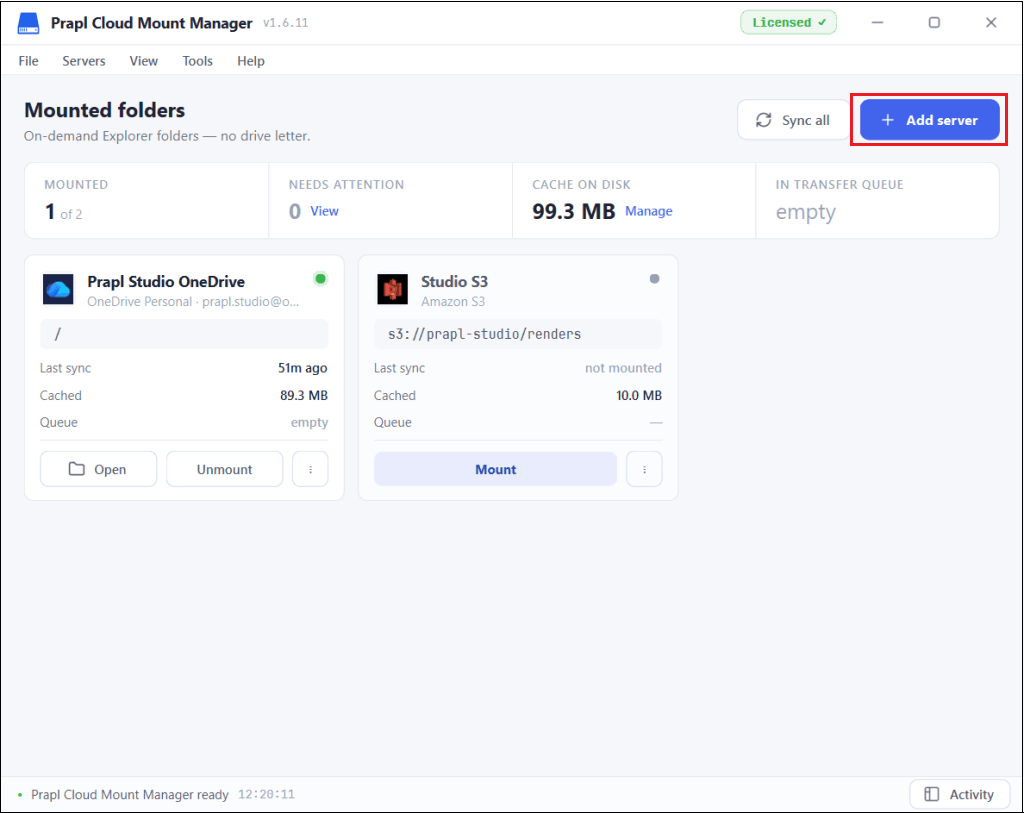
Step 1. Run the tool on your system and click the Add Server button.
Step 2. Choose Amazon S3 as storage type.
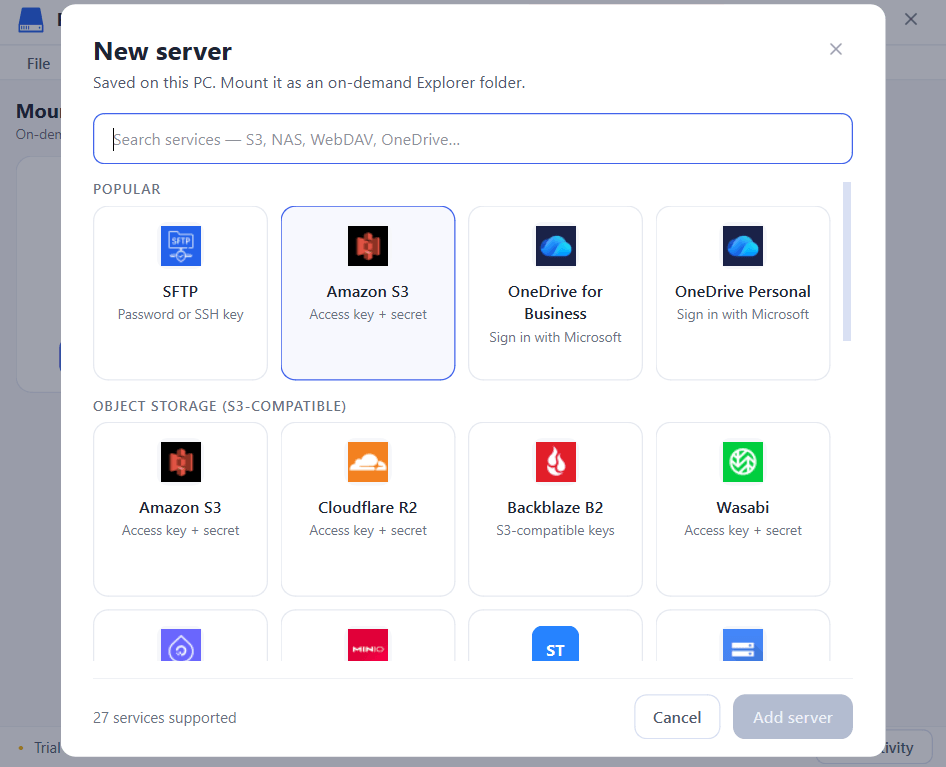
Step 3. Enter your AWS access key and secret key to connect it securely.
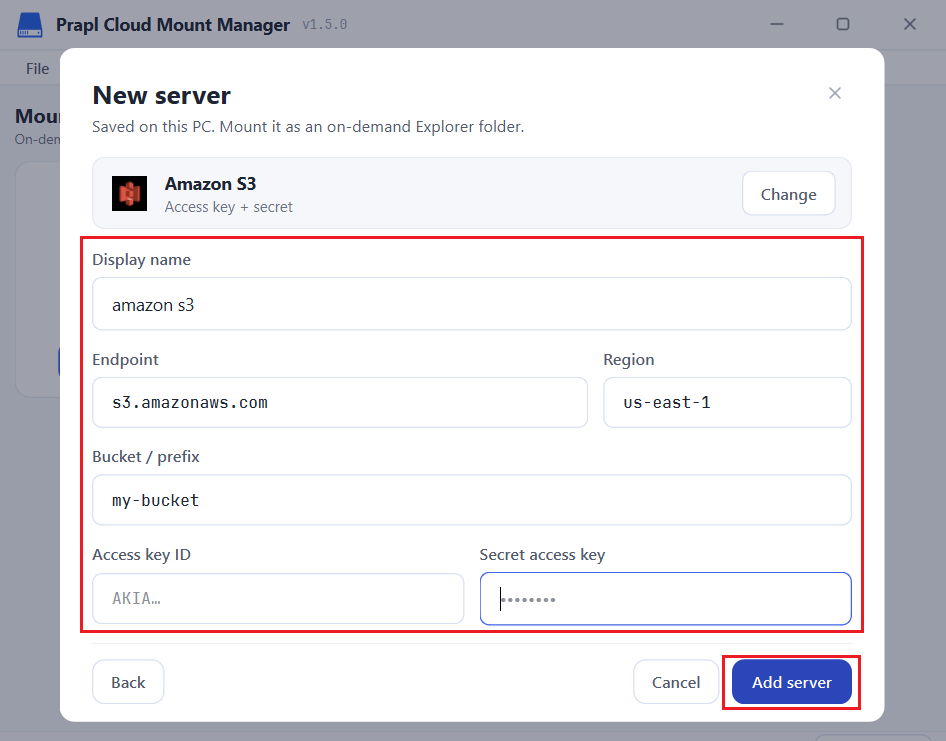
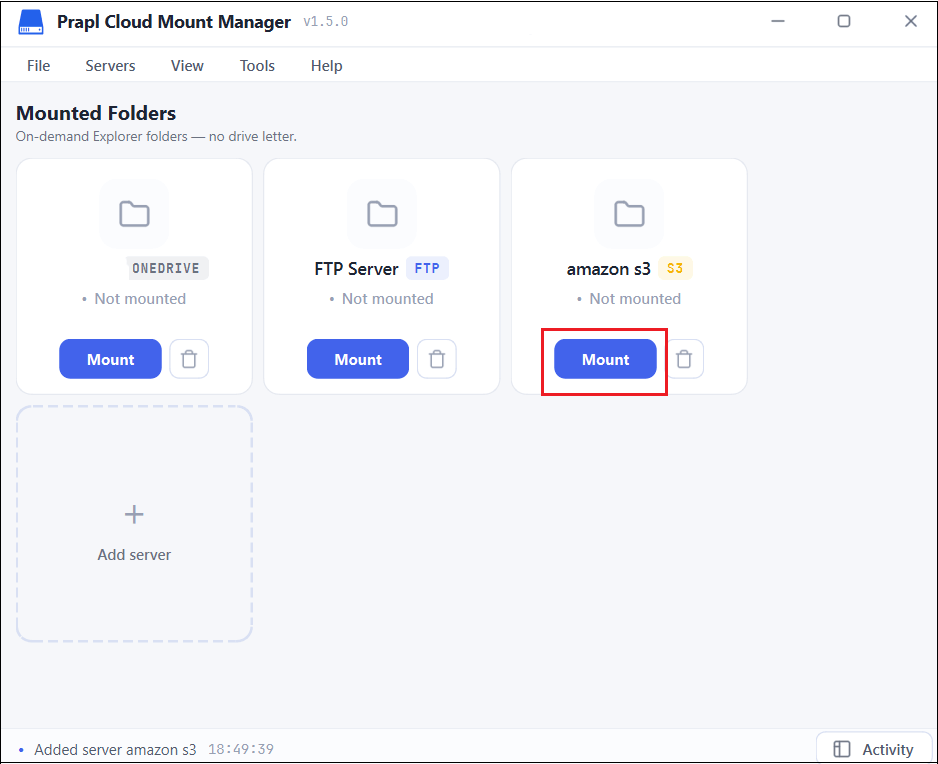
Step 4. Once AWS S3 is added, click on the Mount to appear it in Windows Explorer.
Step 5. Now, your Amazon S3 will shows as a local folder in File Explorer. You can open, edit and save directly without browsing them.
Final Thoughts
Amazon S3 does not have to be live behind a web browser. By using an Amazon S3 desktop client for windows, you can access it into File Explorer and skip the endless browsing. You can configure your S3 connection with the tool and access the stored files from Windows. It offers a free trail version to test before using it.
Frequently Asked Questions
Q1. What is an Amazon S3 desktop client for Windows?
Ans. It is a desktop app that connects your S3 storage to your Windows Oc. Your S3 bucket shows up a folder in File Explorer, so you can open and save files without visiting AWS Console every time.
Q2. Will it use a lot of my computer’s storage?
Ans. No. Files stay in the cloud and load only when you open them. Nothing takes up local disk space until you catually work with it.