OneDrive is a Microsoft Cloud storage service. It is used by millions of people to keep their files safe and available across devices. Using a browser for OneDrive works, but it quickly becomes slow and repetitive for daily use. You have to sign in, find your file, download it, make changes, and upload it again.
OneDrive Desktop Client removes all of these extra steps. It brings your OneDrive files right onto your PC. You can then open, edit and save them just like the files stored on your own hard drive, which makes cloud storage feel like a natural part of your computer.
In this article, you will learn the benefits of using a OneDrive desktop app and how to set up OneDrive as a desktop client on Windows.
Benefits of OneDrive Desktop Client
OneDrive desktop app has changed the way you interact with your cloud files. Here is what makes it useful on Windows:
- Direct Access: Your OneDrive files appear on your computer, so there is no need to browse a website to reach them.
- Use Unlimited OneDrive Accounts: You can connect as many OneDrive accounts as you want, and access them all at the same time without logging out of one to use another.
- Edit in Place: You can open a file, make change and save it without downloading and re uploading anything.
- Works with All App: Any Windows programme can open and save file directly to your OneDrive storage.
- Save Disk Space: Files can be accessed on demand instead of storing full local copies of everything.
Time Saving: Everyday tasks like coping, moving and organizing files becomes quick and simple.
The Official OneDrive Desktop App and Its Limitations
Microsoft provides its own official OneDrive desktop client and its works well for everyday use. It sync your files to your PC and keep them updated with the cloud and on Windows 10 and 11 it is already built-in.
However, it comes with one clear limitation. It is designed around a single personal account. You can sign in with only one personal OneDrive account at a time which makes it difficult to handle several personal accounts together. If you use more than one OneDrive accounts then you end up signing in and out repeatedly, which makes slow down your work.
A professional utility fills this gap. It lets you connect unlimited OneDrive accounts at the same time, with each account shown as its own drive in File Explorer. So you can move between them without any switching.
How to Use Multiple OneDrive Accounts as a Desktop Client on Windows?
Download and install Prapl Cloud Mount Manager to connect your OneDrive account to your Windows PC. Once it is set up, your OneDrive file shows app on your computer, so you can open, edit and save them like normal files. Any change you make is kept in sync with the cloud. So your latest version is always available across your devices.
With this tool, you can mount multiple OneDrive accounts on Windows File Explorer. There is no limitation on the number of accounts to connect. You can add unlimited accounts and see each as its own name in File Explorer at once.
This OneDrive desktop client is helpful because it handles the connection for you. You do not need to configure any technical settings or keep a browser open. The tool signs into your account, links your storage and keeps the drive available in the background. You can browse folders, search files and open documents exactly the way you would with the local drive. Because files are accessed on demand, you also avoid filling up your hard disk with copies you may not need.

Steps to Set Up OneDrive Desktop App for Windows
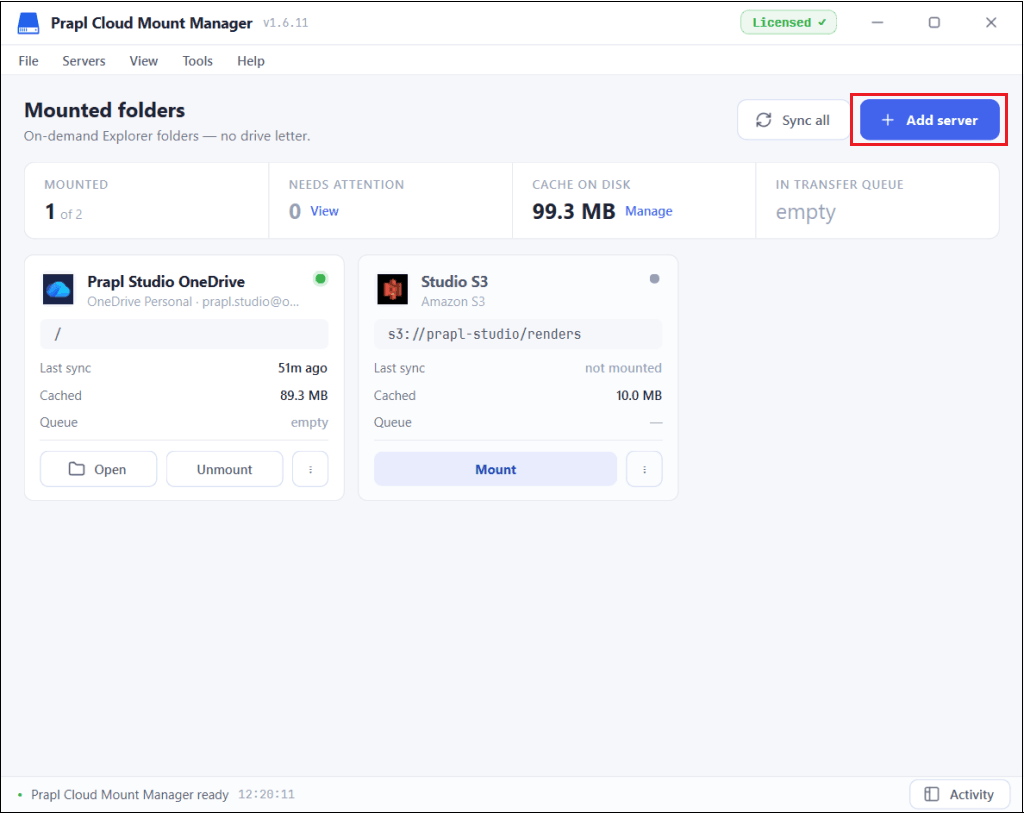
1. Run the tool on your system and click on the Add Server.
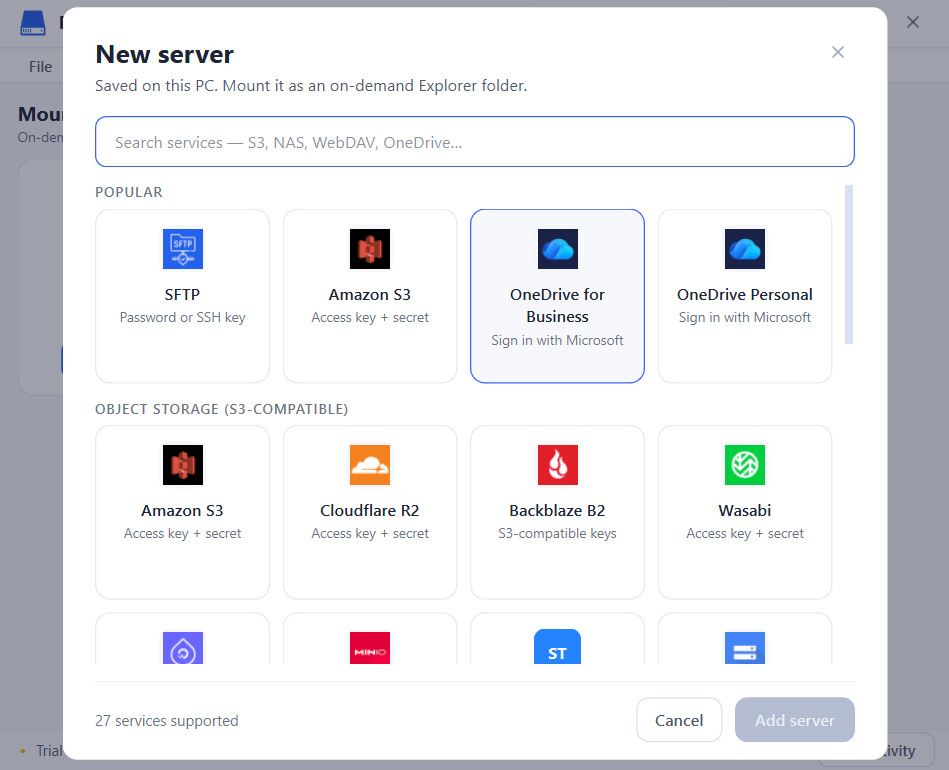
2. Choose OneDrive from given options.
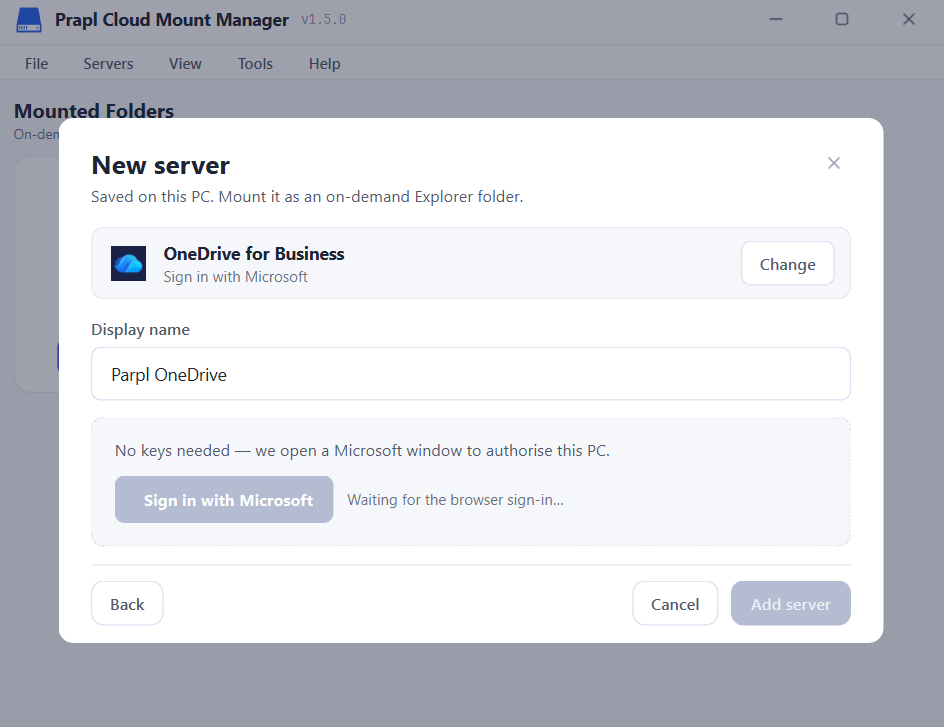
3. Sign in with your OneDrive account and click on Add Server.
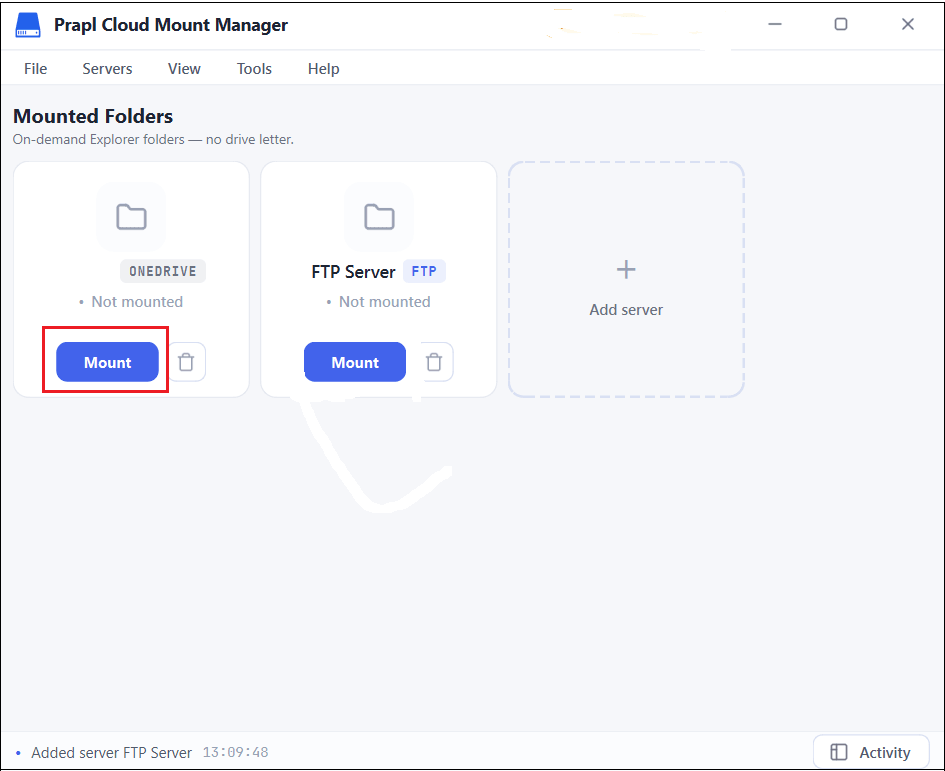
4. After that click on Mount.
5. Now your OneDrive will appear in File Explorer. You can easily, open, edit, save and mange your cloud files.
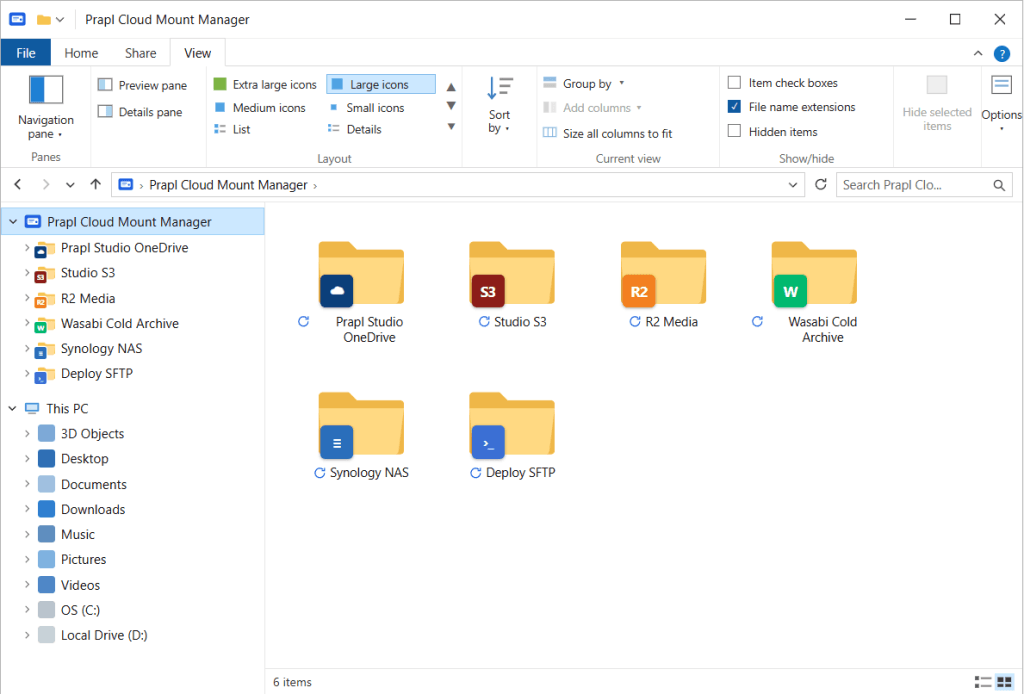
Done! Repeat the process to connect more OneDrive accounts.
Final Words
The OneDrive desktop client for Windows is about making your cloud files easy to reach and use from your own computer. With the Prapl Cloud Mount Manager, your OneDrive storage appears in File Explorer so you can open and edit files without a browser. It saves your disk space, works with all your apps, and keeps everyday file tasks simple and fast.
Frequently Asked Questions
Q1. Is there a desktop version of OneDrive?
Ans. Yes. There is a desktop version of OneDrive available for both Windows and macOS.
Q2. How do I get the OneDrive desktop app?
Ans. OneDrive is already built into Windows 10 and Windows 11, but you can download it from the Microsoft OneDrive Download Page if it is missing.
Q3. Can I open OneDrive files in normal Windows apps?
Ans. Yes, once your OneDrive appears as a folder in File Explorer, any Windows application can open and save files to it.
Q4. Is it possible to use multiple OneDrive accounts at once?
Ans. Yes, the Prapl Cloud Mount Manager allows you to connect multiple OneDrive accounts and use them all at the same time.