Working with files stored in Wasabi through a web browser can become repetitive, especially when you access cloud data frequently. Every upload, download or file-management task may require opening the Wasabi console and navigating to the right bucket.
A Wasabi Desktop Client for Windows provides a simpler way to work with cloud files from your computer. You can access your Wasabi storage through the Windows File Explorer and handle everyday file tasks without going back to the browser again and again.
What is Wasabi?
Wasabi is a cloud object storage service designed to store and retrieve data over the Internet. It can be used for different types of content, including backup files, documents, videos, images, archives and application data.
Instead of storing files directly on your computer, Wasabi keeps them in cloud storage buckets. These buckets can be managed from the Wasabi Console or accessed through compatible applications.
One important feature of Wasabi is its compatibility with the Amazon S3 API. Because of this, applications that support S3-compatible storage can also be configured to work with Wasabi using the appropriate credentials and endpoint.
Benefits of Having Wasabi Desktop Client for Windows
A browser is not always the easiest place to handle files when Wasabi is part of your everyday workflow. Suppose you are moving backup files to Wasabi several times, you may have to repeatedly open the browser, access your account, select the bucket and start another transfer.
Wasabi desktop app gives you a more direct way to handle this work. After the initial setup, you can access your Wasabi storage from Windows File Explorer and work with the file through the desktop environment. This is useful when you frequently move files between your computer and cloud storage or need to check and organise data stored in Wasabi.
It also means that local and cloud files can be handled from the same Windows workflow. You can keep working with folders and files in a way that feels familiar, while Wasabi continues to store the actual data in the cloud.
How to Turn Wasabi into Desktop Client on Windows?
Accessing Wasabi through a browser works well when you need to manage your storage occasionally. But if you work with the same cloud files regularly, opening the browser, signing in, finding the right bucket and navigating through folders can become a repetitive task.
If you want to make Wasabi part of your regular Windows workflow, the Wasabi desktop client can be a better approach. Instead of depending on the browser whenever you need to reach your files, you can use a dedicated application to connect to Wasabi on your Windows computer.
Prapl Cloud Mount Manager is one such Windows desktop utility that lets you connect to Wasabi and access your cloud storage from the Windows environment. It provides a convenient way to work with Wasabi without having to visit the web interface for every file-related task.
To use Wasabi through Prapl, you simply add a new connection, select Wasabi and provide the required account details such as your access key and secret key. Once the connection is configured, it makes the connected Wasabi storage available through the Windows file-management interface.

Steps to Use Wasabi Desktop App
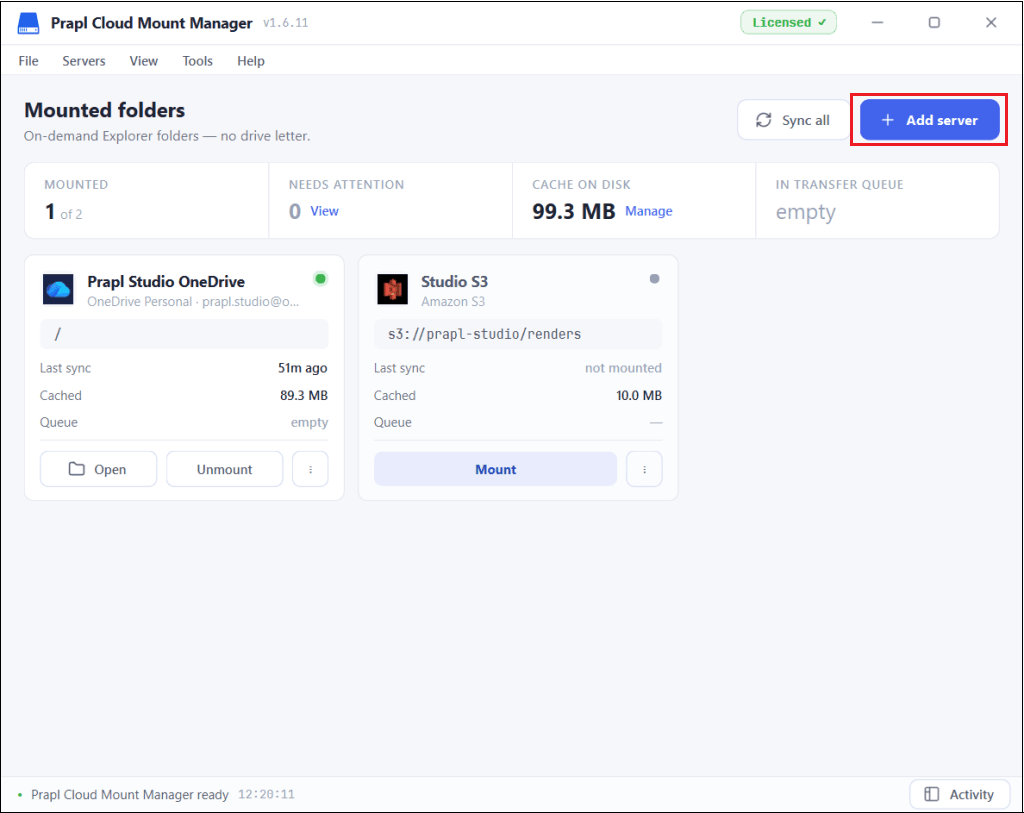
1. Run the tool on your system and click on Add Server.
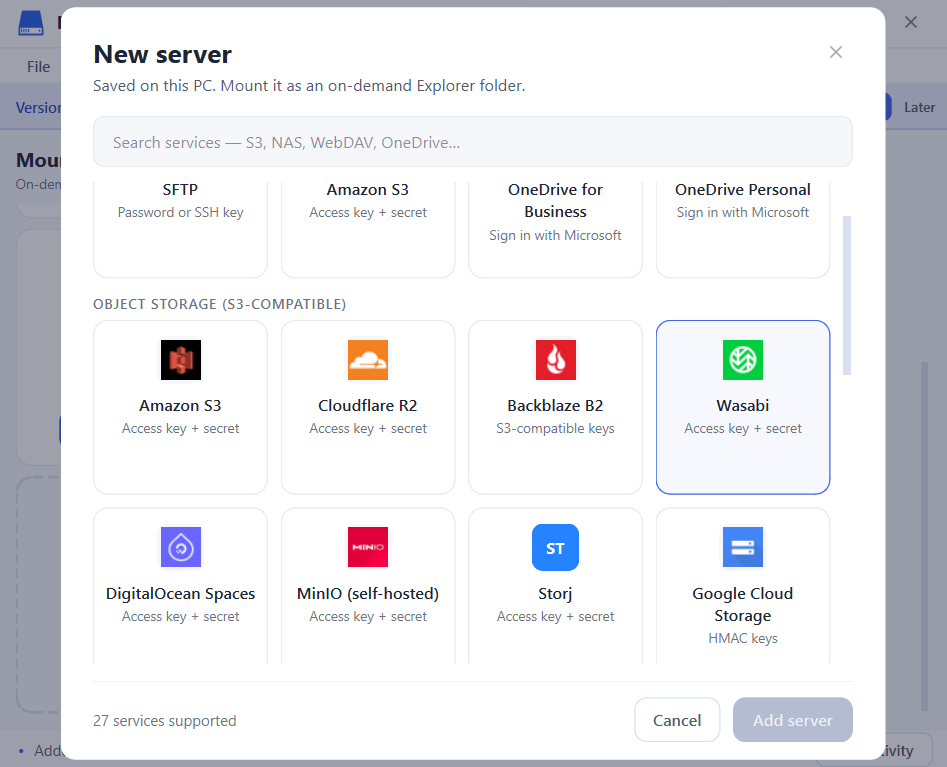
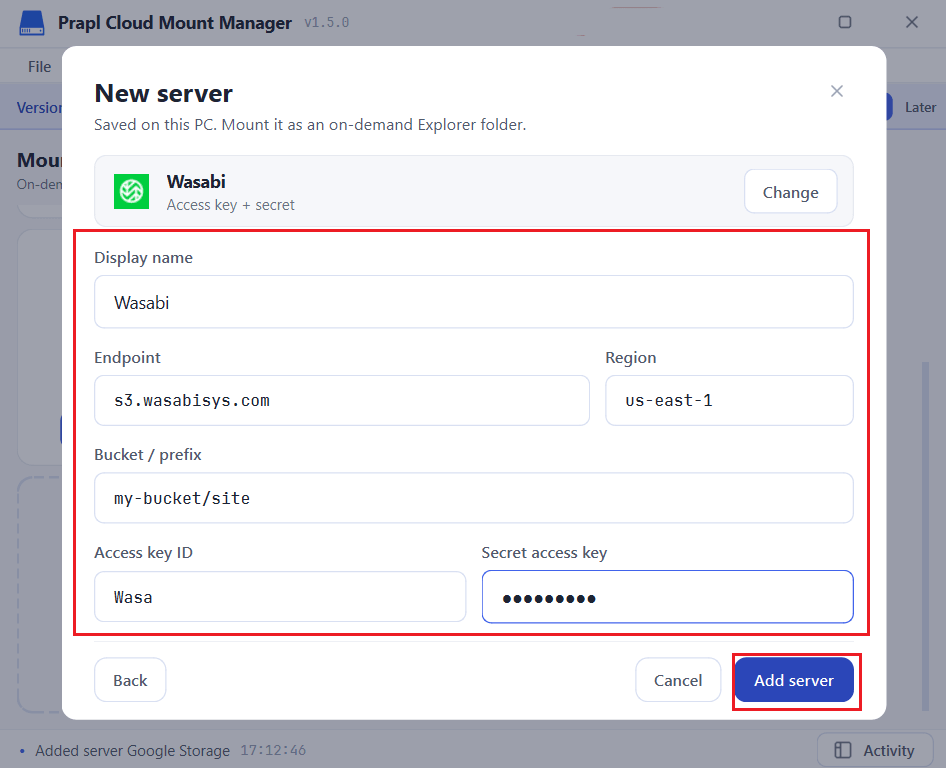
2. Choose Wasabi from Object Storage option.
3. Enter login details such as the access ID and secret key of Wasabi and click Add Server.
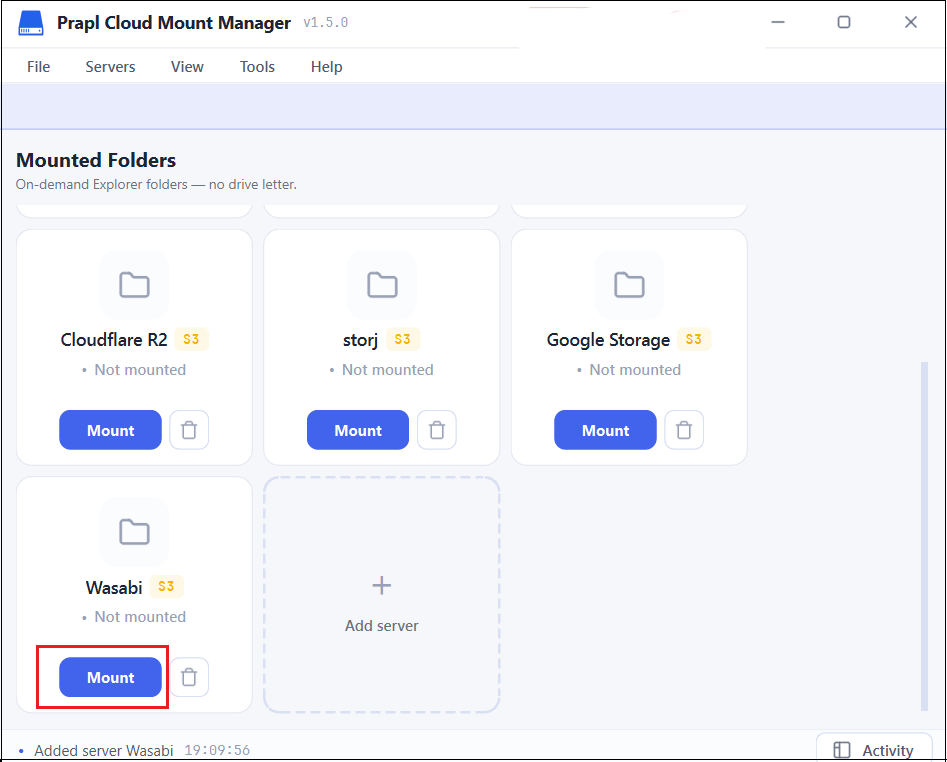
4. Once added, click on Mount.
5. Now, Wasabi will appear in File Explorer on your Windows PC.
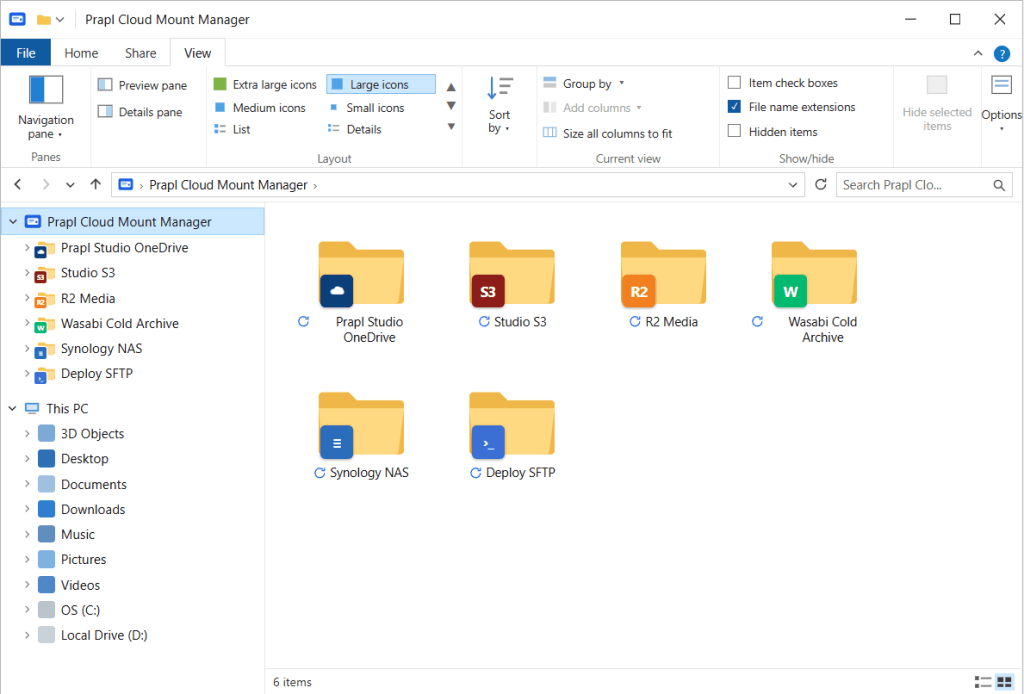
From there, you can open File Explorer, access your Wasabi storage and work with your cloud files like normal local files. This can be useful when you regularly transfer files, check backups, access archives or manage documents stored in Wasabi.
Conclusion
Cloud storage is most Useful when accessing the data does not become a separate task every time you need a file. For users who work with Wasabi regularly, bringing that storage into the Windows environment can make everyday file handling much easier.
With Wasabi Desktop Client, you can configure your Wasabi account and access the Wasabi storage from Windows. This gives a practical desktop workflow for working with files while keeping Wasabi as the cloud storage location.