Want to work with your Storj cloud files without opening the browser every time? A Storj storage desktop client for Windows can bring cloud storage closer to your everyday workflow. Instead of repeatedly signing into a web interface to upload, download or manage file, you can access your Storj storage directly from your Windows computer. In this guide, we will explain what Storj storage is, why users may want to use it as a desktop-accessible storage solution and how to use the Storj storage desktop app on Windows.
What is Storj Storage?
Storj is a decentralised cloud object storage platform designed for storing and retrieving files over the Internet. Unlike traditional local storage, your data is stored remotely and can be accessed through storage APIs and compatible tools.
Storj uses an object-storage model where files are organised into buckets rather than traditional Windows-style folders and drives. This makes it useful for backups, media files, application data, archives and other cloud-based storage requirements. However, object storage is not naturally designed to behave like a Windows local drive.
Benefits of Having Storj Storage Desktop Client on Windows
Using Storj storage through a browser works well for occasional file management. But if you frequently work with Storj files, switching between your Windows application and the web interface can slow down your work. Storj storage as a desktop app provides a more familiar workflow.
Some of the advantages of using the Storj desktop client are:
- Access Storj from File Explorer: Open your cloud storage alongside your normal Windows folders.
- Easy File Management: Copy, move, rename, upload and download files using familiar Windows actions.
- No Need to Open Browser: You do not need to open the Storj web interface for every file operation.
- Work with Desktop Applications: Access cloud files while working with applications that support normal file paths.
- Centralised Access: Keep Storj storage available from the same Windows environment you already use.
How to Use Storj Storage as a Desktop Client For Windows?
To use the Storj storage desktop app for Windows, try Prapl Cloud Mount Manager on your system. The software connects your Storj storage and makes it available through Windows File Explorer. It acts as a bridge between Storj’s cloud storage and Windows. Your Storj bucket remains in the cloud while the tool lets you access and manage it directly from your Windows desktop. You can open, edit and save files like a normal local folder.

Steps to Storj Storage Desktop App for Windows
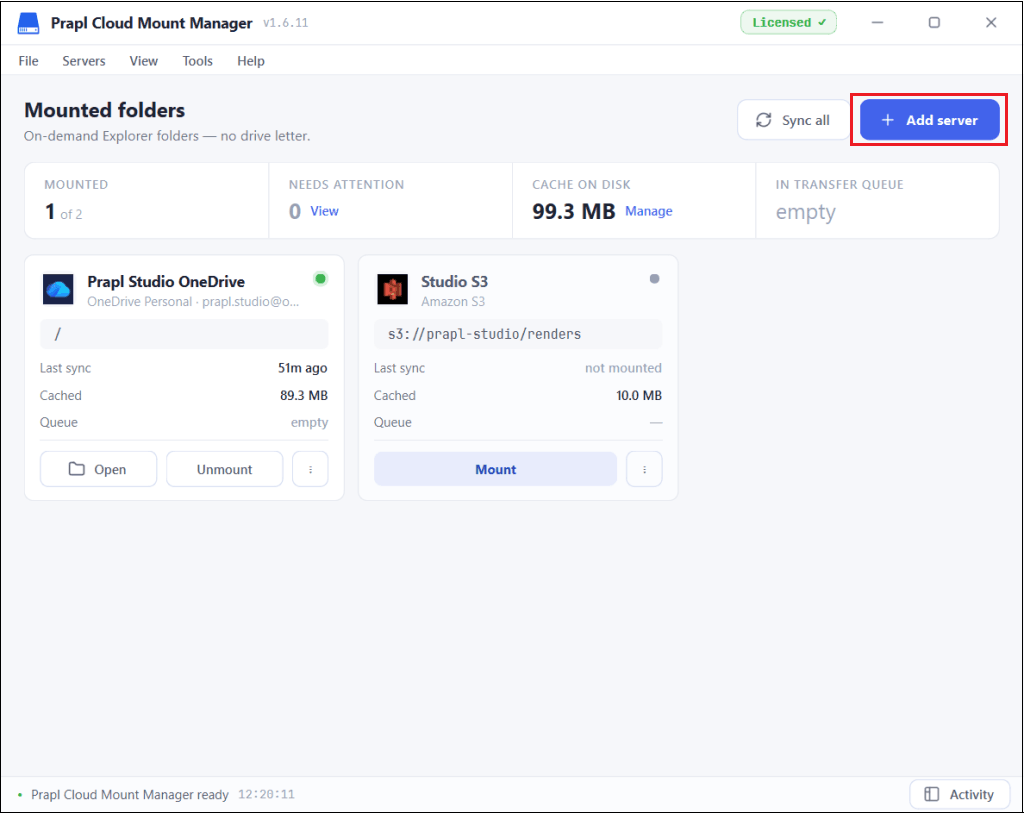
1. Run the tool on your system and click on Add Server.
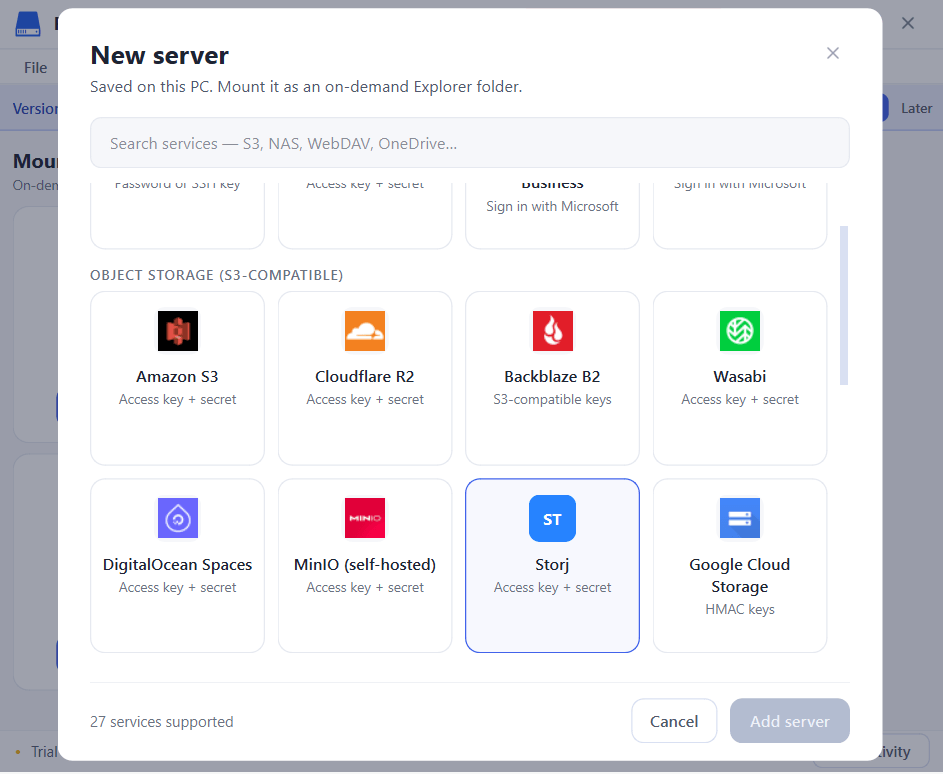
2. Choose the Storj option from the given options.
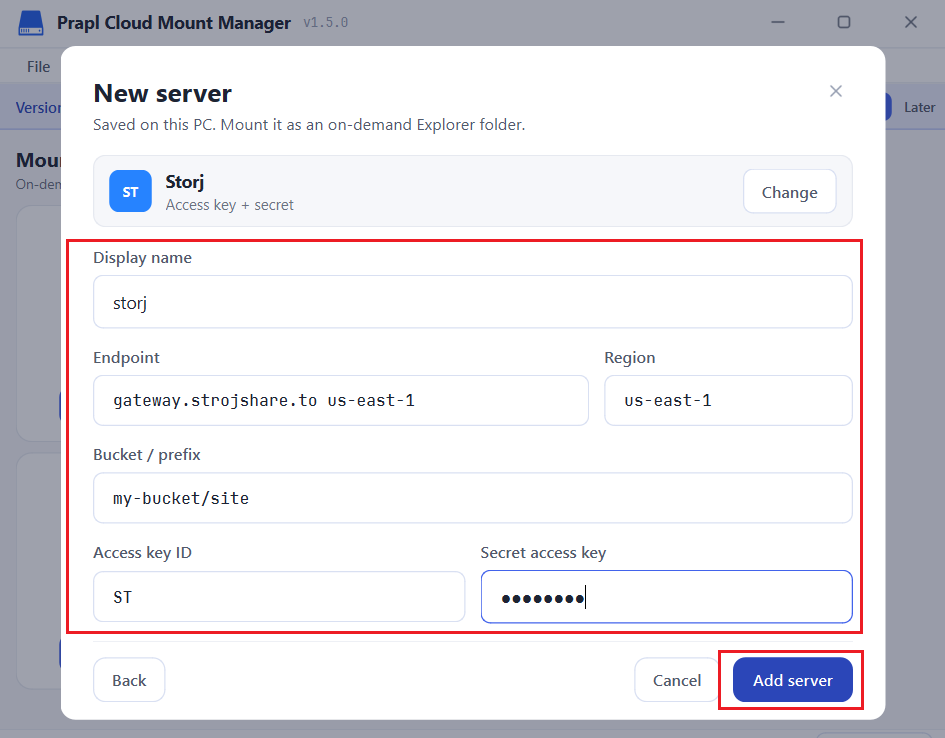
3. Enter the access key and secret key for Storj and press Add Server.
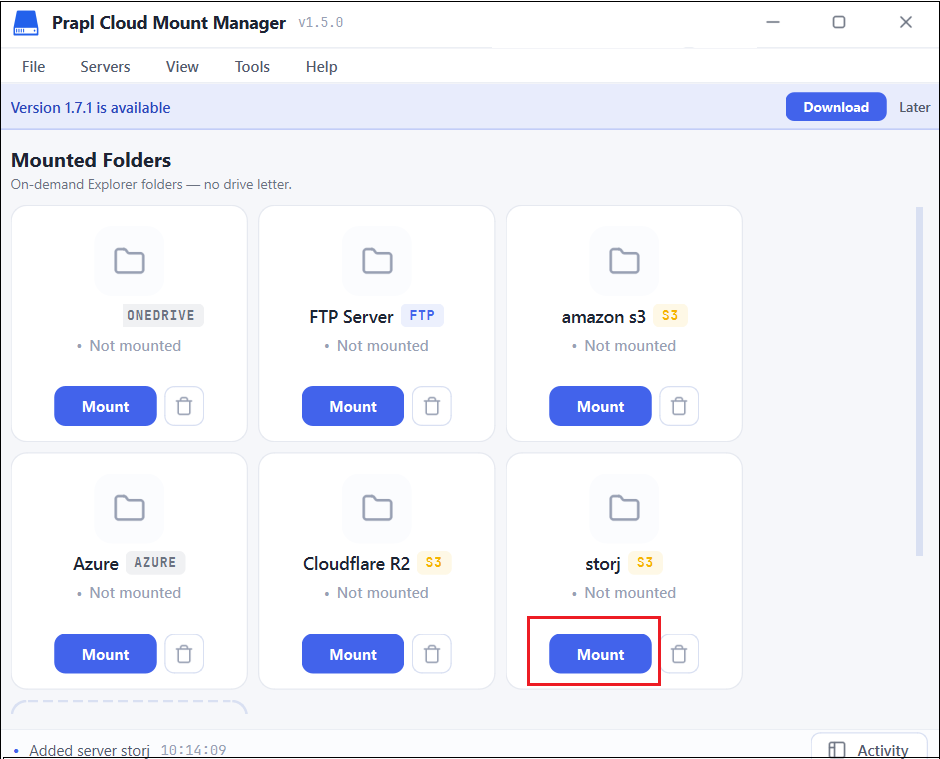
4. Once Storj storage is added, click Mount.
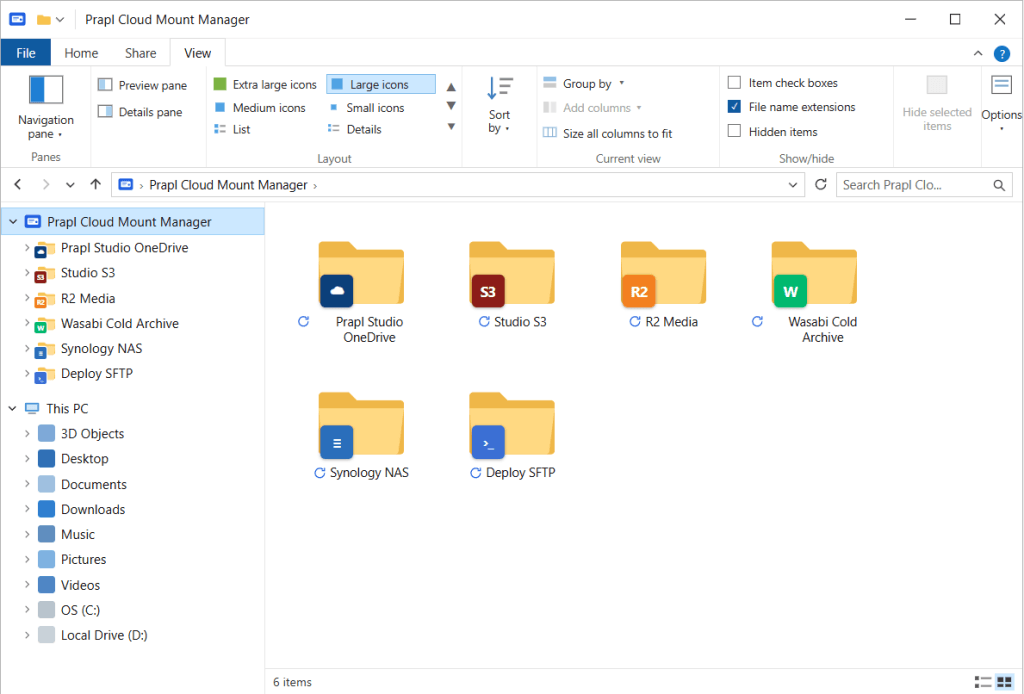
5. Now, Storj storage will show up in your Windows File Explorer. You can open, edit and save Storj files as a local folder.
Final Words
Storj provides cloud object storage, but it does not work like a traditional Windows folder or drive by default. If you regularly need to access your files from a Windows computer, then using the Storj storage desktop client can make the experience much simpler.
With Prapl Cloud Mount Manager, you can connect your Storj storage and access it from Windows File Explorer. It makes it easier to upload, download, copy, move, rename and organise files stored in Storj without relying on a web browser.
Frequently Asked Questions
Q1. Why should I use Storj as a desktop app on Windows?
Ans. Storj desktop client can make frequent file operations easier. You can work with Storj files through your normal Windows workflow without opening a browser.
Q2. Do I need to download all my Storj files to my computer to access them in File Explorer?
Ans. No. Using Storj as a desktop app lets you work with cloud-stored files without creating a local copy of the storage. You can access cloud files directly from File Explorer without downloading to your computer.
Q3. If I edit a file from the Storj storage desktop app, will the changes be saved automatically to the cloud?
Ans. Yes. When you edit a file through the desktop access, the changes are written back to the corresponding file in your Storj storage. You do not need to manually upload the edited file again.