Google Cloud Storage is a popular choice for storing documents, backups, media files, applications, data and other files online. You can normally manage these files through the Google Cloud Console, but using a browser every time you need to open or update a file can be stressful.
Google Cloud Storage desktop client makes the process easier if you frequently work with files stored in your Google storage. Instead of repeatedly opening the Google Cloud website, finding the right bucket, locating a folder and downloading files, you can access your cloud storage directly through Windows File Explorer.
Why Use Google Cloud Storage Desktop Client?
The Google Cloud console is useful for managing cloud resources and storage, but it is not always the most convenient option for everyday file handling.
For example, suppose you need to edit a document stored in Google Cloud Storage. With the traditional approach, you may need to open the browser, sign in, locate the project, open the bucket, find the file, download it, edit it and then upload the updated version. Doing this occasionally is fine but doing it several times every day can become repetitive.
Google Cloud Storage desktop client provides a more familiar way to work with cloud files. Once Google Cloud Storage is connected with Windows, you can access your files from File Explorer and perform common actions such as:
- Open files from your Windows computer
- Copy or move files
- Rename files or folders
- Add new files to cloud storage
- Edit supported file using your existing applications
- Manage cloud data without repeatedly opening the browser
This can make Google Cloud Storage feel much more like part of your regular Windows workflow.
How to Use Google Cloud Storage as a Desktop Client on Windows?
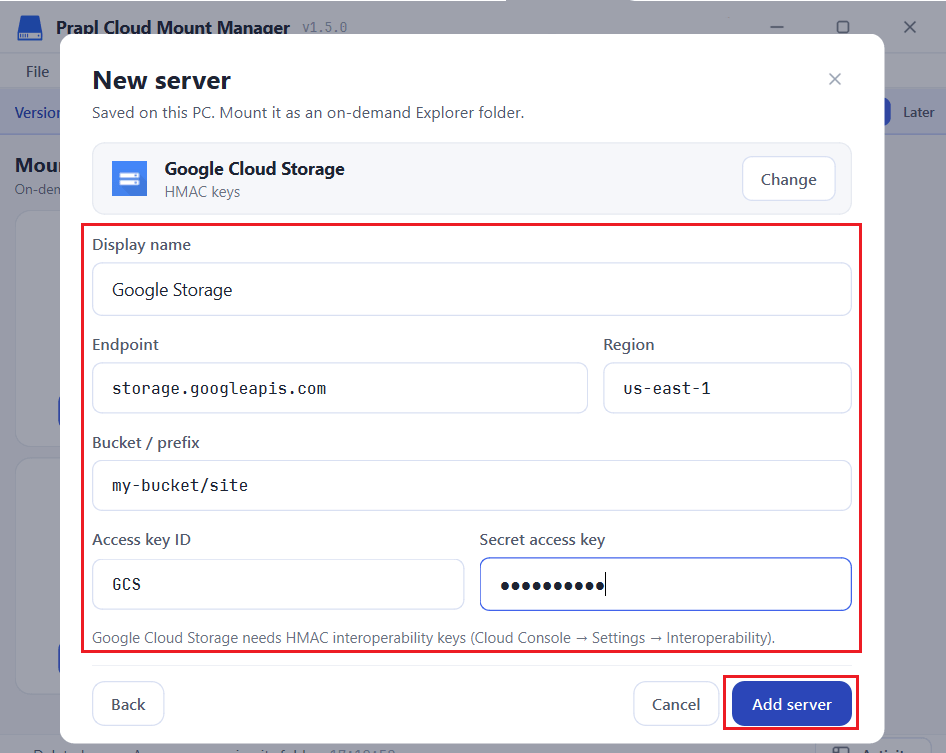
Prapl Cloud Mount Manager helps you use Google Cloud Storage through your Windows File Explorer. You can add your Google Cloud Storage account by entering the required connection details, such as the access ID and secret key. Once the connection is completed, your Google Cloud Storage is available in Windows File Explorer. This means you can access cloud files from the same place where you normally manage documents and folders on your computer.
With Google Cloud Desktop Client, you do not need to open the Google Cloud console every time to find, upload, download, rename or organise a file. You can use regular File Explorer actions to manage your cloud data. The software makes Google Cloud Storage more convenient for daily use by bringing cloud-based files into a regular Windows workflow.

Simple Steps to Set Up Google Cloud Storage Desktop App
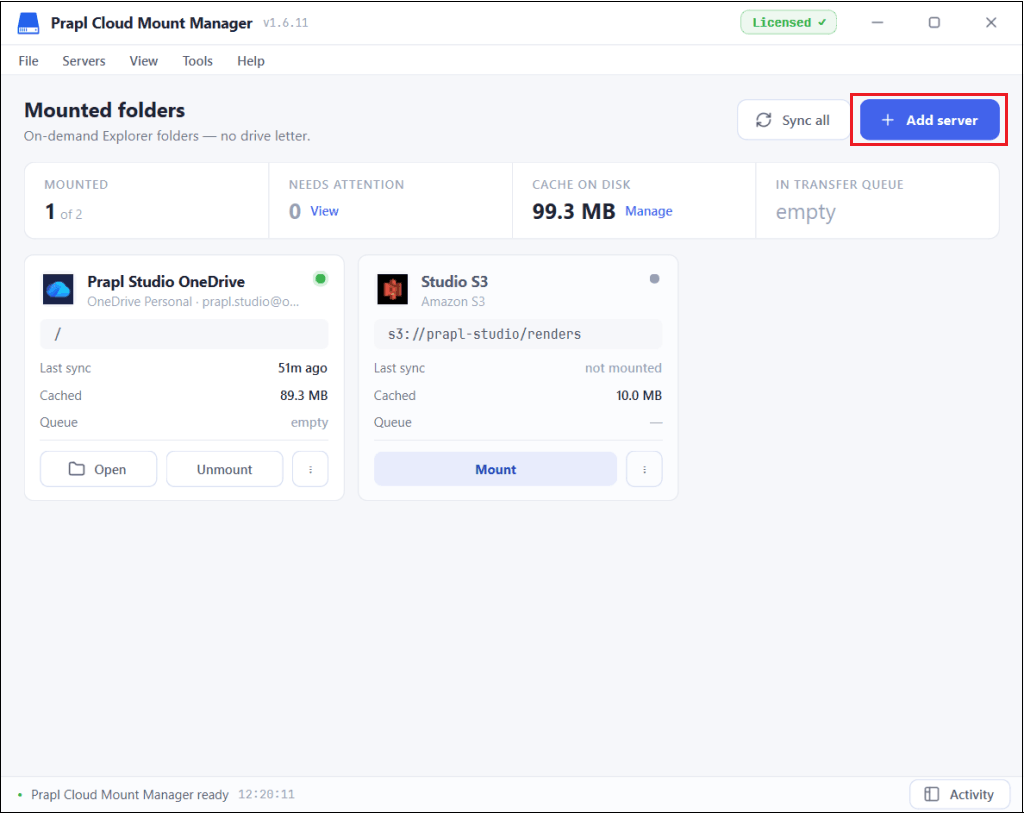
1. Launch the tool on your Windows PC and click the Add Server button.
2. Choose the Google Cloud Storage from Object Storage option.
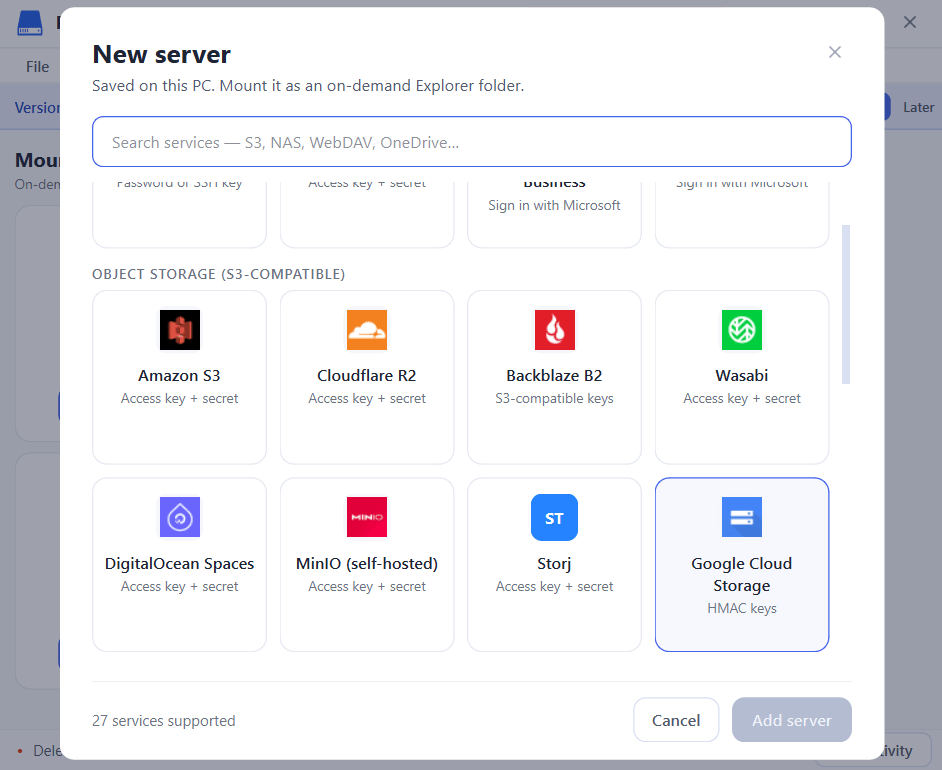
3. Enter Google Cloud Storage account details and press Add Server.
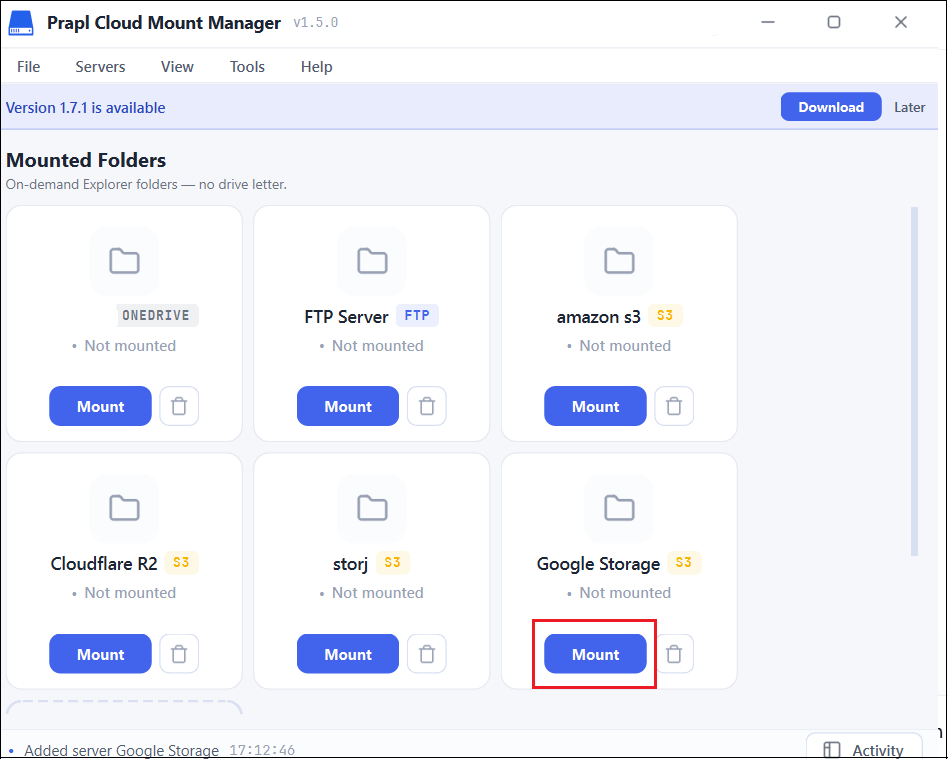
4. Click on the Mount button to access it in File Explorer.
5. Google Cloud Storage will appear in Windows File Explorer.
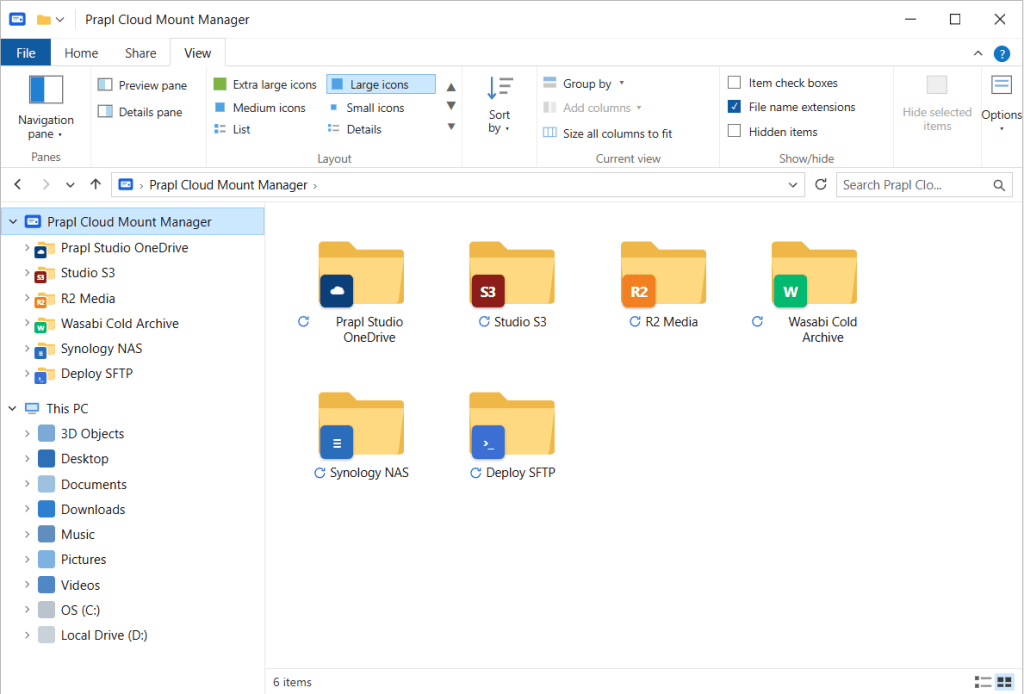
You can browse your cloud files from Windows File Explorer. Now, you can open, edit, save and mange your cloud files directly without visiting the Google Cloud Storage console.
Benefits of a Google Cloud Storage Desktop Client
Using Google Cloud Storage as a desktop app can be helpful for people who access cloud files regularly.
- Less Browser Dependency: You do not need to repeatedly open the Google Cloud console just to reach your files.
- Familiar File Management: File Explorer provides a simple interface for browsing and organising your cloud data.
- Convenient File Access: Frequently used files can be accessed from the Windows environment, rather than through multiple web pages.
- Simple Daily Workflow: Uploading, copying, renaming and managing files becomes part of your normal desktop routine.
- Useful for Regular Cloud Users: Developers, business administrators and teams working with cloud-based files can save time on repetitive file access tasks.
Final Words
Google Cloud Storage is powerful, but accessing files through a web browser for every small task is daunting. A Google Cloud Storage desktop client for Windows provides a simpler alternative for regular file access.
By using Prapl Cloud Mount Manager, you can connect Google Cloud Storage and access your cloud files through Windows File Explorer. This reduces repetitive browser navigation and lets you work with cloud data like a normal Windows folder.