Scaleway is widely used for cloud infrastructure, storage, servers and other online services. For users who store files in Scaleway Object Storage, the web console provides a way to upload, download and manage objects. However, if you work with cloud files regularly, opening the browser and going through the console each time can make simple file tasks feel repetitive.
A Scaleway desktop app for Windows can make daily file access easier. In this guide, we will explain what Scaleway Object Storage is and how you can use Scaleway as a desktop client to access files from a Windows PC.
What is Scaleway Object Storage?
Scaleway Object Storage is a cloud storage service for storing different types of data such as documents, images, videos and application files. It is based on the Amazon S3 protocol, so it can work with S3-compatible applications and clients.
Files are stored inside buckets and each object contains the file data along with associated metadata. Scaleway provides a web-based console where users can create buckets, upload files, download objectsfor delivery based concern where users can create buckets, upload files, download objects and manage their storage.
Scaleway also provides an S3-compatible API, which means you can use compatible software to access your Object storage outside the Scaleway console.
How do Most People Access Scaleway?
There are two common paths and each of the catch.
The first is the web console. It is clean and easy to understand, but it is built for management. No daily file work. Every task means logging in, browsing to budget, opening folders, downloading a file, entertainment and uploading it back. Do that a few times a day under click time.
The second is using command-line tools that connect through the S3 API. These are powerful, but they expect you to be comfortable with commands and exact paths. For many people, that is more technical than they want for simple routine edits.
Why Use Scaleway Desktop App on Windows?
The Scaleway console works well when you need to manage your cloud account or perform occasional storage tasks. For regular file transfers, using the Scaleway desktop client provides a more direct workflow.
Some advantages of doing this include:
- Easy File Access: Work with Scaleway files from your Windows computer.
- Less Browse Dependency: Access frequently used storage without opening the Scaleway website for every task.
- Quick Transfer: Upload and download files without repeatedly navigating through the web console.
- Simple Transfer: Manage cloud files through a Windows-based file interface.
- Local & Cloud File Management: Move files between your computer and Scaleway storage using familiar file operations.
- Better Daily Workflow: Keep frequently used cloud storage available as part of your normal Windows file management.
How to Use Scaleway as a Desktop Client on Windows?
Scaleway Object Storage is S3-compatible, so it can be accessed through an S3-compatible application instead of only using the Scaleway web console. With Prapl Cloud Mount Manager, you can take this a step further by connecting your Scaleway storage and making it available as a local folder inside Windows File Explorer.
Once connected, you do not need to open the Scaleway website every time you want to work with your files. You can simply open the Scaleway files from File Explorer and manage them almost like files stored on your computer.

Steps to Use Scaleway Desktop Client for Windows
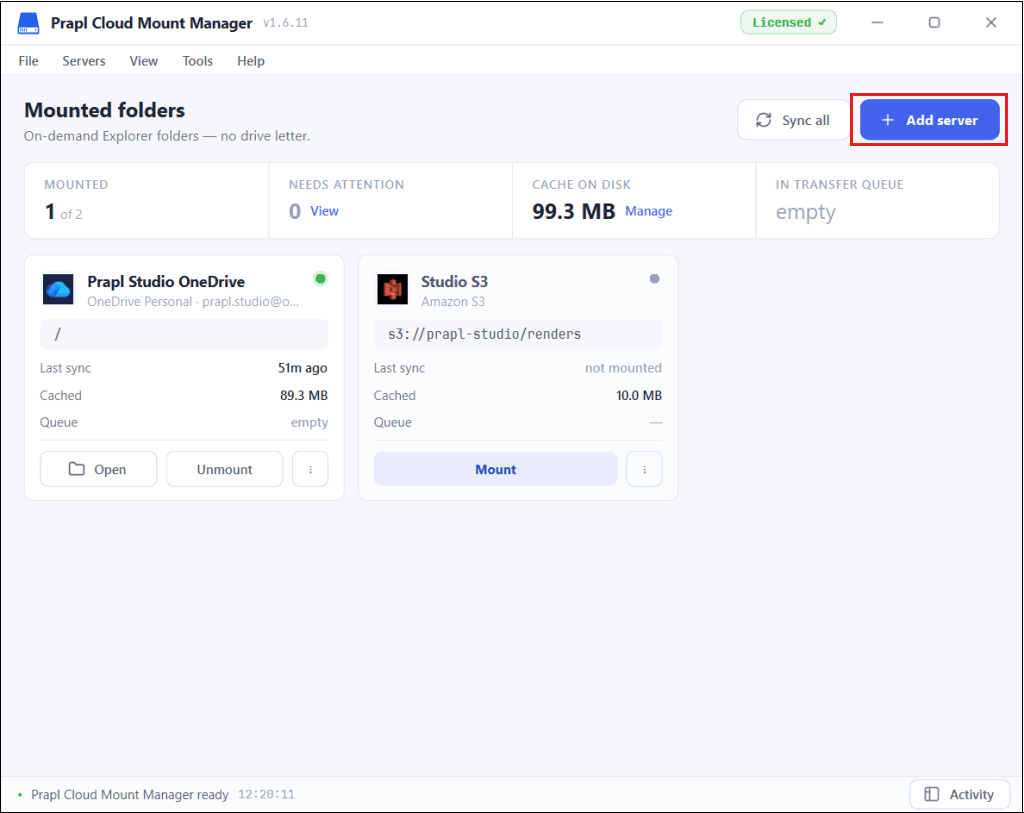
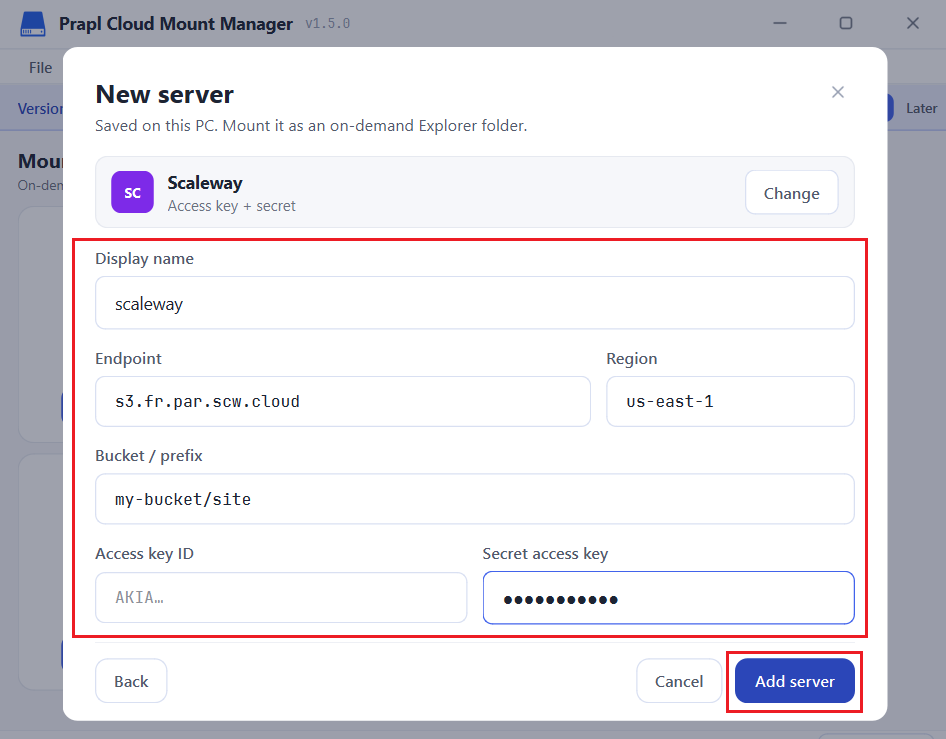
1. Run the Prapl Cloud Mount Manager on your Windows PC and click the Add Server button.
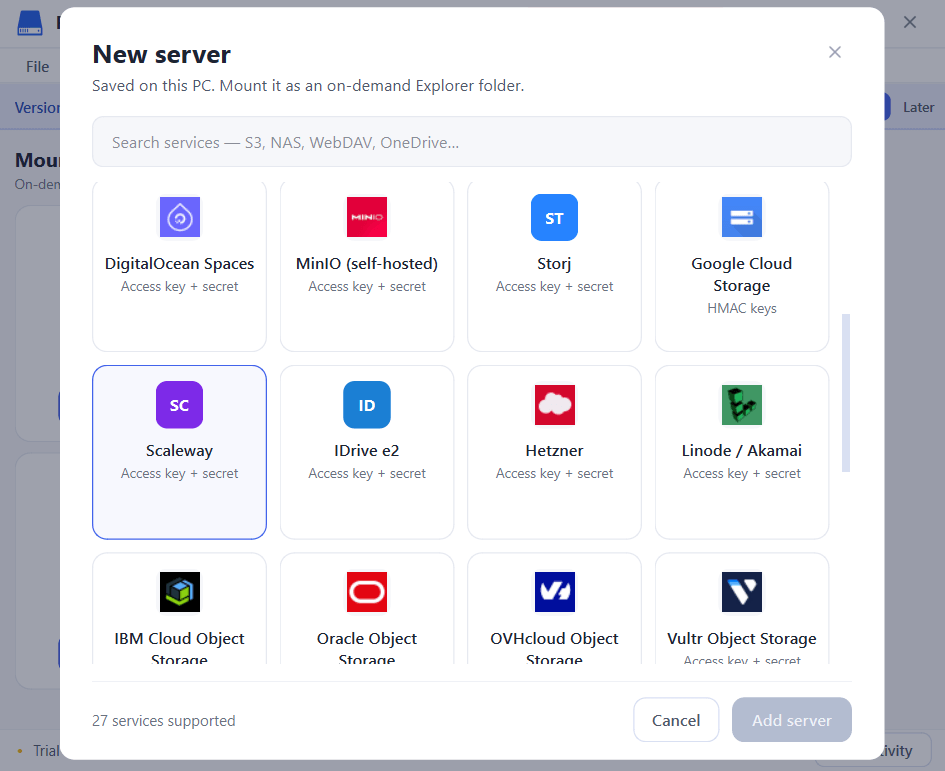
2. Select Scaleway as a storage option.
3. Enter Scaleway access key Id, secret access key and other login to connect it as a local Windows folder.
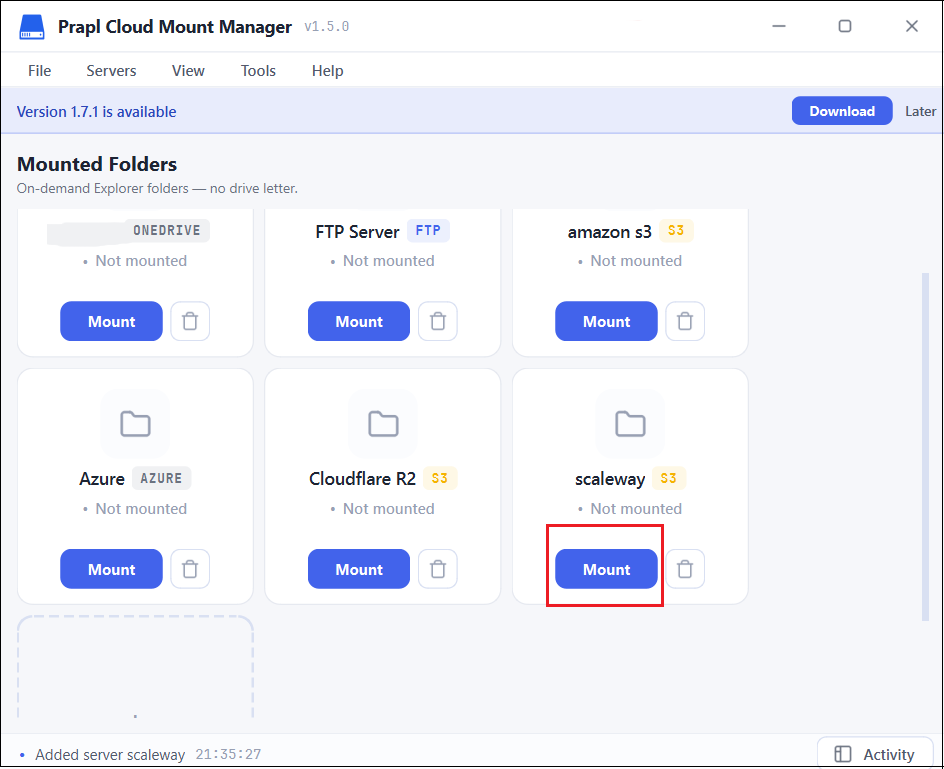
4. Once it is connected, click on Mount.
5. The Scaleway storage now appears as a folder in File Explorer.
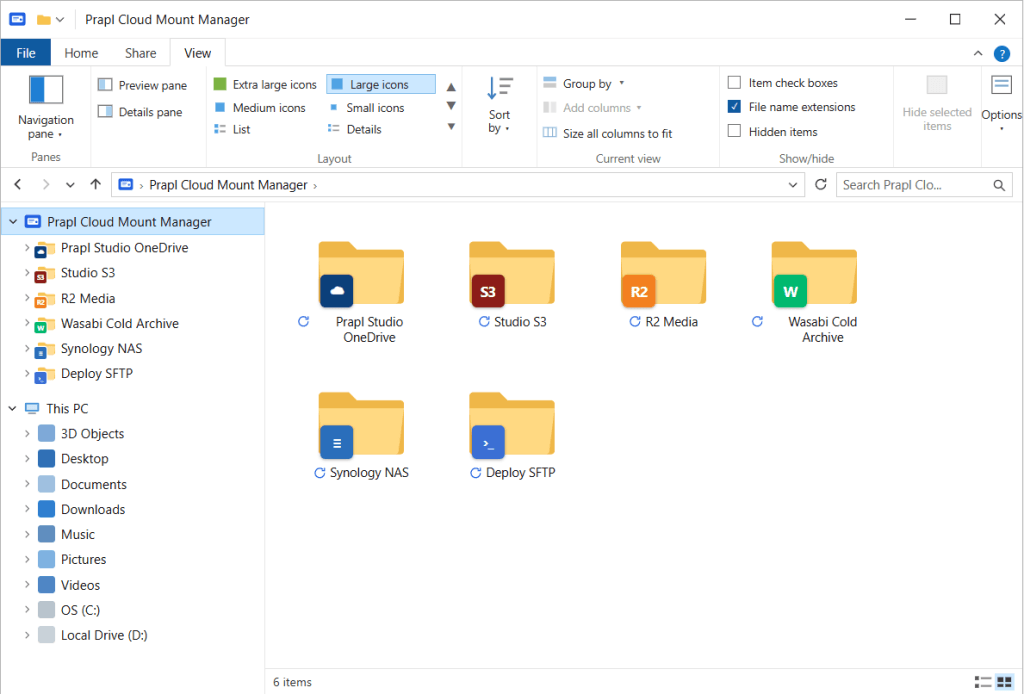
From here, you can open, edit and save as like other local files. No logging into the console and no commands.
Concluding Words
Scaleway gives you strong S3-compatible cloud storage. A Scaleway desktop app on Windows simply makes it easy to use day-to-day. Rather than browsing the console or running commands again and again, you open your files right in File Explorer, edit them and save. Everything syncs back on its own. If you work with Scaleway files regularly, this small change removes a lot of daily friction and allows you to focus on the work instead of the steps to reach it.