Oracle database is hosted on a remote server, while users may work from a Windows computer. In such cases, accessing database-related files or connected storage can require moving between different applications. Oracle Desktop Client for Windows provides a practical way to work with an Oracle environment from Windows computer. Connecting to that remote location from Windows can make file access more direct and easier to manage.
Once the connection is established, the remote storage can be available through Windows File Explorer. Users can browse folders, transfer files and perform regular file management tasks from the same interface they use for other files on their computer. This guide explains the benefits of using an Oracle desktop app and how to set up Oracle as a desktop client on Windows.
Let’s move ahead without any further delay!
Benefits of Having Oracle Desktop Client for Windows
Having Oracle-related storage available through a Windows desktop can be useful for developers, database administrators and other users who regularly work with Oracle environments.
Some key benefits include:
- Access from File Explorer: Files can be opened from the Windows File Explorer without depending entirely on a browser-based storage panel.
- Easy File Transfer: Files can be copied between the connected Oracle storage and local Windows folders.
- Organized File Management: Users can browse folders, locate files, rename items and manage available data from one Windows location.
- Less Application Switching: Users who regularly handle database-related files can access the connected location alongside their other Windows folders.
How to Set Up Oracle as a Desktop Client on Windows?
Opening a browser every time to view, edit or save a file can be frustrating. You can use Prapl Cloud Mount Manager to connect your Oracle Storage and access it through Windows File Explorer. Once connected, the remote location appears like a normal location. You don’t need to open a browser window just to locate a file repeatedly. You can open the connected folder, browse its contents and work with files using the normal Windows interface. This makes the experience closer to working with files stored on your local computer.

Oracle Desktop Client is designed to make remote storage appear as a local folder on Windows. Instead of treating your Oracle storage as something that can only be accessed through a browser, you can work with it through the Windows desktop.
The connected location can be opened alongside your other folders in File Explorer. If you need to update a document stored in Oracle remotely, you can open it through File Explorer, make your changes and save it. The changes will automatically be updated on the server.
Steps to Use Oracle Desktop App on Windows
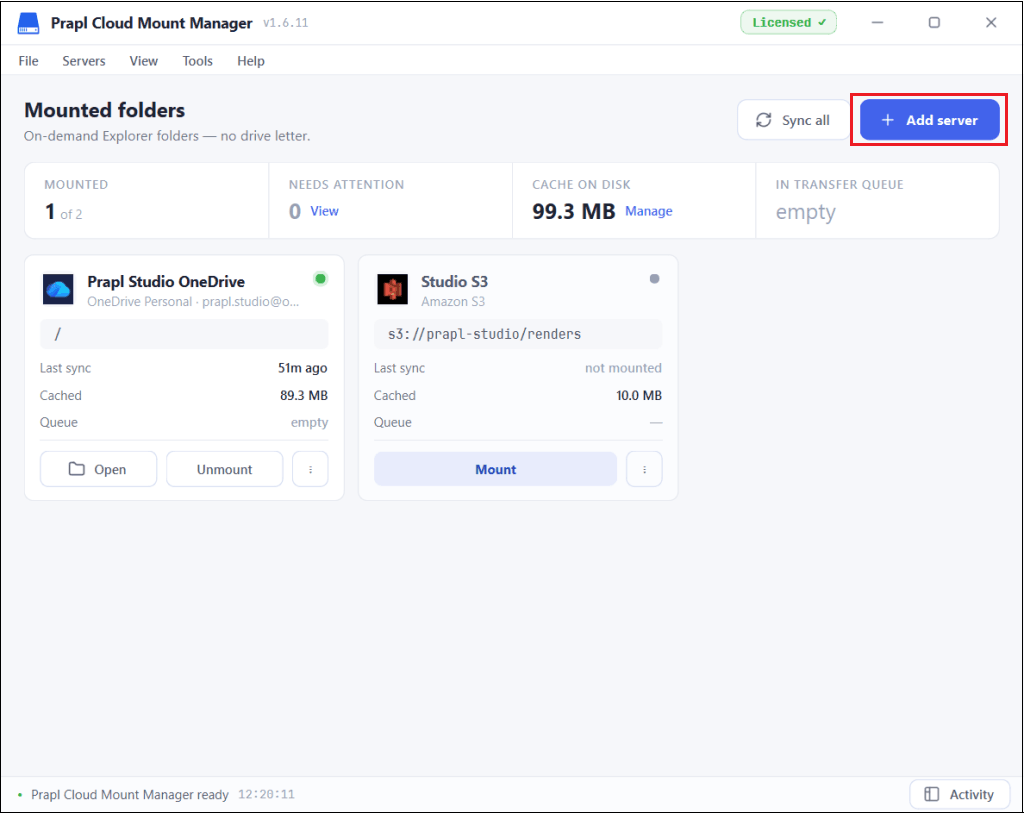
Step 1. Run the tool on your Windows PC and click on the Add Server button.
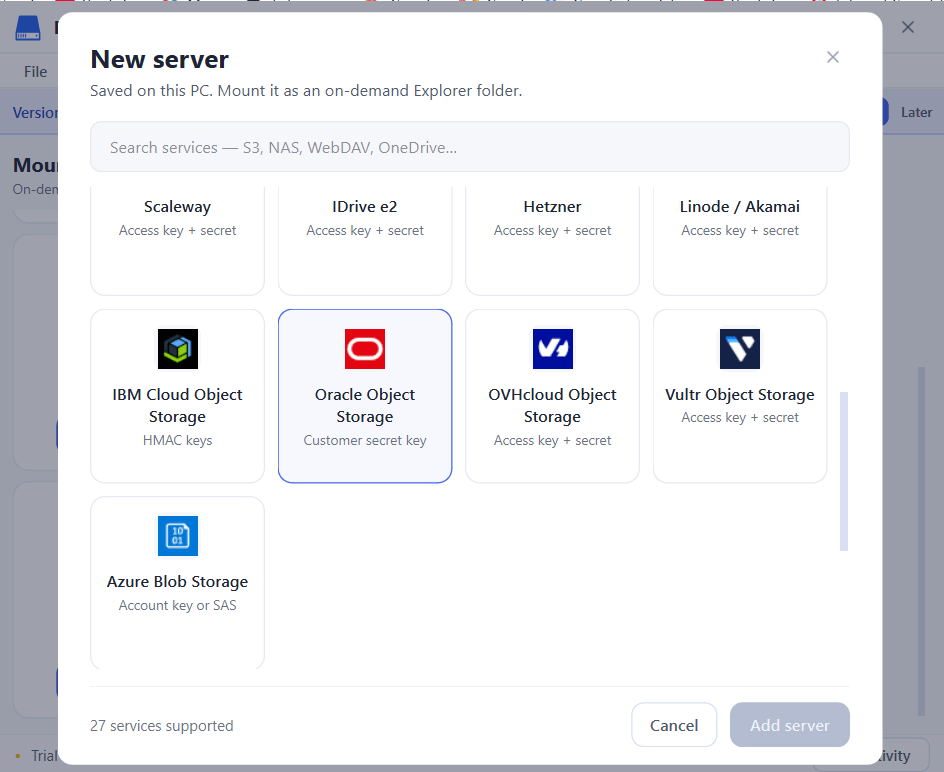
Step 2. Orcale Object Storage option from the available options.
Step 3. Enter the Oracle Access ID, Secret Key and other details to connect.
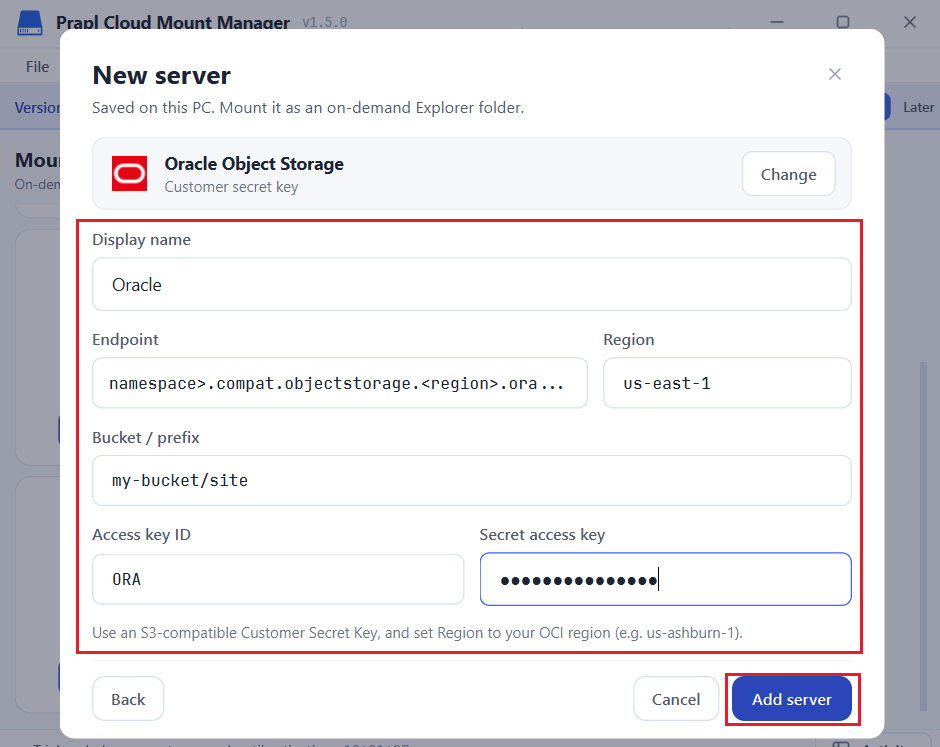
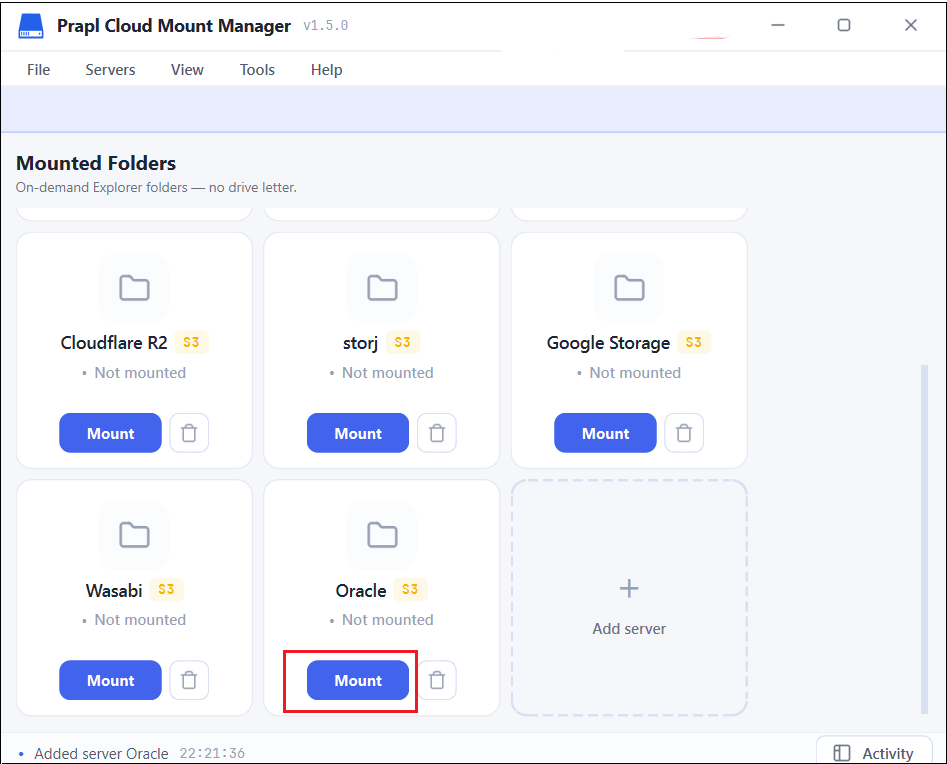
Step 4. Once added, click the Mount button to access Oracle from File Explorer.
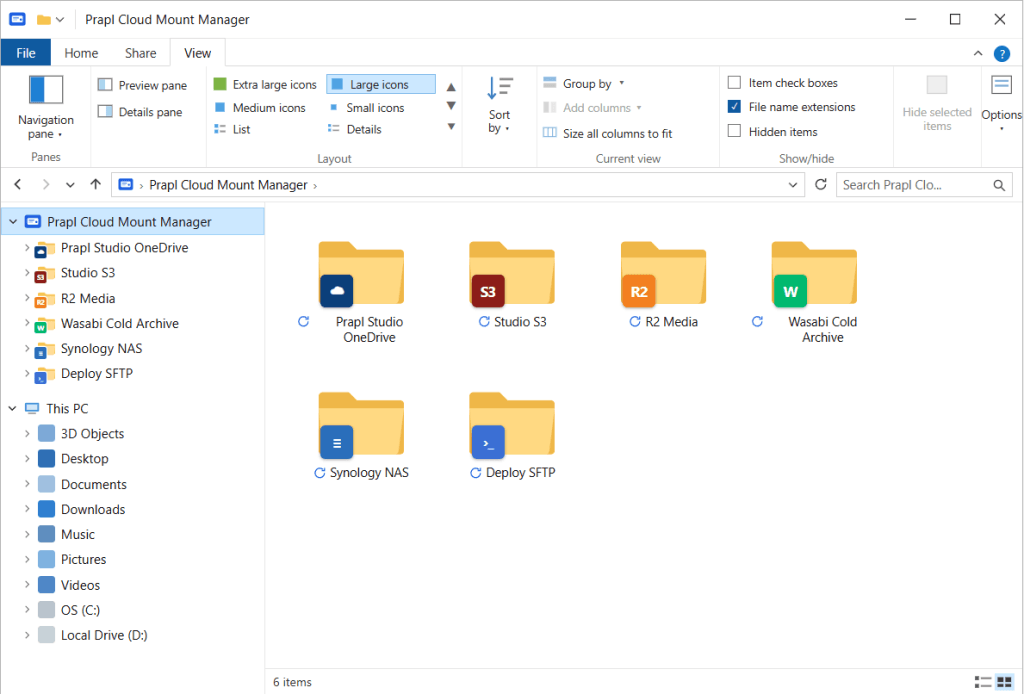
Step 5. Now, open File Explorer on your system and locate the Oracle Desktop Client to access its files directly without browsing again and again.
Final Words
An Oracle desktop app on Windows can be useful when users need to work with remote files, as part of their regular desktop workflow. Connecting remote storage to File Explorer provides a familiar environment for browsing and transferring files without relying on a separate web interface for every operation.
Oracle Desktop Client provides a straightforward way to establish this connection. Once the remote location is configured, it can be accessed through Windows File Explorer while database-specific tasks continue to be handled through Oracle database tools.
Frequently Asked Questions
Q1. Can I manage folders in Oracle from Windows?
Ans. Yes. Once the connection is available in File Explorer, you can perform common folder operations such as opening, creating, renaming, moving and organizing folders.
Q2. Oracle Desktop Client vs browser access. What is the difference?
Ans. Browser access requires you to work through a web interface, while a desktop client brings the remote environment closer to the Windows workflow and can make regular file operations more convenient.
Q3. Can an Oracle desktop client work with a large number of files?
Ans. Yes, the Oracle desktop app work with a large number of files easily.