Mounting OneDrive as a Windows drive lets you open the mark edit, and manage your cloud files exactly like they are on your computer, often without downloading everything first. You can mount OneDrive as local drive by mapping it as a network drive in Windows using its WebDAV address, which gives it a drive letter without syncing every file. If you want a smoother, more reliable setup, especially for multiple cloud accounts, a dedicated tool does it in just a few clicks.
Table of Contents
- Why Mount OneDrive as Local Drive?
- How to Mount OneDrive as a Network Drive Manually?
- How to Map OneDrive as Local Drive Using Cloud Mount Manager?
- Comparison Table: Which Method Should You Choose?
- Conclusion
OneDrive is one of the most widely used cloud storage services, but its default sync app copies files onto your hard drive to keep them available offline. That’s great for space you do not mind using, but if you have hundreds of gigabytes in the cloud, syncing everything is not practical. Mounting OneDrive as a drive solves this by giving you direct access to your files without filling up your disk.
Why Mount OneDrive as Local Drive?
Mapping OneDrive into a Windows drive letter has some real day-to-day benefits:
- Save Disk Space: Access files on demand instead of downloading your entire cloud storage.
- Work Faster: OneDrive desktop client helps to open and save files from any app just like a USB drive.
- Stay Organized: A clear drive name is easier to find than a nested sync folder.
- Handle Big Libraries: Prefect when your cloud storage is far larger than your local disk.
How to Map OneDrive as a Network Drive Manually?
Windows can connect to OneDrive over WebDAV and show it as a mapped network drive. Here’s how:
-
- Find your OneDrive CID. Log in at onedrive.com and look at the address bar. You will see a part that reads cid=XXXXXXXX. Copy that value.
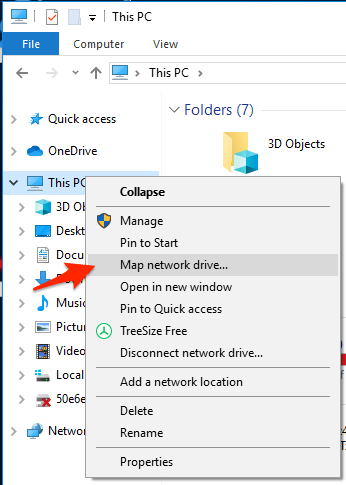
- Open File Explorer, right-click This PC and choose Map network drive.
- Choose a drive letter, then in the folder box enter your WebDAV address using your CID:
https://d.docs.live.net/XXXXXXXX
- Tick Reconnect at sign-in, click Finish, and enter your Microsoft account email and password when prompted.
Now OneDrive appears as a drive in File Explorer. Open it to confirm your files are there.
This method is free and built into Windows, but it has limits. WebDAV can be slow with large files, the drive may disconnect and need reconnecting. it works mainly with personal accounts and it depends on the Windows WebClient service running. It is fine for occasional use, but heavy users often want something more casual.
How to Mount Multiple OneDrive Accounts on Windows File Explorer?
If you want a simple, reliable way to mount multiple OneDrive accounts in File Explorer, Prapl Cloud Mount Manager makes the process much easier. Instead of dealing with complicated WebDAV addresses or manual configuration, you can mount cloud storage as a local drive. Just connect your OneDrive account and access its files directly from Windows File Explorer. Once mounted, your cloud storage works like a regular local drive, which makes it easy to open, manage, move and organize files without downloading everything to your computer.
With this utility, you can mount multiple OneDrives on File Explorer. Download the software and try it for free.

The software allows you:
- Mount two or more than two OneDrive accounts as a real local drive that stays connected and reconnects automatically at startup.
- Access files on demand so you save disk space instead of downloading everything.
- Supports multiple accounts and other cloud services, all as separate drives.
- Keep file names, folders and structure intact for easy browsing.
- Lets you control caching so frequently used files open quickly.
Steps to Mount Multiple OneDrives as a Local Drive
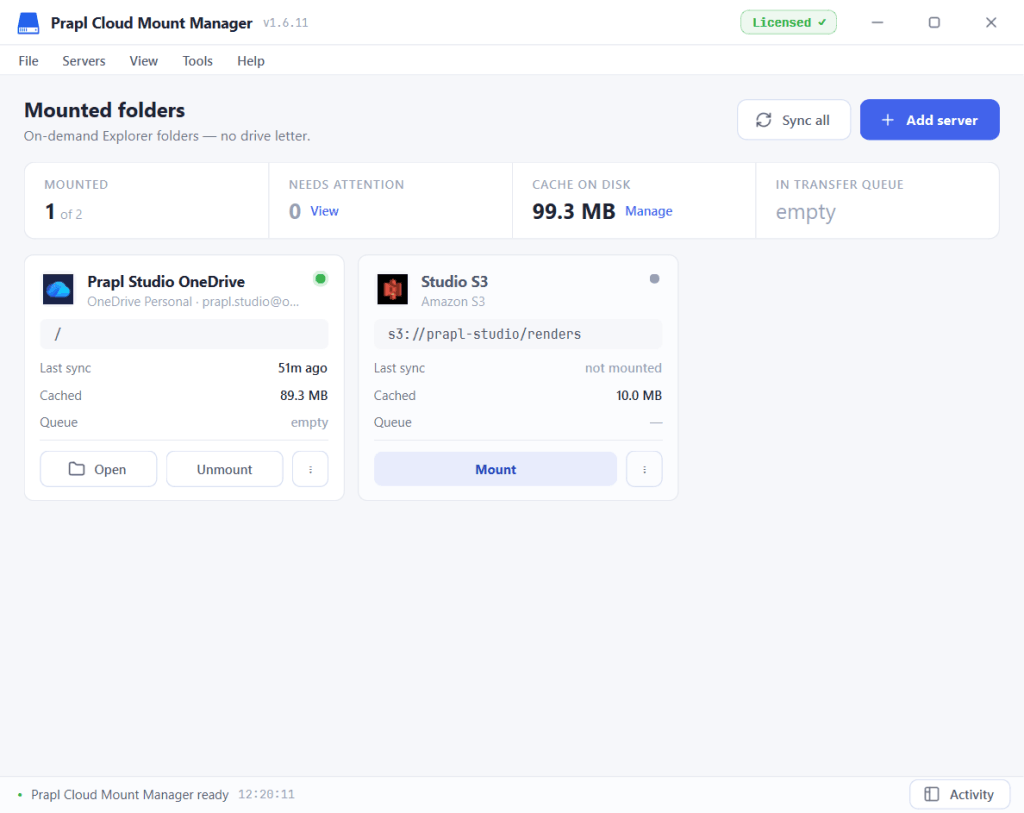
1. Run the tool on your Windows PC and click on Add Server.
2. Choose OneDrive from the listed options.
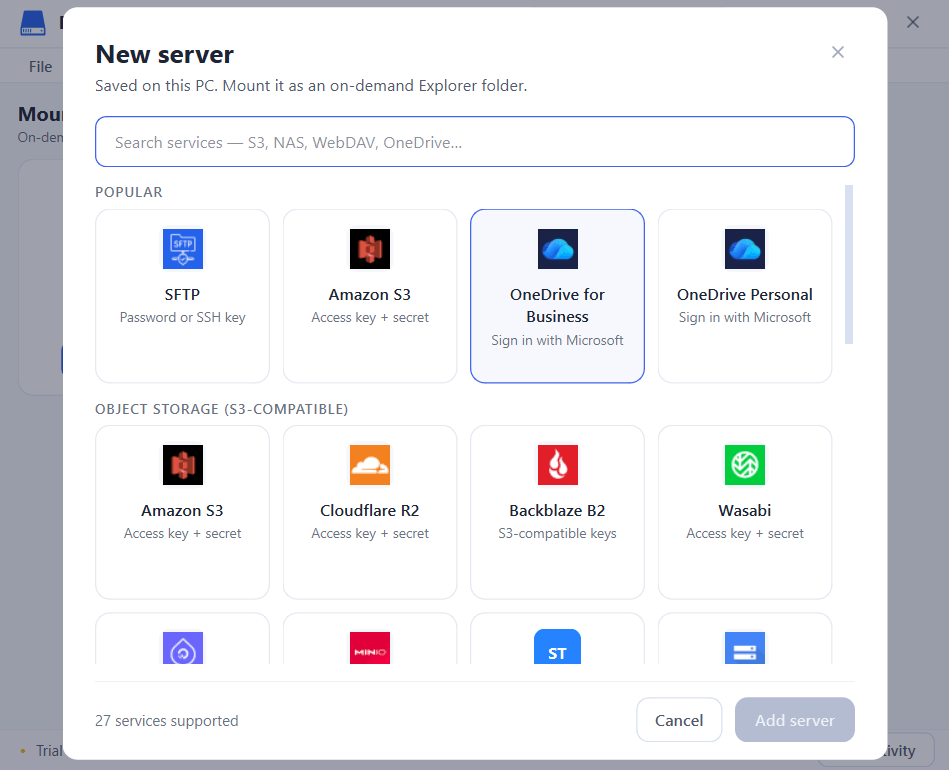
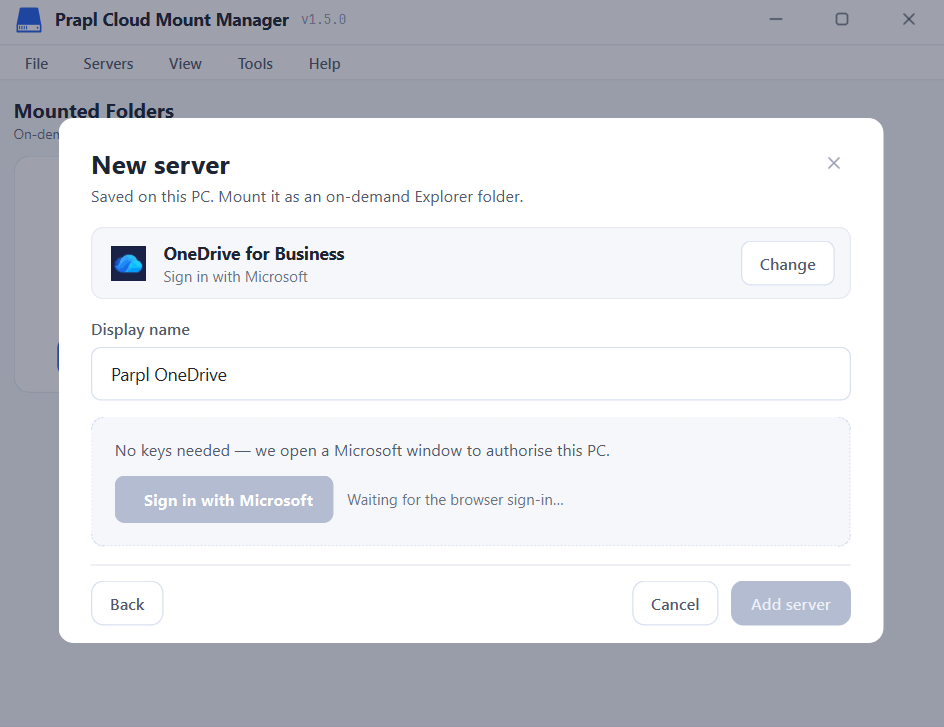
3. Connect your OneDrive account and press Add Server.
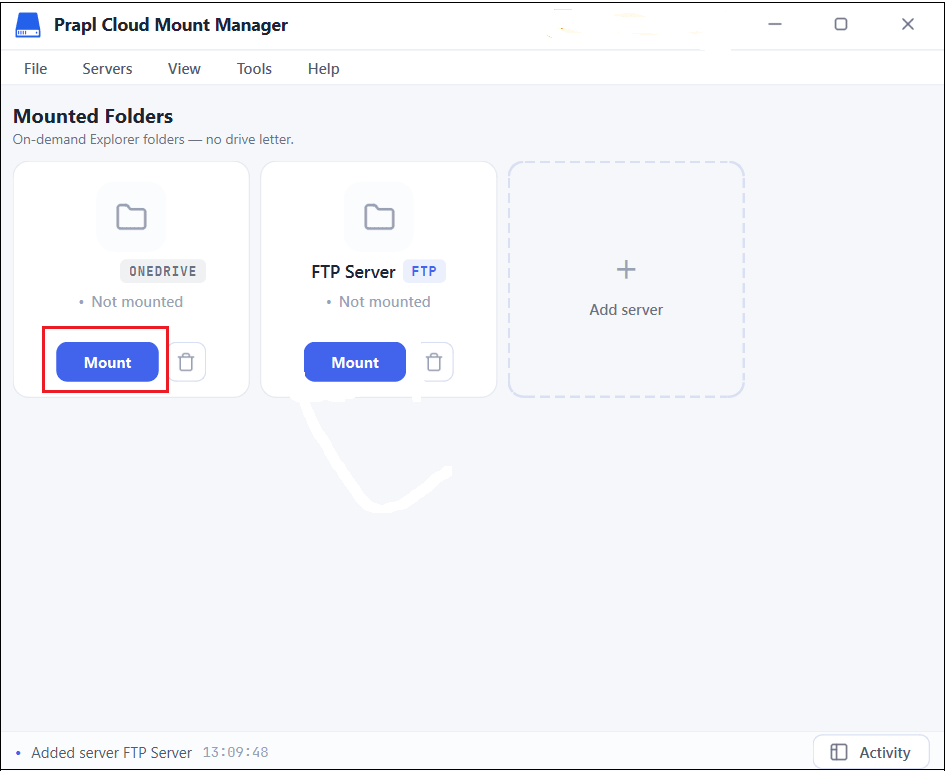
4. Once the OneDrive is added, click on Mount.
5. Now, your OneDrive appears as a local drive in File Explorer. You can open and manage OneDrive files as local files.
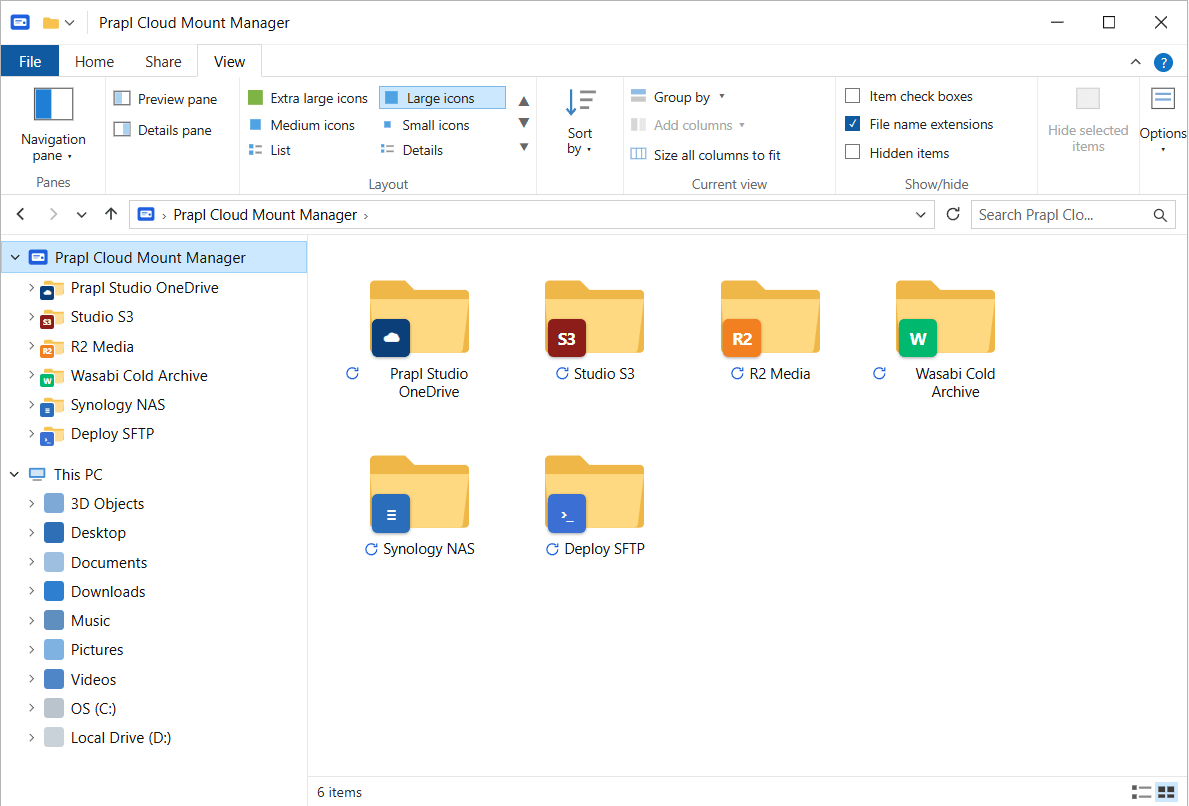
6. Repeat the same process to map more OneDrive accounts to access them in File Explorer.
Comparison Table: Which Method Should You Choose?
| Feature | Prapl Cloud Mount Manager | Manual WebDAV |
|---|---|---|
| Setup Time | A few minutes | Moderate |
| Act as a Real Drive | Yes | Yes |
| Save Disk Space | Yes | Yes |
| Auto Reconnect | Yes | Unreliable |
| Multiple Accounts | Unlimited | Only 2 |
Conclusion
In this post, we have discussed how to mount OneDrive as local drive using two different methods. The manual WebDAV approach is free and built into Windows but can be slow and prone to dropping. While the software gives you a stable, always-connected drive with on-demand access and support for multiple accounts. Choose the manual method for occasional use and the tool when you want a reliable setup you can forget about.