Amazon S3 is designed for storing files and objects in the cloud but working with an S3 bucket is not always as convenient as working with a normal folder on Windows. If you regularly upload, download or manage files in S3, opening the AWS console every time can become inconvenient.
A better approach is to mount Amazon S3 bucket in File Explorer. Once mounted, you can browse folders, copy files, move data and manage your cloud storage from the familiar Windows interface.
There are two different ways to mount Amazon S3 bucket as a Windows drive. You can use AWS services such as S3 File Gateway to provide an SMB file share or use a professional application.
Table of Contents
- What Does It Mean to Mount Amazon S3 Bucket in File Explorer?
- How to Map Amazon S3 Bucket as Network Drive Manually?
- How to Mount Amazon S3 Bucket as a Windows Drive?
- Comparison Table: Which Method Should You Choose?
- Final Words
What Does It Mean to Mount Amazon S3 Bucket in File Explorer?
Mounting S3 bucket means creating a connection that allows the bucket’s contents to appear like a drive or folder on your computer. Instead of repeatedly opening the AWS Management Console, you can access the mounted storage from File Explorer. You can then work with the files using familiar actions such as copy, paste, rename, delete and drag & drop.
It is important to remember that S3 is object storage, rather than a traditional Windows file system. A service such as S3 File Gateway provides the file interface that Windows can access through SMB. AWS supports mounting an S3 File Gateway file as a drive on Windows.
How to Map Amazon S3 Bucket as Network Drive Manually?
AWS provides an S3 gateway to connect applications and systems that use standard file protocols with Amazon S3. It provides an SMB or NFS file interface, while the actual data is stored in an S3 bucket. However, this method involves several setups steps because you need to create and configure the gateway before mapping the storage in Windows.
Follow the steps below to mount Amazon S3 bucket in File Explorer:
Step 1. Create an S3 File Gateway
Sign in to AWS Management Console and open AWS Storage Gateway. Choose Create gateway and select Amazon S3 File Gateway. AWS provides different development options, including virtual machines and EC2-based deployments. Complete the gateway setup and activate it, according to your environment.
Step 2. Connect the Gateway to Your S3 Bucket
After activating the gateway, create a file share and associate it with your Amazon S3 bucket. You also need to provide the required permissions so the gateway can access the bucket. AWS uses IAM roles and policies to control access between the gateway and S3.
Step 3. Create an SMB File Share
For a Windows computer, an SMB file share is generally the convenient choice. Configure the file share and make sure the required users have permissions to access it.
Step 4. Map the Share in File Explorer
Once the SMB share is ready, open Windows File Explorer.
- Open This PC
- Select Map Network Drive
- Choose a drive letter
- Enter the network path provided for your S3 File Gateway
- Enable reconnect at sign-in if you want Windows to reconnect automatically and click Finish
Now, the S3 bucket can be accessed through the mapped drive.
Limitations of Manual Method
AWS S3 File Gateway is useful when an organisation needs a proper file interface for S3 but it requires more setup than simply entering S3 credentials into a desktop application. You need to configure the gateway, file share, permissions and Windows connection. This can be more work for users who only want to access an S3 bucket from their personal Windows computer.
How to Mount Amazon S3 Bucket as a Windows Drive?
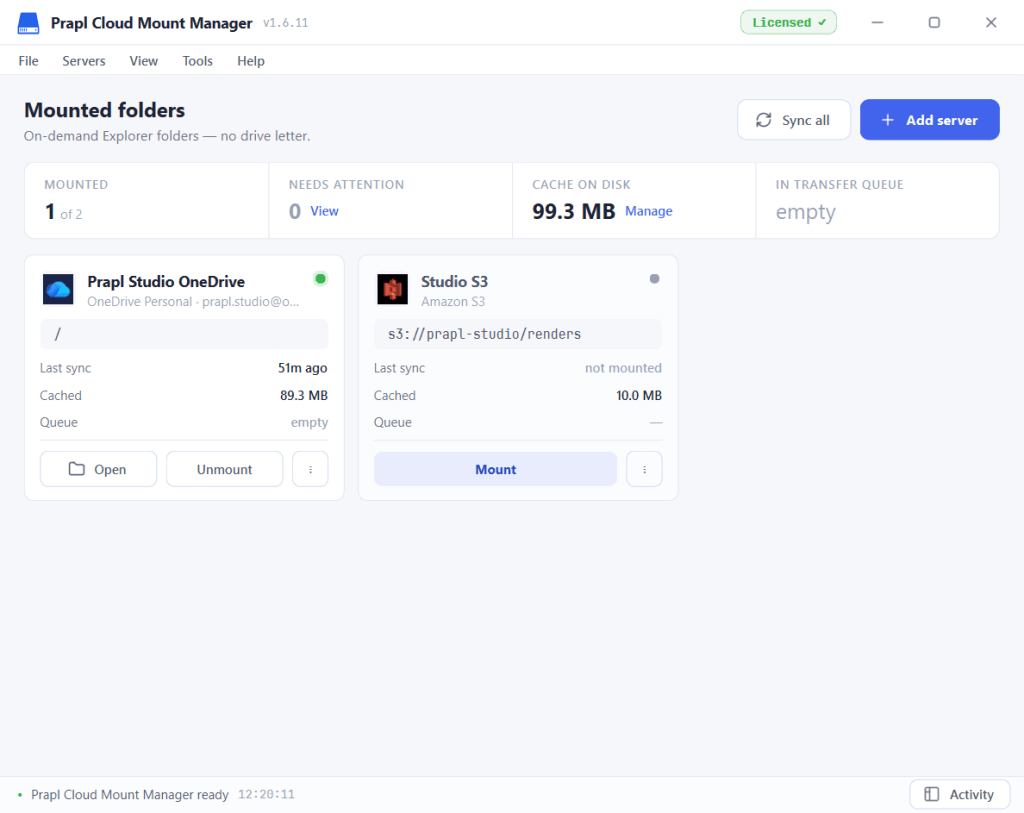
If you want a simple desktop-based approach, Prapl Cloud Mount Manager can be used to connect AWS S3 storage and access it from Windows File Explorer. Instead of setting up a separate file gateway, you can add your S3 account in the application and mount Amazon S3 bucket in File Explorer. It maps your S3 bucket as a real drive in File Explorer, stays connected in the background and reconnects automatically when you start Windows. With this utility, you also get on-demand file access to save disk space, support for multiple buckets and other cloud services as a separate drive.
The main advantage of this utility is its simpler setup to mount S3 bucket as local drive on Windows Explorer. You don’t need to deploy an S3 File Gateway or configure an SMB share just to access cloud files from Windows. It can be useful for users who want to work with S3 files regularly and prefer the same drag & drop experience they get with local storage.

Steps to Mount Amazon S3 Bucket in File Explorer
1. Run the tool on your system and click on Add Server.
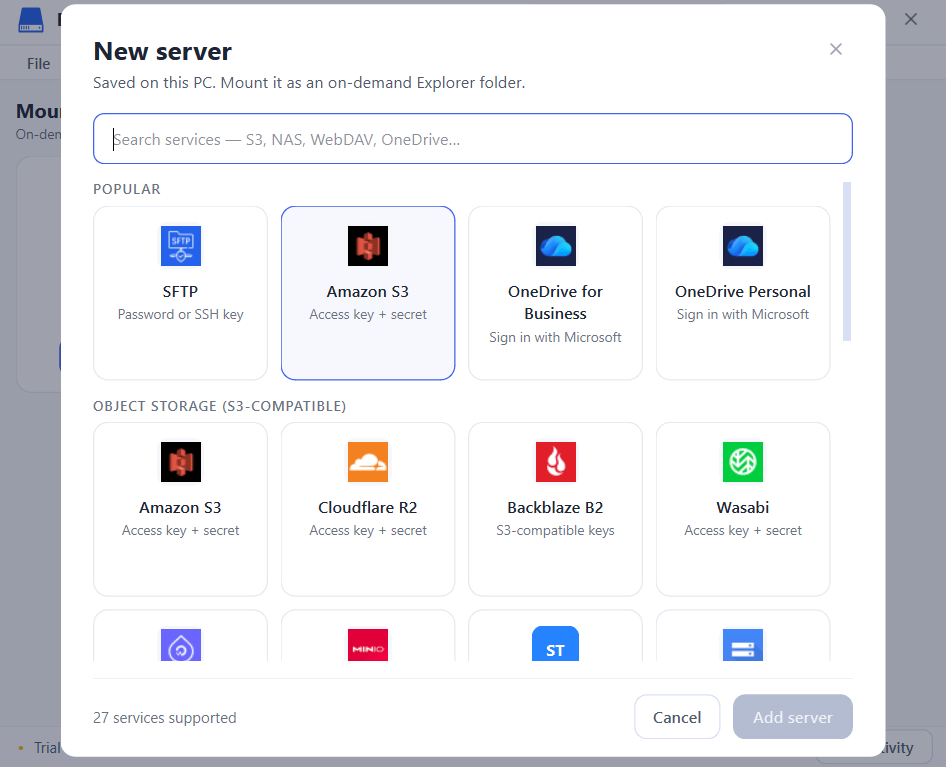
2. Choose Amazon S3 and press Add Server.
3. Enter Amazon S3 bucket login details to connect.
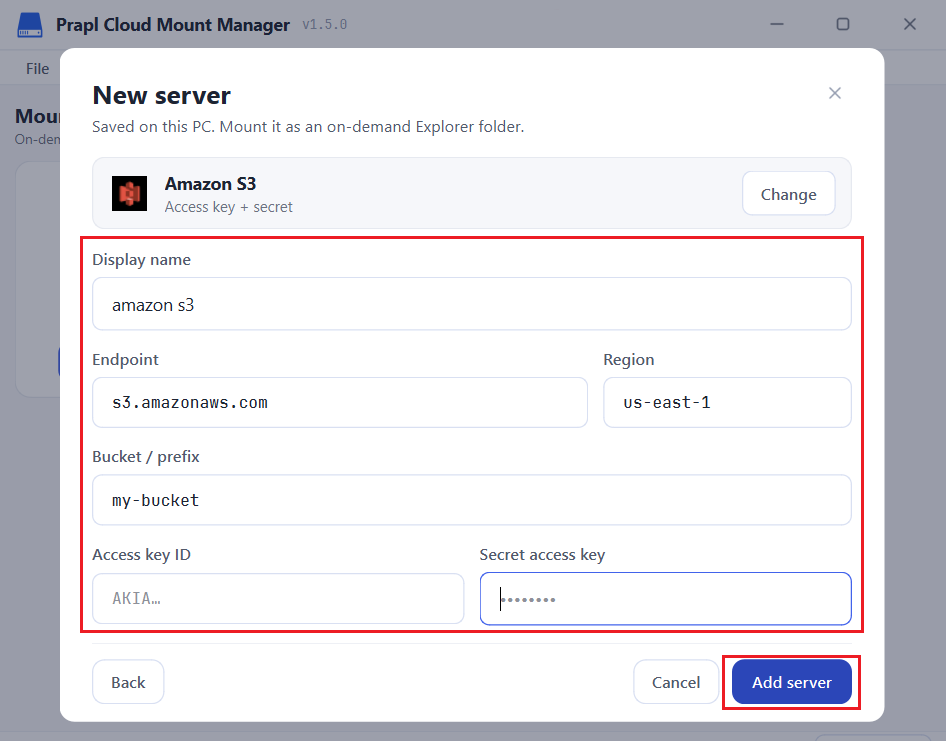
4. Once added, click on Mount.
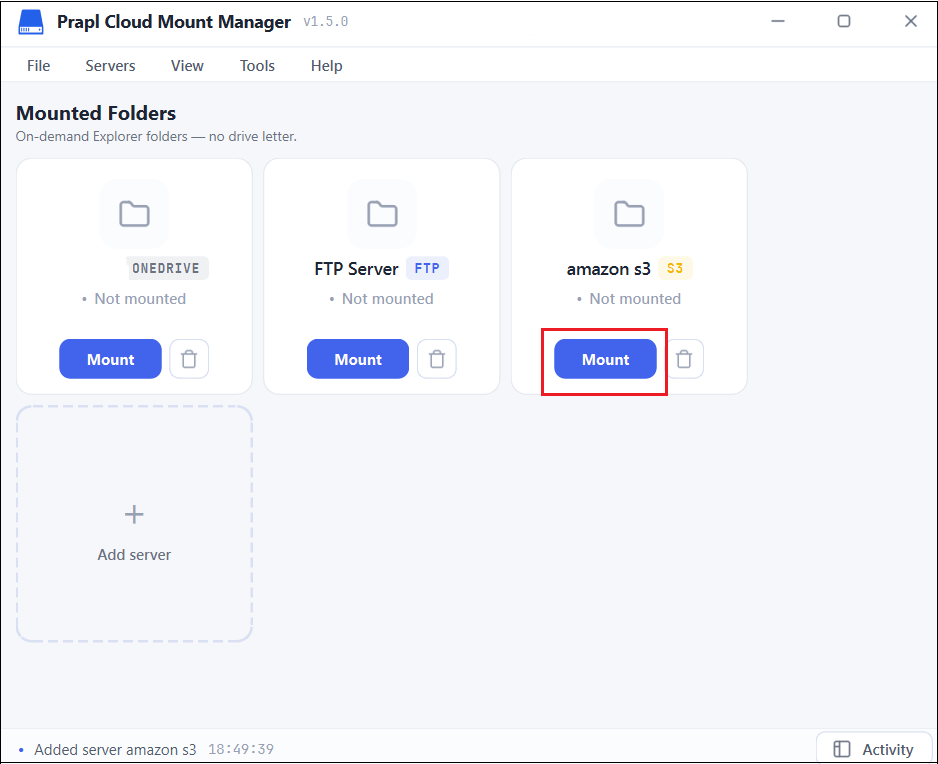
5. Now, your Amazon S3 bucket appears as a local drive in File Explorer. You can open and manage S3 bucket files.
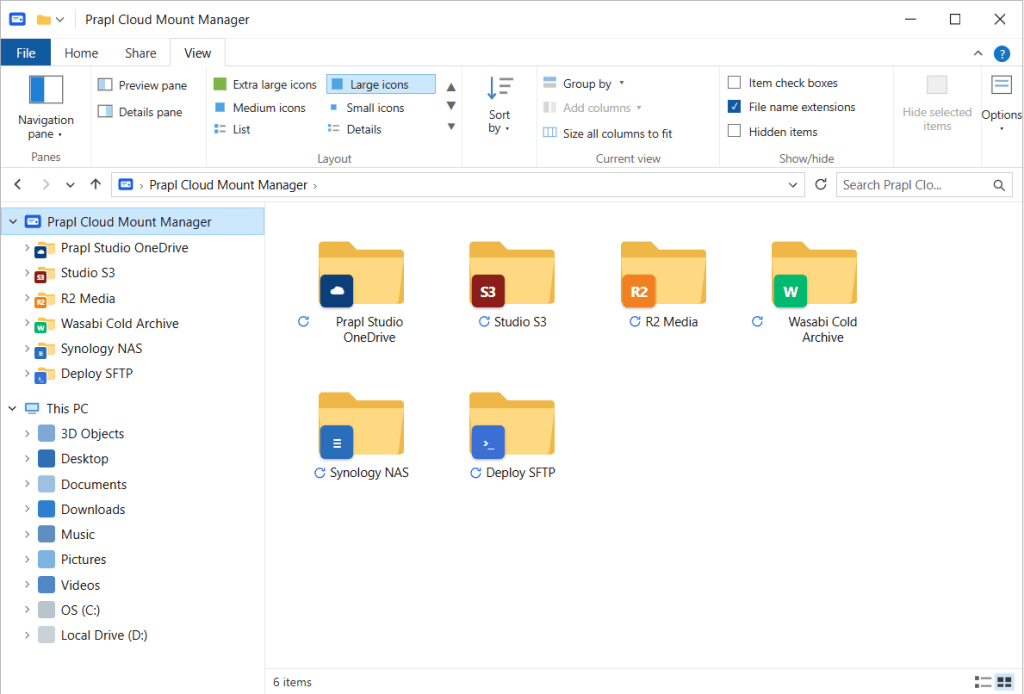
Once mounted open file explorer and look under this PC, the Amazon S3 bucket will appear as a local drive. You can now open folders and manage files using the normal Windows interface, without repeatedly visiting the AWS Console.
Comparison Table: Which Methos Should You Choose?
| Feature | AWS S3 File Gateway | Prapl Cloud Mount Manager |
|---|---|---|
| Windows File Explorer | Yes | Yes |
| S3 support | Yes | Yes |
| SMB Setup | Yes | No |
| Gateway Deployment | Yes | No |
| IAM Configuration | Yes | S3 credentials |
| Setup complexity | High | Low |
Final Words
Mounting an Amazon S3 bucket in Windows File Explorer makes cloud storage easier to manage. By using this, you can access your files through a familiar drive-like interface. In this guide, we have explained how to mount Amazon S3 bucket in File Explorer using two different methods. Choose the method based on your environment. AWS S3 File Gateway provides an official way to expose S3 through SMB or NFS, but it requires gateway and file share configuration. For a simple desktop experience, the software can connect to S3 and make the bucket accessible through Windows File Explorer.