
Every business runs on its data, and for many companies that data lives inside SQL Server. Most teams already back up, but where they store those backups matters just as much as making them.
A very common mistake is saving the backup file on the same server that holds the live database. This feels convenient, but it is risky. If that server’s hard drive fails, the machine crashes or ransomware locks it down, you lose your live database and your backup at the exact same moment. There is nothing left to restore from.
A backup only protects you when it is kept somewhere separate from the original environment. That’s why many business users want to backup SQL Server to Amazon S3. By saving backups to an S3 bucket, they can keep database copies outside their local computer and access them when required.
In this blog, we will explain two different ways to create SQL Server database backup to S3 bucket. One is a manual method and the other is a professional backup tool.
Before proceeding with the solution, we will explain why to choose Amazon S3 to save backup files.
Why Backup SQL Server Databases to S3?
Amazon S3 is cloud storage built for durability and safety. It automatically keeps multiple copies of your file across different locations, so your data stays safe even if hardware fails. It is cheap, scales without limit, and you can reach your files from anywhere.
Sending your SQL Server backup to S3 bucket gives you true off-site protection, which is exactly what a solid backup plan needs. Here, we will discuss two different ways below are two ways to do. Manual and an automated method.
How to Backup SQL Server Database to Amazon S3 Using Default Way
In this approach, you need to create a .bak file for backup operations and then upload it to an Amazon S3 bucket.
Step 1. Create SQL Server Backup
-
- Open SQL Server Management Studio and connect to your SQL Server instance.
- Run the following command:
BACKUP DATABASE [YourDatabase]
TO DISK = 'D:\SQLBackups\YourDatabase.bak'
WITH INIT,
     COMPRESSION,
     STATS = 10;
Replace YourDatabase with your actual database name.
This command creates a full database backup in the selected local folder. Make sure the folder exists and the SQL Server service account has permission to write to it.
Step 2. Create an Amazon S3 Bucket
- Sign in to the AWS Management Console and open the S3 service.
- Click Create bucket.
- Give it a name and choose your region.
- Click Create Bucket to complete the process.
Step 3. Upload the Backup to the S3 Bucket
- Open your new bucket and click Upload.
- Add the .bak file created above and confirm.
Now, your SQL Server database backup to S3 bucket is stored safely in the cloud.
Limitations of Manual Method
The manual approach works, but it has some drawbacks:
- No Automation: You must repeat every step by hand. It’s easy to forget or skip a day.
- Two-Step Process: The backup first fills up local disk space before you can upload it.
- Slow and Error-Prone: Large files take time and manual upload can fail or get missed. No Built-in
- Scheduling, Retention or Alert: Managing old backups becomes a difficult task.
- No Encryption: You have to handle security yourself.
For a single database, this may be fine, but for daily backups across many databases, doing it by hand quickly becomes painful.
How to Automate SQL Server Database Backups to AWS S3?
To remove all limitations of the manual method, use a professional utility like Prapl SQL Backup Tool. You do not need to save backup locally and then upload it. The software allows you to backup SQL Server database to S3 bucket directly. Just enter the login details of the SQL Server database, choose Amazon S3 as a destination location, and set a schedule like daily, weekly, monthly or yearly.

The software makes the process easier:
- Direct to Cloud: It performs your SQL Server database backup to S3 bucket in one step, sending data straight to S3.
- Fully Automatic: You set a schedule once and the tool handles the rest. This is how you get a fully automated SQL Server database backup to S3, running quietly in the background.
- Built-in Compression & Encryption: The tool can backup SQL Server database with compression and encryption.
- Retention Rules: Old backups are cleaned up automatically, so you never run out of space.
- Monitoring and Alerts: If a backup fails, you are notified right away instead of finding out too late.
Steps to Backup SQL Server to Amazon S3 Automatically
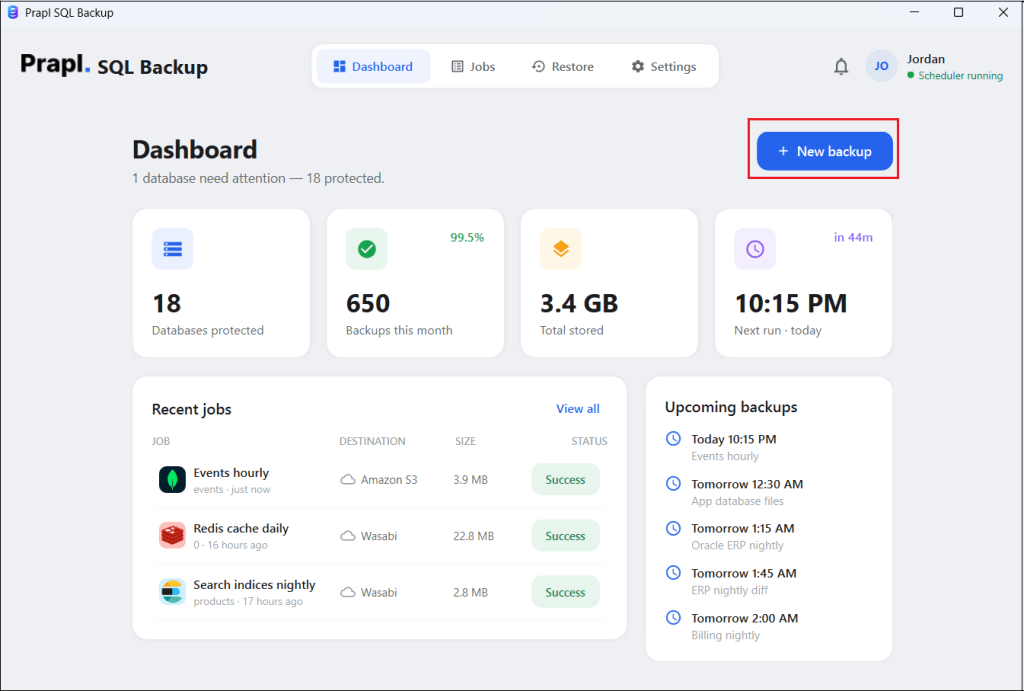
1. Run the tool on your PC and click on + New Backup.
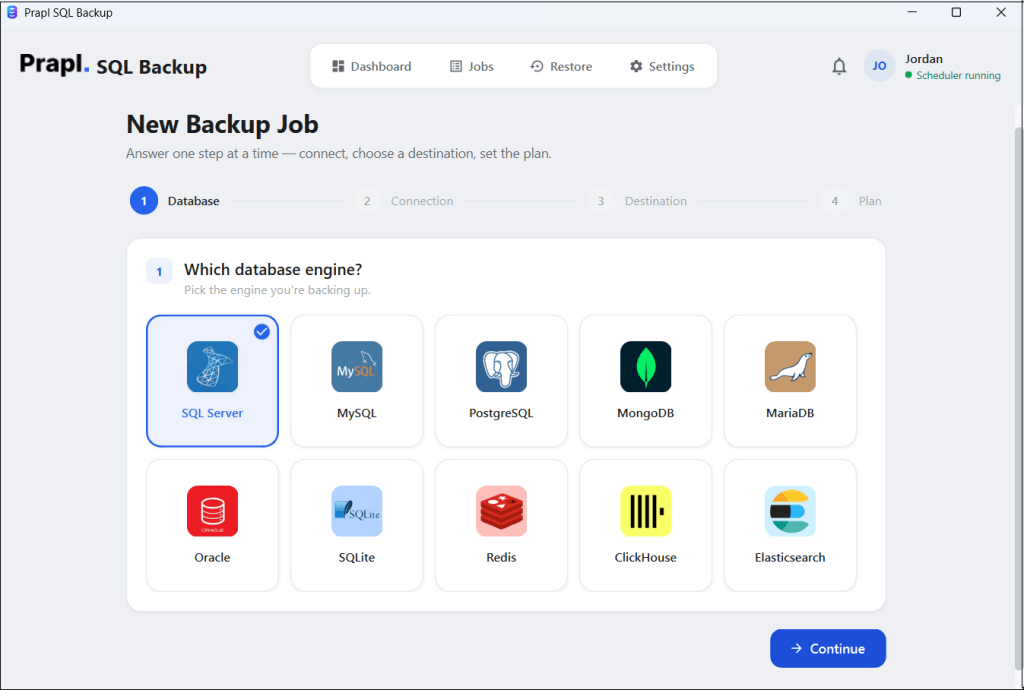
2. Choose SQL Server as a database engine and click Continue.
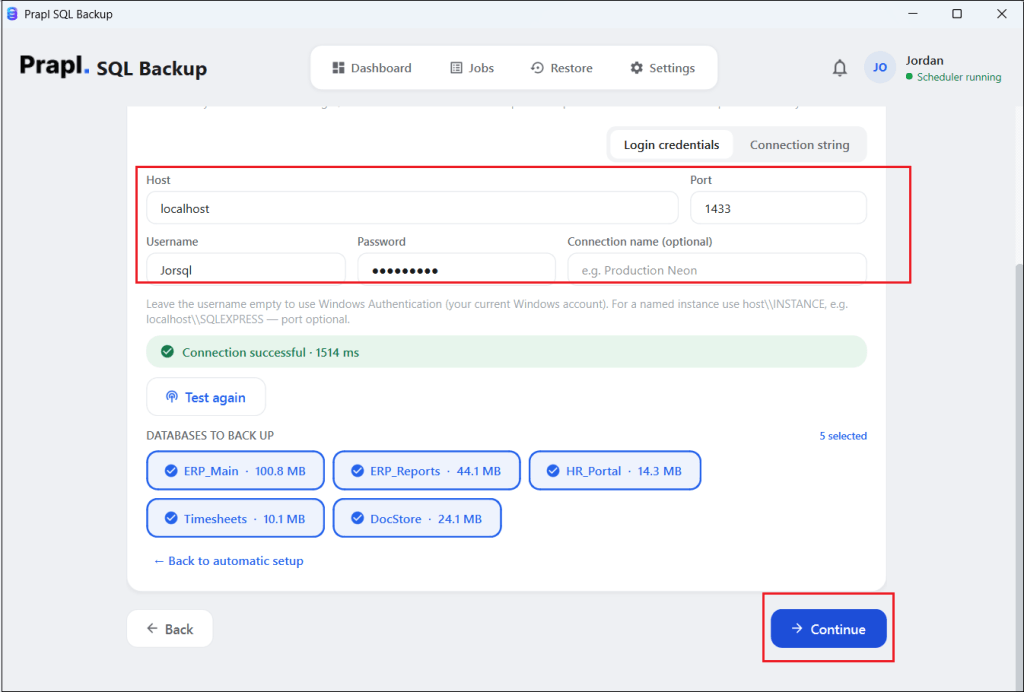
3. Enter your SQL Server database login details and click on Test & List Databases to verify it.
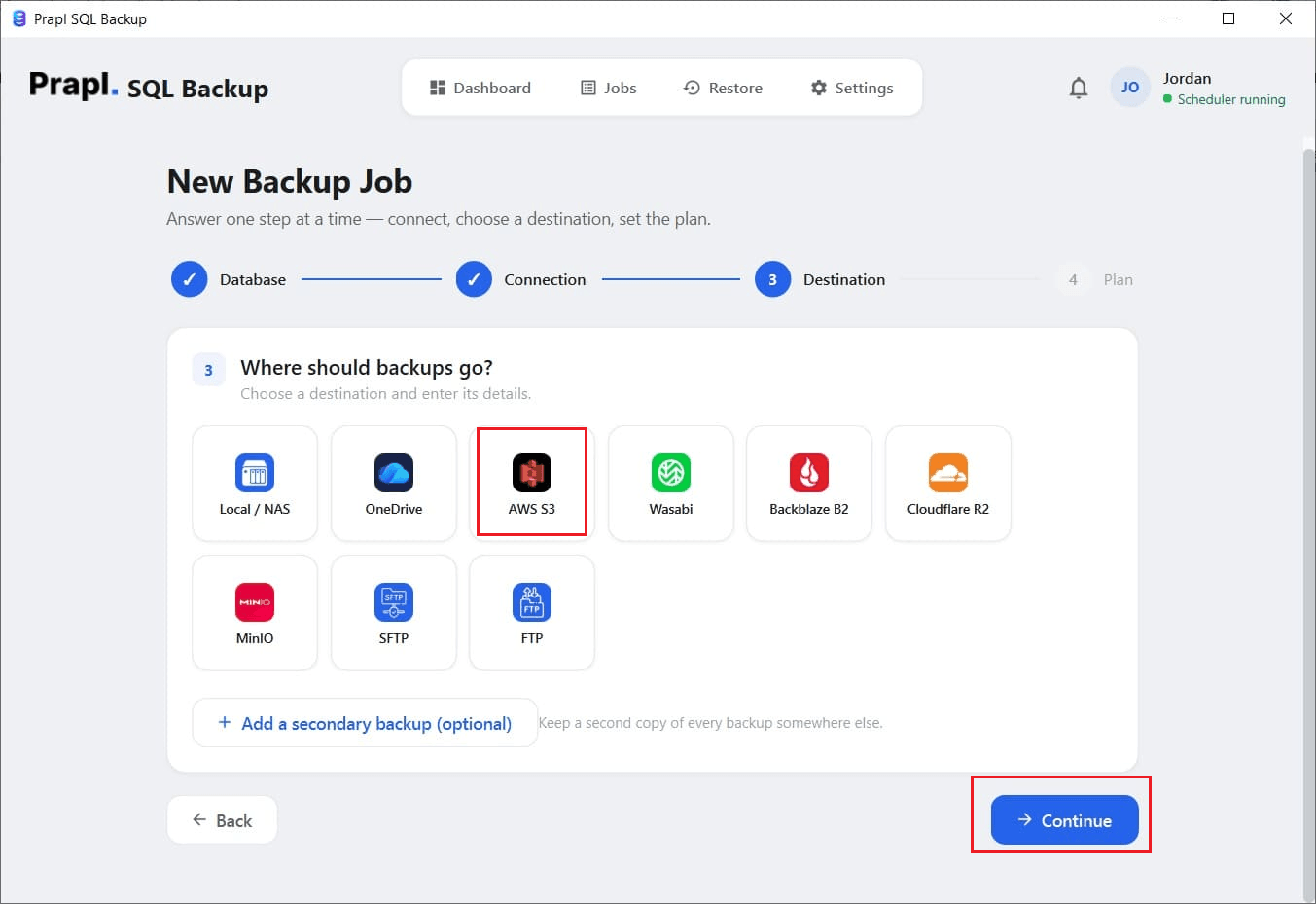
4. Select AWS S3 as a destination location to save backup files and press Continue.
5. Choose backup type, set schedule, run time, retention, compression and encryption. After these backup settings, click the Save & Run Now button.
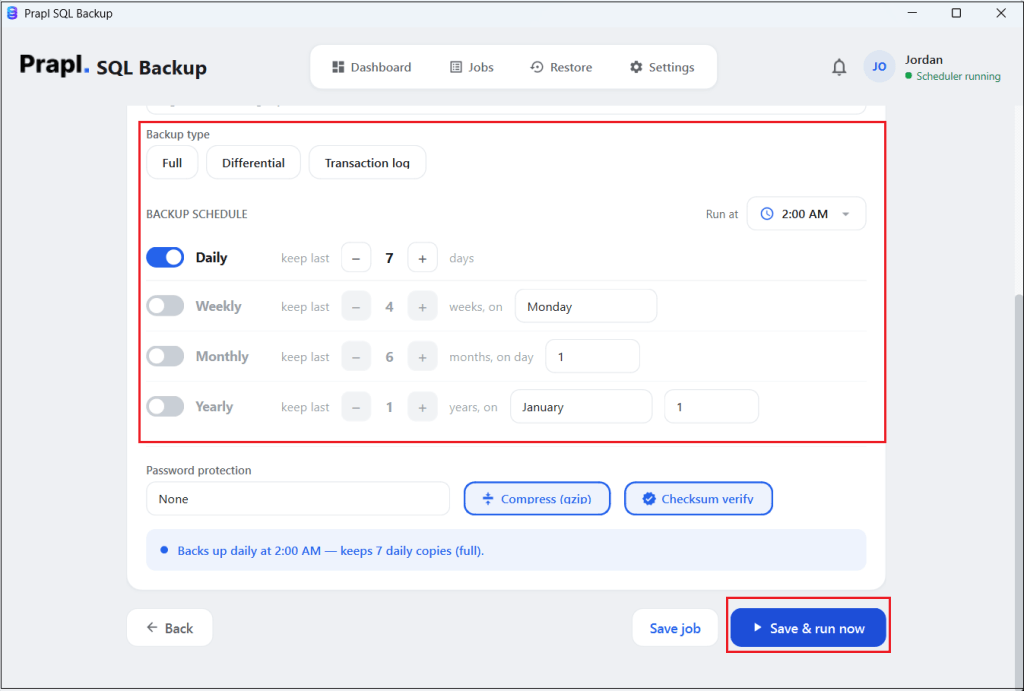
The software will create SQL Server database backup to S3 bucket directly on the schedule.
Conclusion
In this post, we have discussed two best ways to backup SQL Server to Amazon S3. The manual method is free and works for occasional, one-off backups but it is lengthy and time-consuming. A professional backup utility solves all of that by sending automate SQL Server database backup to S3 directly, with compression, encryption and alerts built in. You can choose any method that is most suitable as per your needs.