
MongoDB is a popular NoSQL database used by websites, applications and businesses to store different types of information, such as customer details, product records, user activity, application data and transaction-related information. Unlike traditional relational databases that organise information mainly in tables and rows, MongoDB stores data in flexible document-based structures. As the database grows and becomes part of daily business operations, protecting this information becomes equally important.
Suppose an online application stored thousands of customer records in MongoDB. If someone accidentally deletes a database, a system problem damages the stored data or an application update causes unexpected issues. Recovering everything from the original database may not always be possible. A separate backup gives you another copy of that information, which can be used to restore the database when required. This is why regular MongoDB backups are an important part of database management.
A backup plan only works when it actually runs at the right time. The problem with manual backups is that they depend on someone remembering to perform the task at the right time. Automated backups solve this issue by running the backup according to a predefined schedule. A MongoDB backup tool can make this process easier by allowing you to set the schedule to backup MongoDB database automatically.
Why Should You Automate MongoDB Database Backup?
A backup is useful only when it is available when you need it. Manual backups are easy to forget, especially when databases change frequently. Automating the process creates a more consistent backup routine. Once a schedule is configured, backups can run automatically without requiring someone to start the process every time.
Automatic MongoDB database backup helps you:
- Run backups on a fixed schedule
- Reduce the risk of losing a backup
- Keep a recent copy of your database
- Avoid missed backups
- Save time and effort to run backups every time
- Store backup separately from the MongoDB server
- Maintain a backup history
- Make recovery easier after accidental deletion or server failure
MongoDB Backup Tool – Auto Backup MongoDB Database to Local or Cloud Storage
MongoDB backup can be automated using Prapl SQL Backup Tool. Instead of running the backup command manually each time, you can configure the database and destination. Just set a schedule such as daily, weekly, monthly or yearly to take auto backup MongoDB database. Once you schedule, it create backup MongoDB database automatically on every run. It allows you to take full, incremental or differential backups as per your requirements.
This is a fully desktop based Windows application designed for users who want to manage MongoDB backup from their own computer. It offers several storage options to save the backups to PC, NAS, OneDrive, Amazon S3, SFTP, FTP, etc. There is no fixed database size limit imposed by the application. So it can be used for databases of different sizes and subject to the available storage.
The software also gives you flexibility to compress backup to reduce the amount of storage and encrypt backup data for additional protection. Using this MongoDB backup and restore tool, you can also restore your MongoDB backup to the same environment or another server when you need it.

Steps to Backup MongoDB Database Automatically
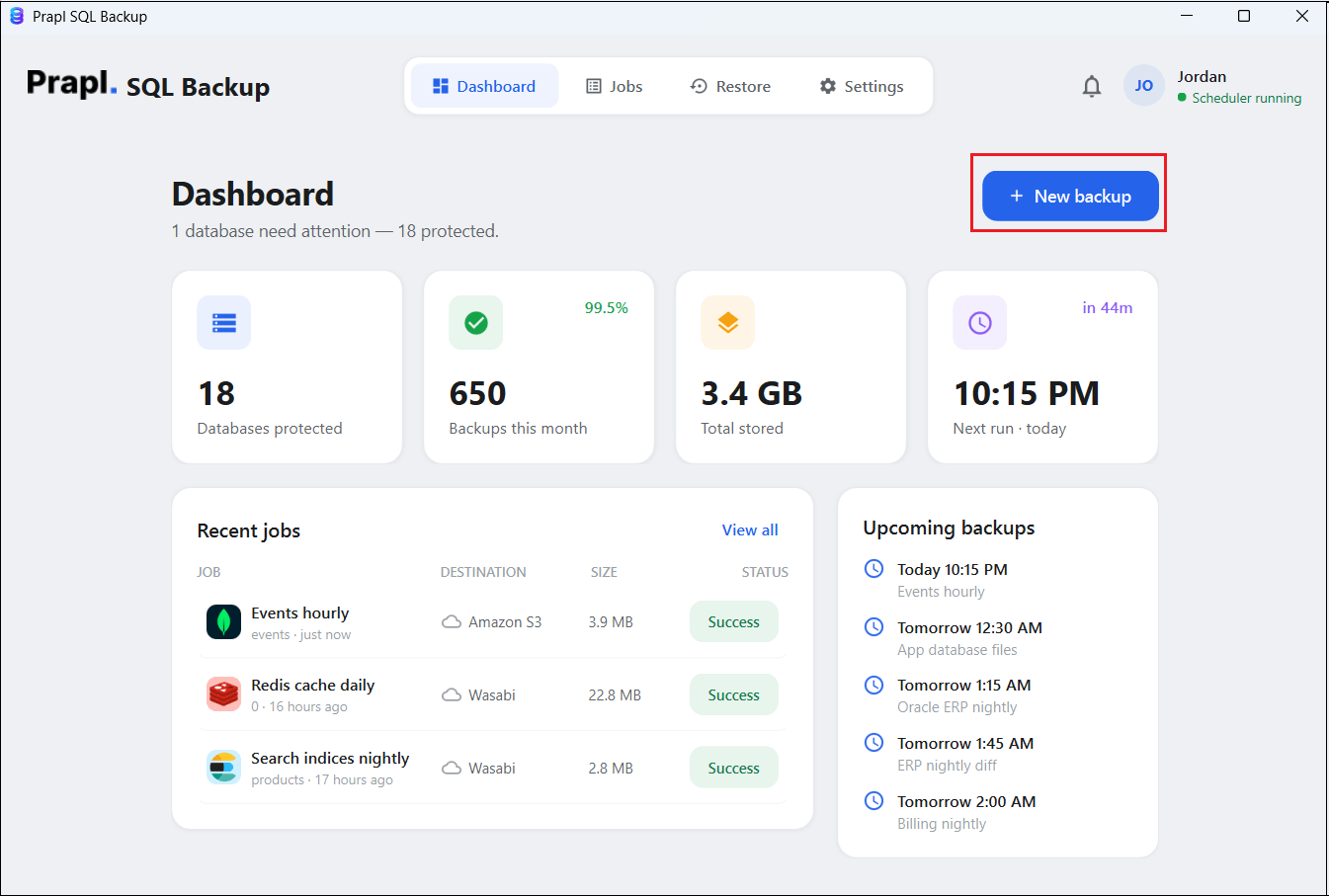
1. Run the SQL Backup Tool on your Windows PC and click on + New Backup.
2. Choose MongoDB from the database engine and click on Continue.

3. Enter your MongoDB database login details and click on Test & list databases. Once it’s verified, choose the database that you want to back up and click on Continue.

4. Select the destination location to save backup files.

5. Choose the backup type, set schedule, run at, compress, checksum verification, and click on the Save & run now button.

Now, the software will automatically create a backup of your MongoDB database at your preferred location on every run. You can also configure a retention policy so older backup files can be removed automatically instead of filling the storage indefinitely.
How to Restore MongoDB Database from Backup?
Backup is only one part of data protection. When you actually need the data, the backup should also be usable. The MongoDB backup and restore tool supports restoring backup copies to the same server or different database.
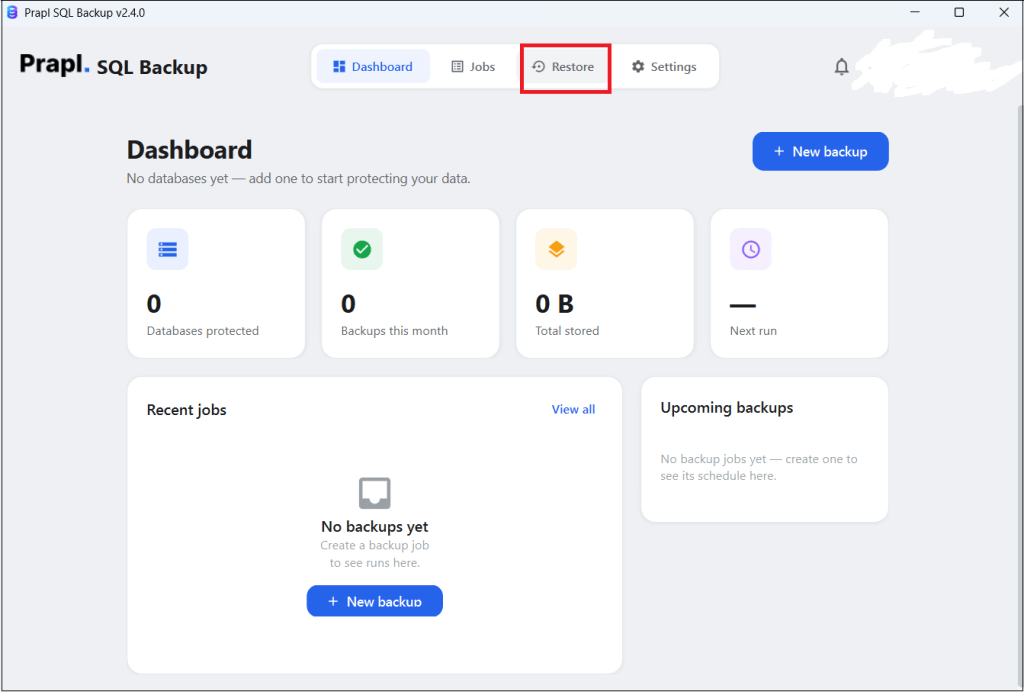
1. Launch the tool and click on Restore.
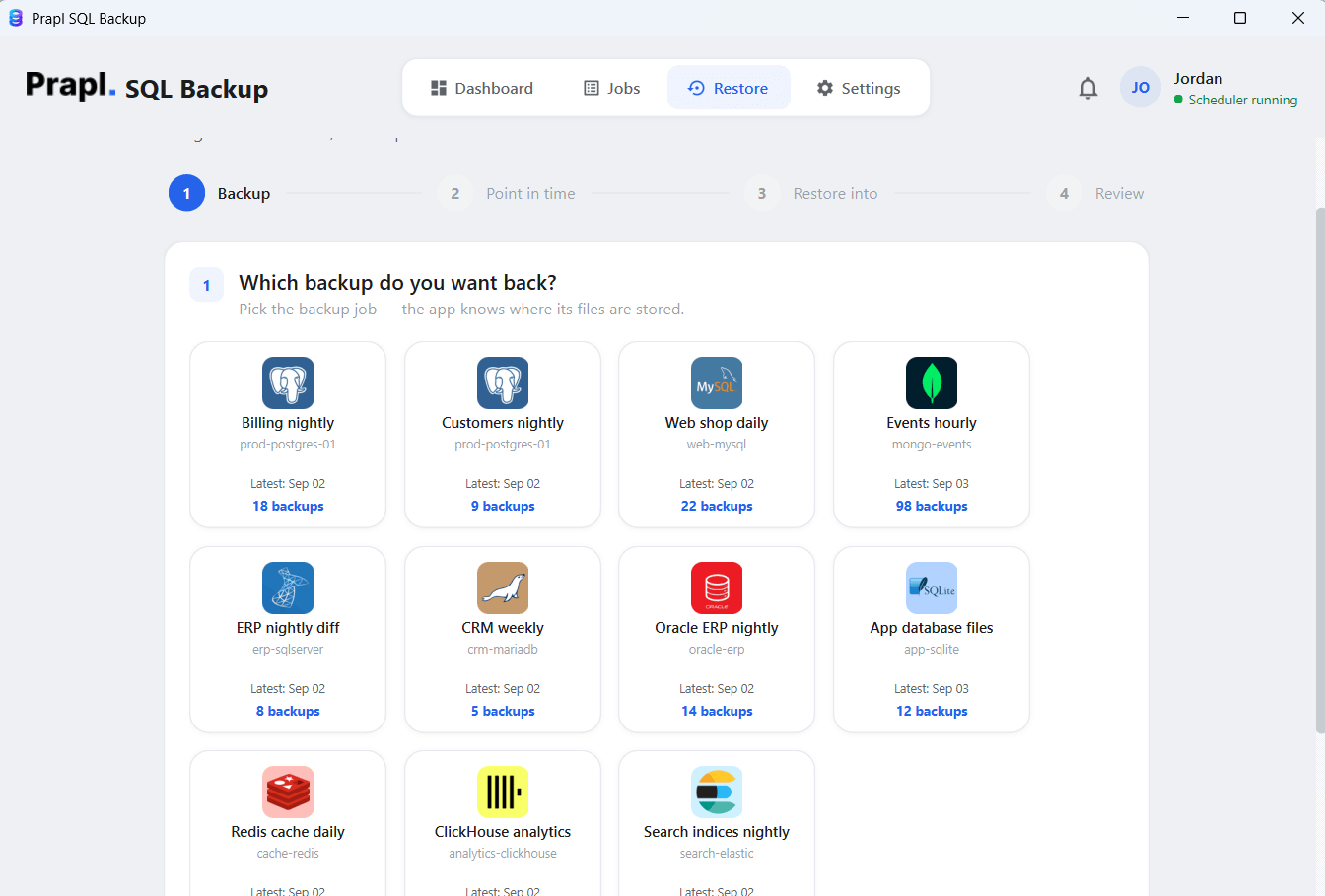
2. Choose the MongoDB backup and click Continue.
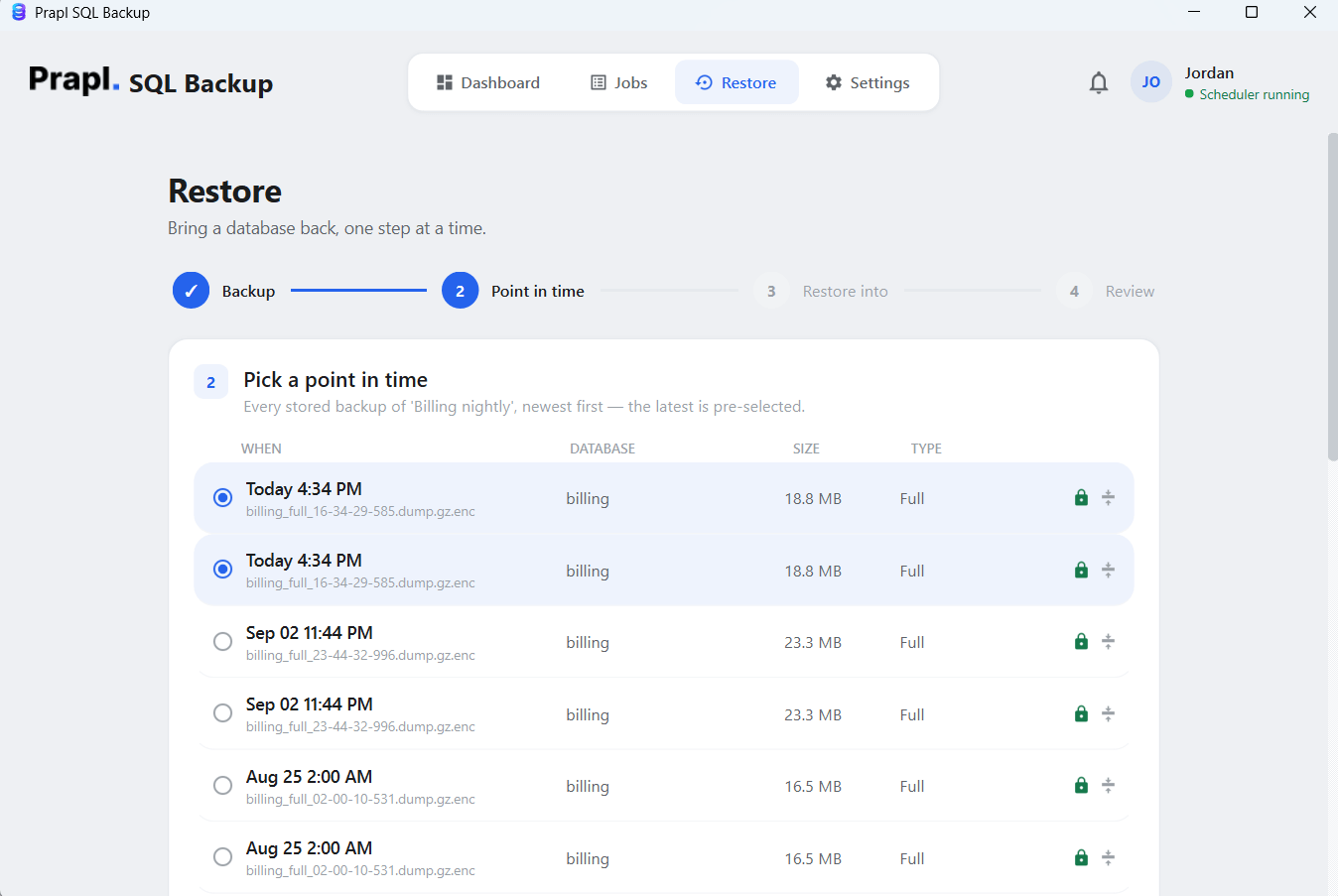
3. Pick a Point-in-Time and press Continue.
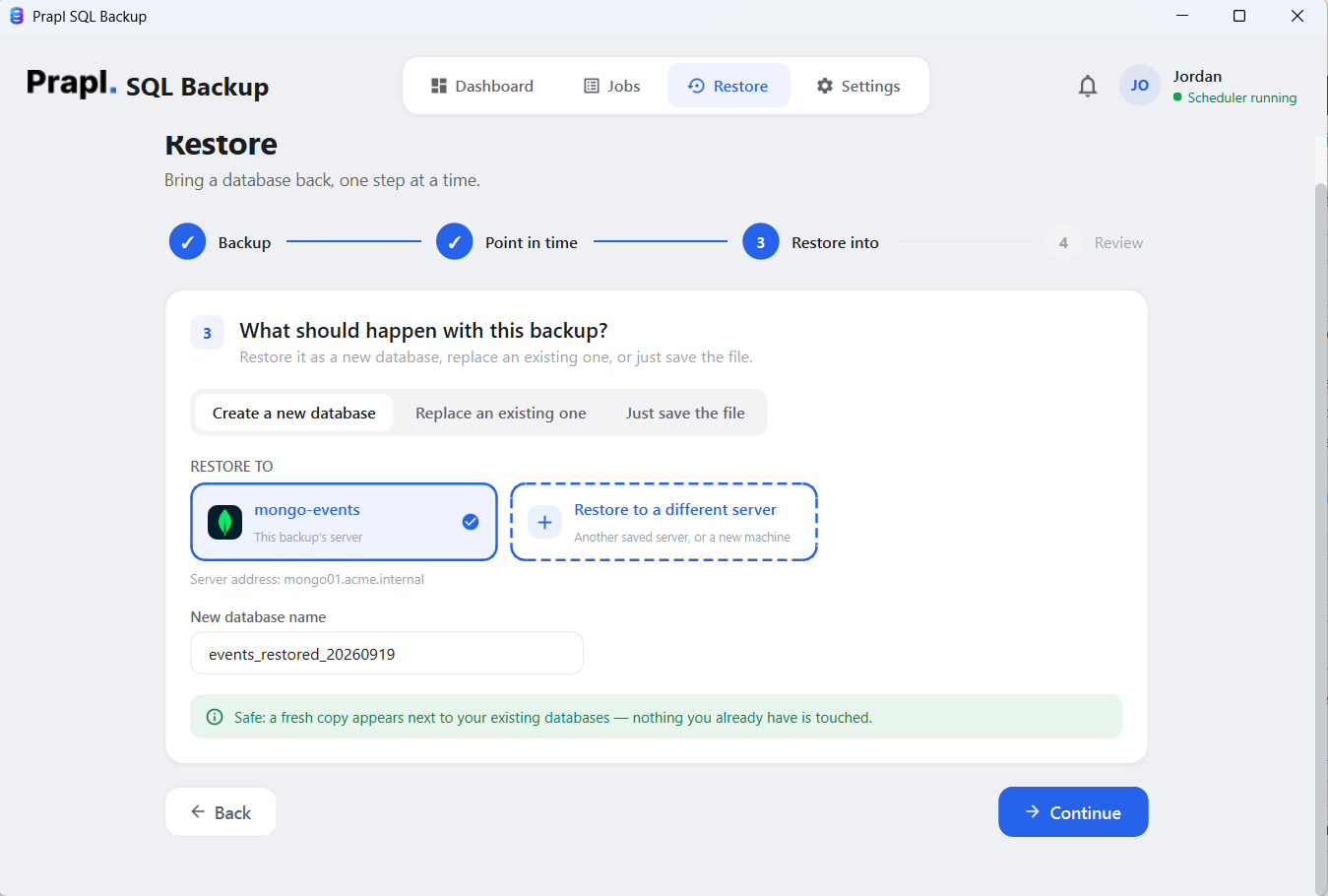
4. Select the server where you want to restore.
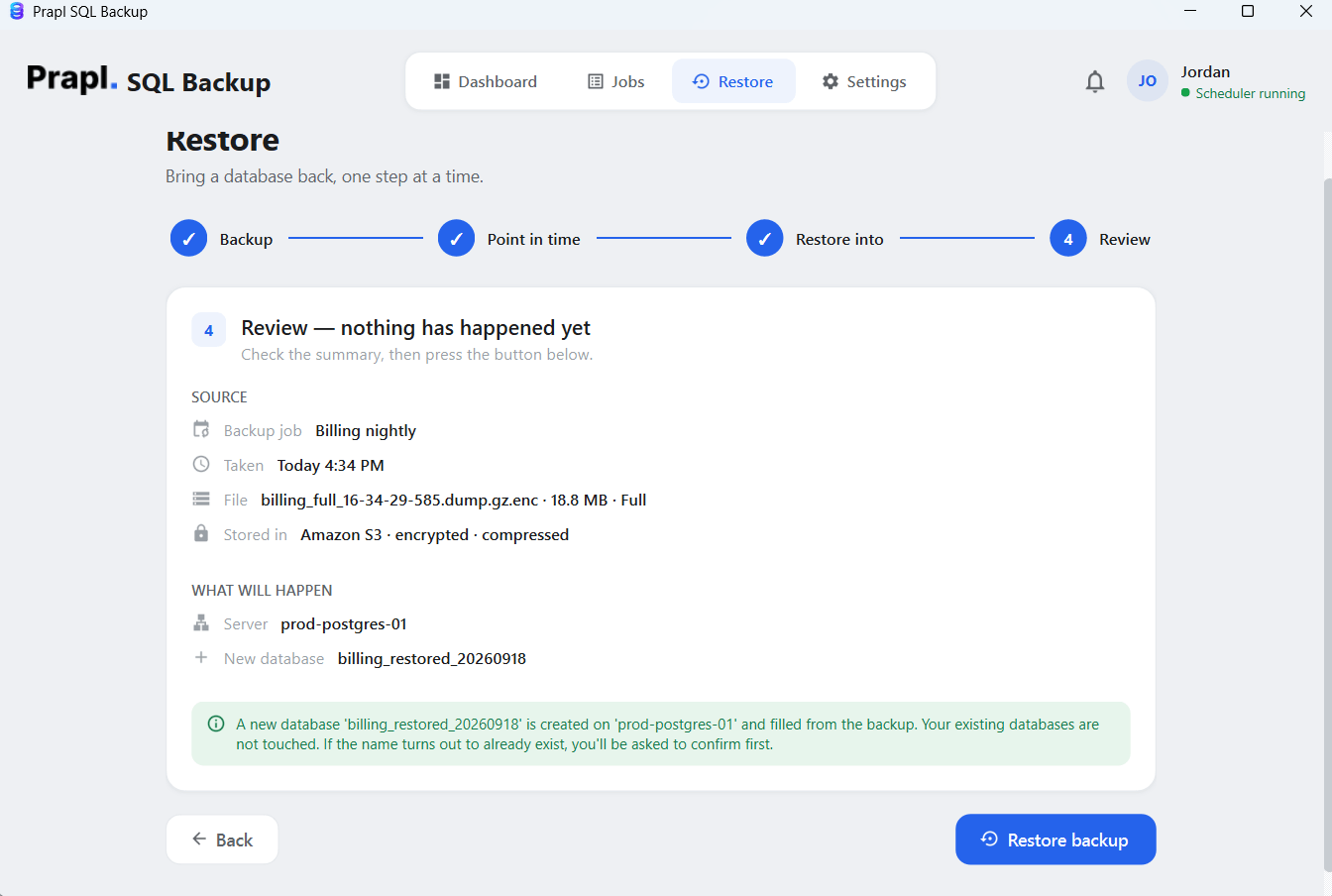
5. Review the restore settings and click on Restore Backup button.
Speciality of MongoDB Backup Tool
Managing MongoDB backup becomes easier when the same application can handle scheduling, storage, backup management and recovery. Instead of maintaining separate script for different database or manually moving backup files between locations, you can manage the task from a single Windows application.
- Multiple Database Support: If you manage more than one MongoDB database, you can create separate backup task and apply different schedules or storage destination according to your requirement. This is useful for administrator who look after database belonging to the different application or projects.
- Flexibility of Storage Location: The application also gives You control over where your backups are stored. You can use your own PC or supported Cloud and remote storage instead of relying on storage controlled by the software provider. This keeps the backup workflow closer to your existing storage setup and gives you control over the location of your database copies.
- Scheduling: Rather than remembering to run a backup every day, you can configure a schedule once and let the software handle the backup job automatically. Daily, weekly monthly or yearly scheduling options allows the backup frequency to match the way your MongoDB data changes.
- Retention Policy: For storage management, retention setting help prevent the backup folder from filling up with unlimited old copies. You can define how many backup versions should be mentioned and manage older copies automatically.
- Several Backup Types: The MongoDB backup software allows you to take different types of backups such as full, incremental or differential. You can create any backup that is most suitable for you.
- Compression & Encryption: Compression can also help reduce the space required for stored backups While encryption provide an additional layer of protection for the backup data.
- Restore When You Need the Backup: Making backups is just one aspect of a recovery plan. Additionally, the tool offers a restore procedure that can fetch the backup, decrypt and decompress it.
- Start With a Free Trial: Before committing to a plan, you can simply test the backup job and schedule it with its 15-day credit card-free trial. It has a robust, easy-to-use interface, so you won’t face any issues while scheduling.
Comparison Table: Online vs Offline MongoDB Database Backup Tools
For users who want more control over their data, MongoDB backup tool can be useful because the backup is managed from their own database system and can be saved to storage they control.
| Feature | Online MongoDB Backup Tools | Offline MongoDB Backup Tools |
|---|---|---|
| Data Privacy | Good | Excellent |
| Backup Automation | Depends on the service plan | Automatically schedule |
| Storage Destination | Third-party own storage | Local, NAS, OneDrive, Amazon S3, FTP, SFTP, Cloud, etc. |
| Data Control | Less control | Backup files under your control |
| Storage Limit | Depends on the selected plan | Depends on the available space in your own storage |
| Database Size Limit | Database limits depend on the service plan | No limit on the number and size of databases for backup |
| Backup Monitoring | Do it yourself | Built-in option |
| Email Notifications | No | Yes |
| Data Processing | Data pass through online infrastructure | Data remains on your local system |
| Deployment Support | Limited | Supports Every MongoDB Deployment |
Conclusion
For businesses that want more control over their MongoDB backup files while keeping the process automated, the software provides a simple solution. This helps keep your database protected and makes backup easier to manage when they are needed most.Instead of depending on a third-party online service to store the database backup, you can choose your own local or cloud storage destination. This provides a more flexible way to maintain MongoDB backup copies while keeping control over where the data is stored.
Frequently Asked Questions
Ques 1. Can I auto-backup a MongoDB database?
Ans. Yes. MongoDB does not schedule backups on its own, but you can automate it easily. Use a dedicated MongoDB backup software that handles scheduling, compression and storage for you, no scripting needed.
Ques 2. Where does MongoDB save data?
Ans. MongoDB stores data in flexible, binary JSON-like records called BSON documents.
Ques 3. Is it possible to store MongoDB backups in multiple locations?
Ans. Yes. You can save backup copies at multiple locations such as Local/NAS, OneDrive, Wasabi, SFTP, FTP, and many more using this utility.
Ques 4. Can I restore MongoDB backups on a different server?
Ans. Yes. The MongoDB backup software allows you to restore MongoDB database backup to different server whenever needed.
Ques 5. Is there any limit on backup size?
Ans. No. There are no limits imposed on the backup size or the number you create. The only limitation is the available space in your selected storage location.