

MySQL databases are commonly used behind websites, applications, online stores, business systems and other platforms where information is continuously added and updated. Product details, customer account orders, payments, website content and application records may all be stored inside a MySQL database. When this information is important to daily operations, keeping a separate copy of the database becomes an important part of data protection.
The challenge starts when the database keeps changing. Taking a backup once and leaving it there may not be enough, because the latest record added after that backup will not be included. For example, an online store may receive hundreds of new orders in a day if its last backup was created several days ago. If the database suddenly becomes unavailable, those recent orders may not be present in the available backup.
This is why automated MySQL database backup can be more practical than relying only on manual backup jobs. A MySQL backup tool lets you create a backup routine in advance and run it automatically at selected intervals. Instead of remembering when to take the next backup, you can define the schedule, select the storage location and let the backup process run according to your plan.
Why Should You Automate MySQL Database Backups?
The main purpose of automation is not simply to create more backup file. It is to ensure that backups remain a regular part of database management.
1. Keep Up with Frequently Changing Data
A MySQL database can change throughout the day as user register, place orders, update records or interact with an application. Automated backups can create fresh copies at regular intervals so your recovery data does not become outdated.
2. Make Backup Part of the Routine
When backups depend completely on manual action, they can easily be postponed during busy working hours. Once a schedule is configured, backup becomes a recurring task, rather than something that needs to be remembered every time.
3. Maintain Different Recovery Points
Sometimes the latest backup is not the version you need. For example, if unwanted changes are made to a database, an older backup may be more useful. Maintaining multiple copies gives you more recovery points to work with.
4. Simplify Backup Management for Multiple Databases
Developers and database administrators may work with several MySQL databases at the same time. Managing separate manual backup routines for each one can become difficult. Automation provides a more organised way to handle recurring backup jobs.
5. Reduce the Effect of Unexpected Failures
Hardware problems, accidental deletion, database corruption and other incidents can make a database unavailable. Having regularly updated backup copies can reduce the amount of data that may need to be recreated manually.
How to Automate MySQL Database Backup on Windows?
Prapl SQL Backup Tool makes MySQL backup scheduling easier by putting the complete process into a desktop-based application. Instead of manually starting a backup whenever required, you can configure the backup task once and let it run automatically according to your selected schedule. With flexible daily, weekly, monthly or yearly scheduling, you can choose a frequency that matches your database activity. It also enables you to create full, incremental or differential backups as per your requirements.
The MySQL backup tool also lets you select your own storage destination, including local storage, Amazon S3, FTP, SFTP, Wasabi, Backblaze B2, MinIO, OneDrive, Google Drive, etc. This gives you control over where your MySQL backup data is stored. You can also maintain multiple backup copies through retention settings, helping you keep recent recovery points while automatically managing older copies.
For storage efficiency, backups can be compressed to reduce their size, while encryption can help protect backup data. The application also supports multiple backup types, allowing you to choose an appropriate backup approach for your MySQL environment. When recovery is required, the restore functionality lets you use an available backup copy to restore your database.

Steps to Use MySQL Backup Tool to Backup MySQL Database Automatically
1. Run the tool and click on + New Backup.
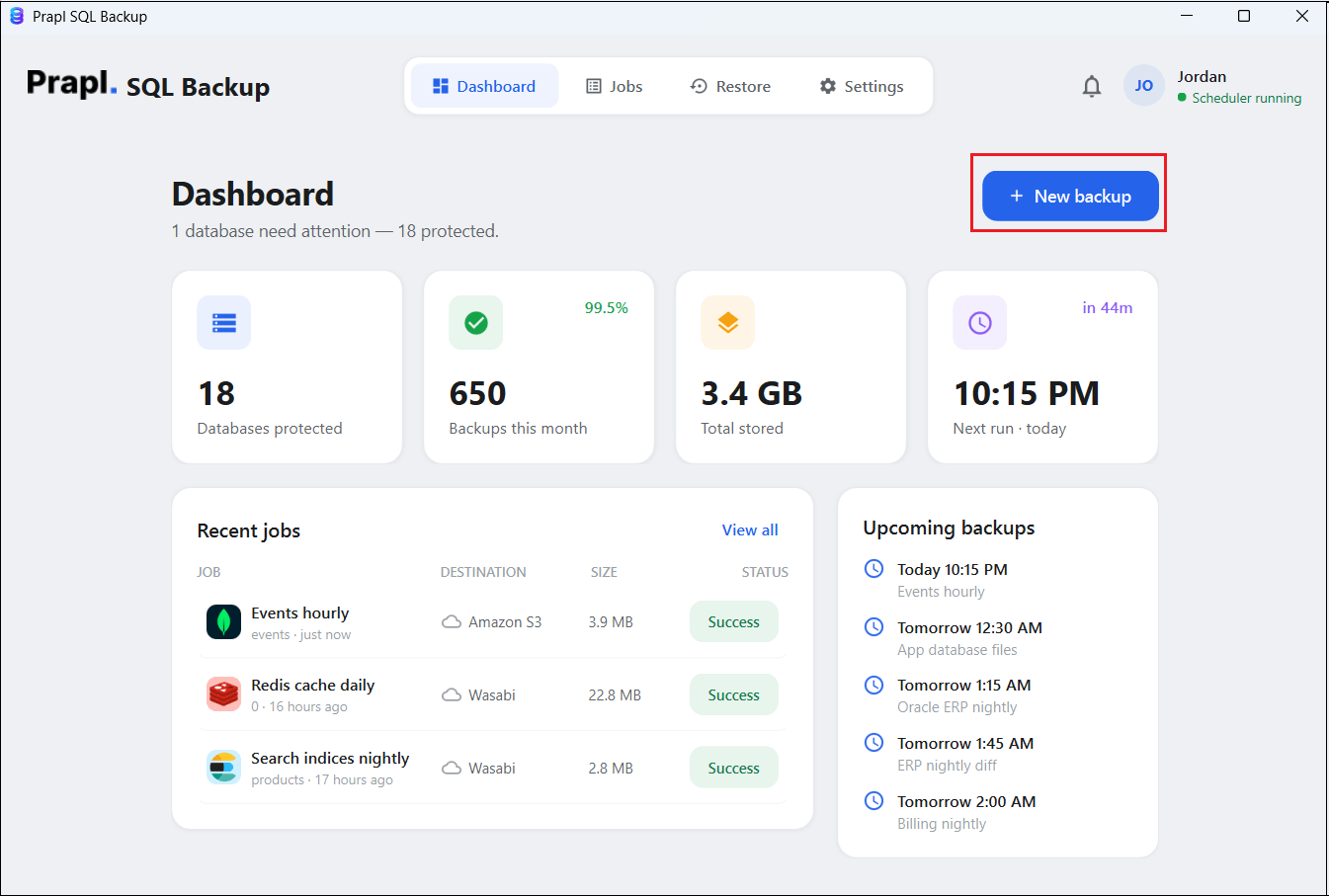
2. Choose MySQL from the database engine and click Continue.

3. Enter your MySQL database login details and click on Test & list databases. Once connected, select the database and press Continue.

4. Choose the location to save the backup file and click Continue.

4. Select backup type and set schedule to run backup. After that, click on the Save & Run Now button.

The software will start creating automate MySQL database backup to your selected location. Once the process is complete, you will get an email.
How to Restore MySQL Database from Backup?
Restoring a MySQL database from backup allows you to recover database information after accidental deletion, server failure, corruption or data loss. The restoration method depends on how the backup was created and where it is stored.
Follow the below given steps to use MySQL backup and restore tool to recover data:
1. Run the tool and click on the Restore button.
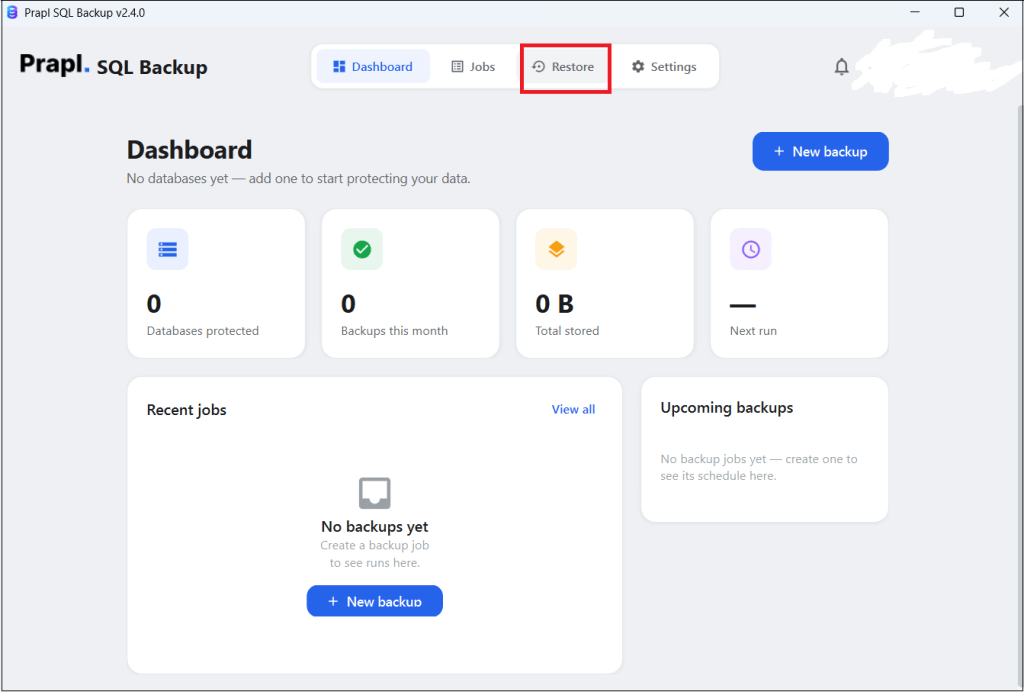
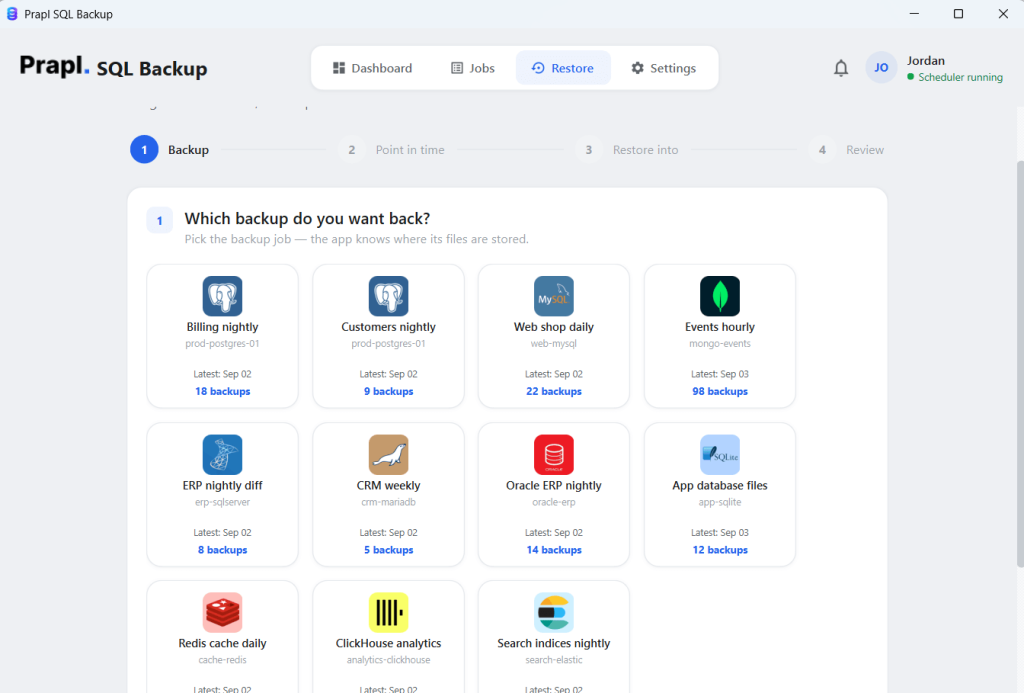
2. Choose the MySQL backup that you want to restore.
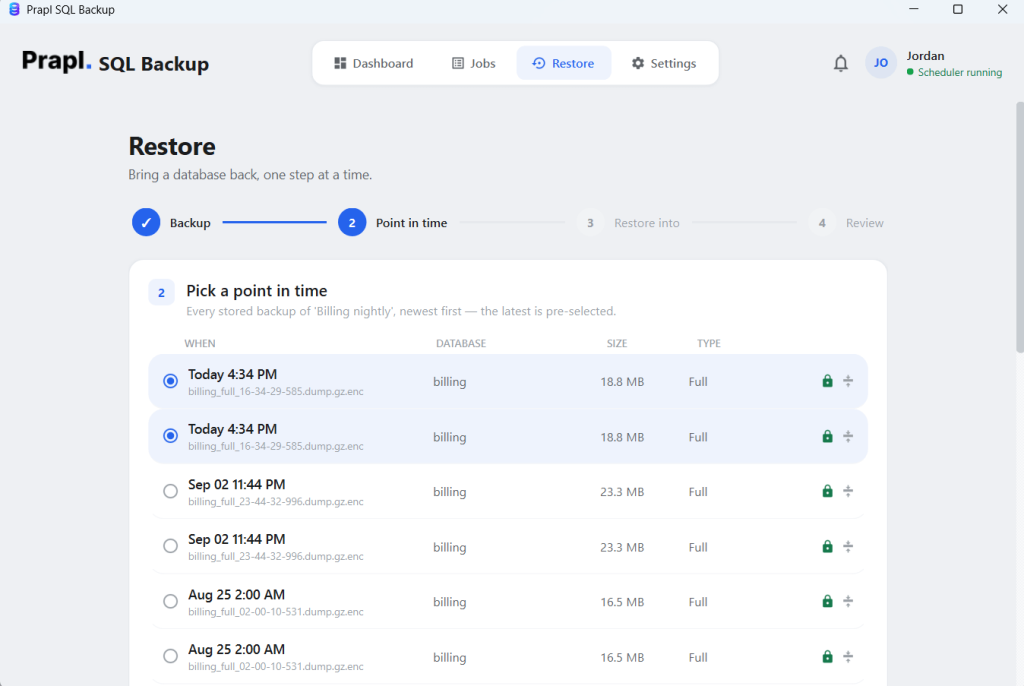
3. Pick a Point-in-Time to restore and click Continue.
4. Select the server where you want to restore MySQL database.
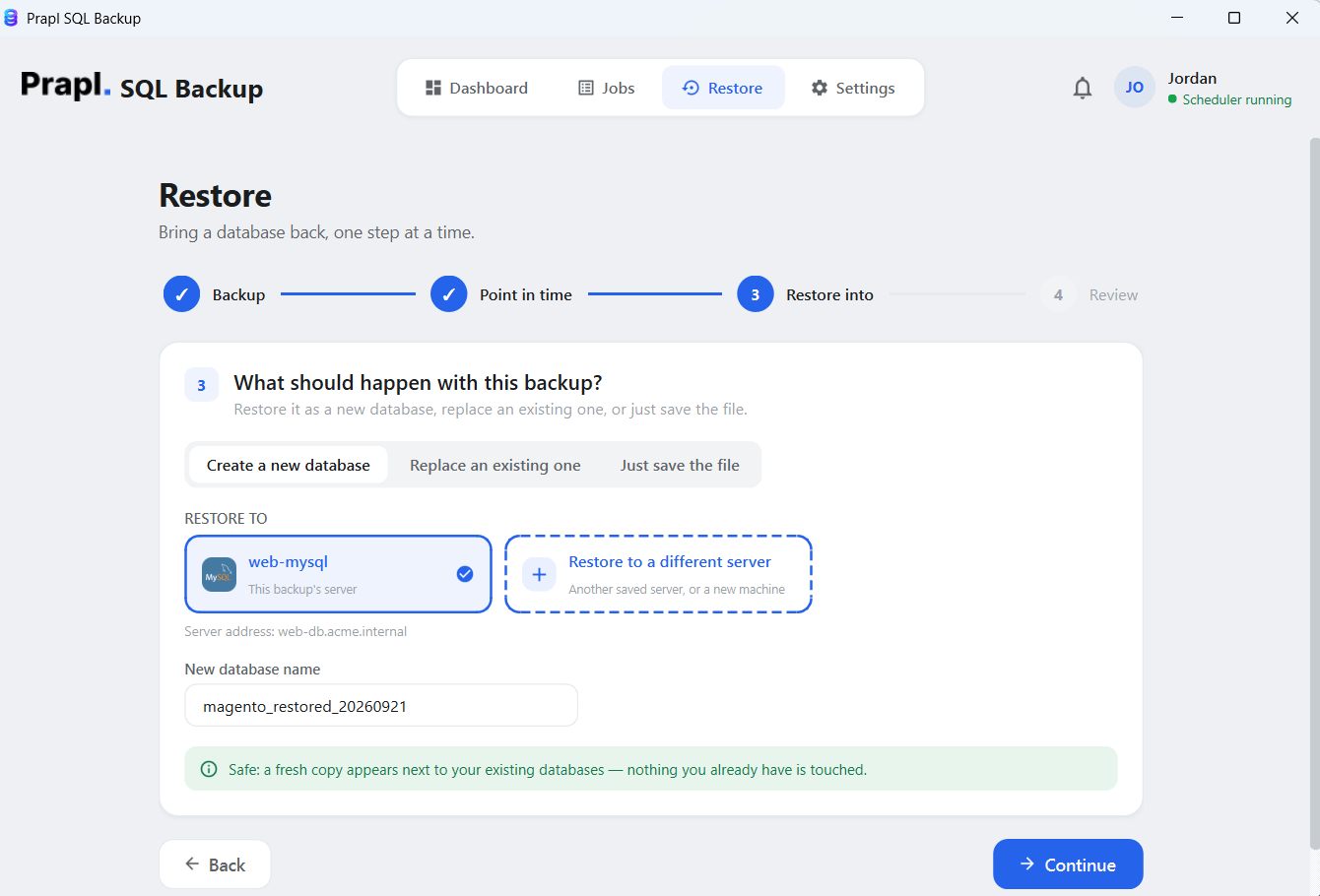
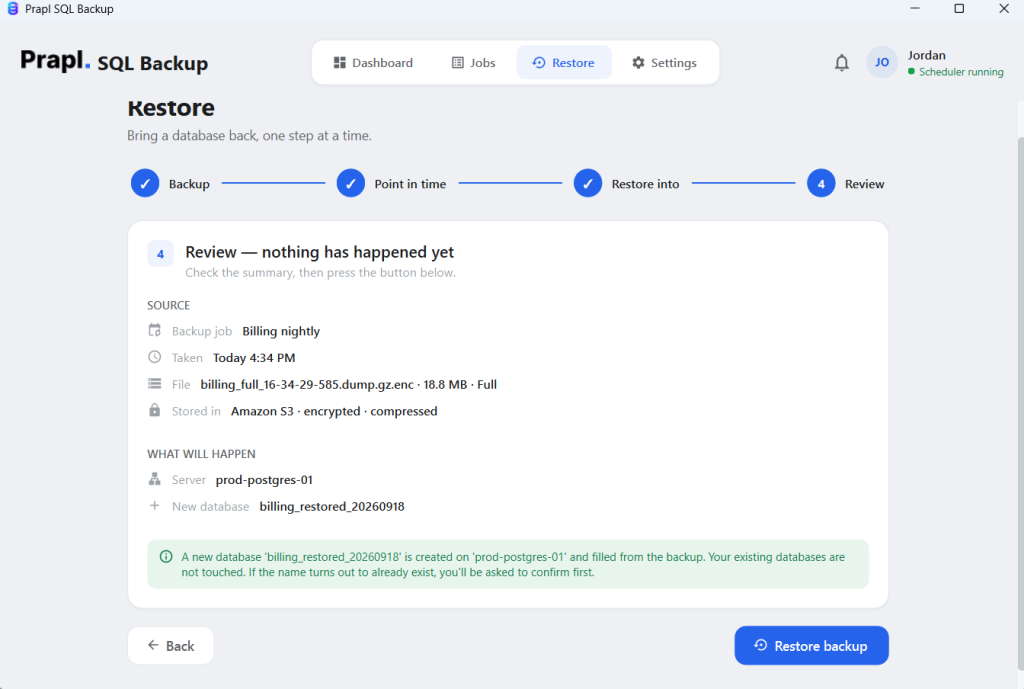
5. Check the restore settings and click on Restore Backup to begin the process.
Top Benefits of Using Prapl MySQL Backup Tool
- Scheduled Backups: The software lets you backup MySQL database automatically on a recurring daily, weekly, monthly or yearly basis instead of starting each backup manually.
- Complete Data Protection: Keep your MySQL backup data under your control by storing backups on your own system or a selected storage destination. Instead of sending your database through a third-party online backup server.
- Multiple Databases and Server Support: Manage backups for multiple MySQL databases and servers from a single application. This is useful when you work with several databases and want to avoid maintaining separate backup processes for each one.
- Retention Management: Decide how many backup copies you want to keep and let the MySQL backup software manage older copies automatically. This helps prevent your backup storage from being filled with unnecessary file.
- Flexible Storage Destinations: Save MySQL backups to local storage, NAS, Amazon S3, OneDrive, Google Drive, MinIO, Wasabi, Backblaze B2, and many more.
- AES-256-GCM Encryption: Encrypt MySQL backup files before storing them. This adds an extra layer of protection, especially when backups contain sensitive database information.
- Compression: Compress backup files to reduce their size and make better use of available storage space. This can be particularly useful when maintaining multiple backup versions.
- Backup History: Review previous backup activities from one place and check whether jobs were completed, failed or remain incomplete. This makes it easier to keep track of your backup routine.
- Database Restore: The MySQL backup and restore tool allows backup copies to be used for actual recovery. This is important because the backup strategy should account for both creating and using backups.
- No Database Size Restriction: It does not impose a database-size limit on the backup. The amount you can store depends on the capacity of your selected destination.
- Windows Compatibility: The application is designed for Windows systems, making it suitable for users who manage MySQL databases from a Windows computer or server environment.
- Free Trial: A free trial allows users to test the backup workflow before purchasing and check whether the scheduling, storage and recovery option fit their requirements.
Online MySQL Backup vs Desktop-Based MySQL Backup Tools
| Feature | Online Tools | Offline Tools |
|---|---|---|
| Backup Environment | Managed through online service | Managed from your own computer |
| Data Handling | Data may travel through the provider’s infrastructure | Remain within your own environment on your system |
| Storage Choice | Often tied to provider storage | select local or cloud storage |
| Control over Storage | Depends on the service | More direct control |
| Privacy Approach | Depends on the provider’s data handling | Suitable for users who prefer local-first processing |
Conclusion
A MySQL database can contain information that an application or business depends on every day. As the database continues to change, an old or manually created backup my not provide the recovery point you actually need.
Automating the process makes regular backup easier to maintain. With a MySQL backup tool, you can schedule MySQL database backups. The benefit is not just automatic scheduling. You get a single desktop application for scheduling storage management, backup retention, compression, encryption and restoration, making regular MySQL backup management less dependent on manual work.
FAQs About MySQL Backup and Restore Tool
Ques 1. What is the difference between a full and incremental backup in MySQL?
Ans. A full backup saves a copy of the entire database every time, while an incremental backup only saves the changes made since the last backup.
Ques 2. How does MySQL backup tool differ from other backup solutions?
Ans. Many backup solutions charge recurring subscription fees based on amount of data you store. This follows a different approach. You purchase the software at a fixed price and use your own storage. You never pay us extra for additional storage capacity.
Ques 3. Can I do both backup and restore MySQL database using this utility?
Ans. Yes. The Prapl MySQL backup and restore tool handles both processes in one place. Create backups and restore them when you need to recover.