

SQL Server backups are important for protecting the database from unexpected problems.
Automated database backups help you to schedule database backup tasks and eliminate the need to manually start backup jobs repeatedly.
SQL Server Agent is a common choice for scheduling database jobs but it is not the only way to automate SQL Server backup. If you want to schedule SQL Server backups without SQL Server Agent, then you have two options to do it.
Use Windows Task Scheduler to run programmes and scripts automatically. Another option is to use a third-party database backup tool that offers scheduling through a graphical interface. Both methods can help you automate backup without creating SQL Server Agent jobs. In this blog, we will explain both methods in detail. The best method depends on how many databases you manage and how much control you need over the backup process.
Why Users Need to Schedule SQL Server Backup Without SQL Server Agent?
SQL Server Agent is useful for managing scheduled jobs, but some users may prefer another solution. Here are a few reasons to look for alternatives.
- SQL Server Agent is Unavailable: Some SQL Server editions do not include SQL Server Agent.
- Simple Backup Requirements: You may only need to run a backup at a fixed time every day.
- Less Dependency on SQL Server: Windows Task Scheduler can run backup scripts independently.
- Easy Automation: Third-party tools can provide scheduling without creating SQL Server Agent jobs.
- Better Backup Management: Some tools include retention, compression, backup history and alerts.
How to Take Automate SQL Server Database Backup Without SQL Server Agent?
There are two different ways to schedule SQL Server backups without SQL Server Agent.
- Windows Task Scheduler with a T-SQL Script
- Professional backup tool for automated backups
With Windows Task Scheduler, you configure a script or program to run at a specific time. With a backup utility, you can set the schedule and other backup settings through its interface. Both methods can automate backups, but the setup and management experience are different.
Let’s get started to learn more.
Method 1. Schedule SQL Server Backups Using Windows Task Scheduler
Windows Task Scheduler is a built-in Windows feature that allows you to run program scripts and batch files automatically. You can use it to schedule SQL Server backups without SQL Server Agent. This method requires a SQL Server backup command and a Windows task schedule.
- Open SQL Server Management Studio and connect to your SQL Server instance.
- Run the following command:
BACKUP DATABASE [YourDatabase] TO DISK = 'D:\SQLBackups\YourDatabase.bak' WITH INIT, COMPRESSION, STATS = 10; - Save the query as:
C:\SQLScripts\backup.sql
- Create a new text file and add:
sqlcmd -S localhost -E -i "C:\SQLScripts\backup.sql"
Here:
-S specifies the SQL Server instance
-E uses Windows authentication
-i specifies the script file - Save it as:
C:\SQLScripts\run_backup.bat - Update the SQL Server name if you are using a named instance or a remote SQL Server.
- Open Windows Task Scheduler and click Create Basic Task.
- Enter a name such as SQL Server Daily Backup and click Next.
- Set the backup schedule and choose Start a program.
- In the Program/script field, enter:
C:\SQLScripts\run_backup.bat
- Click Next and review the task settings.
- Click Finish to create the scheduled task.
Limitations of Windows Task Scheduler
Windows Task Scheduler is useful for simple automation but you need to manage the scripts and task settings yourself.
- Backup commands must be created manually
- Retention requires additional scripting or configuration
- Monitoring and failure alerts are not included by default.
- Managing several databases may require multiple scripts or more complex automation.
Method 2. Schedule SQL Server Database Backups Using Prapl
If you want to schedule automated SQL Server database backups without complex scripts, a dedicated backup tool can be helpful. One such tool is the Prapl SQL Backup Software. It provides a Windows-based interface for configuring and automating database backups. Instead of creating a batch file and setting up a Windows task manually, you can configure the backup schedules and other settings from the application.
The software offers different scheduling options, including daily, weekly, monthly or yearly. This gives you the flexibility to choose a schedule based on your database requirements. When managing multiple SQL Server databases, creating and maintaining separate scripts for every database can take more effort. With this utility, you can set up backup tasks for multiple databases.
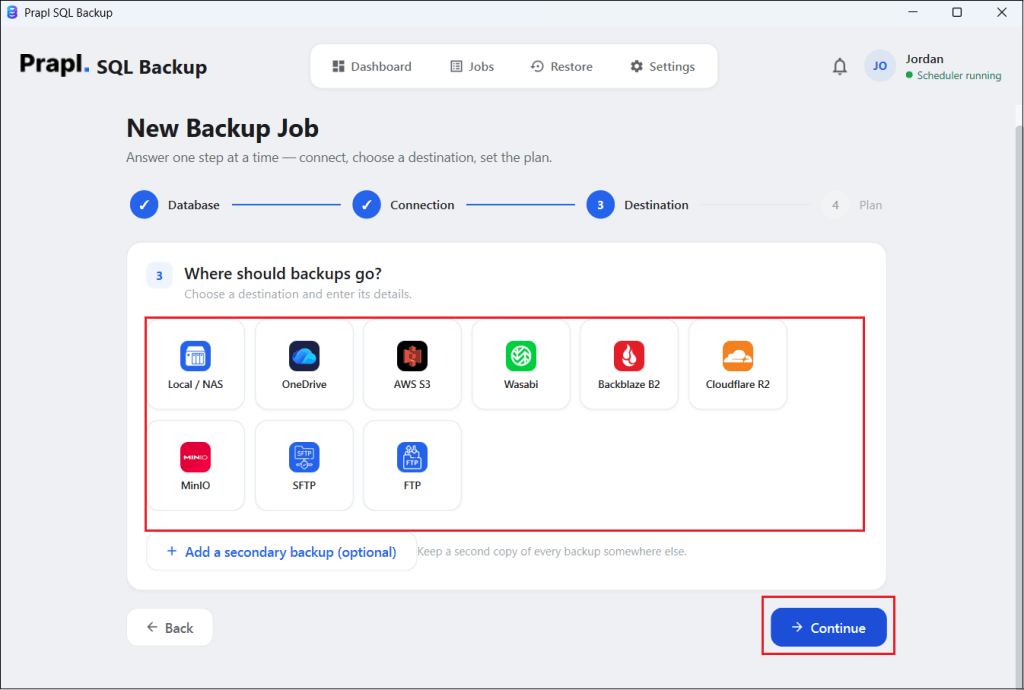
It provides retention settings that allow you to control how many backup copies are kept. You can also backup SQL Server database with compression to reduce the size if backup files. It includes backup history and status information to help you check scheduled backup activity. The tool supports different backup destinations to backup SQL Server database to local machine, NAS, OneDrive, Amazon S3, Wasabi, Backblaze B2, MinIO, FTP and SFTP.

Software Steps to Schedule SQL Server Backups Without SQL Server Agent
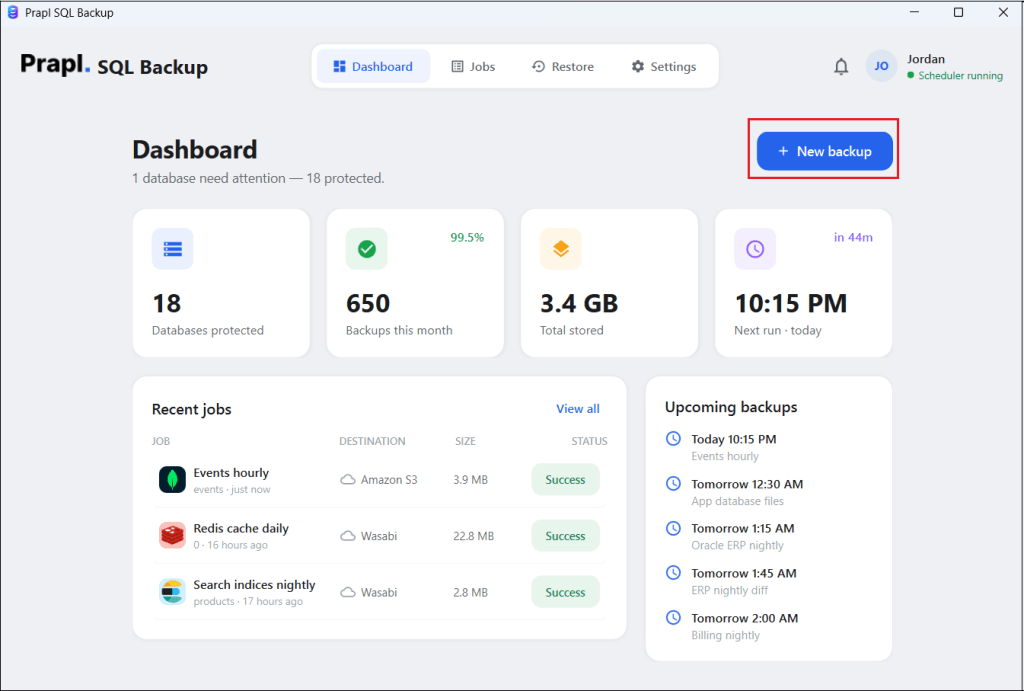
1. Run the tool on your Windows PC and click on + New Backup.
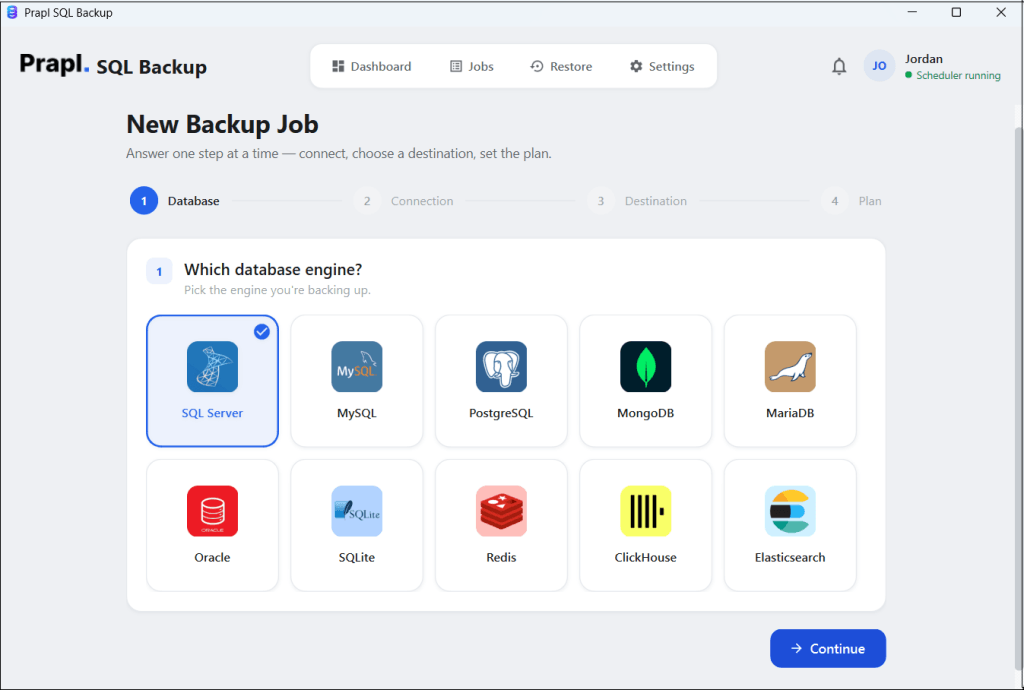
2. Choose SQL Server as a database engine and click Continue.
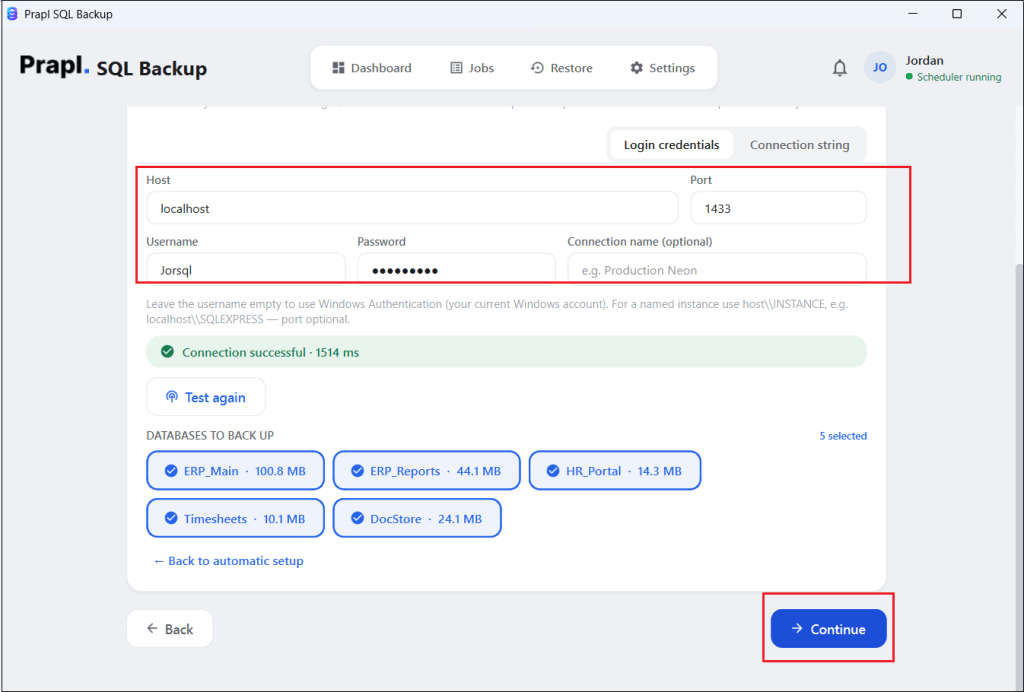
3. Enter SQL Server login details and click on Test & List Database. Once it is verified, choose the database you want to backup.
4. Select a destination location to save backup files and click Continue.
5. Set the backup schedule, choose backup type, retention policy, and enable compression & encryption. After that, click the Save & Run Now button.
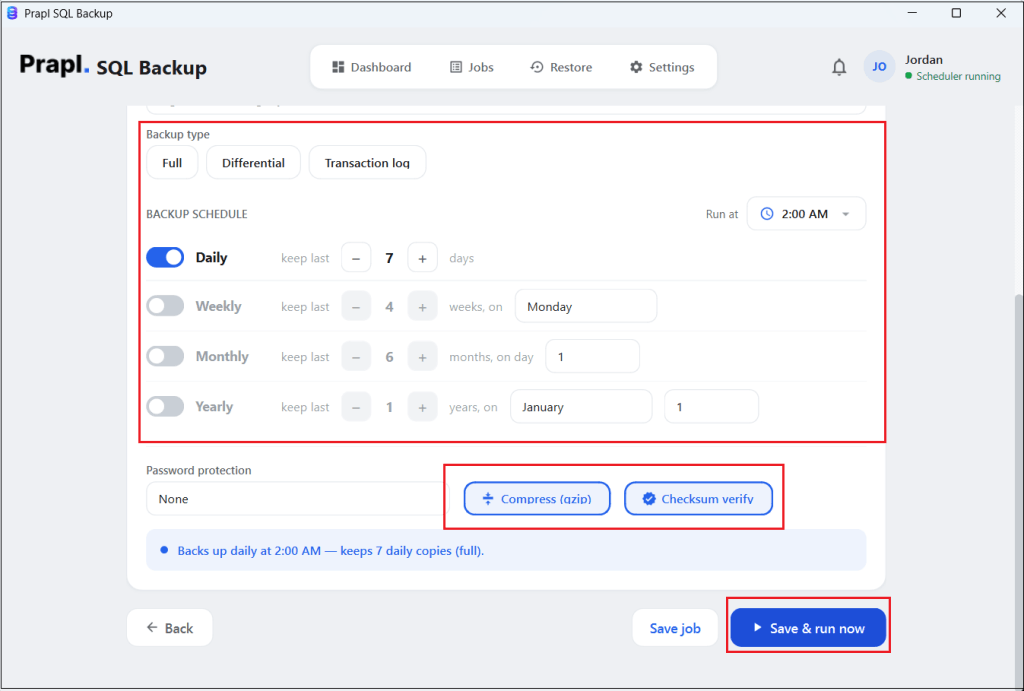
The software will create scheduled SQL Server database backups without requiring SQL Server Agent.
Conclusion
SQL Server Agent is not the only way to schedule SQL Server backups. In this post, we have explained the two best ways to schedule SQL Server backups without SQL Server Agent.
If you prefer a simple script-based method, Windows Task Scheduler is a practical option. If you want scheduling along with retention, compression, multiple storage destinations, and backup monitoring, professional backup software can help simplify the process. Choose the method that matches your requirements and configure a regular backup schedule for your SQL Server databases.