If you have ever worked with a remote server, you have probably used SFTP. It is the safe, trusted way to move files between your computer and a server without exposing them on the open internet. The problem is not SFTP itself. The problem is how most people are forced to use it.
Some type long commands in a terminal and hope they remember the right path. Others open an SFTP-style tool, browse folder after folder to find one file, download it, edit it, and then upload it back over and over. It works, but it feels heavy for something you might do many times a day.
This is where an SFTP desktop client for Windows changes the game. Instead of browsing to your server again and again for every little task, you can have your files sit right inside your pc, ready to open and edit. It turns SFTP into a desktop client on Windows and saves you from the endless back-and-forth of connecting and browsing.
The Problem with the Old Way of Using SFTP
Think about a normal task. You need to fix one line in a config file that lives on a server. With the usual approach, that one small fix becomes a small project. Connect, browse, download, open, edit, save locally, upload, confirm it replaced the old file. If you do this all day, the clicks and steps pile up. And there is always that nervous moment. Did the upload actually finish or did you just overwrite the wrong version? For teams handling live websites or important data, that uncertainty is real.
Benefits of Having SFTP Desktop Client for Windows
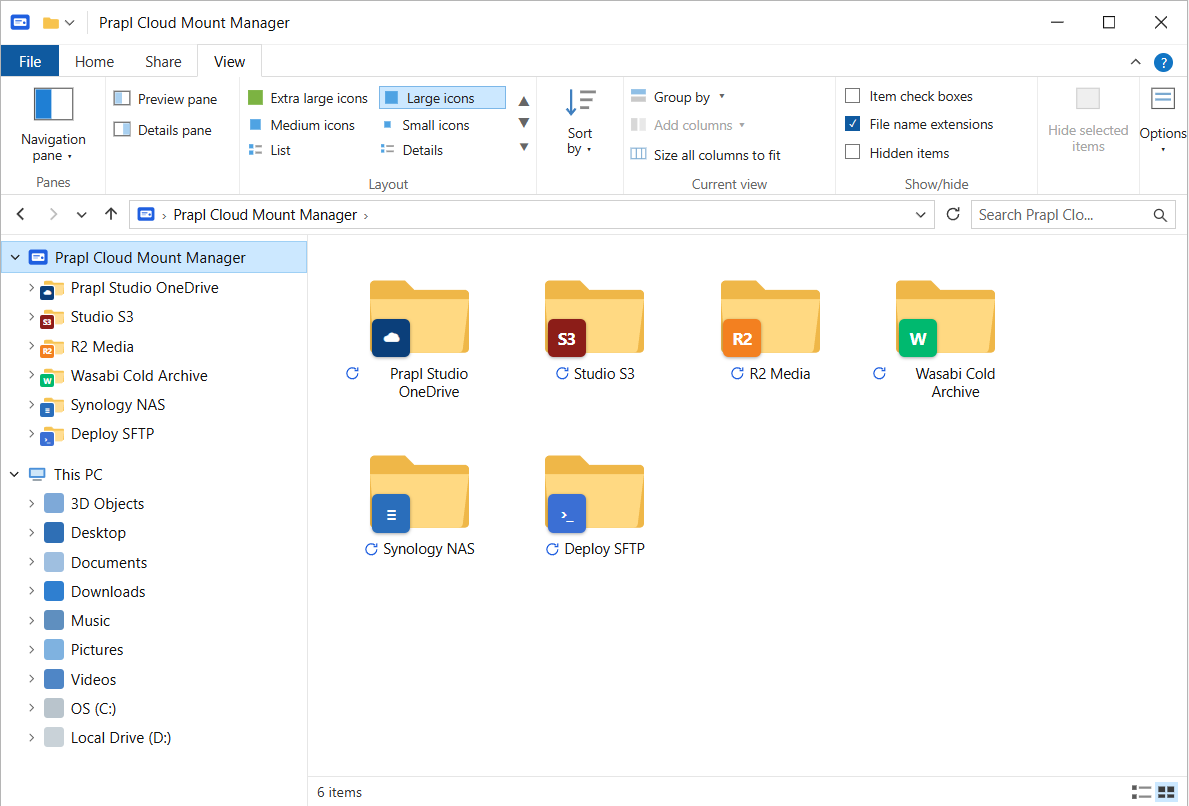
Using SFTP as a desktop client removes almost all of that friction. Instead of treating your server as a faraway place you have to visit. It brings the server folder straight into Windows File Explorer. Your remote files show up like any other folder on your PC.
An SFTP client for Windows makes working with remote files easier. Some of its main benefits include:
- No Repeated Browsing: Access your SFTP file from Windows without opening a browser and connecting to the server every time.
- Easy File Editing: Open a remote file, make changes, and save it. The updated file can be transferred back to the server without extra steps.
- No Commands to Remember: You do not need to use complicated terminal commands. You can manage file through a familiar Windows interface.
- Fewer File Copies: Work with the required remote file directly, so you do not have to keep multiple copies on your computer and worry about uploading the wrong version.
- Secure Transfers: SFTP protects your connection with SSH encryption, helping keep your files and login information secure during transfers.
Professional SFTP Desktop App for Windows
Download and install Prapl Cloud Mount Manager on your system and turn SFTP server into a desktop app on a Windows PC. The workflow is simple. Just connect to your SFTP and use it as a local folder on your PC. There is no repeated browsing.
You can open a file, edit it in whatever programme you like, and the changes get automatically synced to the server on their own. There is no separate download step, no manual approval, and no second-guessing which version is left. You are just working with files the same way you always have on Windows.

Steps to create SFTP Desktop App for Windows
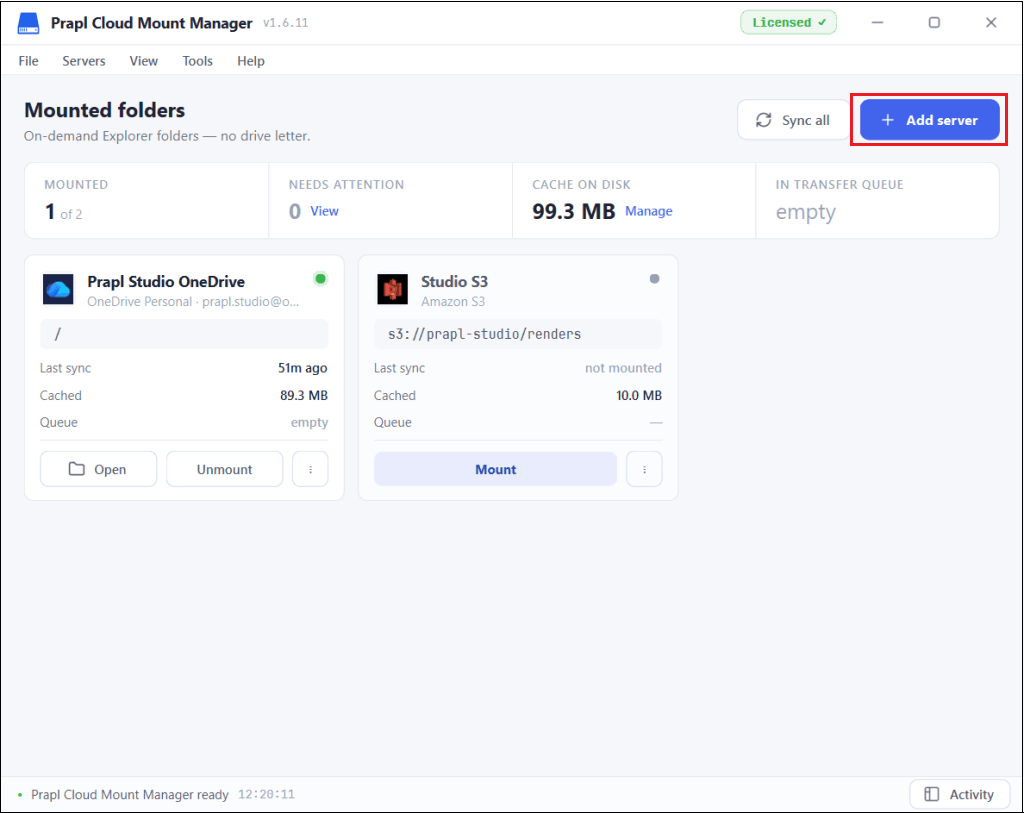
1. Run this software on your system and click Add Server.
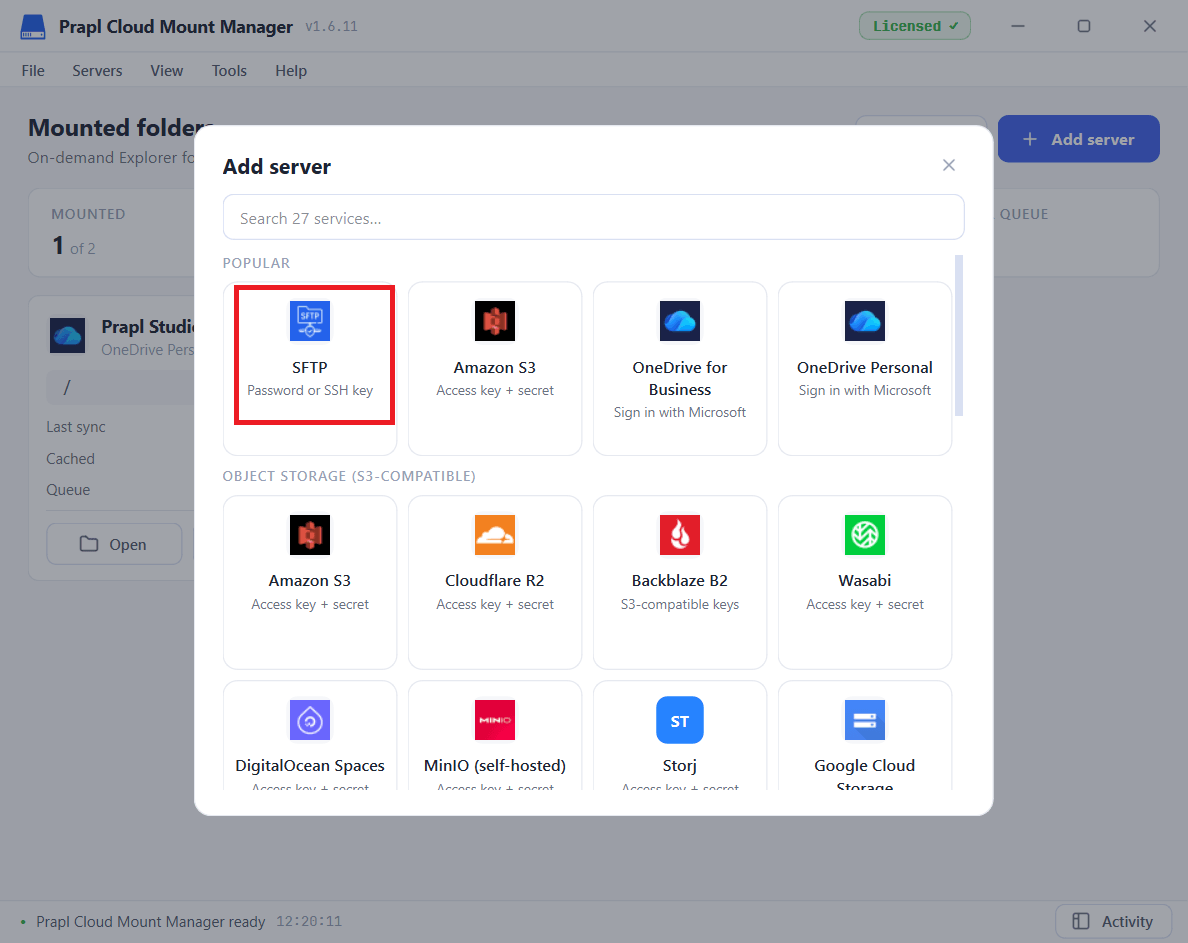
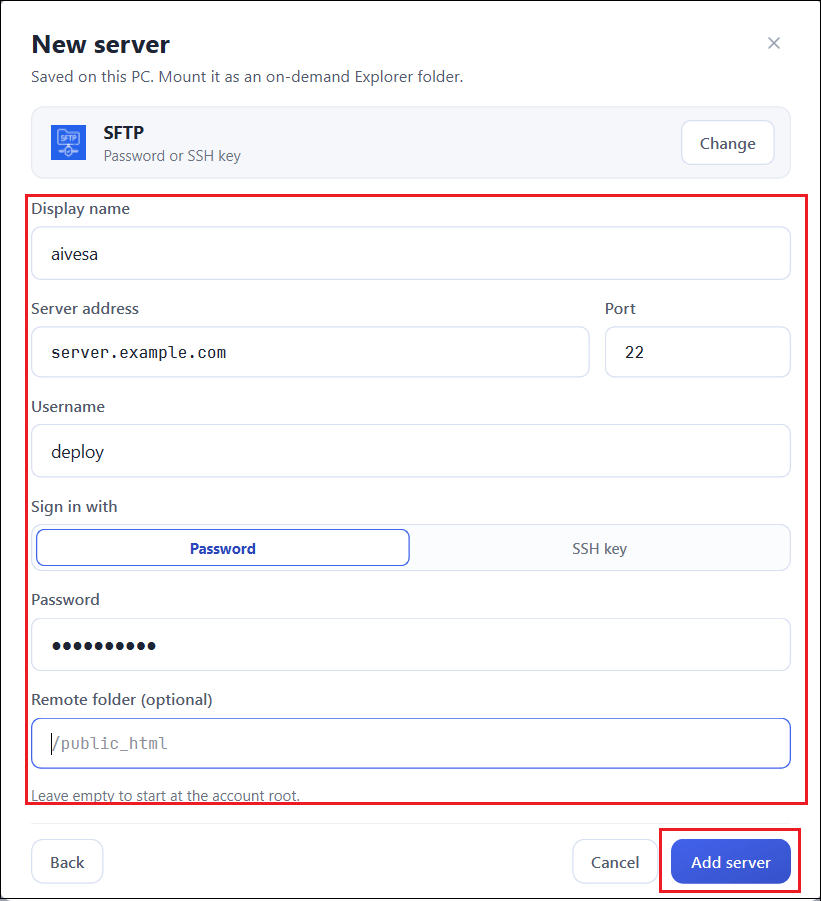
2. Choose SFTP from the listed options.
3. Enter your SFTP login details and press Add Server.
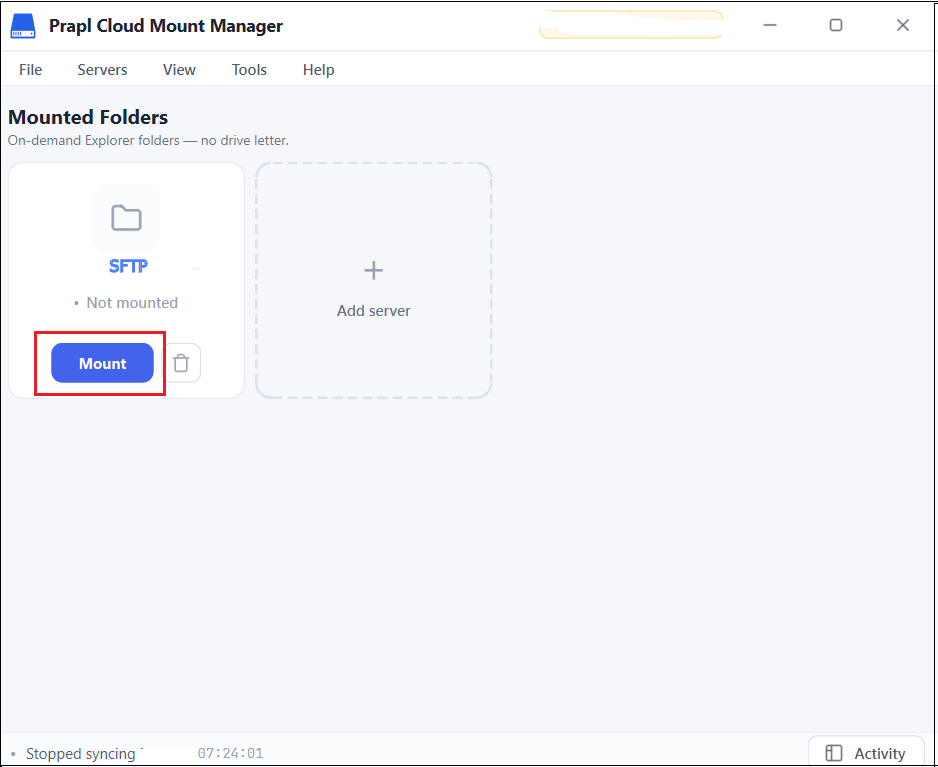
4. Once added, click on Mount.
Done. This is how you can turn SFTP as a desktop client on Windows.
Who Should Use an SFTP Desktop App?
This Kind of desktop client is not only for one type of user. It quickly helps a lot of different people.
- Web developers who keep tweaking files on a staging or live server save time on every edit.
- System administrators who manage several servers can keep them all open as folders instead of switching sessions.
- Content and media teams who upload large files can drag and drop straight into the server folder.
- Even non-technical staff who would normally be scared of anything called SFTP can work confidently, because it just looks like a regular folder.
Tips for Getting Started with SFTP on Windows
Before you dive in, two quick habits make it smoother.
- First, use login credentials or keys that have only the access you truly need, so you keep control over what the app can reach.
- Second, keep your folders organised on the server side, because once everything shows up in File Explorer, a well structure makes finding files even faster.
Final Words
SFTP is safe and reliable. That’s why many users still use it. The only thing worth changing is how you work with it. An SFTP desktop client for Windows allows you to open your server files inside File Explorer without typing commands or downloading & uploading files again and again. You can edit and save easily. The changes update on its own on server. It saves time and keeps SFTP secure. If you deal with server files often, this small switch can make your day much easier.