Every Windows admin moves files from one server to another sooner or later. Maybe you are moving data to a faster server, consolidating two machines or copying a folder of files from a live server to a backup one. Whatever the reason, the question is that, what is the safest and quickest way to transfer files from one server to another without breaking anything? The good news is that you do not need advanced scripting skills or expensive migration services. You can download files from the source server and upload them to the destination server using FTP client. However, this approach can become slow when the data contains thousands of files or large folders.
In this guide, we will explain two simple methods to copy files from one server to another. One is fully manual and the other copies data directly from server to server so you never touch your local drive.
What You Need Before Transferring Files?
A little preparation saves a lot of trouble. Before you begin, make sure you have:
- FTP or SFTP login details for the source server
- FTP or SFTP login details for the destination server
- Enough free storage on the destinatin server
- A backup of the files you want to transfer
- A stable internet connection to avoid interrupted transfers
Once these are in place, you can pick whichever method suits your needs and the size of the data.
How to Transfer Files from One Server to Another with FTP Client?
This is the classic approach to move website from one hosting to another. Download the files from the source server to your Windows PC, then upload them to the destination server. It costs nothing and works with almost any server that supports FTP or SFTP.
- Install a free FTP client such as FileZilla on your Windows machine.
- Enter the host, username, password and port of the source server and connect.
- Browse to the folder you want to move and download all the files to a folder on your PC.
- Now connect to the destination server using its login details.
- Upload the downloaded files from your PC into the folder on the new server.
- Once the upload finishes, open a few files or refresh the site to confirm everything transferred correctly.
This method gives you full control but it has some downsides. Every file has to pass through your computer twice, once on the way down and once on the way up. For a few small files, that is fine, but for large or multiple files, it can take hours, and a dropped connection may force you to start over.
How to Move Files from One Server to Another Without Downloading?
If routing everything through your PC feels slow, use the Prapl FTP to FTP File Transfer tool to transfer files from one server to another directly. The software connects to both servers at the same time and copies files directly between them without downloading and uploading. Your local machine stays out of the loop, which means the transfer is faster and uses no local bandwidth.

Steps to Migrate Files from One Server to Another
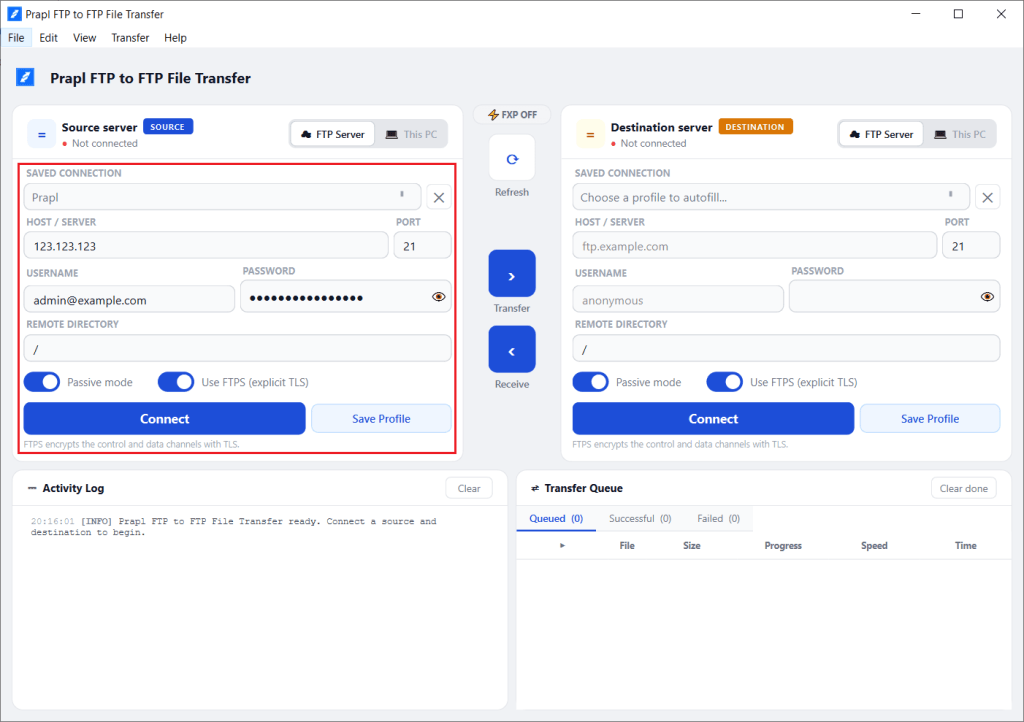
1. Launch the tool on your Windows PC. Enter the host, port, username and password of the source server and then click Connect.
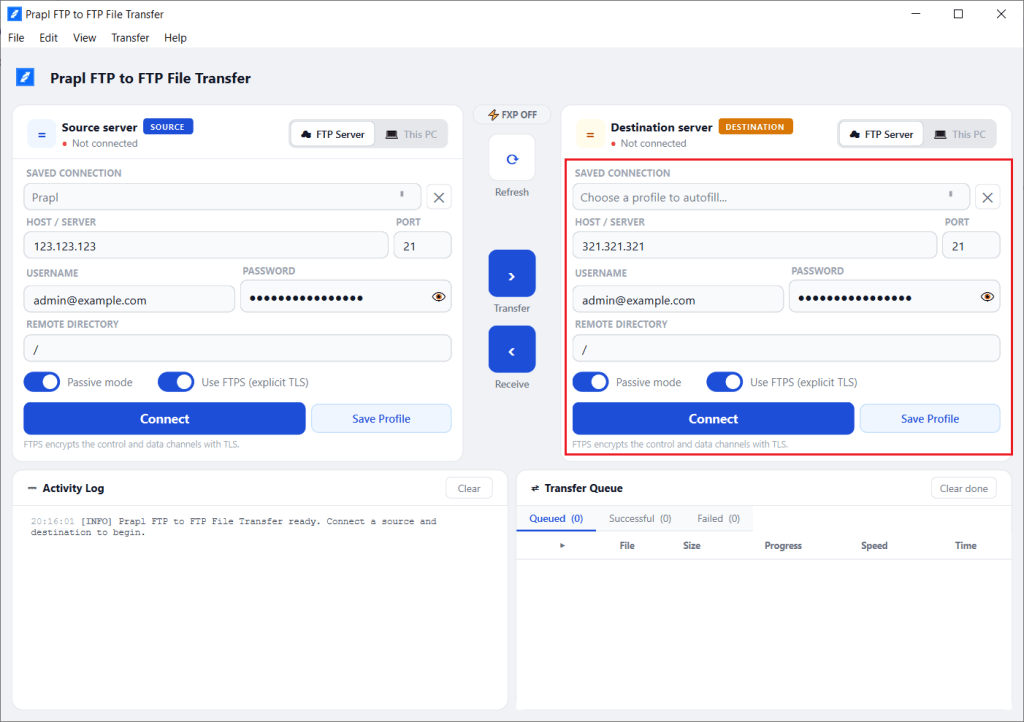
2. Now, enter the host, port, username and password of the destination server. After that, click Connect.
3. Once both servers are open side by side, select the file oor folders that you want to move and click on Transfer.
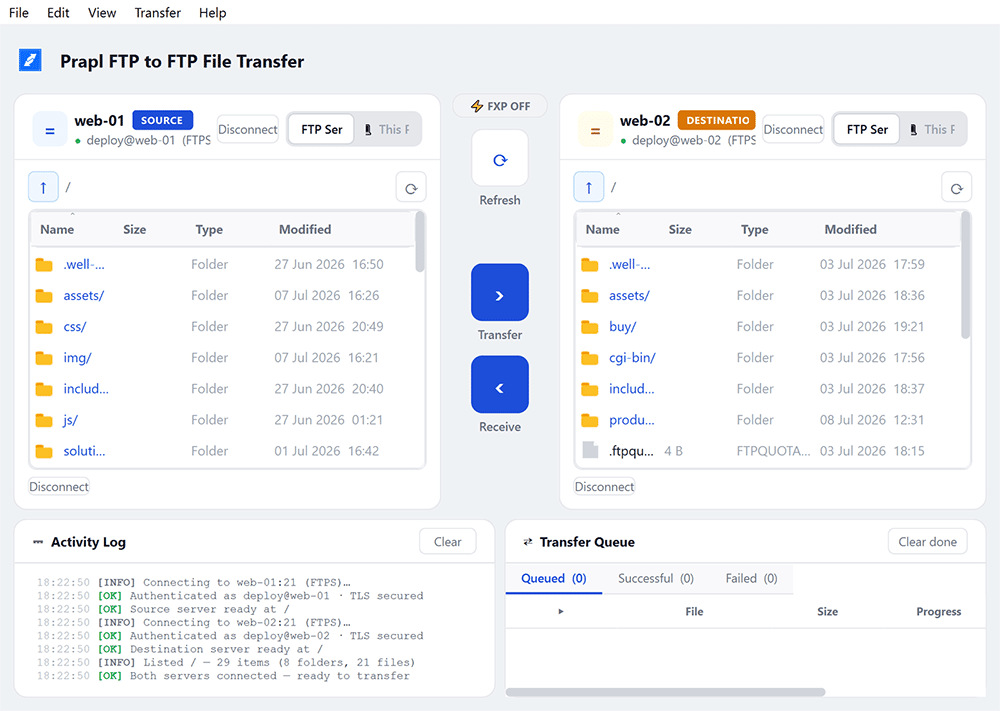
The tool handles the rest and copy files from one server to another in a few seconds. It works best for static files and general folders. If your files belong to a database-driven application like WordPress, the database itself must be exported and imported separately.
Tips for a Smoother Transfer
A few small habits keep transfer clean and stress-free:
- Always keep a backup of the source file until you conform the new location works.
- Check available storage on the destination server.
- Use FTPS when source file transfer is required.
- Transfer during off-peak hours so a large job does not slow down active users.
- Verify the counts on both sides after the transfer to make sure nothing was missed.
Conclusion
Copying files from one server to another is a task most Windows users face at some point. It really comes down to picking the method that matches your job. In this post, we have discussed how to transfer files from one server to another using both manual and professional solutions. If you only have a small set of files, the manual FTP way gets it done but when the folders are big or you simply do not want to wait around while files crawl through your PC, a direct server-to-server transfer is the smart choice. Check how much data you are moving, decide how much time you want to spend and go with the option that keeps the job simple for you.
Frequently Asked Questions
Q1. Can I move files between servers for free?
Ans. Yes. You can use a free FTP client like FileZilla to download files from one server and upload them to another at no cost.
Q2. How can I transfer files from one server to another using SFTP?
Ans. To copy files between two remote servers, connect your local machine to the source server using SFTP or use SCP to copy files directly between the two remote hosts.
Q3. Which is best, FTP or SFTP?
Ans. SFTP is generally the best choice because it encrypts data and requires secure login, while FTP sends passwords and data in plain text.