

Taking regular backups of SQL Server database is important for protecting business data. If a database is damaged, deleted or affected by a system failure, a backup can help you recover it. But where you save that backup also matters. Keeping a backup on the same server as the original data may not provide enough protection. If the server fail its hard drive gets damaged, or the system is affected by ransomware, both the database and its backup may become unavailable. That is why having backup SQL Server database to local machine can be a better option.
A local machine gives you another place to store SQL Server backup file outside the main database server. You can save a .bak file on a different computer, external drive or other local storage. This helps keep a separate copy of your database and makes it easier to access backup files when needed. For businesses that handle important SQL Server data, a local machine can be helpful part of a wider backup strategy.
Benefits of Backing Up SQL Server Database on a Local Machine
Saving SQL Server backup on a local machine provides several advantages. Some of them are:
- Protection from Server Failure: If the main SQL Server stops working because of hardware or software problem, a separate backup copy remains available.
- Reduced Risk of Data Loss: Keeping the backup away from the original database helped reduce the chance of losing both copies in the same incident.
- Easy Access to Backup Files: Local backups can be accessed easily, which makes it simple to find backup files.
- Useful for Database Recovery: You can restore the backup to the same server after fixing the issue or to another SQL Server for recovery.
- Control Over Storage: You can choose your own local drive, external disk or NAS instead of depending on the main database server.
How to Backup SQL Server Database to Local Machine Manually?
SQL Server Management Studio (SSMS) provides a built-in option to save databases. You can use it to create a full backup and save the .bak file on your system.
- Open SQL Server Management Studio and connect to your SQL Server instance.
- Now, open the Databases folder from Object Explorer and find the database you want to backup.
- Right-click on the required database and select Tasks, and click on Backup.
- Now the Backup Database window will appear. Choose Full under Backup Type.
- In the Destination section, click Add. Enter the path of a folder on the local machine where you want to save the backup.
- If the local machine is different from the SQL Server computer, use a shared network path that the SQL Server service can access.
- Click OK to start the backup process.
Once the backup is completed, SSMS will display a success message. Open the selected folder and check that the .bak file has been created.
How to Take Automated SQL Server Database Backup to Local Machine?
The manual method works well when you need to take a backup occasionally. However, it becomes less suitable when you manage multiple databases or need backups every day. You must open SSMS, select the database, choose the destination and start the process manually. Keeping track of backup files, schedules and older backup copies can also take extra time.
These limitations can be managed with a professional backup tool. Prapl SQL Backup Tool helps simplify SQL Server backup management by allowing you to configure backup job, select storage location and automate regular backup. Instead of repeating the same manual steps, you can keep a backup job and let the tool handle the configured process to schedule automated SQL Server database backups without complex scripts. With this utility, you can also restore your SQL Server database backups whenever yu need.

Steps to Backup SQL Server to Local Server Automatically
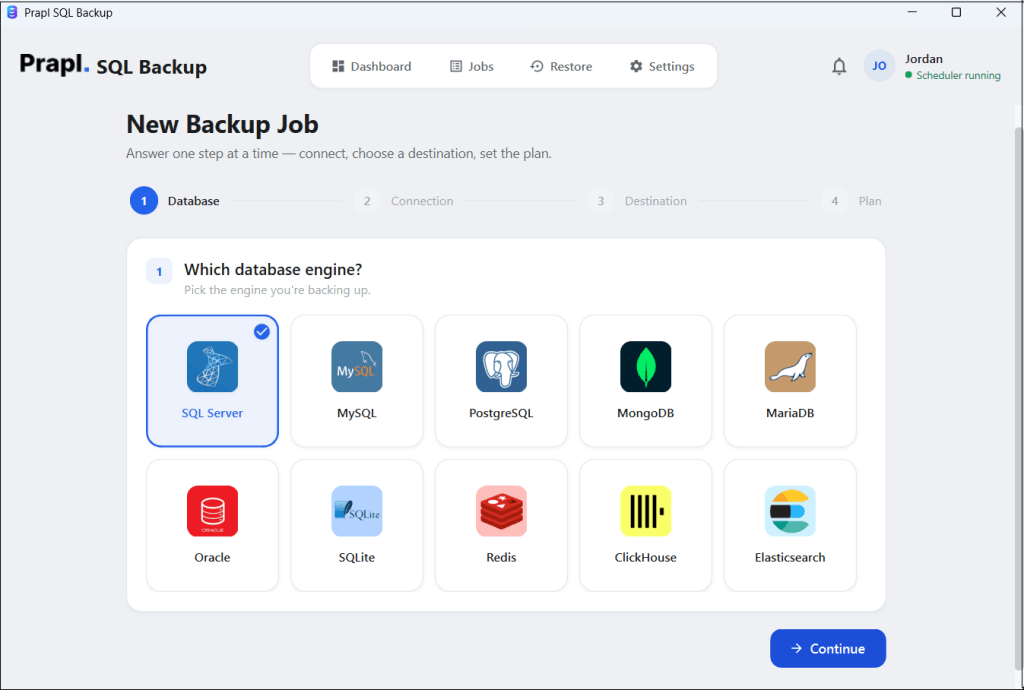
1. Run the tool on your Windows PC and choose SQL Server as a database engine.
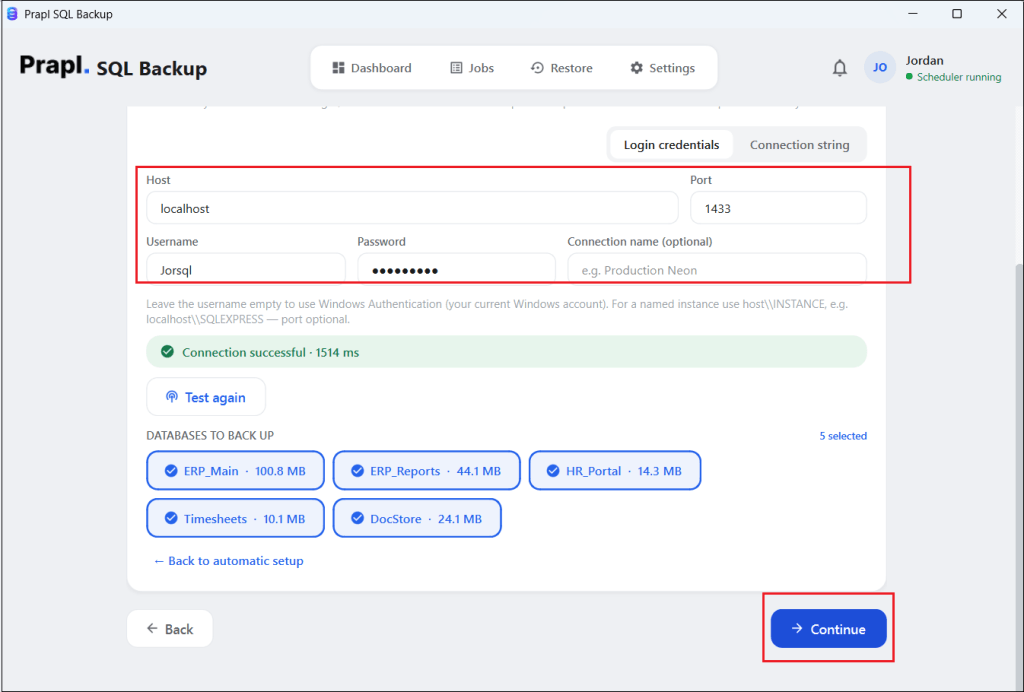
2. Enter SQL Server login details and click on Test & List Database. Once the connection is verified, choose the database you want to back up.
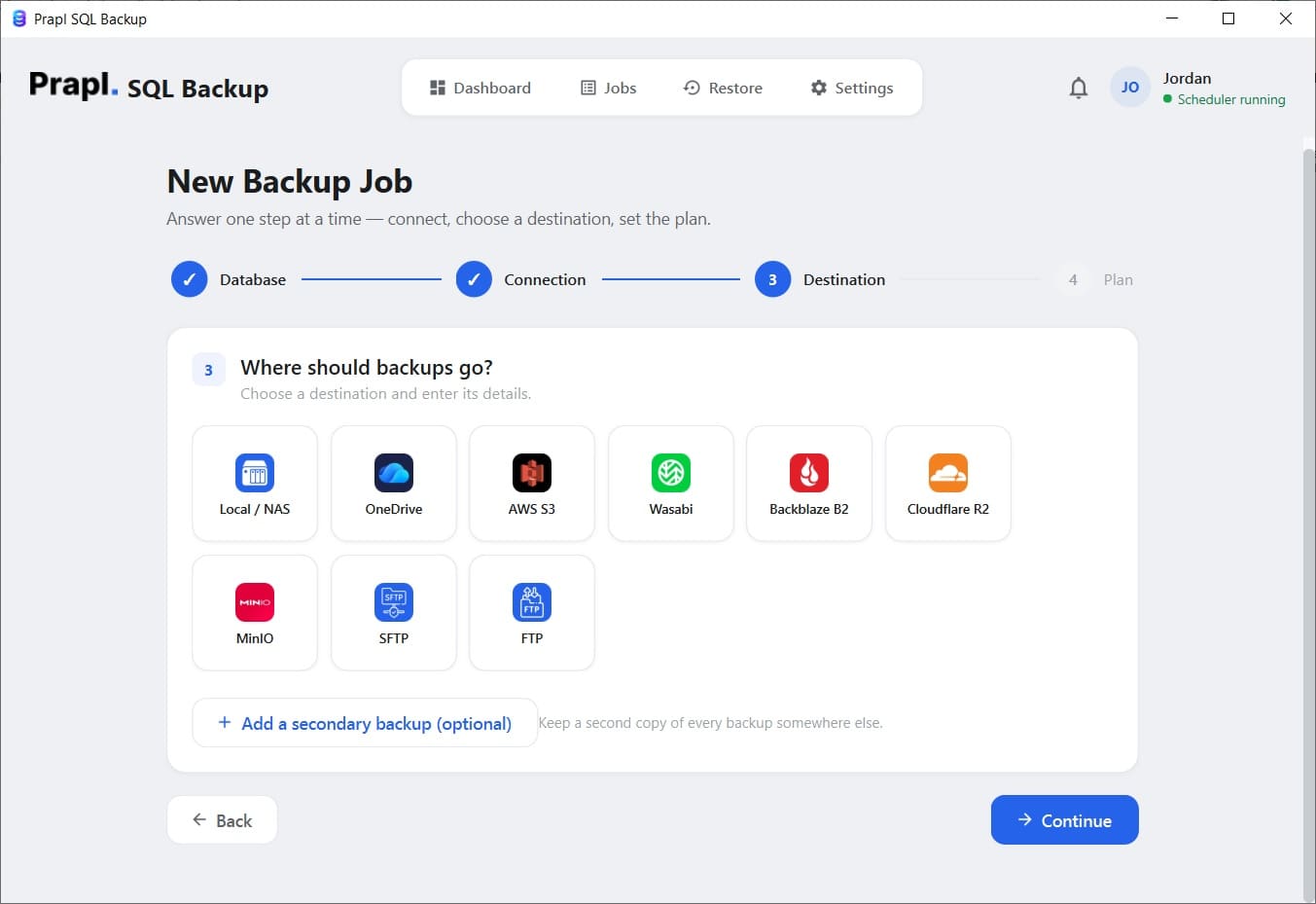
3. Choose Local/NAS as a destination location and click Continue.
4. Select backup type, set schedule and then click the Save & Run Now button.
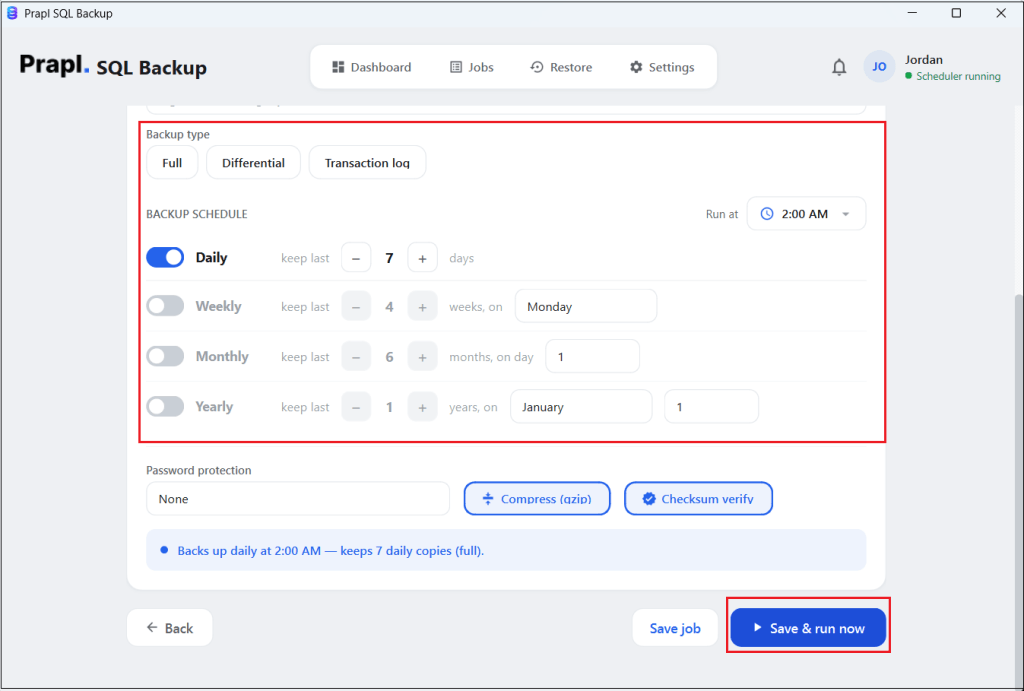
The software will process the configured backup and save it to the selected local storage location.
Why Use Prapl SQL Backup Tool?
This is useful when you want more control over your backup process. It provides options for managing backup schedules, storage, retention and other settings from one application.
- Scheduling: You can configure backup schedules such as daily, weekly, monthly or yearly according to how frequently your database changes. By configuring these schedules, you can automate SQL Server backups without running them manually each time.
- Multiple Storage Destinations: It offers several storage locations including local storage, NAS, OneDrive, Amazon S3, SFTP, Wasabi, Blackblaze B2, MinIO and other supported storage options.
- Retention: Backup retention allows you to decide how many older backup copies should be kept. This helps manage disk space while keeping older backups available for recovery.
- Compression: Smaller files require less storage space and may take less time to transfer to another destination. With this utility, you can backup SQL Server database with compression to manage storage.
- Encryption: Backup files may contain sensitive business data. Encryption helps protect backup file contents from unauthorized access. It supports AES-256 encryption for protection.
- Backup History: It helps you review previous backup jobs and check whether they completed successfully. You can use the history to identify failed backups, review backup activity and check the status of earlier jobs.
Conclusion
Backing up SQL Server data to a local machine is useful to keep a separate copy of important data. A backup stored on the same server may be lost along with the original database if the server failed or the storage is damaged.
In this post, we have explained the two best ways to backup SQL Server to local machine. SSMS provides a simple manual way to create a .bak file. However, regular backups can become difficult to manage when you have multiple databases or need daily, weekly or monthly schedule.
The software provides a more organized way to manage SQL Server backups with scheduling, multiple storage destinations, retention, compression, encryption and backup history while keeping regular backup copies and testing restoration, you can improve your SQL Server data protection process.