Cloudflare R2 is useful for storing files in the cloud without managing traditional storage servers. However, working with files through a web browser can become time-consuming when you regularly upload, download, organize or transfer data.
A Cloudflare R2 desktop client for Windows gives you a simple way to work with R2 files from your computer. With a suitable desktop app, you can access your cloud storage through the Windows file interface and manage files without repeatedly opening the Cloudflare dashboard.
In this guide, we will explain how to use Cloudflare R2 as a desktop client on Windows.
What is Cloudflare R2?
Cloudflare R2 is an object storage service from Cloudflare that lets users store and manage files in the cloud. It is designed for different types of data, including documents, images, videos, backups, website files and application data. R2 supports the S3 API, making it compatible with many applications and tools that work with S3-compatible storage. This gives users different ways to access and manage their R2 buckets. Cloudflare R2 can be managed through the Cloudflare dashboard but that approach may not be ideal when you work with files regularly. For everyday file tasks, a Windows desktop client can provide a more familiar workflow.
Why Use Cloudflare R2 Desktop Client for Windows?
Using R2 through a browser works well for occasional tasks. However, frequent file management can involve several repeated steps, such as opening the browser, signing in, navigating to R2, selecting a bucket and locating the required file.
A desktop client can simplify this workflow. Once you mount Cloudflare R2 in File Explorer, you can access your R2 files through Windows and work with them using familiar file operations.
Some common benefits include:
- Access R2 files from Windows Explorer
- Upload and download files more easily
- Copy files between your PC and R2
- Organize cloud files from the Windows interface
- Work with local and cloud files in the same workflow
- Reduce the need to repeatedly open the Cloudflare dashboard
How to Use Cloudflare R2 as a Desktop Client on Windows?
Download and install Prapl Cloud Mount Manager on your system to access Cloudflare R2 from your Windows desktop. The software works with R2 through its S3-compatible API and allows you to access the files from the Windows file system. It saves you time and reduces repetitive browser-based steps.
Once the R2 connection is configured, you do not need to work inside a separate browser interface for regular file operations. Your R2 files become available through the Windows File system, so you can access them from the same environment where you normally work with local files.

Cloudflare R2 Desktop App Using This Tool in 5 Simple Steps
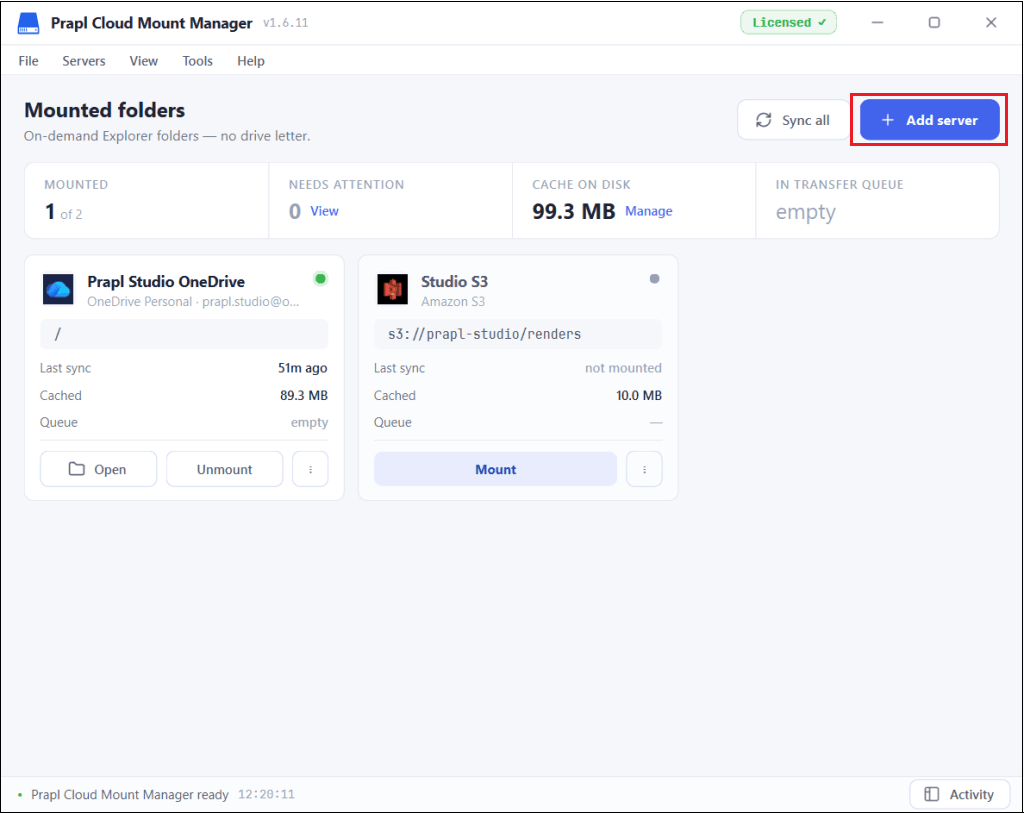
1. Run the tool on your Windows PC and click on Add Server.
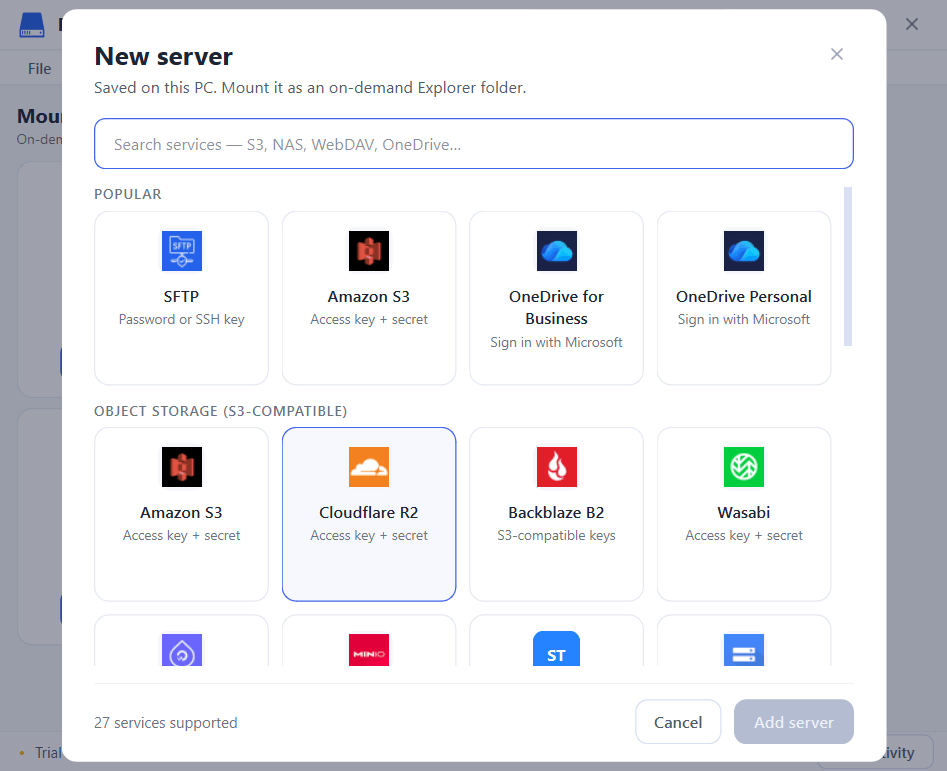
2. Choose Cloudflare R2 from the available options.
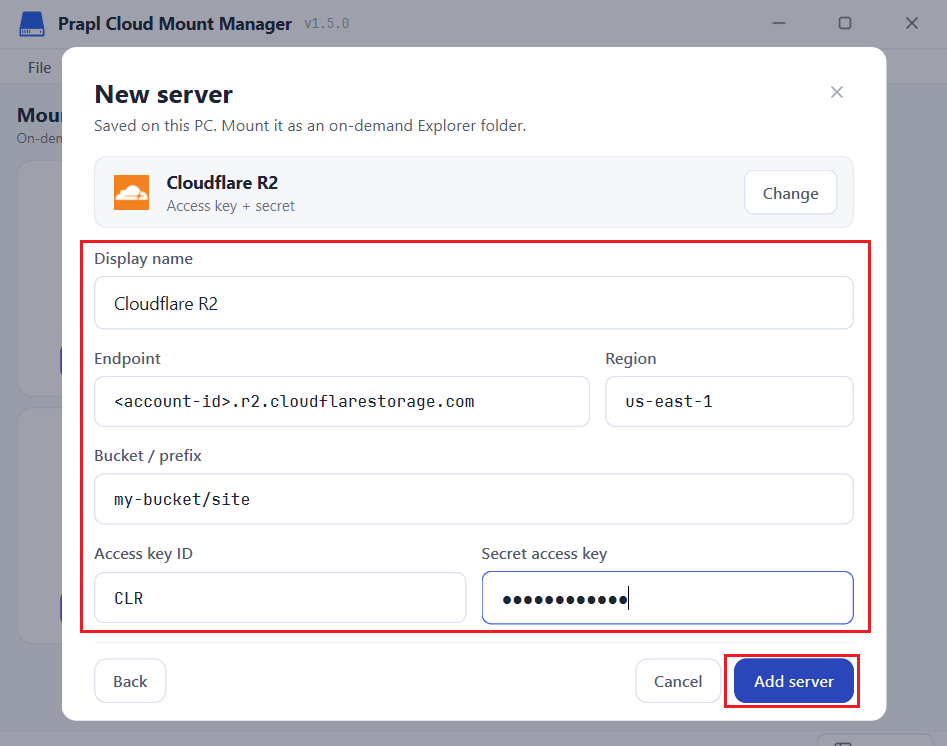
3. Enter the secret key and other details of Cloudflare R2 and press Add Server.
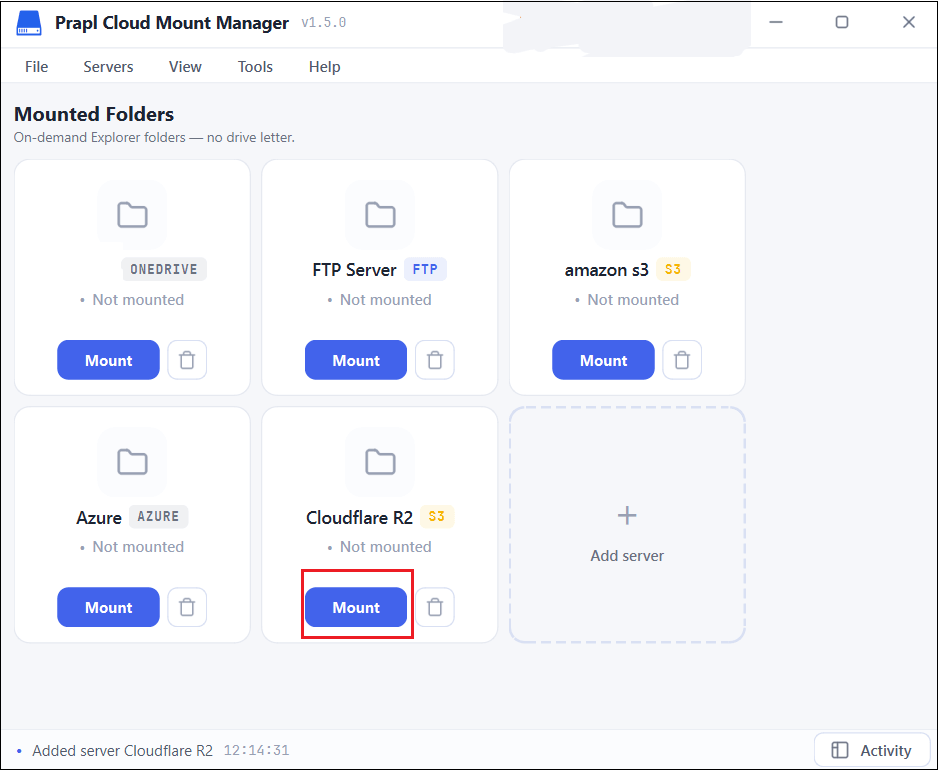
4. Once added, click on Mount.
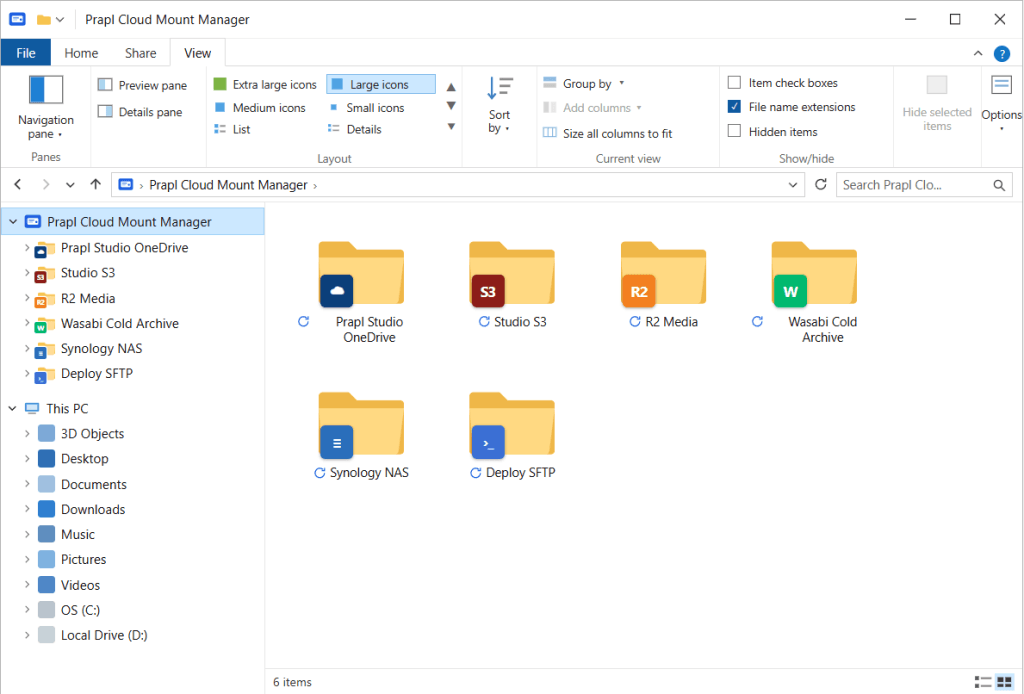
5. Now, Cloudflare R2 will be accessible in your Windows File Explorer. You can work with your cloud files as like local files.
Comparison Table: Browser vs Cloudflare R2 Desktop Client
The browser remains useful for managing your Cloudflare account and R2 settings. However, using Cloudflare R2 as a desktop client can be more suitable for regular file operations.
| Feature | Web Browser | Desktop Client |
|---|---|---|
| Access R2 Files | Through Dashboard | From Windows |
| Repeated Browser Sites | Required | Not Needed |
| File Management | Web Interface | Windows Explorer |
| Upload/Download | Browser-based | Desktop Workflow |
| Daily File Access | Less Convenient | More Convenient |
Who Can Benefit from Cloudflare R2 Desktop Client?
A desktop app can be useful for anyone who regularly works with files stored in R2. It can be particularly helpful for:
- Developers managing application files
- Businesses storing documents and media
- Website administrators handling website data
- Users keeping backups in R2
- Users who frequently transfer files between local computers and cloud storage.
Final Words
Cloudflare R2 is designed for cloud storage, but you do not have to rely on the web dashboard for every file operation. A suitable Cloudflare R2 desktop client for Windows can provide a more familiar way to work with your cloud files. With the above-suggested tool, you can configure your R2 storage using its S3-compatible connection details and access your files directly from Windows. This makes regular uploads, downloads, and file management easier without repeatedly browsing through the Cloudflare dashboard.